
A directory’s paid packages can offer different opportunities to describe a listing. A basic plan might collect the essentials, while another plan adds a downloadable brochure, detailed service information, or other useful optional content. With the Listdom Membership add-on, native custom fields can be assigned to particular packages.
The important setup detail is where that assignment lives: open the custom field and use Related Packages. The package editor shows the resulting field availability, but it is not where you assign every field. This guide explains that relationship and the tests needed to keep package rules, category rules, and public output consistent.
Separate a listing fact from a package entitlement
A custom field describes a listing. A package determines what the owner can use within the configured offer. Those roles can work together, but they should not distort the directory’s basic information.
Keep essential identity and decision facts available where visitors need them. A paid package can add presentation depth or useful supporting material without making free records misleading. For instance, a venue’s basic location and type should remain clear, while a brochure download can be a distinct additional opportunity.
Do not create a category called “Premium” merely to simulate package availability. Categories describe what the listing is; package assignment describes its commercial configuration. Labels, result placement, modules, and custom-field access are separate controls that may participate in an offer.
If you are still designing the plans themselves, review the Listdom membership packages guide. This article focuses on the narrower question of which native fields become available for each package.
Build a field matrix before changing settings
List the fields, their applicable categories, and the packages that should include them. Begin with two packages and a small set of meaningful differences. Give each field a real reader benefit rather than adding fields only to make the expensive plan look longer.
| Field | Category scope | Package availability | Visitor benefit |
|---|---|---|---|
| Service area | Relevant service categories | All packages | Understand where the provider works |
| Brochure | Categories where a brochure is useful | Selected package | Review detailed supporting material |
| Equipment details | Relevant specialist category | Selected packages | Compare a specific capability |
| Extra background notes | Relevant categories | Chosen plan according to the offer | Understand information missing from the basic record |
Treat this as an example matrix, not a requirement to reproduce those fields. A restaurant guide, property portal, and professional directory need different information. Native field types and values should still match what the information means.
Write down what the pricing page will promise and how you will test it. “Brochure upload” is concrete. “More powerful listings” does not tell an owner which field they will receive or how it helps a visitor.
Confirm the membership and custom-field foundation
Package-specific field assignment uses the Listdom Membership add-on. Listdom Pro alone is not a catch-all replacement for that product. Confirm the relevant add-on and packages are configured before testing package-specific behavior.
Create native custom fields under Listings → Custom Fields. With Compact Menu enabled, open Listdom → Listings and the Custom Fields header tab. Choose suitable types, choices, required behavior, and category applicability.
If you are new to the field editor, the guide to native Listdom custom fields covers its ordinary data-model role. Keep ACF integration separate: this workflow describes Listdom’s native fields and their Related Packages assignment, not a promise that every external field follows the same rule.
Check the submission modules too. A package or form configuration that disables the relevant custom-field module can prevent an otherwise eligible field from being usable. Field assignment should be tested within the actual package and form journey, not as an isolated checkbox.
Assign Related Packages in the field editor
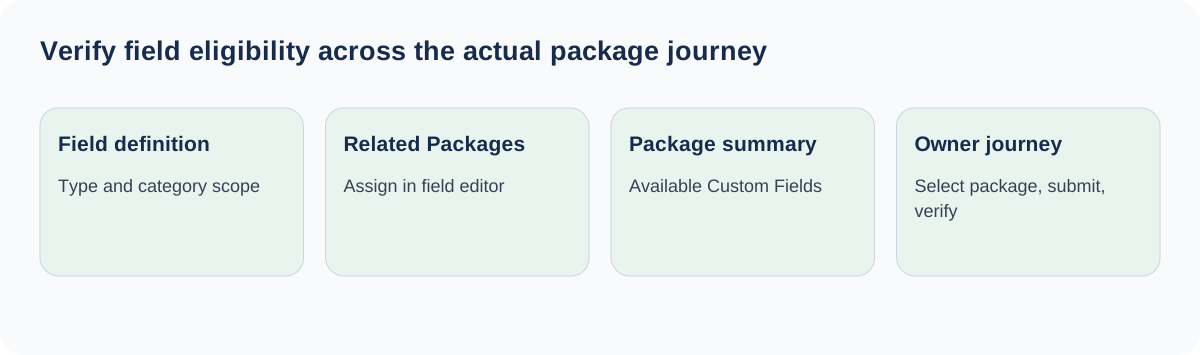
Open the custom field’s create or edit form and locate Related Packages. Assign the packages that should make that field available, then save the field. Repeat for the small set of fields in your matrix.
A field assigned to all packages behaves as a normal field subject to category rules. A field assigned to selected packages depends on the listing/package workflow as well. Do not assume package assignment replaces category applicability.
For example, a premium brochure field restricted to Hotels should not become a field for an unrelated premium Plumber listing. The package describes the entitlement, while the category describes whether the information belongs to that listing type.
Keep the configuration names understandable to future editors. If two fields have similar labels, record their intended use and scope before assigning them to multiple plans. Duplicating a field to work around a mistaken package selection can create inconsistent data and confusing public output.
The custom-field reference documents this assignment point and its category interaction. Save changes before moving to the package summary so you are inspecting the latest configuration.
Review Available Custom Fields in the package
Open Listdom → Memberships → Packages → Edit Package. Under Dashboard Modules, inspect the Available Custom Fields information box. It shows the final field availability for that package.
Use the box as a verification surface. Compare it with your matrix and with the fields’ saved Related Packages choices. If a field is missing, return to the field editor and its applicable rules rather than looking for a second independent assignment list in the package.
Repeat for the other package. This side-by-side check is particularly useful when a field should be shared by several paid tiers but absent from the basic one. Check shared fields too: an unintended restriction can remove information the basic plan still needs.
Do not stop after reading the summary. It helps validate configuration, but the owner still needs a usable frontend route into the selected package and the corresponding submission form.
Test the package-first frontend journey
Use a nonadministrator owner account and enter the Add Listing form after selecting the package being tested. Package-specific fields appear in that package-aware flow; opening an unscoped form and expecting it to infer a future package is not an equivalent test.
Choose a matching category and verify the eligible fields appear. Submit a realistic value, save the record, and reopen it. Then repeat with a category that should not receive the field and with another package. Record the result for each combination.
Include required and optional fields in the test. A required premium-only field should not create an impossible submission for a basic-plan owner who cannot access it. If a field appears but cannot be completed, inspect its field definition, module availability, and conditional scope before changing account permissions.
For a Brochure field assigned only to Hotels and the Premium package, use this small acceptance matrix:
| Selected package | Listing category | Expected eligibility |
|---|---|---|
| Premium | Hotel | Eligible, provided the form module is enabled |
| Basic | Hotel | Outside the field’s package assignment |
| Premium | Plumber | Outside the field’s category assignment |
| Basic | Plumber | Outside both assignments |
Use the same owner account and creation route for all four checks. That keeps a role change or a different form from obscuring which assignment explains the result.
Keep authentication, package selection, submission, and publication as separate checks. A form can save correctly while the listing still waits for review. Package-specific fields do not themselves bypass moderation or establish successful payment.
Understand backend creation and later editing
The WordPress administration Add Listing screen does not select a package in the same way as the package-first frontend flow. Native fields are category-driven in that creation context. Do not use that screen alone to demonstrate what a paying owner sees.
For a listing previously created through the frontend with a package, later backend editing can respect the listing’s package assignment. Fields outside that package may not appear even if the category otherwise matches. That difference can surprise an administrator who compares a fresh backend record with a package-associated one.
Use a small test table: new backend listing, new package-first frontend listing, frontend edit, and backend edit of that same package-associated listing. Keep the category fixed while comparing package behavior; then vary the category separately.
This method avoids a common false conclusion: “The field works for admins, so it should work for every owner.” The account and the path through the form are both part of the configuration being tested.
Verify the public listing and explain plan changes honestly
On single-listing pages, package-specific field output depends on the listing’s package assignment. Open the public page while signed out and compare its displayed details with the saved values and intended offer.
Test more than visibility. Check readable labels, units, file links, empty values, and the active template. A field can be eligible yet absent because no value was saved or because a custom details-page layout does not display that section.
Before advertising upgrade or downgrade behavior, test the supported package-change journey on staging. Inspect which fields become editable or visible afterward and what happens to previously stored values. Do not promise that hidden data is deleted, automatically restored, or migrated unless the current workflow confirms it.
Explain the offer in terms owners can verify. If a package grants a brochure field, show where to upload it and how it appears. If the offer changes, review the pricing copy, existing listings, owner instructions, and field matrix together.
Avoid confusing extra fields with better discovery
More fields are useful only when owners provide meaningful information and visitors can understand it. A large optional specification area full of empty labels can make a listing look less complete rather than more valuable.
Use the shared fields for consistent facts that support basic comparison. Use selected-package fields for genuine additional information or content opportunities. Keep claims accurate across both; a paid tier should not imply independent verification of everything its owner enters.
If search needs a field, verify its actual integration with the search form separately. Adding package eligibility is not an automatic searchable-data setup. Structured information also helps AI-assisted discovery only when it is accurate, maintained, and available in the relevant public output; it does not guarantee inclusion in an answer.
Review the directory search and filter planning guide when package design affects what visitors can compare. Keep the reader’s task central rather than designing the form entirely around the pricing table.
Resolve hidden fields with the matrix as your reference
For a missing field, check the field definition, category scope, Related Packages, package summary, submission modules, selected package in the frontend journey, and the listing’s saved package association. For missing public output, also inspect the saved value and active details-page template.
Change one layer at a time and repeat the same test. Keep a screenshot or note of the initial configuration. If the problem persists, provide support with the field name, package, category, creation/editing route, expected result, and a representative test listing.
After the tests pass, give editors a short rule: package assignments are managed on each field; the package’s Available Custom Fields box confirms the result. That simple handoff makes later package changes much less likely to break the submission experience.
FAQ
Where do I assign a field to a package?
Open Listings → Custom Fields, edit the field, and use Related Packages. In Compact Menu, use the corresponding Custom Fields tab under Listdom → Listings.
What does Available Custom Fields do?
It is an information box in the package editor under Dashboard Modules. Use it to review the resulting availability rather than as a second field-assignment mechanism.
Do package rules replace category rules?
No. Category applicability still matters. Test the package and category combination that the owner will actually use.
Why does the backend Add Listing screen show a different result?
Fresh backend creation has no package selected in that flow and is category-driven. A later edit of a package-associated listing can have different field eligibility.
Does hiding a field delete its saved value?
Do not assume that. Test the supported package-change workflow and inspect stored and public behavior before promising deletion or restoration.
Is the Membership add-on the same as Listdom Pro?
No. Package-specific field behavior uses the Membership add-on. Keep that product requirement clear when planning the directory’s stack.