
The Listdom Ads Addon gives you a place for advertising within listing pages. You can set a global advertisement as a fallback, then supply different content for an individual listing when that page needs its own sponsor or campaign.
This is a placement workflow, so begin with the page and its visitor. Decide what advertising belongs there, how it is distinguished from the listing’s information, and where it should appear without interrupting the main task. Then configure the content source and the Ads element that displays it. This guide covers those practical steps and the tests that keep a small placement manageable.
Define the placement before choosing the creative
Write down which listing pages will carry the ad and what the sponsor’s destination should be. A general city guide might show one relevant site-wide partner. A specialist listing might need a different approved banner. Keep the offer relevant to the page without making the advertising look like the business’s own contact action.
Distinguish an advertisement inside a listing from paid placement in directory results. A Featured label or a higher result position is a different product and should be described differently to advertisers. The Ads Addon does not turn every listing card into an automatically sold ad slot.
If the question is whether advertising suits the directory’s business model, start with the broader directory advertising guide. Once the placement and offer are clear, this guide helps implement the listing-page content.
Prepare one restrained test creative with an accurate destination and readable text. Avoid beginning with a large third-party script when a simple linked image can first prove that the placement works. You can then distinguish an integration problem from an external ad-service problem.
Understand the global fallback relationship
After installing and activating the Listdom Ads Addon, open Listdom → Settings → Addons → Ads Addon and find Global Ad. This content supplies the fallback for listings without their own advertisement.
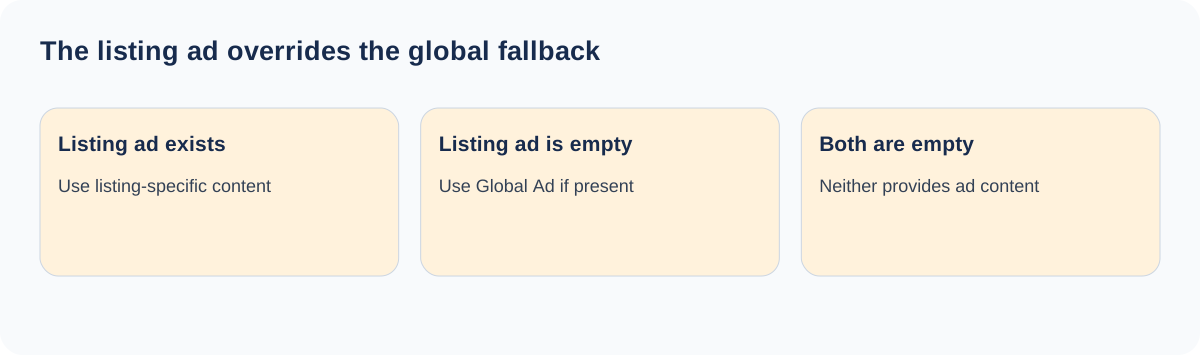
The relationship is straightforward:
| Individual listing’s ad content | Global Ad content | Expected source |
|---|---|---|
| Present | Present or empty | The listing’s own advertisement |
| Empty | Present | The global fallback |
| Empty | Empty | No advertisement content from either source |
An empty individual field does not mean “suppress the global advertisement on this listing.” It means the fallback can be used. This distinction matters when selling a listing-specific placement or promising a page without advertising.
If you need exclusions beyond this source relationship, verify a supported display configuration or an appropriate external ad-management workflow before promising them. Do not improvise a blank-field workaround that actually enables the fallback.
Configure and save the Global Ad
Enter the approved content into Global Ad and save the settings. Supported content can include HTML and WordPress shortcodes. A linked banner is a simple first test; an external ad manager’s shortcode can be appropriate when that manager supplies rotation or reporting.
Use an absolute destination URL and a descriptive link. Give an image meaningful alternative text where it communicates the offer. Make the content responsive so it does not overflow a narrow single-listing column.
Do not paste a fixed-width creative into the field and assume the surrounding theme will resize it correctly. Check its actual dimensions, the content area, and mobile behavior. A banner designed for a wide desktop header may be a poor fit beside a listing’s contact information.
Keep the original creative, destination, sponsor, and campaign dates in an operational record. That record is especially useful for a global ad because one update can affect many pages at once. Save a previous working version so an accidental edit can be reversed promptly.
Enable the Ads element on the details page
Content needs a visible placement. Open Listdom → Settings → Single Listing, inspect the active details-page style, and enable or position its Ads element. Save the configuration and open a real listing publicly.
Choose a position that preserves the listing’s primary task. A visitor comparing a service needs clear facts and a trustworthy contact path. Advertising should not be mistaken for the listing’s booking button, phone link, or navigation to another result.
Use the element’s title settings where appropriate to make the section understandable. For an external advertising network, follow that provider’s labeling and implementation requirements rather than assuming every custom heading is acceptable.
If a page-builder template owns the listing page, inspect the relevant builder output instead of changing only a built-in style that the page does not use. The single-listing page guide explains how template and display layers can affect what is visible.
Add a different advertisement to one listing
Edit the chosen listing and locate its Ads module or Advertisement field. Enter the approved listing-specific content and save or update the record. Then compare that page with another listing whose ad field is empty.
The first should use its own content; the second should use the global fallback. This two-listing test is a quick way to confirm the source relationship without repeatedly replacing the global campaign.
Test both editing surfaces your business uses. Administrators may prepare campaign content in WordPress, while an owner-facing workflow may expose the module through the frontend form. Check which accounts can access that field and which content is actually accepted.
Do not assume arbitrary scripts are appropriate for every contributor. Normal WordPress and integration permissions still apply. If you sell sponsored placements, an editorial review process can help ensure destinations and creative match the agreement and the directory’s visitor experience.
Use external services for their actual responsibilities
The Ads Addon provides content placement. An outside ad service or manager may supply code, rotation, targeting, scheduling, or reports. Verify those features with that service; do not attribute them to the Listdom placement field.
For example, an ad-manager shortcode can output different creatives according to rules maintained in that manager. Listdom renders the configured content on the listing page, while the manager owns the rotation policy. This separation makes troubleshooting clearer when one campaign works and another does not.
Likewise, recording a sponsor agreement or collecting a payment is a different workflow from displaying a banner. Do not assume that adding content to Global Ad creates an advertiser account, sends an invoice, tracks a paid conversion, or automatically stops at the end of the contract.
Follow your provider’s implementation instructions for third-party code. For AdSense placements, review Google’s ad-placement guidance, including the separation of advertising from controls that can cause accidental clicks. Use an approved preview or test method rather than clicking live network advertisements to test them.
Check the complete public page on mobile
Open a listing with the global fallback and one with custom content. Inspect them at desktop and mobile widths. Check the creative’s proportions, readable labels, surrounding space, and the page’s main contact or booking action.
Watch for layout shifts when remote content loads. A visitor reaching for a phone button should not have that button unexpectedly displaced by an ad. Keep the creative’s layout requirements in mind when choosing its position.
Test empty and long listing content too. An ad that looks balanced below a long description can dominate a short listing. The placement should remain understandable when a business has fewer images or no optional fields.
Review the destination itself using a normal browser navigation, and check any campaign parameters without changing the intended page. An ad with a correct image and a broken destination is still a failed placement. Record the tested URL alongside the campaign details.
Maintain campaigns as shared content
Give each placement an owner and review date. Before changing a global creative, inspect any individual listing ads that are supposed to remain in place. After the change, test a representative fallback page and a custom-ad page again.
At campaign end, remove or replace the content in the system that owns its schedule. If you maintain the advertisement directly in Listdom, include that edit in your campaign checklist. Do not describe a manual field as automatically expiring content.
Measure the outcome using the reporting actually available from your links, ad service, or analytics system. Page views, ad impressions, clicks, inquiries, and completed purchases are different events. Avoid calling a click a confirmed customer or assuming all listing traffic viewed the placement.
Keep useful listing information prominent and maintained. Clear sponsorship separation supports trust for people reading the directory and for systems interpreting its content. A paid message should not silently replace factual business details or create an unsupported recommendation.
Troubleshoot a missing advertisement
If no ad appears, check the saved global and individual content first. Then inspect the active Ads element or builder template. Confirm that the add-on remains active and that you are viewing the same listing you edited.
If a simple linked image works but outside ad code does not, inspect the external service, browser blocking, consent behavior, and network requests as appropriate. That comparison establishes that the placement can render without claiming the third-party code is guaranteed to work in every environment.
Clear relevant caches after a confirmed content change. For a difficult case, give support the listing URL, the content source used, the active template, and whether a simple test creative displays. Remove private service credentials from any shared code or screenshot.
The Ads Addon documentation provides the field and element reference. Keep your implementation small enough that a future editor can understand what is global, what is specific, and which outside tool owns any additional behavior.
FAQ
Can every listing show the same advertisement?
Yes. Configure Global Ad and enable the Ads output in the relevant listing-page design. Listings with their own ad content use that specific content instead.
Does an empty listing ad field disable the global ad?
No. An empty individual field allows the global fallback. If both sources are empty, neither supplies advertisement content.
Does the add-on sell advertisements automatically?
Its role is displaying configured content. Verify separate sales, payment, campaign scheduling, or reporting workflows before promising those capabilities.
Can I use an ad-manager shortcode?
The Global Ad and listing content support appropriate WordPress shortcodes. The external manager remains responsible for its own behavior and requirements.
Why does the creative appear in one design but not another?
Check the active details-page style or builder template and its Ads output. Saved content and visible placement are separate requirements.
What is the simplest useful launch test?
Use one listing with custom content and one with an empty field that falls back to Global Ad. Verify both publicly on desktop and mobile.