

Why custom fields matter in real directory projects
Most directories need more than the default listing fields.
A restaurant directory may need:
- cuisine type
- reservation link
- price range
- vegetarian options
A real estate directory may need:
- property size
- year built
- number of bedrooms
- parking availability
A medical directory may need:
- specialization
- languages spoken
- accepted insurance
- appointment availability
These kinds of details are too specific to be handled well as only generic listing content.
That is where custom fields become important.
They let you collect, organize, display, and sometimes filter listing-specific details in a more structured way.
Build with Listdom
Build your directory website with Listdom
Launch a polished WordPress directory with listings, locations, maps, search, and room to grow into a full directory business.
What a custom field is in Listdom
A custom field is an extra data field you add to listings so the directory can collect information beyond the default fields.
In practical terms, a custom field is used when you want listing owners or admins to enter a structured value such as:
- text
- number
- phone number
- URL
- date
- time
- date and time
- dropdown choice
- radio option
- checkbox value
- longer text
- image upload
- file upload
Listdom also includes a Separator field type, which is useful when you want to break a long form into clearer sections instead of showing every field as one continuous block.
That means custom fields are not only visual extras. They are part of the listing data model.

Listdom includes built-in custom fields, and they can be used in both listing display and search logic.
Custom fields vs categories vs features vs labels
This is the most important onboarding distinction.
If you only remember one part of this article, remember this:
- Categories answer: what kind of listing is this?
- Locations answer: where is this listing?
- Features usually describe attributes users may browse or notice across listings
- Labels usually highlight or mark listings visually or commercially
- Custom fields store structured, listing-specific data that does not belong in the other groups
Examples:
- Restaurant should usually be a category
- Barcelona should usually be a location
- Has Wi-Fi may be a feature depending on the setup
- Featured may be a label
- Reservation URL should usually be a custom field
- Square Footage should usually be a custom field
- Languages Spoken should usually be a custom field
If you are still building the basic directory structure, see How Listings, Categories, and Locations Work in Listdom first, because that article explains the taxonomy side before you expand the data model.
When custom fields are the right choice
Use a custom field when the information:
- belongs to the listing itself
- needs a structured input format
- should not become a global taxonomy term
- may need to appear on the single listing page
- may need to be included in search or filtering later
Common examples:
- booking URL
- accepted insurance
- pet policy
- warranty period
- number of rooms
- fuel type
- service radius
- hourly rate
Custom fields are especially useful when one listing type needs details that another listing type does not.
When custom fields are the wrong choice
Custom fields are usually the wrong choice when the information should instead define:
- listing type
- location structure
- a reusable site-wide taxonomy term
- a visual highlight or badge
For example:
- using a custom field instead of a category for Restaurant is usually the wrong model
- using a custom field instead of a location for Chicago is usually the wrong model
- using a custom field instead of a label for Featured is usually the wrong model in many sites
The better your structure decisions are here, the better your directory scales later.
Where custom fields are managed in Listdom
In most setups, custom fields are managed under the Listings menu in WordPress admin.
The main place to look is usually:
Listings → Custom Fields
This is the content-structure side of Listdom, not the global settings side.
That is why custom fields fit naturally after you understand listings, categories, and locations, not before.
If you are still orienting yourself in wp-admin, How to Navigate the Listdom Admin Menu is the best companion article for understanding where these pieces live.
Step by step: how to create custom fields in Listdom
If you are new to this feature, use this simple setup order.
Step 1: decide what information should be structured
Before creating any field, make a short list of the details your listings really need.
Do not start by creating every field you can imagine.
Start with the information that clearly matters to users, search, or listing clarity.
Step 2: create the field in the Custom Fields area
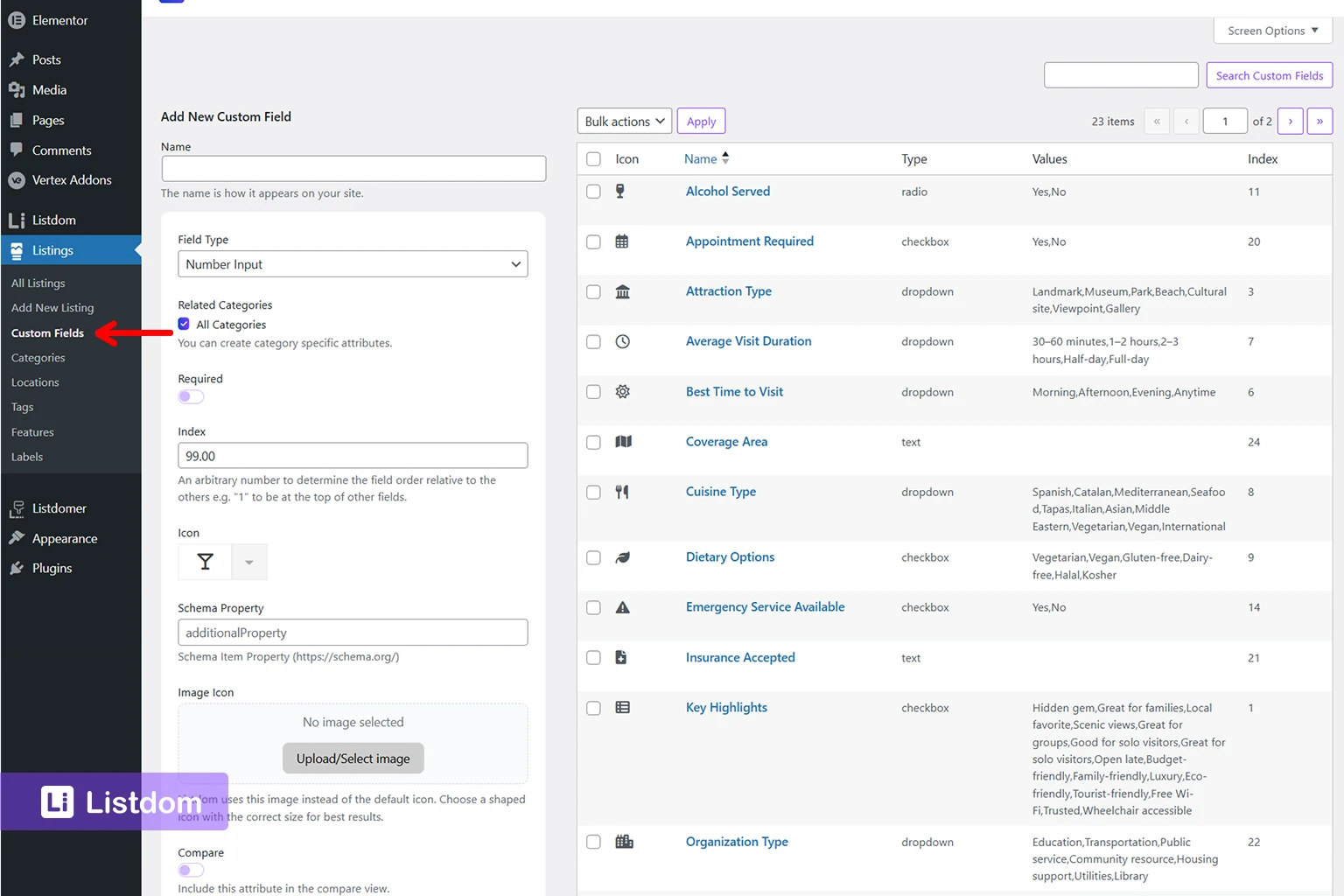
Go to:
Listings → Custom Fields
Create the field you need and choose the right field type.
Listdom supports this full set of built-in field types:
- Text Input
- Radio
- Checkbox
- Number Input
- Email Input
- Tel Input
- URL Input
- Date Input
- Time Input
- Date & Time Input
- Image
- File
- Dropdown
- Textarea
- Separator
Step 3: set the field behavior clearly
Configure the important basics such as:
- label
- placeholder
- whether it is required
- the available choices for dropdown, radio, or checkbox fields
- whether the field should feel quick and simple or more detailed in the form
The goal is not only to create the field, but to make it easy for users to fill it correctly.
This is also where many field problems start. A field may be technically correct but still be awkward if the label is unclear, the choice list is too long, or the wrong field type was chosen.
A few settings matter more than they seem in real projects:
- Related Categories helps you keep fields relevant. If a field only makes sense for one type of listing, attach it only to the right categories instead of showing it everywhere.
- Required should be used carefully. Make a field required only when the directory really depends on that detail.
- Link Label is especially useful for URL, email, and phone fields when you want the front end to show cleaner call-to-action text instead of the raw value.
- Index / Order helps you control where the field appears relative to other fields, which matters a lot once the form starts getting longer.
- Icon can make the single listing page easier to scan when the field is important enough to deserve visual emphasis.
- Schema Property can help when the field has SEO value and you want to map it more clearly in structured data.
- Rich Editor is useful only when a textarea really needs formatted content. For most directories, plain structured input is easier for users and easier to keep consistent.
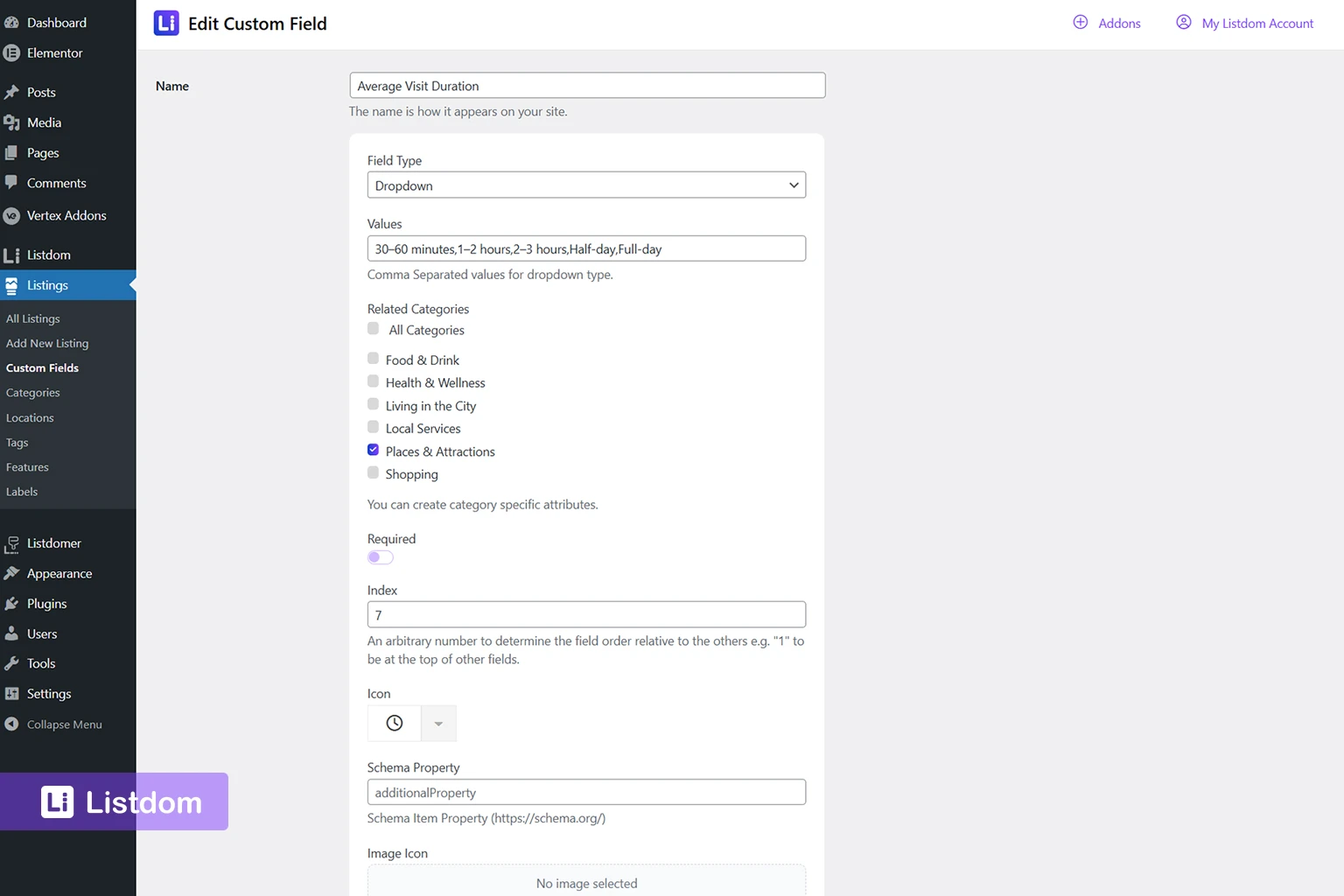
A practical rule is to keep the first version of your field settings simple. Make the field clear, assign it to the right categories, decide whether it is required, and only then refine things like icons, order, or schema mapping.
If you want the full option-by-option documentation for custom field settings, see Listdom Custom Fields Documentation.
Step 4: decide where it should appear
Custom fields can affect more than one part of the listing experience.
Think about whether the field should appear in the backend listing editor, the frontend add-listing flow, the single listing page, or search and filtering.
In practice, break this into a few separate checks so it feels easier to manage.
- Manage the field itself in Listings → Custom Fields.
- Review how it behaves in user submission by checking How the Listdom Frontend Dashboard Works.
- Review whether it should be searchable in How to Create Search Forms in Listdom.
- Review how it should appear on the display side in How to Display Listings Using Listdom Shortcodes.
Step 5: test it with a real listing
After creating the field, edit or create a real listing and see how the field behaves in practice.
This step matters because a field that sounds correct in theory may still be awkward in real submission flow.
Choosing the right field type
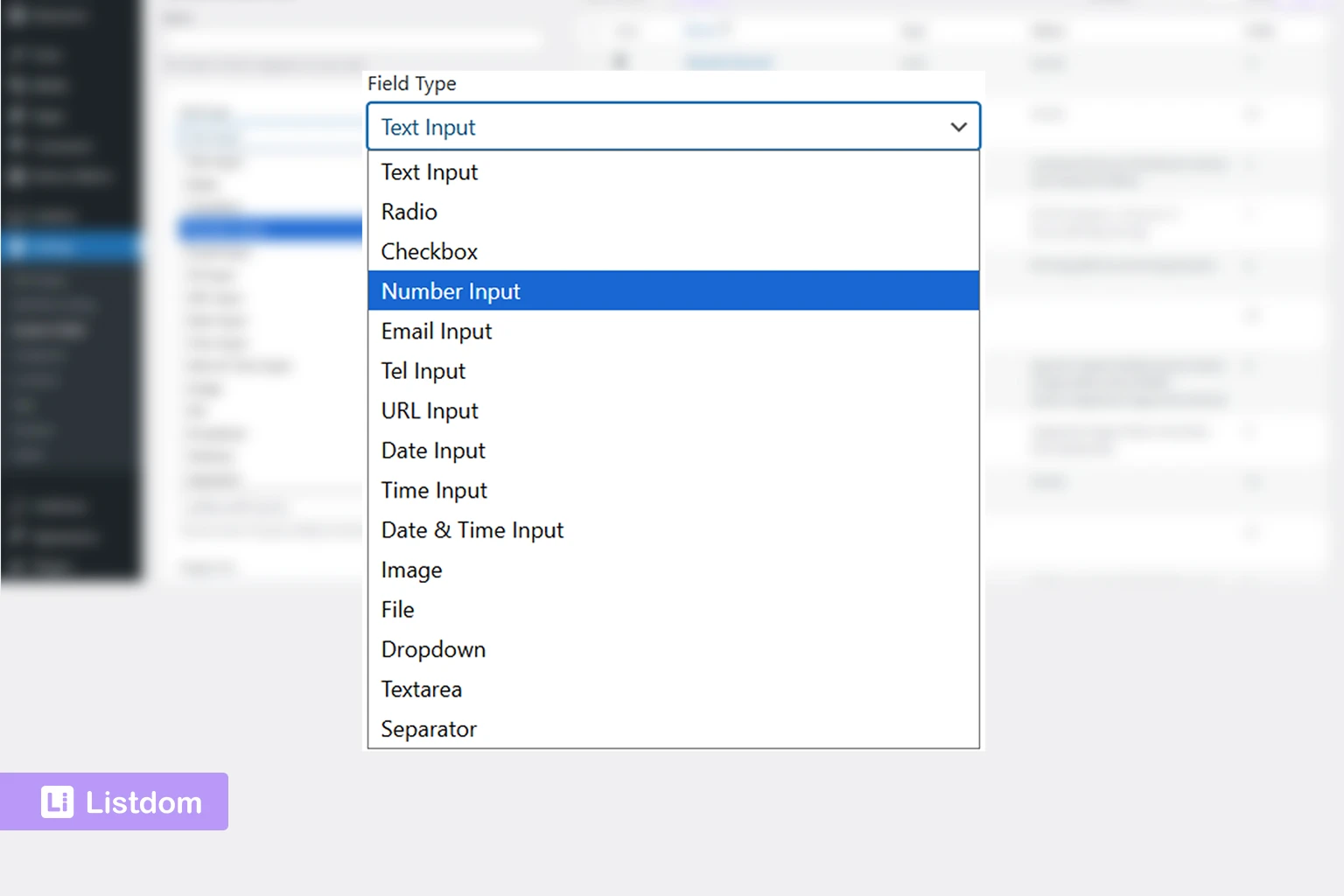
This is one of the easiest places to make the experience better or worse.
Use Text Input for short freeform values
Examples:
- pet policy summary
- service area note
- contact title
Use Number Input for measurable values
Examples:
- square footage
- guest capacity
- number of rooms
- years of experience
Use Email Input, Tel Input, and URL Input for contact-style data
Examples:
- booking email
- reservation phone number
- menu URL
- portfolio URL
These field types are better than plain text when the value has a clear format.
Use Date Input, Time Input, or Date & Time Input when timing matters
Examples:
- opening date
- appointment time
- event start time
- booking cutoff date
These are especially useful when the timing itself is part of the listing information.
Use Textarea when the value needs more explanation
Examples:
- service notes
- accessibility details
- additional policies
Use Dropdown, Radio, or Checkbox when consistency matters
Examples:
- property type
- parking availability
- amenities
- insurance types
These structured options often work better than freeform text because they improve consistency and can later be easier to use in filtering.
A simple rule is:
- use Dropdown when there are several choices and you want a compact selector
- use Radio when there are only a few choices and you want them all visible
- use Checkbox when multiple selections should be possible
Use Image or File when the listing needs uploaded supporting content
Examples:
- a brochure PDF
- a downloadable menu
- a certification image
- a supporting document
Use these only when the uploaded file really adds value, because they can make submission forms feel heavier.
Use Separator when the form needs better structure
A Separator does not collect data. It helps organize long forms into sections so users can understand what kind of information comes next.
This is especially useful when one listing type needs many custom fields and you do not want the form to feel like one long wall of inputs.
How custom fields appear in listings and submission forms
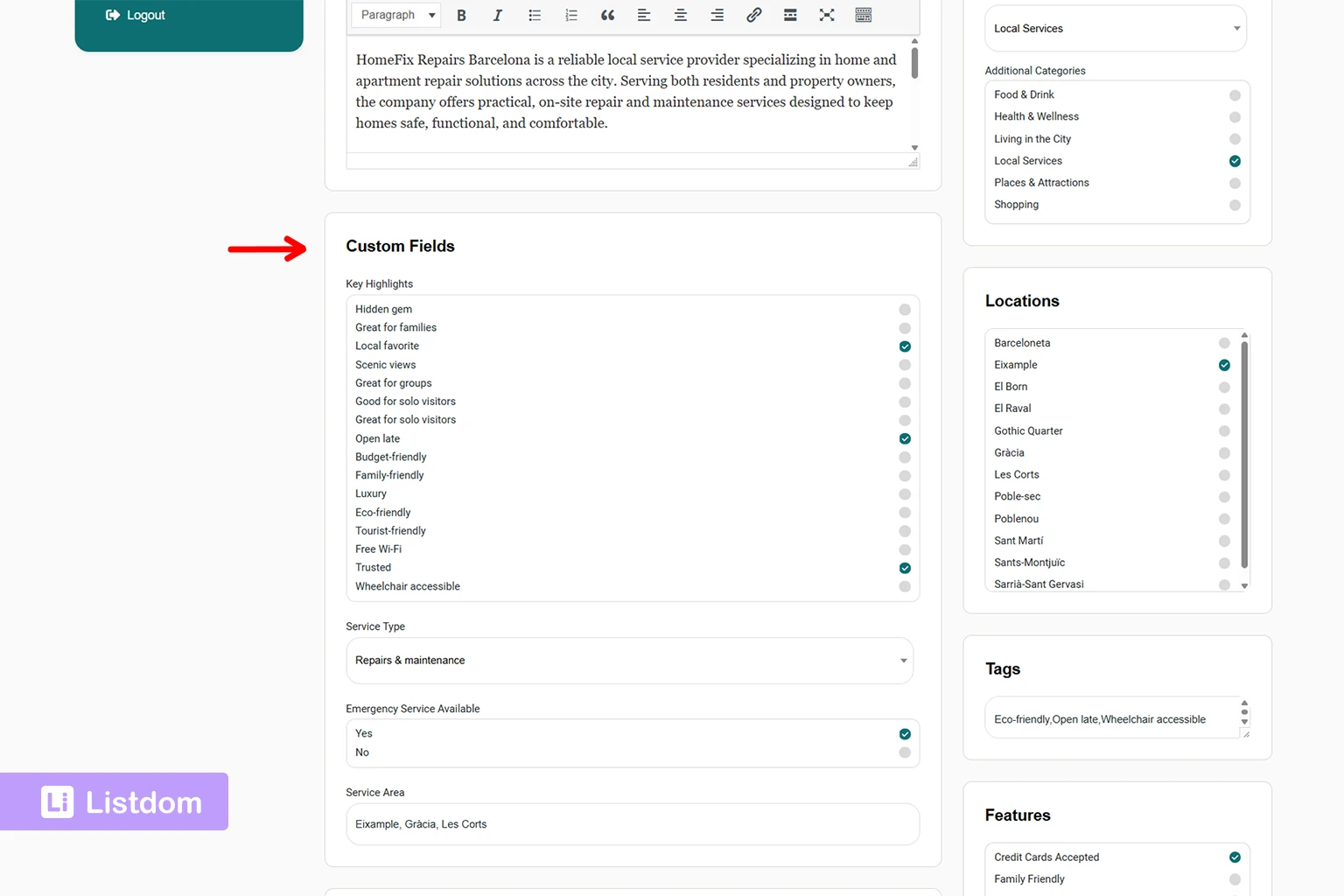
Custom fields are not isolated admin-only data.
Custom fields can appear in both the backend and the frontend dashboard, which means they are part of the actual listing submission experience, not only the backend data layer.
That means a custom field may be relevant in:
- the listing editor for admins
- the frontend add-listing form for users
- the single listing page for visitors
If frontend submission is part of your project, it also helps to understand how user-side forms work in general.
How custom fields affect the single listing page
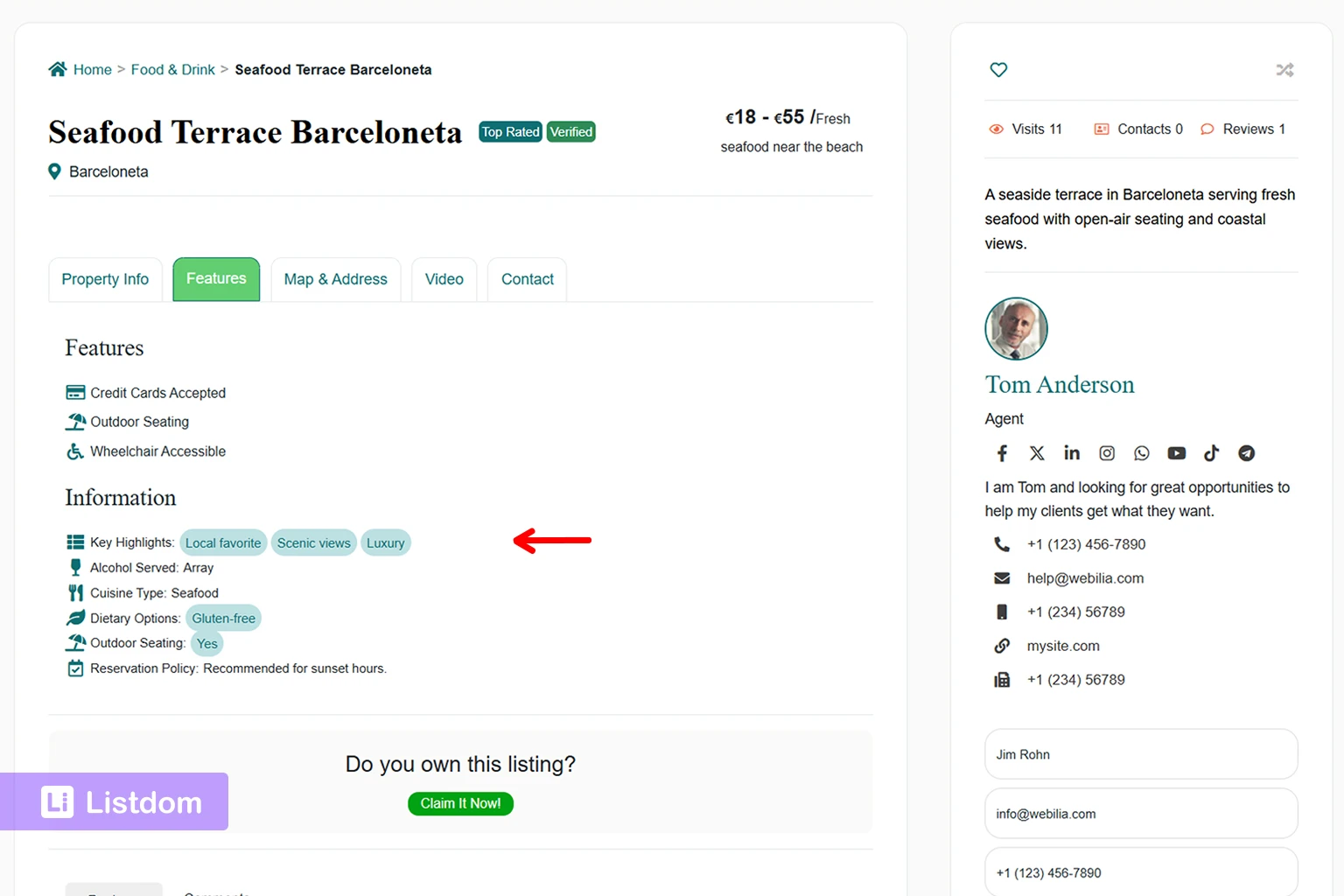
Custom fields become especially valuable when the single listing page needs to show listing-specific details clearly.
Custom fields can appear under the additional info area and can also be controlled in layout-related ways depending on the site setup.
This matters because custom fields help you move from generic listing content to niche-specific detail.
A strong listing page is often not only about title, description, and gallery. It is also about the specific details users actually care about.
For the full page-level planning and display controls, read How Single Listing Pages Work in Listdom.
How custom fields affect search and filters
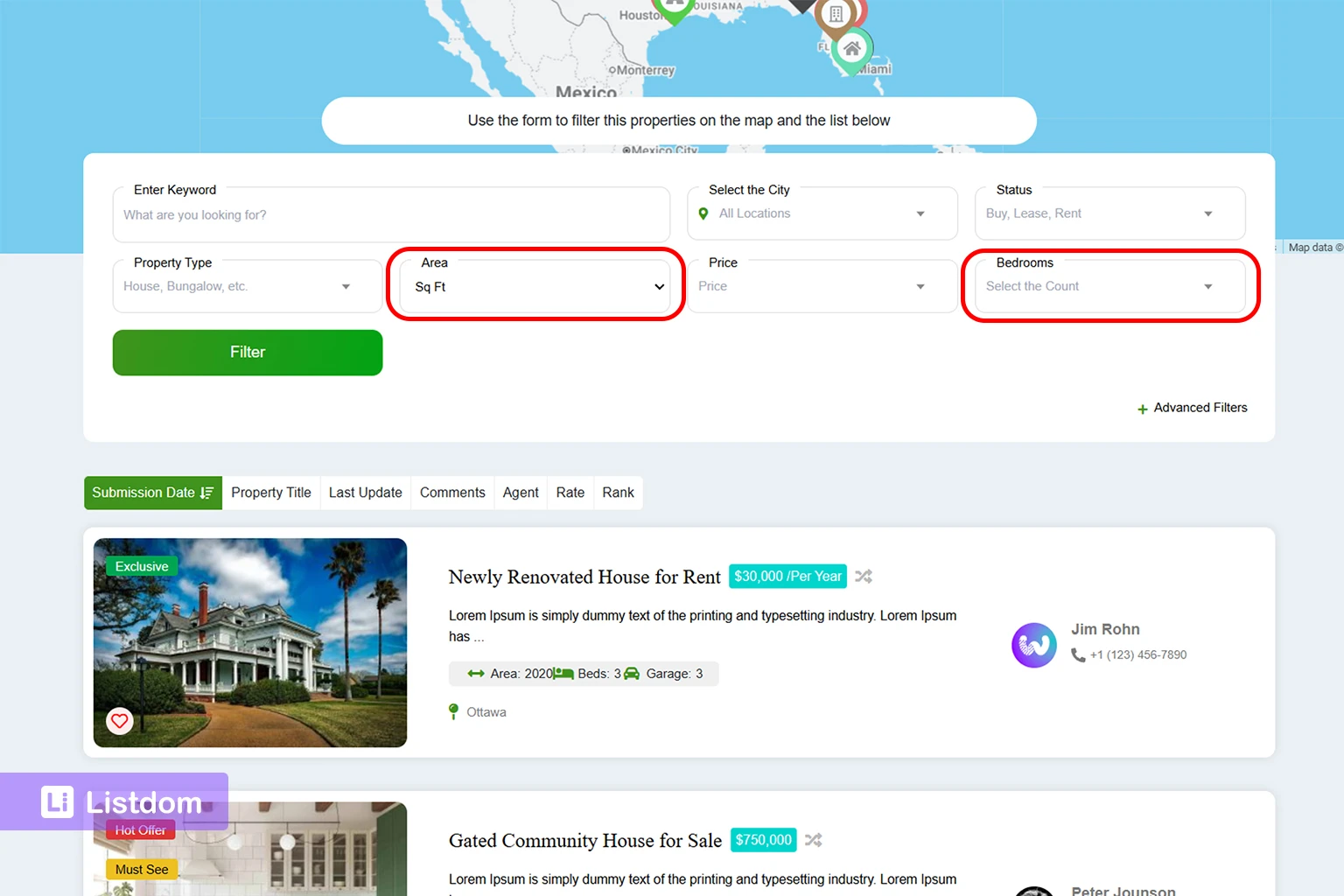
This is one of the most useful reasons to structure them properly.
Custom fields can integrate with the Search and Filter Builder and can be used as filter fields.
That means custom fields can influence:
- what users can filter by
- how specific the search experience becomes
- how well your directory handles niche-specific discovery
Examples:
- real estate users filtering by lot size or bedrooms
- restaurant users filtering by reservation availability or cuisine type
- medical users filtering by language or insurance support
If the search layer is your next step after structure, make sure the field types you choose also make sense for filtering.
Custom fields and categories: how they work together
One useful pattern is this:
- categories define the broad listing type
- custom fields define the detailed structured data inside that type
For example:
- Category: Restaurant
- Custom fields: Cuisine Type, Reservation URL, Vegetarian Options
Or:
- Category: Property
- Custom fields: Lot Size, Year Built, Bedrooms
That is often much cleaner than trying to force all detail into categories.
Implementation guide
Need the technical details?
Use the Listdom documentation to configure listings, shortcodes, search forms, maps, and add-ons with confidence.
Common beginner mistakes
Creating too many custom fields too early
A flexible system is helpful, but too many low-value fields can make listing forms harder to use.
Using custom fields when a category or location would be better
Not every data point should become a custom field.
Using freeform text when a structured choice would work better
If consistency matters, dropdowns, radio buttons, or checkboxes are often better.
Creating fields without thinking about frontend submission
A field that works for admins is not always friendly for frontend users.
Creating fields without thinking about search later
If a field may become important for filtering, choose a structure that supports that possibility.
Treating every niche detail as equally important
Only collect information that improves the listing or user journey.
What to configure first
A practical beginner order looks like this:
- define the main listing types
- build the core category and location structure
- identify the extra listing details that do not belong in taxonomies
- create only the most useful custom fields first
- test them inside real listings
- decide which ones should appear in search and frontend submission
- then expand the field system only when needed
That sequence keeps the setup cleaner and avoids overbuilding the form too early.
What to learn next
Once custom fields are clear, the best follow-up topics are:
- How Listings, Categories, and Locations Work in Listdom
- How to Create Search Forms in Listdom
- How to Display Listings Using Listdom Shortcodes
- How the Listdom Frontend Dashboard Works
These topics help connect field structure to search, display, and submission.
Listdom ecosystem
Build the directory workflow described in this guide
Use related Listdom products, add-ons, and planning pages to turn this guide into a structured directory project.
Final thoughts
Custom fields are one of the most powerful ways to make Listdom fit a real niche.
But the goal is not to create the most fields.
The goal is to create the right fields.
If you use them to capture structured information that really matters, your listings become richer, your search becomes more useful, and your directory becomes much easier for users to understand.
FAQ
How do I know whether something should be a custom field or a category?
Use a category when the value defines the main type of listing. Use a custom field when it is a structured detail inside that listing type.
Which custom field type should I choose?
Choose the simplest field type that matches the real data. Text is good for short freeform values, dropdown or radio is better for controlled choices, number is better for measurable values, and URL, email, phone, date, and file fields are better when the value has a specific format.
Can custom fields appear in the frontend submission form?
Yes. Custom fields can be used in both backend and frontend submission workflows.
Can custom fields be used in search forms?
Yes. Listdom supports using custom fields in the Search and Filter Builder.
What kinds of listing details are best handled with custom fields?
Things like reservation links, accepted insurance, square footage, service radius, opening date, downloadable brochures, or appointment-related details are often strong custom-field candidates.
Should I use free text or predefined choices?
Use predefined choices when consistency matters. Dropdown, radio, and checkbox fields usually make filtering and data quality much better than asking users to type everything freely.
How do I keep custom fields from making the form too long?
Start with only the details that clearly help users, search, or listing quality. If the form starts feeling heavy, remove low-value fields or organize the form better with a Separator field.
FAQ
Common questions
How do I know whether something should be a custom field or a category?+
Use a category when the value defines the main type of listing. Use a custom field when it is a structured detail inside that listing type.
Which custom field type should I choose?+
Choose the simplest field type that matches the real data. Text is good for short freeform values, dropdown or radio is better for controlled choices, number is better for measurable values, and URL, email, phone, date, and file fields are better when the value has a specific format.
Can custom fields appear in the frontend submission form?+
Yes. Custom fields can be used in both backend and frontend submission workflows.
Can custom fields be used in search forms?+
Yes. Listdom supports using custom fields in the Search and Filter Builder.
What kinds of listing details are best handled with custom fields?+
Things like reservation links, accepted insurance, square footage, service radius, opening date, downloadable brochures, or appointment-related details are often strong custom-field candidates.
Should I use free text or predefined choices?+
Use predefined choices when consistency matters. Dropdown, radio, and checkbox fields usually make filtering and data quality much better than asking users to type everything freely.
How do I keep custom fields from making the form too long?+
Start with only the details that clearly help users, search, or listing quality. If the form starts feeling heavy, remove low-value fields or organize the form better with a Separator field.