
Before you begin, it helps to understand what "maps and addresses" means in Listdom. This guide explains the topic in practical terms and connects it to the decisions, setup, or Listdom workflow covered below.

Before you begin, it helps to understand what “maps and addresses” means in Listdom. This guide explains the topic in practical terms and connects it to the decisions, setup, or Listdom workflow covered below.
What “maps and addresses” means in Listdom
When you think about maps in a directory website, it is easy to focus only on the map provider. That is one part of the setup, but it is not the whole system.
In Listdom, the map experience is built from several connected layers:
- Listing address: the address or descriptive location entered for an individual listing.
- Coordinates: the latitude and longitude used to place a listing precisely on a map.
- Map provider: the service that renders the map, such as Google Maps or OpenStreetMap through Leaflet.
- Location taxonomy: the structured geographic organization of your directory, such as country, state, city, district, or neighborhood.
- Display layout: the place where users see the map, such as a single listing page, Single Map skin, Half Map skin, Side by Side layout, widget, or shortcode output.
- Search behavior: the way users filter or discover listings by keyword, category, location, address, distance, or nearby intent.
A strong directory does not treat these layers as separate decisions. It plans them together.
For example, a restaurant directory needs clean restaurant addresses, a useful city and neighborhood structure, a map layout that fits local browsing, and search fields that match how people look for food nearby. A real estate directory may need more precise map placement, property areas, distance context, and filters that help users compare listings visually.
The best map experience starts before you choose a layout. It starts with how you structure your listings.
Build with Listdom
Build your directory website with Listdom
Launch a polished WordPress directory with listings, locations, maps, search, and room to grow into a full directory business.
The difference between listing addresses and locations

One of the most common sources of confusion in directory websites is the difference between an address and a location. They sound similar, but they do different jobs.
Listing address
A listing address belongs to a specific listing.
For example:
- 123 Main Street, Barcelona
- 44 Oak Avenue, Toronto
- 8 West 21st Street, New York
This information helps the directory show where that exact listing exists. It can support map markers, directions, contact context, and location-based browsing.
In Listdom, listing address data is managed on the Add/Edit Listing screen. In the listing Location meta box, the address field is used for display and geocoding, and the map area lets you place or adjust the listing marker. Latitude and Longitude are stored for precision, so the listing can be positioned correctly on the map. For the practical entry, correction, and testing sequence, see how to add and manage listing addresses in Listdom.
The address field also supports address autosuggest, making it easier to find and select valid locations while entering listing data.
The important concept is simple: address data describes where one listing is physically located.
Location taxonomy
Locations are different. A Location is a structured taxonomy used to organize listings geographically.
A Location hierarchy might look like this:
- Spain
- Catalonia
- Barcelona
- Gothic Quarter
- Barcelona
- Catalonia
Or:
- United States
- California
- Los Angeles
- Downtown LA
- Los Angeles
- California
Locations are useful for browsing, filtering, archive pages, SEO structure, and directory organization. They help users narrow a directory by area, but they are not the same as the physical address of each listing.
For example, “Barcelona” can be a Location. But “123 Main Street, Barcelona” is an address.
You manage Location terms in WordPress from Listings → Locations. There, you can create a location name, slug, parent location, description, and optional image. Parent locations allow you to build a hierarchy such as Country → State → City.
If you are still planning the basic listing structure, read How Listings, Categories, and Locations Work in Listdom before you finalize your map setup.
Why both matter
A local business listing can have both:
- Address: 123 Main Street, Barcelona
- Location: Barcelona or Gothic Quarter
The address helps place the listing on the map. The Location helps organize the listing inside your directory structure.
If you only use Locations, your directory may be organized, but not precise enough for useful map placement. If you only use addresses and ignore Locations, your map may work, but your browsing structure and SEO may become weaker.
The best setup usually uses both. When you are deciding what visitors should use in the search form, see Address Search vs Location Search in Listdom.
How coordinates connect listings to maps
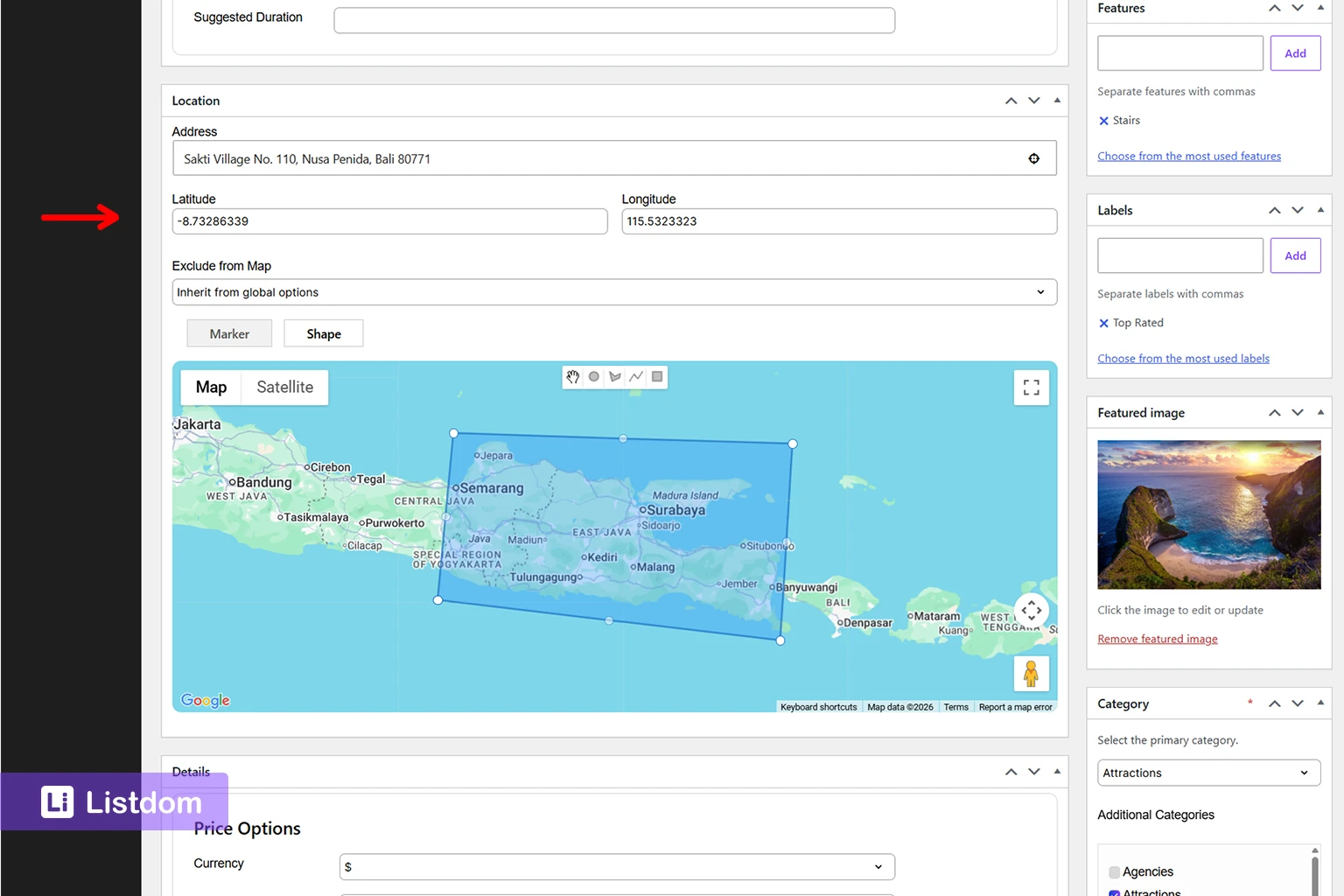
A map marker needs a geographic position. That position is usually represented by latitude and longitude.
Most users do not think in coordinates, and they should not have to. They usually enter an address, select a place, or move a marker on a map. Behind the scenes, the directory needs reliable coordinates so the listing can appear in the correct place.
Coordinates can affect:
- whether the listing appears on the map
- where the marker is placed
- how accurate nearby or radius-based results are
- whether distance sorting behaves as expected
- how useful directions and map interactions feel to visitors
In the Listdom Add/Edit Listing screen, the Location meta box includes an address field, an interactive map, marker placement, and latitude/longitude storage. In most normal cases, the user does not need to think manually about coordinates, but the stored coordinates are important for precision.
This is why address quality matters. If addresses are incomplete, inconsistent, imported badly, or mapped to the wrong position, the visitor experience suffers.
For a small directory, you may notice mistakes manually. For a large imported directory, bad address data can affect hundreds or thousands of listings. That is why address planning should happen before a major import, not after the map starts showing strange results.
A good rule is this: if location matters to the visitor, location data quality matters to the directory owner.
The Map and Address component in Advanced Settings
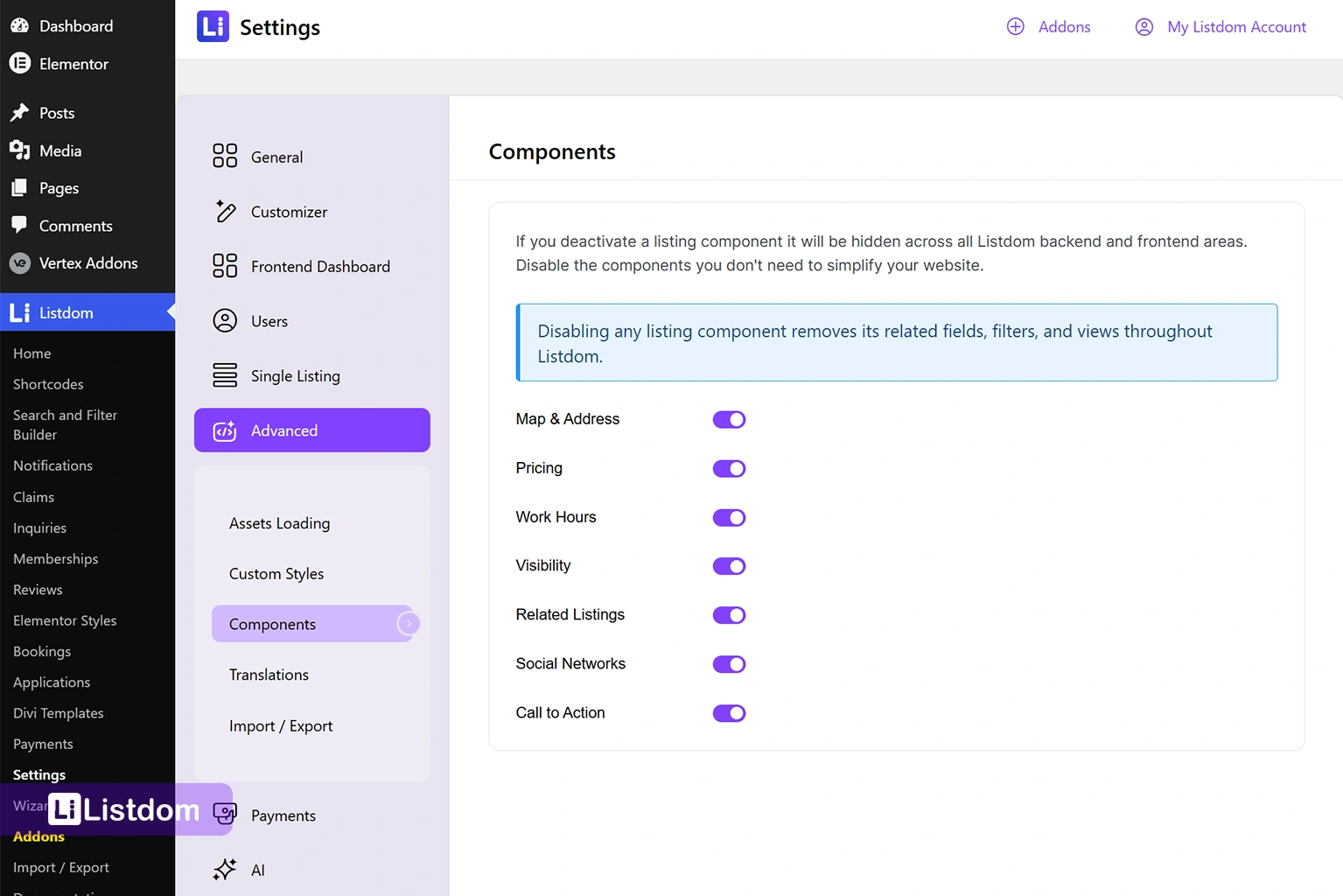
Beyond listing-level address fields and global map provider settings, Listdom also includes a dedicated Map and Address component in the Advanced Settings area.
This component controls whether map and address functionality is available throughout the directory. Think of it as the feature layer that enables map-related capabilities across listings, search forms, and front-end displays.
The Map and Address component is important because many map-related features depend on it being active. If it is disabled, address fields, map displays, marker placement, geocoding behavior, and location-based functionality may not work as expected.
Depending on your Listdom version and installed add-ons, the Map and Address component controls the visibility of all map and address-related features such as:
- listing address fields
- map display on listing pages
- marker placement
- coordinate storage
- address autocomplete functionality
- geocoding behavior
- location-aware search features
- map-based layouts and skins
This creates three separate layers that directory owners should understand:
- Map and Address component – enables map and address functionality.
- Map Module settings – controls providers, API keys, zoom levels, default coordinates, and geocoding configuration.
- Listing Location meta box – stores the address, coordinates, markers, shapes, and map behavior for individual listings.
Understanding these layers makes map troubleshooting much easier.
Marker vs Shape: point locations and area locations

Most listings use a marker. A marker represents one point on the map, such as a restaurant, clinic, hotel, office, or property.
Listdom also supports shape-based location display for cases where a listing represents an area instead of one exact point. A shape can cover a region, such as a circle or polygon. This is useful for some service areas, zones, land parcels, or broader geographic listings.
For most directory websites, marker mode is the normal choice. Use shapes only when the listing is better represented by an area than a single pin.
Where maps can appear in a Listdom directory
Maps can support different parts of a Listdom-powered directory. The right placement depends on the user journey.
Single listing pages

A single listing page is where the visitor learns about one listing. A map on this page helps confirm the physical location of that listing.
This is useful for:
- restaurants
- clinics
- hotels
- real estate listings
- local services
- schools
- tourist attractions
The map is not the whole page. It supports the listing content. The title, description, images, contact information, features, labels, and custom fields still do the main explanation work.
For example, on a clinic listing, the map helps the user understand where the clinic is. But the user may still need opening hours, services, insurance information, contact details, and reviews before taking action.
If you want to understand the role of individual listing pages, read How Single Listing Pages Work in Listdom.
Listing views and shortcode outputs
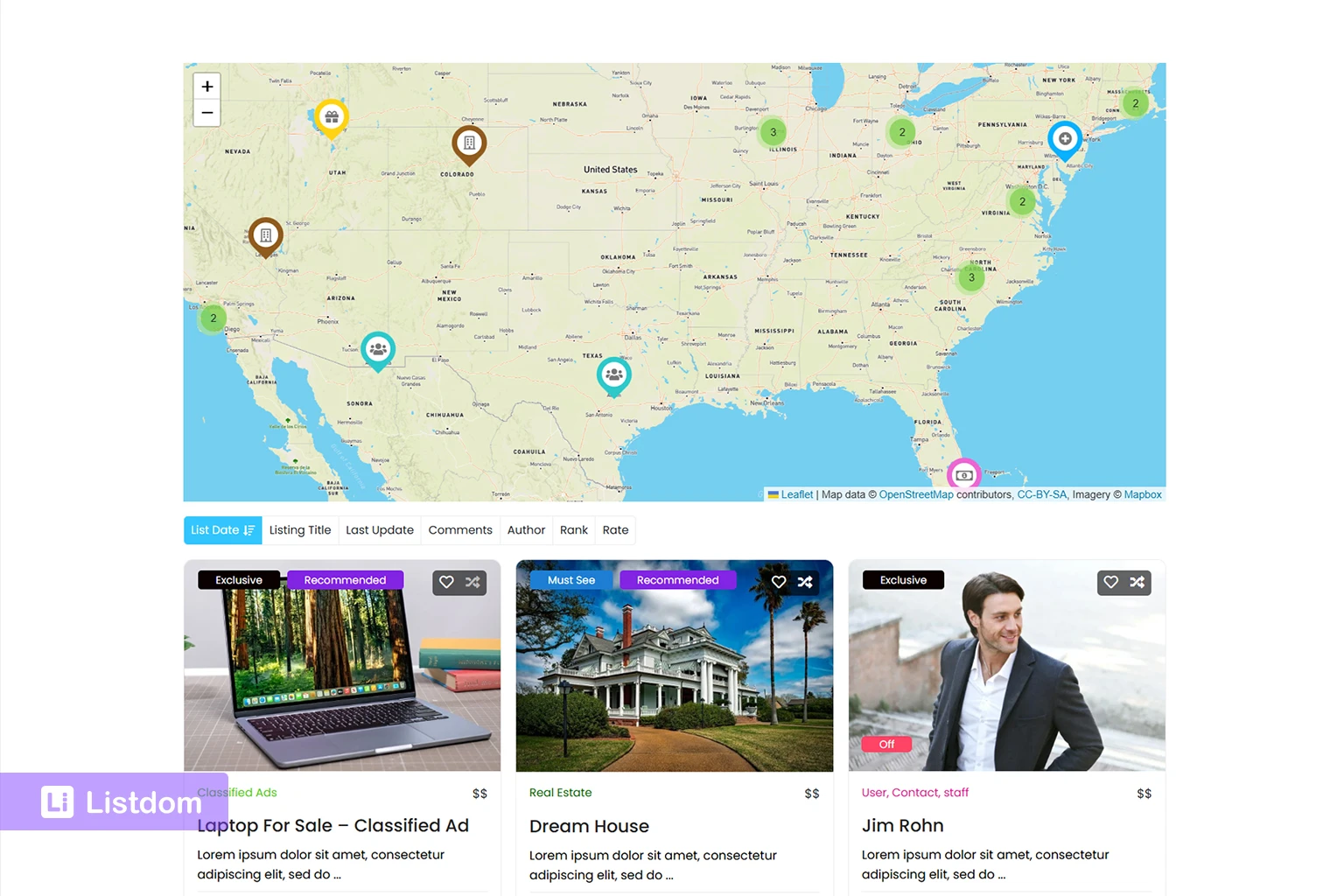
Listdom uses shortcodes and display views to show listings on pages. Depending on the layout you choose, a directory page may show listings as a grid, list, carousel, map, or combined layout.
Maps can also be attached to several popular skins, including:
- List
- Grid
- List + Grid
- Mosaic
- Accordion
- Timeline
This allows you to combine traditional listing layouts with geographic context instead of forcing visitors into a map-only experience.
You create listing displays from Listdom → Shortcodes. Each shortcode can be placed on one or more pages, and map-based skins can be used when geography is central to the browsing experience.
This matters because a map-based browsing page is different from a single listing page. On a listing results page, the map helps users compare multiple options by geography.
For example, a visitor might want to see:
- hotels near a beach
- restaurants in a neighborhood
- doctors near a clinic area
- properties in a specific district
- service providers around a city
For more about listing displays, read Display Listings with Listdom Shortcodes.
Single Map and Half Map layouts

The Single Map skin is useful when you want the map itself to be the main browsing surface. It displays listings as markers on a map and is useful for directories where the visual geographic view is the focus.
The Half Map skin is useful when users need both listing cards and map context at the same time. It splits the layout into a listings area and a map area, so visitors can browse results and see where they are located.
A Half Map layout can be especially helpful for real estate, hotels, travel directories, city portals, and local service directories.
The key is to match the layout to the decision process. If users mainly compare details like price, rating, photos, or features, a list or grid may be easier. If users make decisions based on neighborhood, distance, or physical access, a map-heavy layout may be more useful.
Google Maps, Leaflet, and OpenStreetMap in Listdom

Listdom supports map rendering with Google Maps and OpenStreetMap through Leaflet. The provider choice affects setup, styling, and the map experience.
Google Maps is familiar to many users and can be useful when you want Google-style map behavior, styling, and directions. It requires a Google Maps API key in Listdom Settings before Google map data can load correctly.
Leaflet with OpenStreetMap can be a flexible option for many directory websites and is often attractive when you want an open-map approach. It can also be useful when you prefer a no-API-key map setup.
This article is not meant to be a full provider comparison. The important point is this: choosing a map provider does not solve the entire map strategy. You still need clean listing addresses, coordinates, a useful Location structure, and the right display layout. When those foundations are in place and you need richer marker behavior, infowindows, boundaries, or directions, see how the Listdom Advanced Map Addon extends map control.
For provider-level context, read WordPress Leaflet and Google Map Listing Plugin: What Actually Matters.
How maps connect to search forms and local discovery
Maps become more powerful when they connect to search.
A visitor may not simply open a map and browse randomly. They might search for:
- restaurants in Barcelona
- clinics near me
- hotels near a landmark
- apartments in a neighborhood
- plumbers within a service area
These are different search behaviors, and they do not always rely on the same data.
You create search forms from Listdom → Search and Filter Builder. In the form builder, you can add fields such as keyword search, category, location, address, custom attributes, and other filters depending on your setup and enabled add-ons.
Location filters

A Location filter usually works with your Location taxonomy. It helps users narrow results by a structured area such as city, region, district, or neighborhood.
This is useful when users think in place names.
For example, a visitor might choose “Barcelona” from a Location field because they want to browse listings assigned to that city.
Address-based search

Address-based search is different. It is more about a specific address or geographic point. This matters when the user wants results near a place, not just inside a taxonomy term.
For example, “near 123 Main Street” is not the same as “inside Barcelona.” Both are local searches, but they are not the same search intent.
Listdom’s Address search field can be be configured with address autosuggest functionality, helping users quickly find valid addresses while typing.
The Address field can also include a Locate Me button. When clicked, it uses the visitor’s current location as the search point instead of requiring manual address entry.
Without radius filtering, the Address field searches matching listing address values.
Radius search and near-me behavior

Radius search and Radius Search Dropdown are Pro methods for the Address field. These allow the user to enter a location and limit results to a distance around that point.
For a more automated experience, the Advanced Map add-on includes AutoGPS functionality. AutoGPS prompts the visitor’s browser to request location access and, when permission is granted, automatically narrows results to the user’s current area.
This is useful for near-me experiences and distance-based discovery, but it depends on clean listing address and coordinate data. If the directory does not have reliable addresses and coordinates, distance-based discovery becomes much less useful.
This is why map setup should not be treated as a design decision only. It is also a data decision.
If you are planning search forms now, read How to Create Search Forms in Listdom so your map and search structure work together.
Common mistakes when setting up maps and addresses
Using Locations as a replacement for addresses
Locations help organize listings. They do not automatically replace the need for listing-level address data when you want precise map markers.
A restaurant assigned to “Barcelona” still needs its own address if you want users to know exactly where it is.
Choosing the map layout before planning listing data
A beautiful map layout will not fix weak listing data. Before choosing a Single Map, Half Map, Side by Side, or map-heavy layout, make sure your listings have the information needed to support that experience.
Start with the structure, then choose the layout.
Adding inconsistent addresses
Inconsistent address formatting can create confusion for admins and visitors. It can also make troubleshooting harder, especially when listings come from imported data.
If one listing uses a full street address, another only uses a city name, and another uses an incomplete business name, your map experience may become inconsistent too.
Expecting radius search to work without clean map data
Radius search depends on accurate location signals. If the listing data is not prepared well, users may see unexpected results or missing listings.
Before relying on radius search, test a small group of listings and confirm that the results behave the way a visitor would expect.
Forgetting to enable the Map and Address component
Sometimes map-related functionality don’t appear simply because the Map and Address component is disabled. Verify that the Map and Address component is active in Advanced Settings.
Treating Google Maps vs Leaflet as the only map decision
Provider choice matters, but it is only one layer. A directory also needs good content structure, address quality, search fields, and display planning.
A weak directory structure will stay weak even if the map provider is configured correctly.
Mixing categories and locations
Categories and Locations should not do the same job. Categories describe what a listing is. Locations describe where it belongs in your directory structure.
For example:
- Category: Restaurant
- Location: Barcelona
- Address: 123 Main Street
Keeping those roles separate makes your directory easier to manage and easier for users to browse.
Best practices for map-ready directory listings
Use consistent address formatting
Decide how addresses should be entered before you scale the directory. This is especially important if multiple users submit listings or if you import data.
A consistent format helps admins review data and makes map troubleshooting easier.
Build a clear location hierarchy
Do not create random Locations without a plan. A city portal may need country, state, city, and neighborhood. A small local directory may only need city and area.
The goal is not to create the deepest possible hierarchy. The goal is to create a structure users understand.
Keep categories and locations separate
Avoid creating category names that are really locations, or location names that are really business types.
A clean taxonomy structure helps both search and SEO. It also helps you avoid confusing filter behavior later.
Verify map components before testing
Before testing maps, confirm that:
- the Map and Address component is enabled in advanced settings
- the Map Module is configured
- the correct provider is selected
- API keys are added when required
- listings contain valid address data
This simple checklist prevents many common setup issues.
Test map views early
Do not wait until hundreds of listings are added before testing the map. Create a few sample listings and check how they appear in different layouts.
Test at least:
- one listing with a full address
- one listing assigned to a Location
- one listing shown on a map layout
- one search form that uses location-related fields
Choose the map layout based on user intent
A map-heavy layout is useful when geography drives the decision. If users care more about detailed comparison, pricing, ratings, or features, a grid or list view may work better.
For many directories, the best experience is not “map only.” It is a balance between map context and listing detail.
Plan search forms around real user behavior
A local directory search form should not be overloaded with every possible field. Start with the fields users actually need: keyword, category, location, and address or radius fields where relevant.
Consider whether features such as address autosuggest, the Locate Me button, or AutoGPS can make local discovery easier for your audience.
A cleaner search form often performs better than a complex one because visitors understand what to do.
Which directory websites benefit most from maps?
Maps are especially useful when place matters to the user’s decision.
Local business directories
Users often search by city, neighborhood, or nearby convenience. Maps help them understand where each business is located.
Restaurant directories
Restaurants, cafes, bars, and food directories benefit from map browsing because users often choose based on proximity, neighborhood, and travel time.
Real estate directories
Real estate users compare properties visually by area. Map display can help them understand neighborhoods, distance, and location context.
Healthcare and clinic directories
Patients often care about distance, accessibility, and nearby clinics. A map can make the directory more useful, especially when combined with filters.
Hotel and travel directories
Hotels, attractions, tours, and travel listings are strongly location-driven. A map can help users compare options around landmarks, beaches, airports, or city centers.
Service provider directories
Maps can help when providers serve local areas or when users want nearby options. For remote or online-first services, maps may be less important.
City portals
A city portal often needs maps, categories, neighborhoods, local search, and curated listings working together. This is one of the strongest use cases for a map-aware directory structure.
Implementation guide
Need the technical details?
Use the Listdom documentation to configure listings, shortcodes, search forms, maps, and add-ons with confidence.
When a map may not be necessary
Not every directory needs a map-heavy experience.
A map may be less important when:
- listings are online-only
- users compare services by expertise rather than distance
- the directory is mostly educational or editorial
- listings do not represent physical places
- privacy or safety concerns make address display inappropriate
- the main user journey is category browsing, not local discovery
For example, a directory of online consultants might not need map-first browsing. A directory of restaurants almost certainly does.
The right question is not “Can this directory have a map?” The better question is “Does a map help the visitor make a better decision?”
What to learn next
If you are building the map and location side of your directory, start with these related guides:
- How Listings, Categories, and Locations Work in Listdom
- How to Create Search Forms in Listdom
- How Single Listing Pages Work in Listdom
- Display Listings with Listdom Shortcodes
- WordPress Leaflet and Google Map Listing Plugin: What Actually Matters
- How Local Search Works in Listdom
Listdom ecosystem
Build the directory workflow described in this guide
Use related Listdom products, add-ons, and planning pages to turn this guide into a structured directory project.
Conclusion
Maps work best in Listdom when they are planned as part of the whole directory structure.
A strong setup starts with clear listing data, accurate addresses, useful coordinates, a clean Location taxonomy, the right map provider, and display layouts that match the way visitors search. When those parts work together, the map becomes more than a visual feature. It becomes part of the discovery experience.
Before you focus on styling the map, make sure your listings, Locations, addresses, and search forms are planned correctly. That foundation will make every map-based feature easier to use, easier to troubleshoot, and more valuable for your visitors.
FAQ
What is the difference between a Listdom address and a Listdom location?
A listing address belongs to an individual listing and helps place that listing on a map. A Location is a taxonomy used to organize listings by geography, such as country, state, city, or neighborhood. A good directory can use both.
Where do I manage Locations in Listdom?
You can manage Location terms from Listings → Locations in the WordPress dashboard. Locations can have names, slugs, parent locations, descriptions, and optional images.
Where do I add the address for a listing?
You add or edit a listing from the Add/Edit Listing screen. The Location meta box includes the listing address, map marker, and coordinate-related map data used for map display.
Does every listing need an address to appear on a map?
A listing generally needs usable geographic data to appear accurately on a map. For physical places, that usually means an address and coordinate-related data.
Can Listdom use Google Maps and Leaflet?
Yes. Listdom supports map rendering with Google Maps and OpenStreetMap through Leaflet. Google Maps requires a Google Maps API key in Listdom settings. OpenStreetMap through Leaflet is useful when you prefer a no-API-key map approach.
What is the difference between address search and Location search?
Location search filters listings by Location taxonomy terms such as city, state, or neighborhood. Address search works with listing address data and can support address text search or radius-based discovery depending on the selected method and add-ons.
Is radius search included in the free version?
Radius Search and Radius Search Dropdown are Pro methods for the Address search field. A standard Address text input can still be used for address matching, but distance-based radius behavior depends on the Pro method.
Why are my listings not showing correctly on the map?
Common causes include incomplete address data, missing or inaccurate coordinates, provider setup issues, disabled map components, layout settings, filtering rules, cache, or shortcode configuration. A dedicated troubleshooting article should handle this in checklist form.
Do I need a map for every directory website?
No. Maps are most useful when location strongly affects the user’s decision. Local business, restaurant, real estate, healthcare, hotel, travel, and city portal directories usually benefit from maps. A purely online service directory may not need map-heavy layouts.
How do maps connect to local search and radius search?
Local search can use structured Locations, address-related fields, and map data to help users find relevant listings. Radius search and near-me behavior depend more heavily on accurate geographic data, especially coordinates and address quality.
FAQ
Common questions
What is the difference between a Listdom address and a Listdom location?+
A listing address belongs to an individual listing and helps place that listing on a map. A Location is a taxonomy used to organize listings by geography, such as country, state, city, or neighborhood. A good directory can use both.
Where do I manage Locations in Listdom?+
You can manage Location terms from Listings → Locations in the WordPress dashboard. Locations can have names, slugs, parent locations, descriptions, and optional images.
Where do I add the address for a listing?+
You add or edit a listing from the Add/Edit Listing screen. The Location meta box includes the listing address, map marker, and coordinate-related map data used for map display.
Does every listing need an address to appear on a map?+
A listing generally needs usable geographic data to appear accurately on a map. For physical places, that usually means an address and coordinate-related data.
Can Listdom use Google Maps and Leaflet?+
Yes. Listdom supports map rendering with Google Maps and OpenStreetMap through Leaflet. Google Maps requires a Google Maps API key in Listdom settings. OpenStreetMap through Leaflet is useful when you prefer a no-API-key map approach.
What is the difference between address search and Location search?+
Location search filters listings by Location taxonomy terms such as city, state, or neighborhood. Address search works with listing address data and can support address text search or radius-based discovery depending on the selected method and add-ons.
Is radius search included in the free version?+
Radius Search and Radius Search Dropdown are Pro methods for the Address search field. A standard Address text input can still be used for address matching, but distance-based radius behavior depends on the Pro method.
Why are my listings not showing correctly on the map?+
Common causes include incomplete address data, missing or inaccurate coordinates, provider setup issues, disabled map components, layout settings, filtering rules, cache, or shortcode configuration. A dedicated troubleshooting article should handle this in checklist form.
Do I need a map for every directory website?+
No. Maps are most useful when location strongly affects the user’s decision. Local business, restaurant, real estate, healthcare, hotel, travel, and city portal directories usually benefit from maps. A purely online service directory may not need map-heavy layouts.
How do maps connect to local search and radius search?+
Local search can use structured Locations, address-related fields, and map data to help users find relevant listings. Radius search and near-me behavior depend more heavily on accurate geographic data, especially coordinates and address quality.