Before you begin, it helps to understand why maps matter in a business directory. This guide explains the topic in practical terms and connects it to the decisions, setup, or Listdom workflow covered below.

Before you begin, it helps to understand why maps matter in a business directory. This guide explains the topic in practical terms and connects it to the decisions, setup, or Listdom workflow covered below.
Why maps matter in a business directory
Local business directories are built around decisions.
A visitor may be looking for a restaurant, clinic, repair service, hotel, shop, coworking space, consultant, or local professional. In most of these cases, location affects the decision.
Maps help users compare businesses faster because they can see:
- where each business is located
- which listings are near a specific area
- which options are close to their current location
- how businesses are distributed across a city
- whether a listing is in the right neighborhood
- whether a place is easy to reach
For example, a user looking for a dentist may care about distance from home or work. A tourist looking for restaurants may care about nearby places. A homeowner looking for a service provider may want businesses that serve their area.

A map makes this information easier to understand.
But a business directory should not rely on maps alone. Visitors still need business categories, filters, listing details, contact information, and search tools. The best experience comes from combining map context with structured directory data.
What makes a business directory different from a simple map plugin?
A simple map plugin can show locations on a map. That can be enough for a small website with a few static places.
A business directory needs more.
A business directory usually includes:
- business listing pages
- categories
- location structure
- listing addresses
- coordinates
- search forms
- filters
- map layouts
- contact details
- images
- business descriptions
- submission workflows
- optional monetization options
This difference matters because a business directory is not only about showing where places are. It is about helping users find the right business.
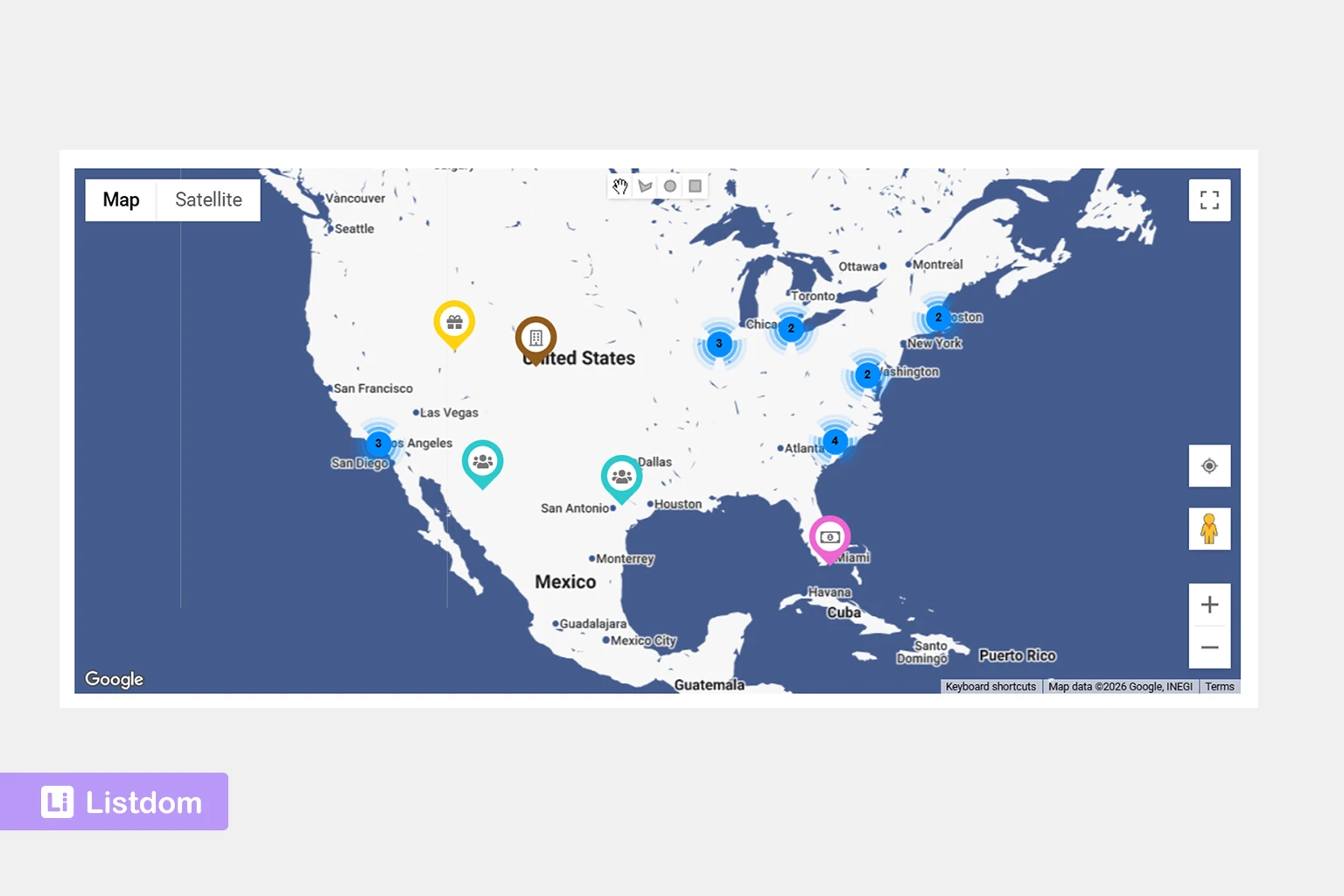
A basic map may show ten pins. A business directory should help users understand what each pin represents, filter those pins by category or location, open each business listing, and take action.
For example:
- A restaurant directory needs food categories, neighborhoods, addresses, and opening details.
- A local service directory needs service categories, coverage areas, addresses, and contact options.
- A healthcare directory needs clinic types, doctor categories, addresses, and map context.
- A city business portal needs structured Locations, categories, search filters, and different display layouts.
That is why choosing a WordPress business directory plugin with maps is different from choosing a simple map marker plugin.
Key features to look for in a business directory plugin with maps
When evaluating a WordPress business directory plugin with maps, focus on the full local discovery experience.
Business listing management

The plugin should let you create and manage business listings with useful information such as title, description, contact details, images, categories, location, address, and other relevant fields.
A map is more useful when every marker connects to a real business listing.
Categories, Locations, and structured filters

Categories help users understand what type of business they are viewing.
Examples include:
- restaurants
- cafes
- hotels
- clinics
- shops
- repair services
- beauty salons
- real estate agencies
- professional services
A business directory without categories quickly becomes difficult to browse. Maps can show where businesses are, but categories help users narrow down what they are looking for.
Location taxonomy helps organize businesses by area.
A Location might be:
- country
- state or province
- city
- district
- neighborhood
- service area
This is different from a business address. A Location helps structure the directory. An address describes the physical place of one business.
Address and coordinate support

A business directory with maps needs reliable address and coordinate data.
The address helps visitors understand where the business is. Coordinates help the map place the marker accurately.
Without strong address and coordinate handling, map results can become confusing or unreliable.
Interactive map layouts

Different directory pages need different map layouts.
Some pages should focus on the map. Others should show business listings and a map side by side. Some listing detail pages only need a map for one business.
A good plugin should provide flexible display options for different browsing experiences.
Google Maps and OpenStreetMap support
Map provider choice matters.
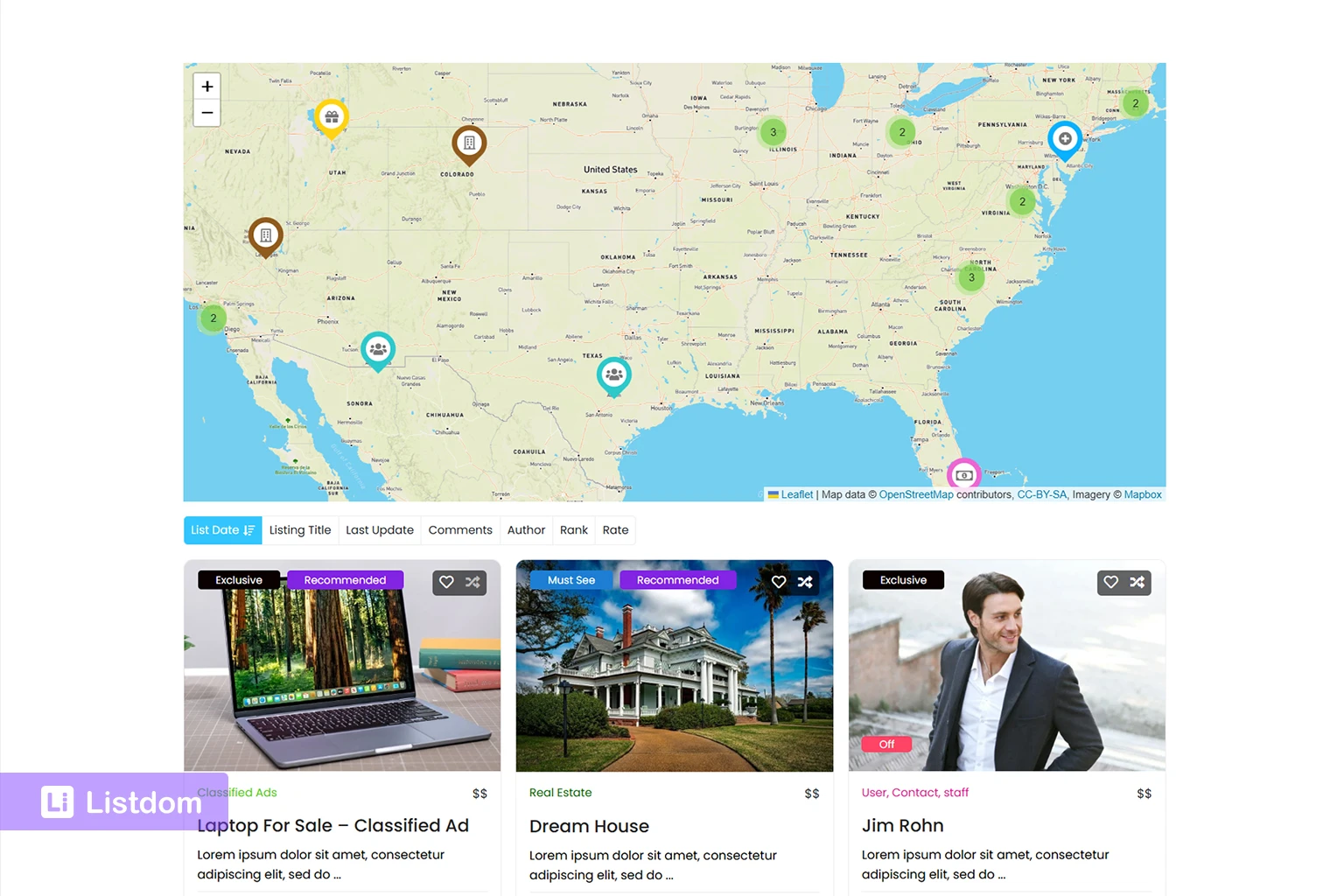
Some directory owners prefer Google Maps. Others prefer OpenStreetMap/Leaflet. Some setups may use Mapbox tiles. The best choice depends on API requirements, geocoding needs, display preferences, and project budget.
Address autocomplete and locate controls

Address autocomplete or autosuggest can help users enter places faster. Locate or current-location controls can help users search from where they are.
These features are especially useful in local business directories because visitors often want nearby options.
Radius and nearby search options

Some business directories need distance-based search.
Examples:
- restaurants within 5 km
- clinics near me
- hotels near this address
- service providers near my location
- shops near a neighborhood
Radius search depends on accurate address and coordinate data. It should be planned together with the rest of the search experience.
Frontend listing submission

Many business directories allow business owners to submit their own listings.
If frontend submission matters, the directory should make it easy to collect business information, categories, locations, addresses, and map-related data in a controlled way.
Monetization options
Business directories often become monetized websites.
Possible monetization models include paid submissions, packages, subscriptions, featured listings, claim workflows, advertising, booking, or visibility upgrades.
Maps can support monetization because local visibility is valuable for many businesses.
How Listdom supports business directories with maps
Listdom is a WordPress directory plugin that can help site owners build business directories with structured listings, map display, search forms, and location-based browsing.
For a business directory, Listdom can bring together:
- business listings
- categories
- Location taxonomy
- listing addresses
- latitude and longitude
- map display options
- shortcodes and skins
- Search and Filter Builder
- frontend submission workflows
- optional monetization-related features through relevant settings and addons
The important point is that Listdom separates directory structure from map precision.
A business can belong to a Location such as “Downtown Toronto” or “Barcelona.” It can also have an address and coordinates that place it accurately on the map. Search forms can then help users search by category, Location, address, current position, radius, or other filters where configured.
This makes Listdom useful for business directories where users need both structured browsing and map-based local discovery.
For a broader commercial overview of map-based directories, read WordPress Map Directory Plugin: How to Show Listings on an Interactive Map.
Build with Listdom
Build your directory website with Listdom
Launch a polished WordPress directory with listings, locations, maps, search, and room to grow into a full directory business.
Categories, locations, addresses, and coordinates work together
A business directory with maps needs a clear structure.
Think of the main layers like this:
Category: what the business is
The category describes the business type.
Examples:
- Restaurant
- Dentist
- Hotel
- Plumber
- Gym
- Real Estate Agency
- Coffee Shop
Categories help users filter by intent.
Location: where the business belongs
A Location is a taxonomy term that organizes the business geographically.
Examples:
- Barcelona
- Downtown
- Santa Monica
- Manchester
- Gràcia
- West End
Locations help users browse by area.
Address: where the business physically is
An address belongs to one business listing.
Examples:
- 123 Main Street
- 44 Oak Avenue
- Carrer de Mallorca 401
- 8 West 21st Street
Addresses help users understand the exact place.
Coordinates: where the map places the business
Coordinates are latitude and longitude values used by the map.
They help the map place the business marker accurately.
These layers should not be mixed up. A category is not a Location. A Location is not a full street address. An address is not the same as coordinates.
For a focused explanation of this difference, read Locations vs Addresses in Listdom.
Choosing the right map layout for a business directory
The right map layout depends on how visitors should browse businesses.
Listdom uses shortcodes and display skins to show listings in different layouts. For map-based business directories, two important options are Single Map and Half Map.
Single Map for map-first browsing
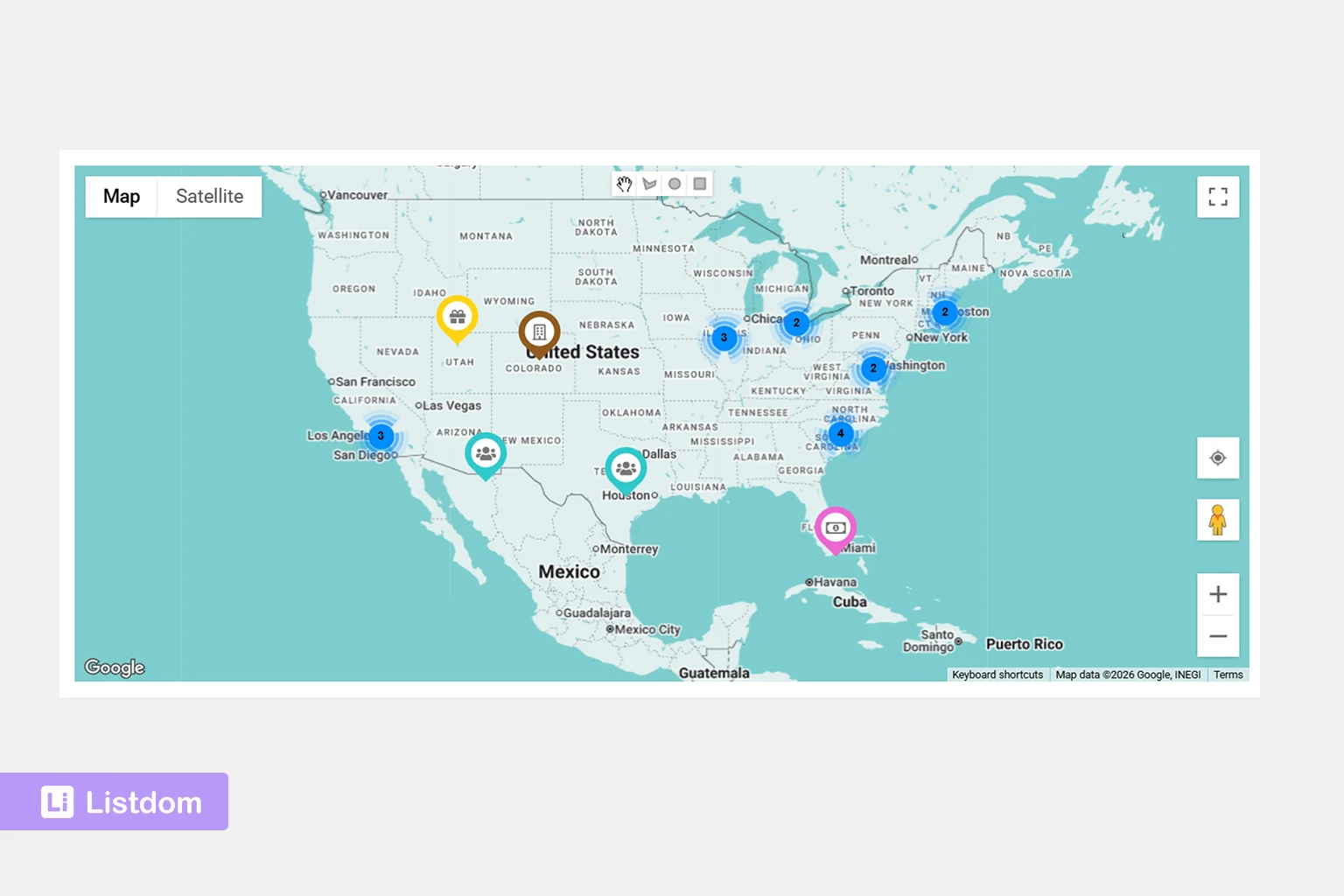
A Single Map layout is useful when the map is the main way users explore the directory.
This can work well for:
- city business maps
- restaurant maps
- attraction maps
- branch or office maps
- service point maps
- local place directories
Single Map is a strong option when users want to visually explore a set of businesses across an area.
Half Map for comparing businesses and locations
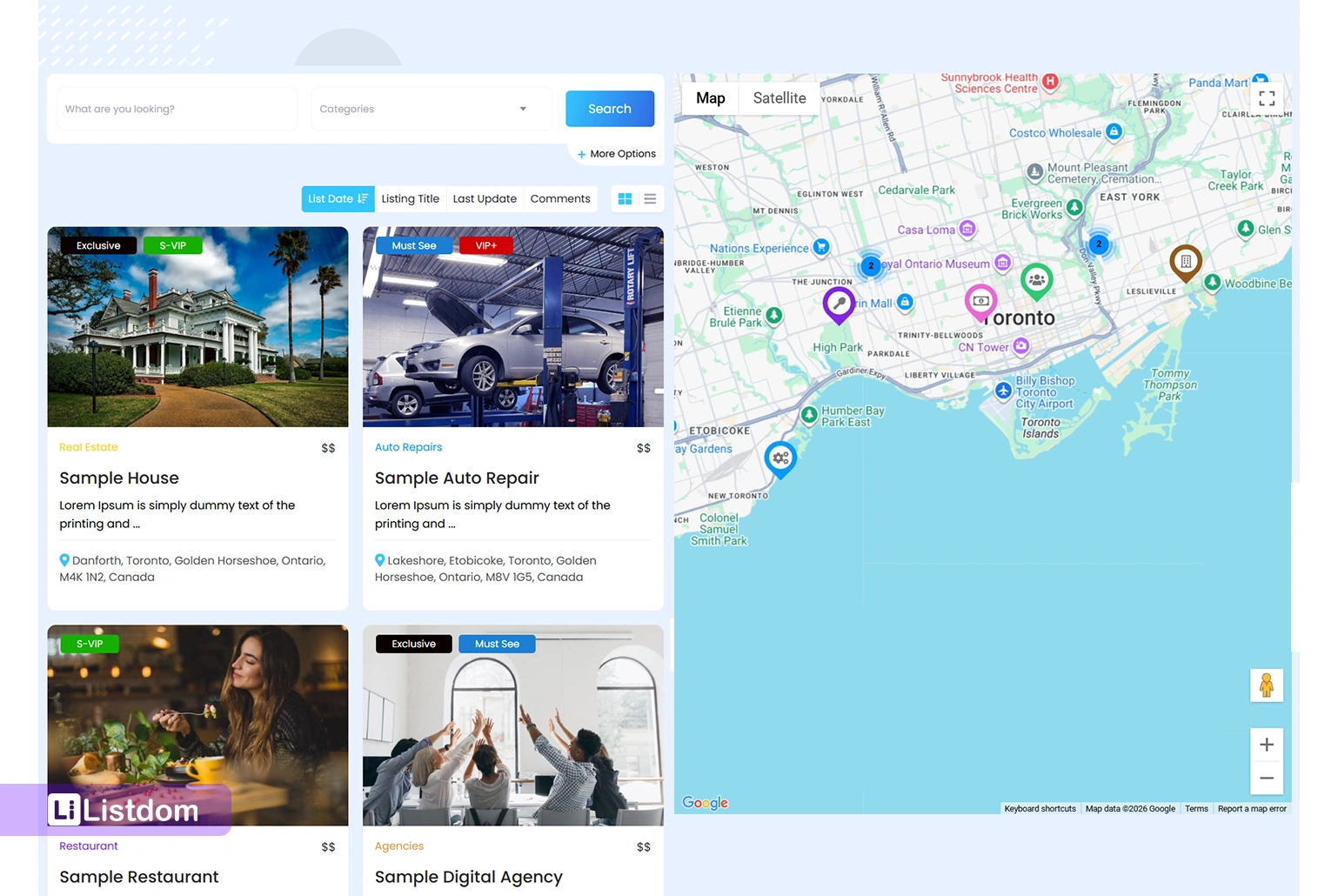
A Half Map layout is useful when visitors need both business details and map context.
This layout is especially helpful for:
- real estate agencies
- local service providers
- hotels
- restaurants
- clinics
- professional service directories
- city portals
The user can compare listings while also seeing where they are located.
For example, a visitor may filter restaurants by category, scan the results, and compare their map positions at the same time. A healthcare directory visitor may compare clinics by area while keeping distance in view.
Listing detail page map context

Some business listings also need map context on the individual listing page. This helps visitors understand where a specific business is located after they open the full listing.
A business directory often benefits from both:
- map-based archive or search result pages
- map context on individual business listing pages
Search forms turn maps into local discovery

A map becomes much more valuable when users can search and filter the businesses.
Listdom’s Search and Filter Builder helps site owners create search forms for different directory experiences.
For a business directory with maps, useful search behavior may include:
- keyword search
- category filtering
- Location filtering
- Address search
- autocomplete or autosuggest
- locate/current-location controls
- radius search where appropriate and configured
Location search
Location search is useful when users think in terms of cities, districts, neighborhoods, or service areas.
For example:
- restaurants in Barcelona
- dentists in Downtown Toronto
- hotels in Paris
- plumbers in Manchester
This uses the Location taxonomy.
Address search
Address search is useful when users want to search around a specific address or place.
For example:
- businesses near my hotel
- clinics near this street
- services around my current location
- shops near a landmark
This works with address-based data.
Autocomplete and locate controls
Autocomplete or autosuggest helps users enter addresses or places faster. Locate or current-location controls can help users search from where they are.
These options are especially important for mobile users. Someone looking for a nearby restaurant, clinic, hotel, or service provider may not want to type a full address.
Radius and nearby search
Radius search is useful when distance matters.
Examples:
- show results within 5 km
- find businesses near me
- show nearby service providers
- find hotels near this address
Radius search depends on accurate address and coordinate data. A directory with poor address data will not deliver a strong nearby search experience.
For more detail on search form planning, read How to Create Search Forms in Listdom.
Google Maps, OpenStreetMap, Leaflet, Mapbox, and geocoding
A business directory with maps needs map provider settings.
In Listdom, global map behavior is managed from Listdom → Settings → General → Map Module.

Depending on the setup, this area can include:
- default map provider
- Google Maps API key
- Mapbox access token
- default zoom level
- GPS zoom level
- default latitude
- default longitude
- shape display options
- geo-point or geocoding settings
These are global settings. They are different from the address and coordinates stored inside each business listing.
Google Maps
Google Maps can be a good choice when a site owner wants Google map services and is ready to configure the required API key and related Google APIs.
OpenStreetMap and Leaflet
OpenStreetMap/Leaflet-style map behavior can be useful for directory owners who want an alternative map provider setup. Depending on the configuration, Mapbox tiles may also be relevant.
Geocoding
Geocoding connects address text to map coordinates. This matters because the listing address is written for humans, but the map needs a precise point.
If latitude and longitude are missing or need to be generated, geocoding behavior becomes important. This is why clean business addresses and map settings should be planned together.
Business directory examples that benefit from maps
Different local business directories use maps in different ways.
Local business directory
A general local business directory can use maps to help users discover nearby businesses by category, neighborhood, or current location.
Restaurant and cafe directory
Maps are valuable because users often choose food based on distance, area, or convenience. Address search and locate controls can improve the user experience.
Healthcare and clinic directory
Patients often care about distance and access. A clinic directory with maps can help users compare nearby options.
Hotel and travel business directory
Hotels, tour providers, attractions, and travel services are naturally location-sensitive. Maps help users understand proximity to landmarks, airports, stations, and city centers.
Service provider directory
Service providers may have offices, service areas, or both. A map can help visitors understand where the business is based or which area it serves.
Professional services directory
Lawyers, consultants, agencies, accountants, and other professionals may benefit from map visibility when local presence matters.
City business portal
A city portal can use maps to organize restaurants, shops, offices, public places, services, and attractions into one local discovery experience.
Implementation guide
Need the technical details?
Use the Listdom documentation to configure listings, shortcodes, search forms, maps, and add-ons with confidence.
When a simple store locator is enough
A full business directory plugin may be more than needed for some projects.
A simple store locator may be enough when:
- the site only shows owned branches
- the number of locations is small
- users do not need categories
- there are no independent businesses
- there are no user submissions
- there is no need for rich listing pages
- there is no monetization model
For example, a company with three office branches may not need a full business directory structure.
But a full directory plugin is better when the website includes many independent businesses, categories, filters, local search, listing pages, user submissions, or paid visibility options.
A store locator usually answers: “Where is the nearest branch?”
A business directory answers: “Which business is the right match for me in this area?”
Practical setup path with Listdom
A business directory with maps works best when structure comes before design.
Here is a practical setup path.
1. Define your business categories
Start with the types of businesses your directory will include.
Examples:
- restaurants
- hotels
- clinics
- services
- shops
- agencies
- attractions
- professionals
Categories help users narrow down the directory by business type.
2. Plan your Location taxonomy
Next, decide how users should browse geographically.
Examples:
- country
- state
- city
- district
- neighborhood
- service area
Do not use every street address as a Location term. Locations should organize the directory. Addresses should describe individual businesses.
3. Configure the Map Module
Go to Listdom → Settings → General → Map Module and review your global map settings.
Check the map provider, API key needs, default zoom, default coordinates, GPS zoom, shape display options, and geocoding settings.
4. Add business listings with addresses and coordinates
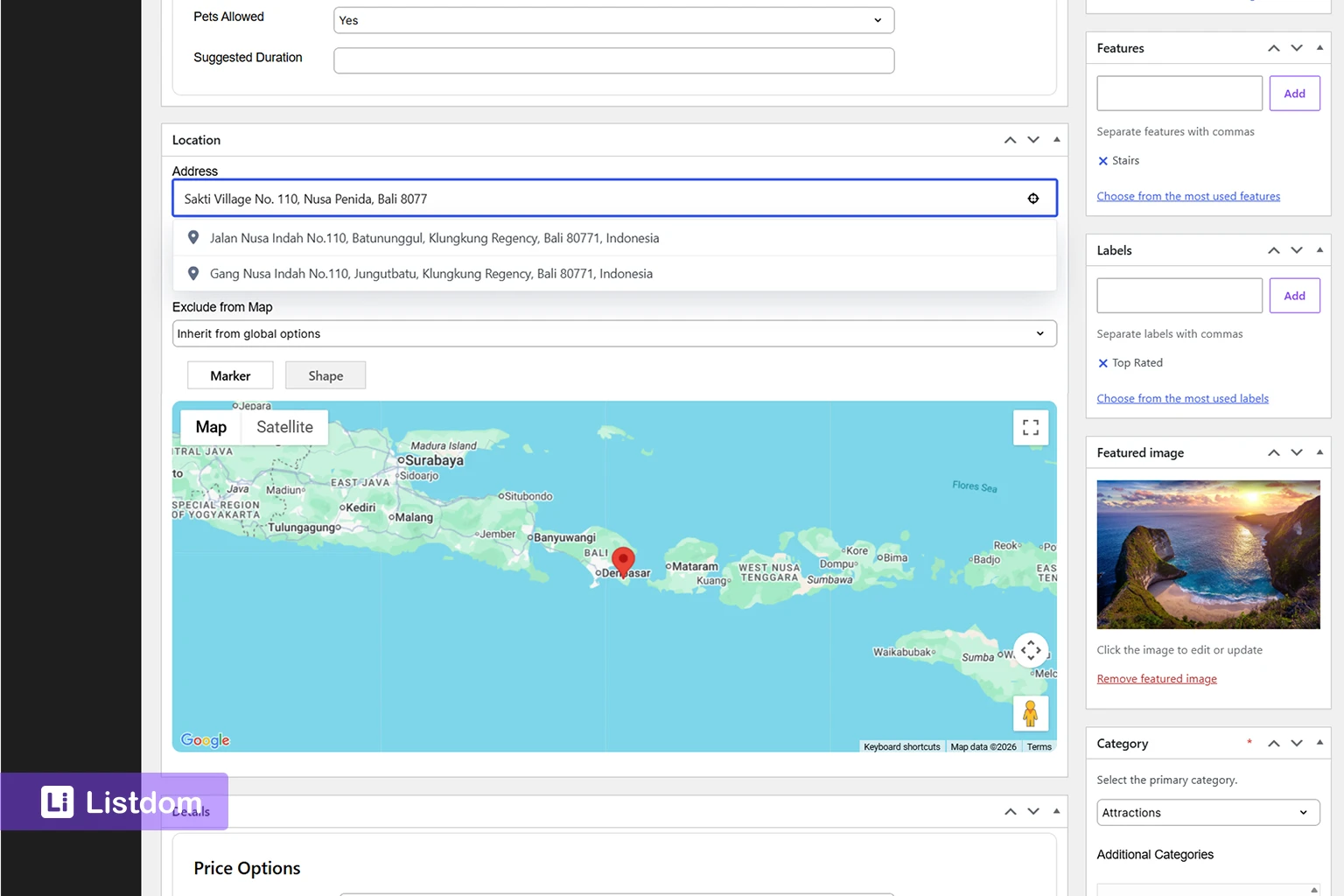
On each business listing, use the Add/Edit Listing → Location meta box to manage listing-level map data.
This may include:
- business address
- latitude and longitude
- marker placement
- Exclude from Map
- Marker mode
- Shape mode
- map preview
Test a few listings before adding many businesses.
5. Choose a map display layout
Use a map-first display when users should browse visually.
Use a split map-and-listing layout when users need to compare details and map positions together.
Single Map and Half Map can serve different business directory experiences.
6. Create search forms
Build search forms around user intent.
Useful fields may include:
- keyword
- categories
- Locations
- Address
- autocomplete
- locate/current-location
- radius options where appropriate
7. Test the local discovery flow
Before publishing widely, test how visitors will use the directory.
Check:
- category filtering
- Location filtering
- Address search
- map marker accuracy
- current-location behavior
- radius behavior if used
- listing detail pages
- mobile usability
A business directory with maps should feel easy to explore, especially on mobile.
What to read next
To continue planning your business directory with maps, read these related Listdom guides:
- WordPress Map Directory Plugin: How to Show Listings on an Interactive Map
- How Maps and Addresses Work in Listdom
- Locations vs Addresses in Listdom
- How to Create Search Forms in Listdom
These articles explain the broader map directory structure, address and coordinate logic, Location taxonomy, and search form planning in more detail.
Listdom ecosystem
Build the directory workflow described in this guide
Use related Listdom products, add-ons, and planning pages to turn this guide into a structured directory project.
Conclusion
A WordPress business directory plugin with maps should help visitors discover local businesses, not just look at map markers.
The best experience combines business categories, Location taxonomy, addresses, coordinates, interactive map layouts, search forms, autocomplete, locate controls, and clear listing pages.
Listdom helps site owners bring those pieces together inside WordPress. You can build business listings, organize them by category and area, add address and coordinate data, configure the Map Module, display listings with map-based layouts, and create search forms that support local discovery.
For local business directories, maps are not just a visual layer. They are part of how users make decisions.
When your listings, maps, and search tools work together, your business directory becomes easier to browse, easier to trust, and more useful for visitors.
FAQ
What is a WordPress business directory plugin with maps?
A WordPress business directory plugin with maps helps you create a local business directory where listings can be organized by category and location, shown on maps, and searched by users.
Why do business directories need maps?
Maps help users compare businesses by area, distance, and convenience. They are especially useful when visitors need local options or nearby results.
Can Listdom show business listings on a map?
Yes. Listdom supports map-based listing display through map-related skins and shortcode outputs, including Single Map and Half Map layouts when the map component and provider settings are configured.
Can users search businesses by location?
Yes. Listdom search forms can use Location fields so visitors can filter listings by areas such as city, district, neighborhood, or service region.
Can users search by address or current location?
Listdom’s Address field options can support address-based search, autocomplete or autosuggest, and locate/current-location controls where enabled.
What is the difference between business Location and business Address?
A business Location is a taxonomy term used to organize listings by area. A business Address belongs to one listing and describes where that business physically is.
Does Listdom support Google Maps?
Yes. Listdom can work with Google Maps when the required Google Maps API key and related settings are configured.
Does Listdom support OpenStreetMap or Leaflet?
Yes. Listdom can support OpenStreetMap/Leaflet-style map behavior. Mapbox token settings can also be relevant for map tiles depending on the setup.
Is a business directory with maps the same as a store locator?
Not always. A store locator is usually for owned branches or a small set of locations. A business directory is better for many independent businesses, categories, filters, listing pages, submissions, and monetization workflows.
What business directory types benefit most from maps?
Local business directories, restaurant directories, healthcare directories, hotel directories, service provider directories, city portals, professional service directories, and attraction directories can all benefit from map-based discovery.
FAQ
Common questions
What is a WordPress business directory plugin with maps?+
A WordPress business directory plugin with maps helps you create a local business directory where listings can be organized by category and location, shown on maps, and searched by users.
Why do business directories need maps?+
Maps help users compare businesses by area, distance, and convenience. They are especially useful when visitors need local options or nearby results.
Can Listdom show business listings on a map?+
Yes. Listdom supports map-based listing display through map-related skins and shortcode outputs, including Single Map and Half Map layouts when the map component and provider settings are configured.
Can users search businesses by location?+
Yes. Listdom search forms can use Location fields so visitors can filter listings by areas such as city, district, neighborhood, or service region.
Can users search by address or current location?+
Listdom’s Address field options can support address-based search, autocomplete or autosuggest, and locate/current-location controls where enabled.
What is the difference between business Location and business Address?+
A business Location is a taxonomy term used to organize listings by area. A business Address belongs to one listing and describes where that business physically is.
Does Listdom support Google Maps?+
Yes. Listdom can work with Google Maps when the required Google Maps API key and related settings are configured.
Does Listdom support OpenStreetMap or Leaflet?+
Yes. Listdom can support OpenStreetMap/Leaflet-style map behavior. Mapbox token settings can also be relevant for map tiles depending on the setup.
Is a business directory with maps the same as a store locator?+
Not always. A store locator is usually for owned branches or a small set of locations. A business directory is better for many independent businesses, categories, filters, listing pages, submissions, and monetization workflows.
What business directory types benefit most from maps?+
Local business directories, restaurant directories, healthcare directories, hotel directories, service provider directories, city portals, professional service directories, and attraction directories can all benefit from map-based discovery.