Before getting into the steps, it helps to understand the short answer. This guide explains the topic in practical terms and connects it to the decisions, setup, or Listdom workflow covered below.

Before getting into the steps, it helps to understand the short answer. This guide explains the topic in practical terms and connects it to the decisions, setup, or Listdom workflow covered below.
The short answer
Here is the simplest way to understand it:
- Locations organize listings geographically.
- Addresses describe the physical place of one listing.
- Coordinates help maps place that listing accurately.
- Map Module settings control global map behavior such as provider, API keys, default zoom, GPS zoom, default coordinates, shape styling, and geocoding behavior.
- Search form options decide how visitors search by Location, Address, autocomplete, locate/current location, and radius options.
- Most local directories need both Locations and Addresses.
For example, a restaurant listing might use:
- Location: Barcelona
- Category: Restaurant
- Address: Carrer de Mallorca 401, Barcelona
- Coordinates: the exact map position for that address
The Location helps users browse restaurants in Barcelona. The Address helps users find the exact restaurant on a map. The coordinates make the map marker accurate. If you are now ready to enter and validate that individual listing data, follow the Listdom listing address workflow.
That is the mental model to keep in mind.
Build with Listdom
Build your directory website with Listdom
Launch a polished WordPress directory with listings, locations, maps, search, and room to grow into a full directory business.
What a Location means in Listdom
In Listdom, a Location is a taxonomy term. It works like a structured geographic label for your listings.
You can use Locations to organize listings by:
- country
- state or province
- city
- district
- neighborhood
- area
- service region

For example, a city portal might use this Location structure:
- Spain
- Catalonia
- Barcelona
- Eixample
- Gothic Quarter
- Gràcia
- Barcelona
- Catalonia
A real estate directory might use:
- United States
- California
- Los Angeles
- Downtown LA
- Santa Monica
- Hollywood
- Los Angeles
- California
You manage Location terms from Listings → Locations in the WordPress dashboard. There, you can create Location names, slugs, parent Locations, descriptions, and optional images.
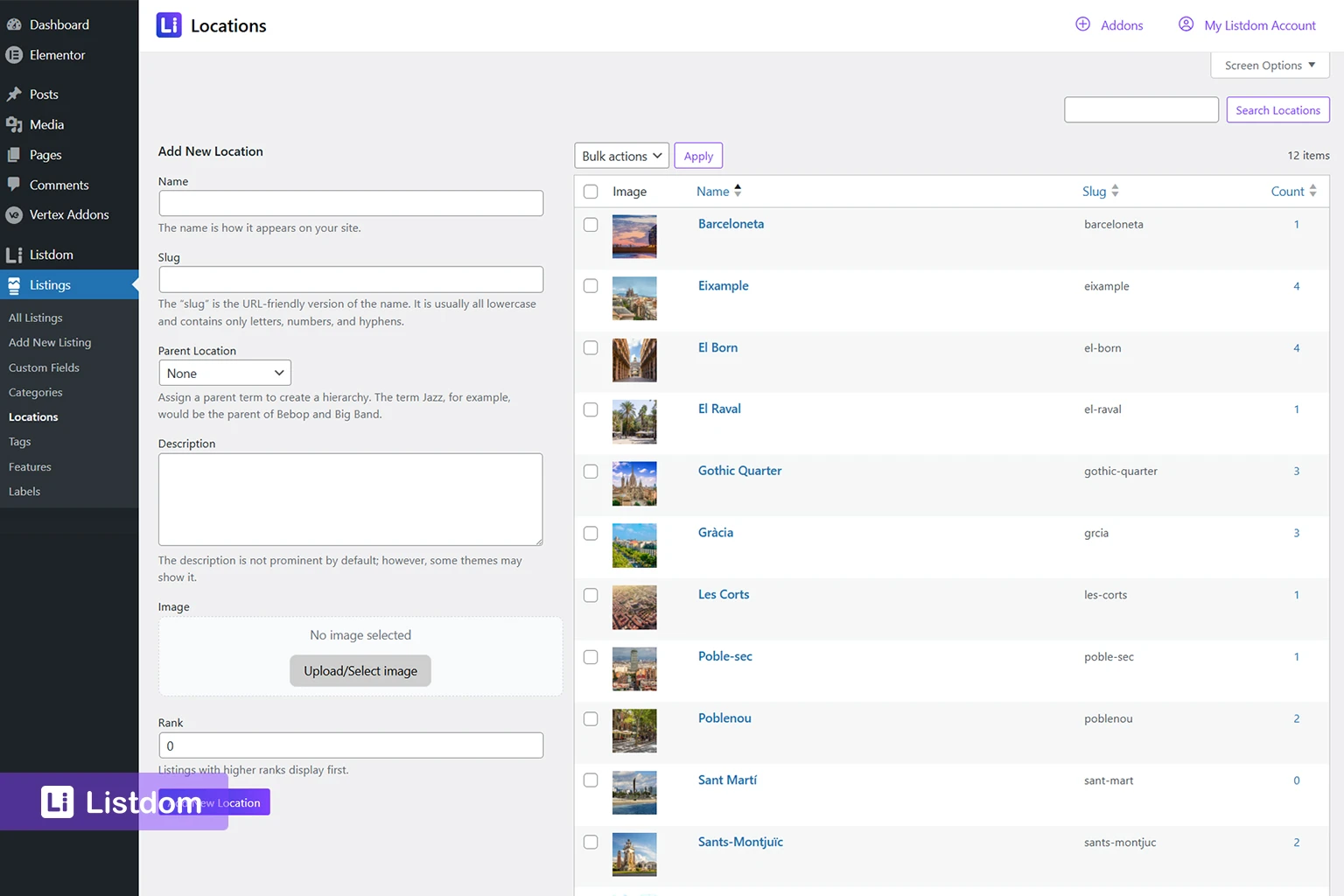
This makes Locations useful for directory structure. They help users browse listings by area, help admins organize content, and can support taxonomy-based archive pages.
A Location is not the same as a full street address. “Barcelona” is a Location. “Carrer de Mallorca 401, Barcelona” is an Address.
What an Address means in Listdom

An Address belongs to an individual listing.
It tells the visitor where that specific listing is located. It can also help the map system place the listing marker in the correct position.
Examples of listing addresses include:
- 123 Main Street, Toronto
- 44 Oak Avenue, Los Angeles
- 8 West 21st Street, New York
- Carrer de Mallorca 401, Barcelona
In Listdom, the address is managed on the Add/Edit Listing screen inside the Location meta box. This is where the listing can store its address-related information, latitude, longitude, map marker, and map visibility behavior.
The listing Address is important when:
- the listing represents a physical place
- the visitor needs directions
- the listing should appear on a map
- distance or nearby search matters
- the user needs to understand the exact location before contacting, booking, or visiting
A Location says the listing belongs to an area. An Address says where the listing actually is.
Locations, addresses, coordinates, and map settings are different layers
A complete map-ready listing can involve several layers. They work together, but they do different jobs.
1. Location
This is the taxonomy layer.
Example:
Barcelona
The Location helps organize the listing inside your directory. It supports browsing, filtering, hierarchy, and possibly archive pages.
2. Address
This is the human-readable physical place.
Example:
Carrer de Mallorca 401, Barcelona
The Address helps visitors understand the exact place and helps the system connect the listing to map behavior.
3. Coordinates
This is the map-readable position.
Latitude and longitude
Coordinates tell the map where the listing marker should appear. Visitors usually do not think about coordinates, but coordinates are important for map accuracy, radius search, distance logic, and near-me style discovery.
4. Map Module settings
This is the global map behavior layer.
Map Module settings control the default environment used by maps across Listdom. This includes the default map provider, Google Maps API key, Mapbox access token, default map zoom level, GPS zoom level, default latitude and longitude, shape display styling, and geo-point/geocoding settings.
This is why a listing can be correctly structured but still need map settings configured properly. The listing stores its own location data, while the Map Module controls how the map environment behaves.
How the Add/Edit Listing form uses address data
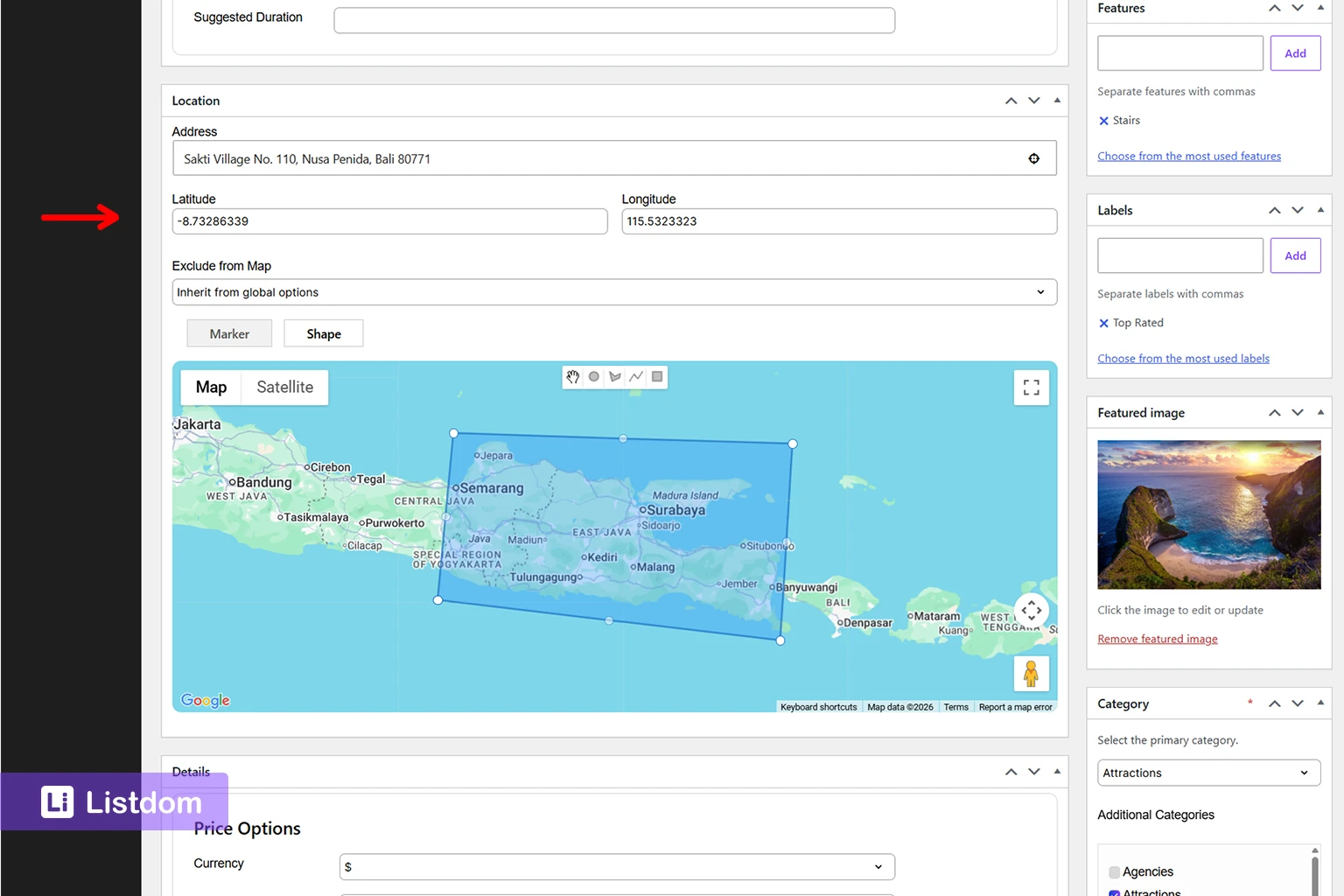
When an admin or listing owner adds a listing, the address-related fields help convert a normal listing into a map-ready listing.
In the Add/Edit Listing → Location meta box, Listdom works with listing-level location data such as:
- the listing Address field
- latitude and longitude
- the Exclude from Map option
- Marker mode
- Shape mode
- the interactive map preview
- marker placement on the map
These options define how that individual listing should behave geographically.
The Address field describes the place. The latitude and longitude store the map position. The interactive map preview lets the user confirm or adjust the marker visually. The Exclude from Map option lets the site owner decide whether that specific listing should appear on map outputs or inherit the global map behavior.
The Marker and Shape options are different location display models. Marker mode is best when the listing represents one specific place, such as a restaurant, clinic, hotel, shop, office, or property. Shape mode is more useful when the listing represents an area rather than one exact point.
Some address entry experiences may also include helpful location controls, such as an address suggestion/autocomplete experience or a locate/current-position control. These are important because they help users enter or position listing data more accurately instead of manually guessing addresses or coordinates.
The key point is this:
The listing Location meta box controls the individual listing’s address, coordinates, marker, shape, and map inclusion behavior. It does not control the global map provider, default zoom, default map center, or API keys.
Those global settings belong in the Map Module.
How the Map Module settings support listings

The Map Module settings are found under Listdom → Settings → General → Map Module.
This area controls the default map environment for Listdom. Based on the current settings screen, the Map Module can include options such as:
- Default Map Provider
- Google Maps API Key
- Mapbox Access Token
- Default Zoom Level
- GPS Zoom Level
- Default Latitude
- Default Longitude
- Shape Display Options
- Google Geo-coding API Key
This is separate from the Add/Edit Listing Location meta box.
For example, a listing may have its own address, latitude, longitude, marker, and Exclude from Map value. But the map provider, Google Maps API key, default zoom level, and default coordinates come from global Map Module settings.
This separation is useful because it lets you control the map environment once, while still letting each listing keep its own geographic data.
Google Maps, OpenStreetMap, Leaflet, Mapbox, and geocoding
Map provider settings matter because different providers and services affect how your maps behave.
In the Map Module, you can choose the default map provider. If Google Maps is used, the Google Maps API key becomes important. The settings screen also reminds users to enable related Google APIs such as Maps JavaScript API, Places API, Geocoding API, and Directions API for the key.
If you use OpenStreetMap/Leaflet behavior, a Mapbox Access Token can be used for Mapbox tiles. Otherwise, OSM tiles can be used by default.
There is also a separate geo-point/geocoding setting. If latitude and longitude are not provided when editing a listing, Listdom can attempt to convert the address into a geo-point using OSM and Google Geocoding APIs. A Google Geo-coding API key can be added for that process.
This matters because address data and coordinate data are connected, but they are not identical. A clean address helps, but the map still needs a precise geo-point to place the listing correctly.
When you should use Locations
Use Locations when users need to browse or filter by area.
Locations are especially useful when your directory has a clear geographic structure. This includes directories where users commonly think in terms of cities, neighborhoods, regions, or service areas.
Examples:
- restaurants in Barcelona
- hotels in Paris
- clinics in Downtown Toronto
- real estate listings in Santa Monica
- local services in Manchester
- attractions in Rome
Locations are also useful for SEO and browsing structure. A directory with clean Location taxonomy can build stronger area-based pages and make it easier for users to understand the scope of the website.
Use Locations when you want to answer questions like:
- Which city does this listing belong to?
- Which neighborhood should users browse?
- Which region should appear in filters?
- Which area should have its own archive page?
- How should listings be grouped geographically?
Locations are not mainly about the exact street address. They are about structure.
When you should use Addresses
Use Addresses when the listing has a physical place and users need to know where it is.
Addresses are important for:
- map markers
- directions
- local discovery
- distance context
- nearby search
- radius search
- visitor trust
- business contact information
For example, a user looking for a restaurant does not only want to know that it is in Barcelona. They may want to know whether it is close to their hotel, close to a metro station, or on a specific street.
A real estate visitor may care about the exact property area. A patient may want to know how far a clinic is from home. A tourist may want attractions near a landmark. In all of these cases, Address data is more useful than Location taxonomy alone.
Use Addresses when you want to answer questions like:
- Where exactly is this listing?
- Can the visitor find it on a map?
- Can the visitor get directions?
- Can the listing appear in nearby results?
- Is distance important to the decision?
Addresses are not mainly about directory hierarchy. They are about physical placement.
When you need both Locations and Addresses

Most local directories need both.
The Location helps with structure. The Address helps with precision.
Restaurant directory
- Category: Restaurant
- Location: Barcelona
- Address: exact restaurant address
- Map: marker on the restaurant
The Location helps users browse restaurants in Barcelona. The Address helps them visit the restaurant.
Healthcare directory
- Category: Clinic
- Location: Downtown
- Address: clinic building address
- Map: marker for the clinic
The Location helps users filter clinics by area. The Address helps patients understand distance and access.
Hotel directory
- Category: Hotel
- Location: Paris
- Address: exact hotel address
- Map: marker near attractions, stations, or neighborhoods
The Location helps with city-level browsing. The Address helps travelers decide whether the hotel is in the right part of the city.
Real estate directory
- Category: Apartment
- Location: Santa Monica
- Address: exact or approximate property address, depending on privacy and listing policy
- Map: marker or area context
Real estate directories need to be careful. Some listings may show exact addresses, while others may show approximate locations for privacy. The Location taxonomy still helps users browse by neighborhood.
Service provider directory
- Category: Plumber
- Location: Manchester
- Address: office address or service area
- Map: marker or shape depending on the business model
A service provider may have a physical office, a service area, or both. This is where planning matters. Do not force every service listing into the same model if the businesses work differently.
How this affects search forms

Search forms are where the difference between Locations and Addresses becomes very visible.
In Listdom, you create search forms from Listdom → Search and Filter Builder. Depending on the fields you add, users can search by taxonomy, address text, distance, or other listing data.
Location field
A Location field filters listings by Location taxonomy.
This is useful when users search by area names such as:
- city
- district
- neighborhood
- region
For example, a user selects “Barcelona” because they want listings assigned to that Location.
This is taxonomy-based search.
Address field
An Address field works with listing address data.
This is useful when users type an address, city, zip code, or place-related phrase into the search form. Address search helps connect the visitor’s search to listing address values.
This is address-based search.
Address autocomplete and locate controls

Address search becomes easier when users do not have to type everything manually.
Listdom includes helpful address-related search options such as:
- address autocomplete or autosuggest
- locate/current-location control
- default address
- address placeholder
- radius-related options where available
These options improve the search experience because users can find or select a place more quickly. The locate control is especially useful for local directories because it helps users search from their current position instead of typing a full address manually.
These options should not be treated as minor details. For many local directories, they are part of the user experience. A restaurant directory, hotel directory, healthcare directory, service provider directory, or city portal can feel much easier to use when visitors can search with address suggestions or their current location.
Radius search
Radius search is different from a normal Location filter.
A Location filter might show listings assigned to “Barcelona.” Radius search is about showing listings within a distance from a point.
For example:
- within 5 km of my location
- within 10 miles of this address
- near this city center
- near this landmark
Radius search depends on reliable address and coordinate data. If listings do not have clean map data, radius search will not feel reliable.
This is why search form planning should happen after you understand your Location and Address structure.
For a broader search form guide, read How to Create Search Forms in Listdom.
How this affects map display
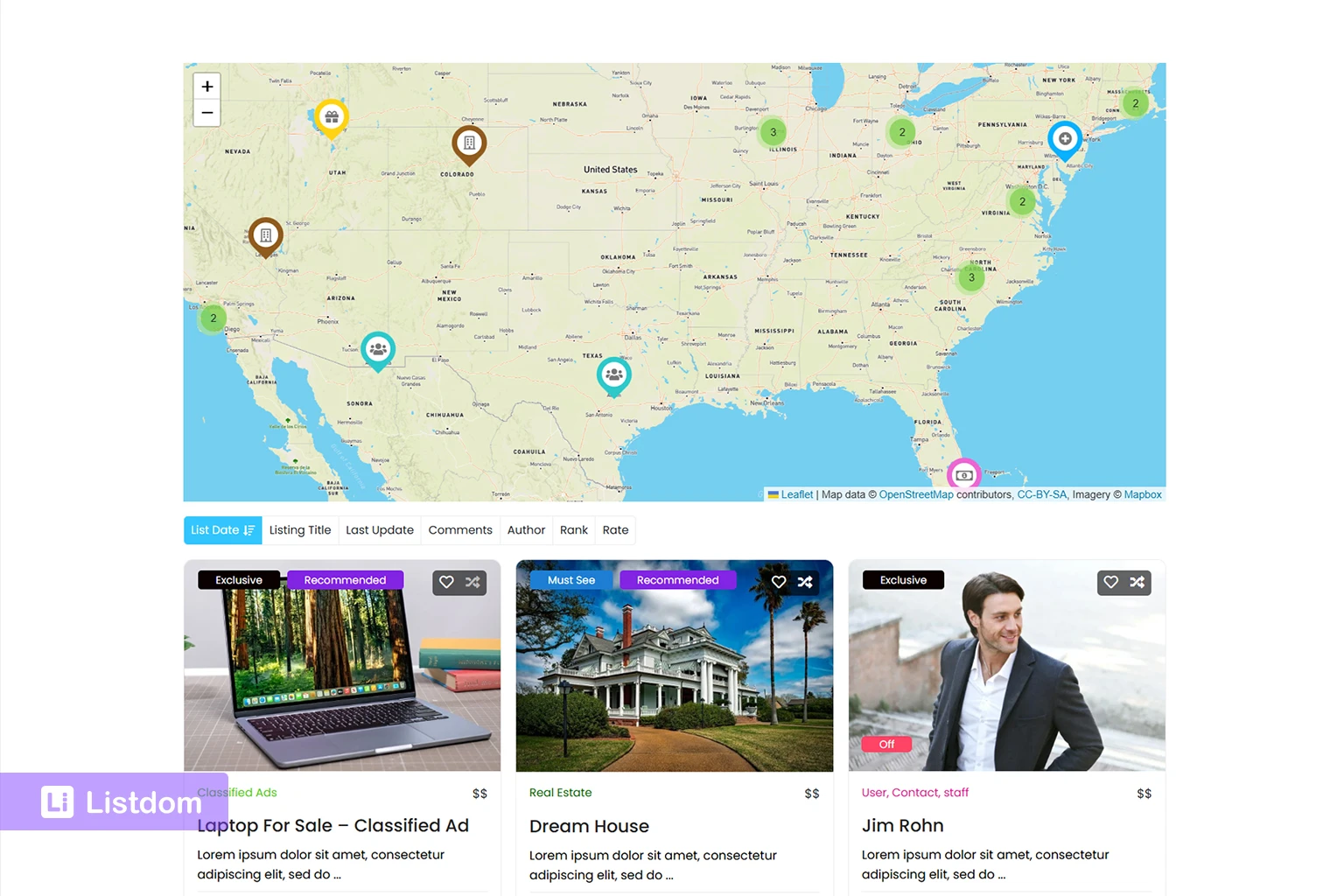
A map view depends much more on Address and coordinates than on Location taxonomy alone.
A Location can tell the system that a listing belongs to Barcelona. But a map marker needs a more precise point. That point usually comes from address and coordinate data.
This matters for:
- map skins
- listing map markers
- infowindows
- Half Map layouts
- Single Map layouts
- map-based search results
- nearby discovery
If a listing only has a broad Location, the directory may know the listing belongs to a city, but it may not know the exact place to put the marker.
A strong map-based directory should use Locations for structure and Addresses for map precision.
How this affects archive pages and SEO
Locations can help with SEO because they can create a meaningful structure around geographic areas.
For example, a directory might have pages for:
- restaurants in Barcelona
- hotels in Paris
- clinics in Toronto
- real estate listings in Los Angeles
- service providers in Manchester
Location archive pages can help users and search engines understand the geographic organization of your directory. If you are planning archive pages for categories, locations, tags, or features, read Listdom Archives: Complete Guide to Directory Archive Pages.
Address data usually does not work the same way. A street address is specific to one listing. It helps that listing page, but it is not usually the main structure for a directory archive.
This is why Locations are important even when your map is working well. The map helps users understand physical placement. Location taxonomy helps users browse and search by area.
For best results, do not treat one as a replacement for the other.
Common mistakes with Locations and Addresses
Using Locations as street addresses
This is the most common mistake.
A Location like “Barcelona” or “Downtown” should not be used as if it were the exact listing address. It helps organize the listing, but it does not replace the physical address.
Creating too many Location terms
Not every street, building, or small area needs to become a Location term.
Too many Location terms can make the directory harder to manage. Use Locations for meaningful geographic browsing levels, not every possible address detail.
Using addresses without a Location structure
A directory can have accurate addresses but still feel messy if users cannot browse by city, area, or neighborhood.
Addresses help maps. Locations help structure.
Expecting map accuracy from taxonomy alone
A Location taxonomy does not automatically make map markers accurate. If map display matters, make sure listings have usable address and coordinate data.
Confusing listing options with global map settings
The Add/Edit Listing Location meta box controls the individual listing’s address, coordinates, marker, shape, and map inclusion behavior.
The Map Module controls global map behavior such as provider, API keys, default zoom, GPS zoom, default coordinates, shape styling, and geocoding settings.
Mixing these two layers can create confusion. If one listing has a wrong marker, check the listing’s address and coordinates. If the whole map environment is wrong, check the Map Module settings.
Building search forms too early
If you build search forms before planning Locations and Addresses, the form may not match how users actually search.
Decide first:
- which areas users browse by
- whether users need exact addresses
- whether radius search matters
- whether autocomplete or locate controls should be enabled
- whether listings need markers or shapes
- which global map provider and geocoding behavior should be used
Then build the search form around that structure.
Best-practice structure for different directory types
Local business directory
Use Locations for city, district, and neighborhood. Use Addresses for each business location. Enable map and address search options when users care about nearby results.
Restaurant directory
Use Locations for city and neighborhood. Use Addresses for each restaurant. Address autocomplete and locate controls can make search easier for users who want food nearby.
Real estate directory
Use Locations for city, area, and neighborhood. Use Addresses or approximate addresses based on your privacy policy. Use map display carefully because exact property location may not always be appropriate.
Healthcare directory
Use Locations for city and district. Use Addresses for clinics, hospitals, and practices. Maps and directions are important because patients often care about distance and access.
Hotel directory
Use Locations for city and travel areas. Use Addresses for each hotel. Map placement is important because users compare hotels by proximity to attractions, airports, stations, and city centers.
Service provider directory
Use Locations for service areas. Use Addresses for providers with physical offices. If the service provider covers an area instead of one location, consider whether a shape or service-area model is more appropriate.
City portal
Use Locations for the city hierarchy, neighborhoods, and important areas. Use Addresses for physical places like restaurants, attractions, shops, and services. City portals usually benefit from both strong taxonomy structure and accurate map data.
Implementation guide
Need the technical details?
Use the Listdom documentation to configure listings, shortcodes, search forms, maps, and add-ons with confidence.
What to do before publishing many listings
Before adding hundreds or thousands of listings, define your geography rules.
Use this checklist:
- Decide your Location hierarchy.
- Decide whether neighborhoods should be Location terms.
- Decide the address format listing owners should use.
- Decide when exact addresses are required.
- Decide whether approximate addresses are acceptable.
- Configure the Map Module settings.
- Confirm the default map provider.
- Add the required Google Maps or geocoding keys if your setup needs them.
- Test a few listings with map markers.
- Test the Add/Edit Listing Location meta box.
- Check whether autocomplete or locate controls should be enabled.
- Test Location filters in the search form.
- Test Address search in the search form.
- If using radius search, test distance results carefully.
- Check how Location archive pages behave.
- Document the rules for admins and listing submitters.
This planning step saves time later. It also prevents messy data, confusing filters, unreliable maps, and inconsistent local search results.
What to learn next
To continue building a strong map and local search structure, read these related guides:
- How Maps and Addresses Work in Listdom
- How Listings, Categories, and Locations Work in Listdom
- How to Create Search Forms in Listdom
- Display Listings with Listdom Shortcodes
- How Local Search Works in Listdom
For the search-form decision itself, see Address Search vs Location Search in Listdom.
Listdom ecosystem
Build the directory workflow described in this guide
Use related Listdom products, add-ons, and planning pages to turn this guide into a structured directory project.
Conclusion
Locations and Addresses work together, but they do not do the same job.
A Location organizes a listing inside your directory structure. An Address describes where one listing physically exists. Coordinates help the map place that listing accurately. Map Module settings control the map environment. Search form options such as address autocomplete, locate controls, Location filters, and radius search determine how users discover listings.
If you understand this difference early, your directory will be easier to build, easier to search, and easier to maintain.
Plan your Location hierarchy first. Keep listing Addresses clean. Configure your Map Module settings carefully. Test maps and search forms before publishing large amounts of content. That structure will make your Listdom directory more useful for both visitors and listing owners.
FAQ
What is the difference between a Location and an Address in Listdom?
A Location is a taxonomy term used to organize listings geographically, such as country, city, or neighborhood. An Address belongs to one listing and describes its physical place.
Do I need both Locations and Addresses?
Most local directories need both. Locations help with browsing, filtering, archives, and SEO structure. Addresses help with map markers, directions, distance, and precise local discovery.
Where do I manage Locations in Listdom?
You manage Locations from Listings → Locations in the WordPress dashboard.
Where do I add a listing address?
You add or edit the listing address on the Add/Edit Listing screen inside the Location meta box.
What does the Add/Edit Listing Location meta box control?
It controls listing-level location data such as Address, latitude, longitude, Exclude from Map, Marker mode, Shape mode, the map preview, and marker placement.
What does the Map Module control?
The Map Module controls global map behavior, including the default map provider, Google Maps API key, Mapbox access token, default zoom level, GPS zoom level, default latitude and longitude, shape display options, and geo-point/geocoding settings.
Can a listing appear on a map with only a Location?
A Location can organize the listing geographically, but accurate map display usually needs address and coordinate data. A city name alone is not the same as a precise marker position.
Are address autocomplete and locate buttons useful?
Yes. Address autocomplete and locate/current-location controls can make address entry and address search easier for users. They help reduce manual typing and can improve the local search experience.
Do Locations help with SEO?
Yes. A clean Location taxonomy can support useful geographic archive pages and internal structure. This can help users and search engines understand how your directory is organized by area.
How does this affect radius search?
Radius search depends on address and coordinate data because it calculates results around a geographic point. Location taxonomy alone is not enough for precise distance-based search.
Should neighborhoods be Locations or addresses?
Neighborhoods usually work well as Location terms when users commonly browse by neighborhood. Street addresses should stay as listing Address data, not Location terms.
FAQ
Common questions
What is the difference between a Location and an Address in Listdom?+
A Location is a taxonomy term used to organize listings geographically, such as country, city, or neighborhood. An Address belongs to one listing and describes its physical place.
Do I need both Locations and Addresses?+
Most local directories need both. Locations help with browsing, filtering, archives, and SEO structure. Addresses help with map markers, directions, distance, and precise local discovery.
Where do I manage Locations in Listdom?+
You manage Locations from Listings → Locations in the WordPress dashboard.
Where do I add a listing address?+
You add or edit the listing address on the Add/Edit Listing screen inside the Location meta box.
What does the Add/Edit Listing Location meta box control?+
It controls listing-level location data such as Address, latitude, longitude, Exclude from Map, Marker mode, Shape mode, the map preview, and marker placement.
What does the Map Module control?+
The Map Module controls global map behavior, including the default map provider, Google Maps API key, Mapbox access token, default zoom level, GPS zoom level, default latitude and longitude, shape display options, and geo-point/geocoding settings.
Can a listing appear on a map with only a Location?+
A Location can organize the listing geographically, but accurate map display usually needs address and coordinate data. A city name alone is not the same as a precise marker position.
Are address autocomplete and locate buttons useful?+
Yes. Address autocomplete and locate/current-location controls can make address entry and address search easier for users. They help reduce manual typing and can improve the local search experience.
Do Locations help with SEO?+
Yes. A clean Location taxonomy can support useful geographic archive pages and internal structure. This can help users and search engines understand how your directory is organized by area.
How does this affect radius search?+
Radius search depends on address and coordinate data because it calculates results around a geographic point. Location taxonomy alone is not enough for precise distance-based search.
Should neighborhoods be Locations or addresses?+
Neighborhoods usually work well as Location terms when users commonly browse by neighborhood. Street addresses should stay as listing Address data, not Location terms.