
Why this topic matters so early
A lot of beginners think the main setup order should be:
- import a demo
- choose a layout
- build a search form
- start adjusting the design
But in real projects, the structure should come first.
That is because listings, categories, and locations affect:
- how users browse the site
- how search forms behave
- how shortcode filters work
- how archive pages feel
- how easy it is to scale the site later
A good structure makes later setup easier.
A weak structure makes every later step harder.
Build with Listdom
Build your directory website with Listdom
Launch a polished WordPress directory with listings, locations, maps, search, and room to grow into a full directory business.
What a listing is in Listdom

A listing is the main content item in your directory.
It is the actual business, place, service, event, person, property, or item you want to publish.
For example, depending on the site type, a listing might be:
- a restaurant
- a lawyer
- a hotel
- a doctor
- a shop
- a rental property
- a local service provider
In practical terms, a listing is the core record that holds the real information.
That can include things like:
- title
- description
- address
- images
- category assignment
- location assignment
- labels and features
- contact details
- custom fields
So when you create a listing, you are not only publishing content. You are placing one structured item inside the broader directory system.
If you have already created your first listing, this article will help you understand the structure behind it more clearly. See How to Create Your First Directory Listing with Listdom for the step-by-step first-listing workflow.
What categories do in Listdom
Categories group listings by type.
They answer the question:
What kind of listing is this?
Examples:
- Restaurants
- Hotels
- Dentists
- Real Estate Agencies
- Plumbers
- Events
Categories help users browse by topic or service type.
They also affect:
- search filters
- archive browsing
- shortcode filtering
- listing organization in wp-admin
- the overall clarity of the site structure
A good category system makes the site easier to browse.
A weak category system creates overlap, confusion, and harder search behavior.
What locations do in Listdom
Locations group listings by place.
They answer the question:
Where is this listing?
Examples:
- New York
- Los Angeles
- Downtown
- Brooklyn
- California
- Spain
- Barcelona
Locations help users browse geographically.
They affect:
- map-based discovery
- location search filters
- archive navigation
- shortcode filtering by area
- the user’s ability to narrow results by geography
So categories organize type, while locations organize place.
That distinction sounds simple, but it is one of the most important onboarding ideas in the whole plugin.
Categories vs locations: the simplest mental model
If you only remember one rule, remember this:
- Categories = what it is
- Locations = where it is
Examples:
- A listing can be in the Restaurant category and the Barcelona location
- A listing can be in the Doctor category and the Madrid location
- A listing can be in the Hotel category and the Downtown location
That means categories and locations are not competing systems.
They are two different ways of organizing the same listing.
And when both are used well, search and browsing become much more useful.
Where to manage listings, categories, and locations

In most setups, these live under the Listings menu in WordPress admin.
That usually includes:
- All Listings
- Add New Listing
- Categories
- Locations
- Custom Fields
- Tags
- Features
- Labels
A useful beginner understanding is this:
- the Listdom menu is more about plugin systems, shortcodes, search, settings, payments, add-ons, and overall behavior
- the Listings menu is more about the actual directory content structure
If you are still getting oriented in wp-admin, see How to Navigate the Listdom Admin Menu because that article explains where these menu groups live and how they fit together.
How listings, categories, and locations work together
This is where the topic becomes practical.
A single listing usually belongs inside both a category structure and a location structure.
For example:
- Listing: Sunset Dental Clinic
- Category: Dentists
- Location: San Diego
Or:
- Listing: Urban Stay Hotel
- Category: Hotels
- Location: Downtown Chicago
This matters because users rarely search in only one way.
Some users browse by service type.
Others browse by place.
Others use both together.

That is why Listdom’s structure becomes much stronger when your listings are assigned clearly and consistently.
The right order to set them up
This is one of the most important parts of the article.
A practical beginner order looks like this:
Step 1: decide your main listing types
Before adding content, define the main types of things your directory will include.
Examples:
- restaurants
- hotels
- doctors
- real estate listings
- local services
These become the early category structure.
Step 2: decide your location structure
Before adding many listings, define how geography should work.
Examples:
- country → city
- state → city
- city → neighborhood
- region → district
Choose a structure that matches the real way users search in your niche.
Step 3: create the core categories
Go to the Listings menu and create your main categories first.
Do not try to create every micro-category immediately.
Start with a small, clear structure.
Step 4: create the core locations
Add the main locations you know you will use.
Again, start with the primary structure first rather than trying to build every possible location on day one.
Step 5: create listings inside that structure
Once categories and locations exist, add listings and assign them correctly.
This makes the whole directory easier to manage from the beginning.
Step 6: build search and display later
Only after the structure is clear should you move more deeply into:
- search forms
- shortcode filtering
- category pages
- location-based views
- archive behavior
That order saves a lot of cleanup later.
Step by step: how to create categories and locations in Listdom
If you are brand new, this is the simplest practical setup flow.
How to create categories
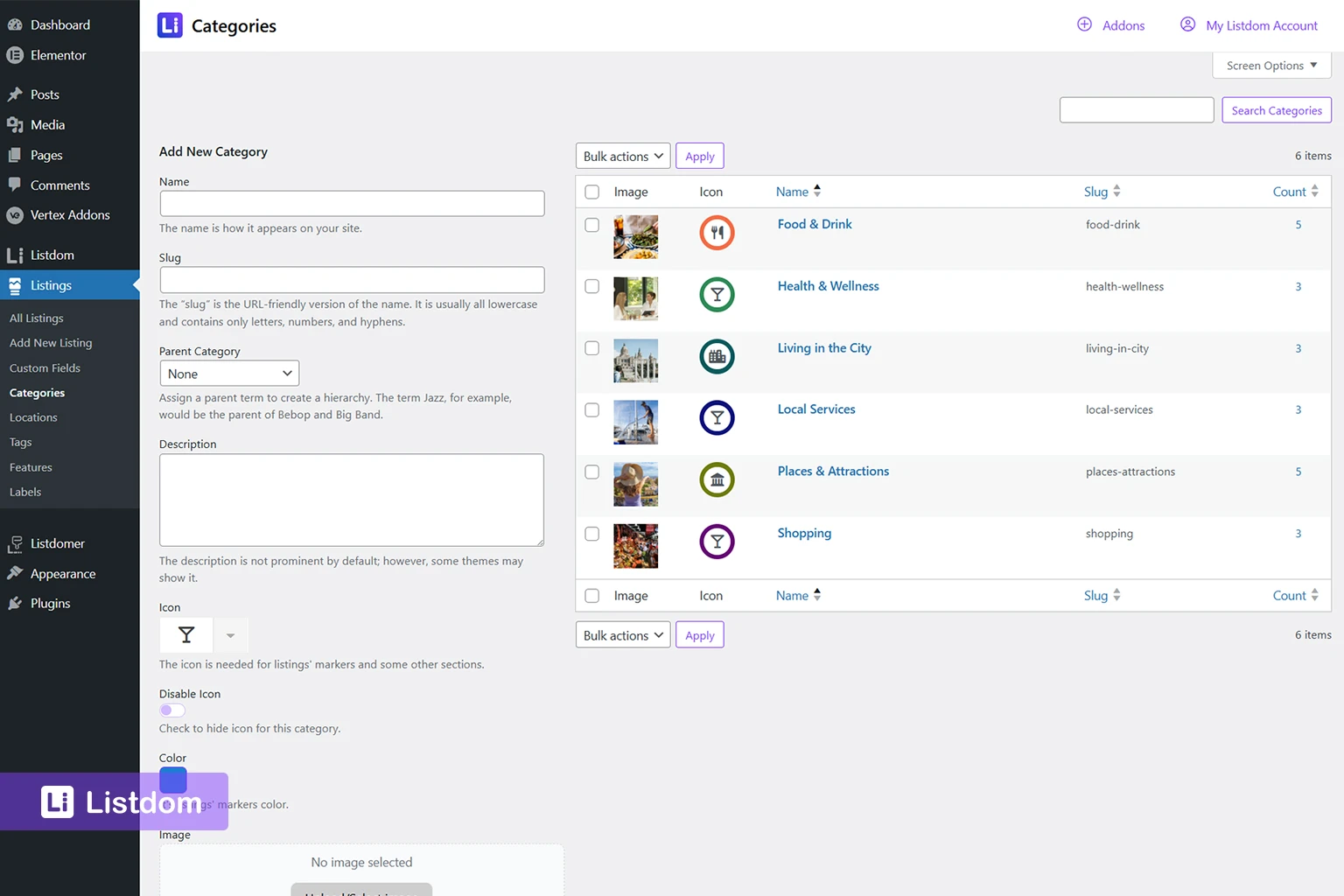
- Go to Listings → Categories
- Add the category name
- Set the parent category if you want a hierarchy
- Save the category
- Repeat for the main listing types you need
How to create locations
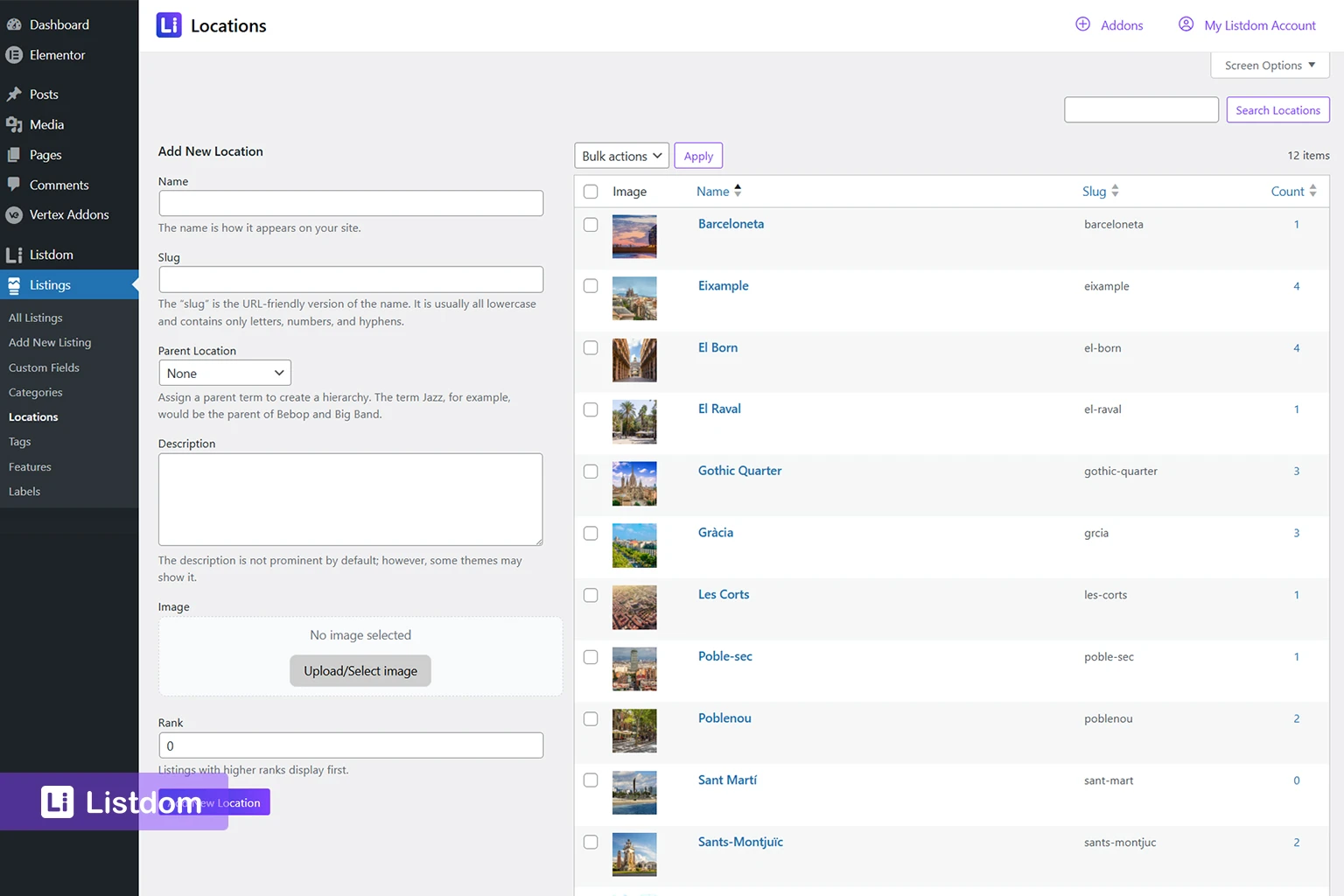
- Go to Listings → Locations
- Add the location name
- Set the parent location if you want a location hierarchy
- Save the location
- Repeat for your main cities, areas, or regions
How to assign them to a listing
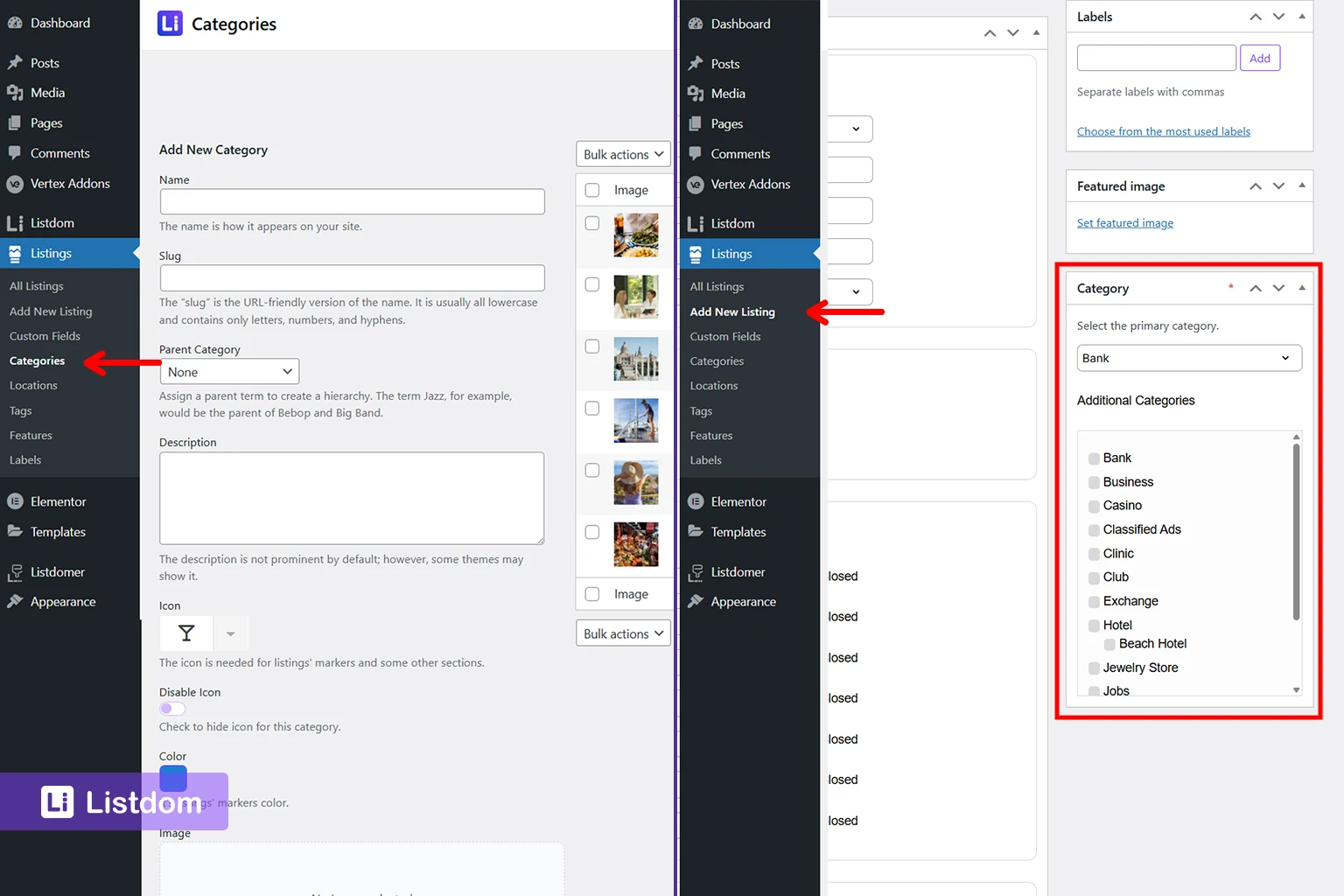
- Go to Listings → Add New Listing or edit an existing listing
- Fill in the main listing details
- Select the correct category
- Select the correct location
- Save or publish the listing
How to display locations and categories independently
The categories shortcode [listdom_category] displays your listing Categories in various styles on any page or section where this shortcode is inserted. Learn more.

The Locations shortcode [listdom_location] lists your listing Locations taxonomy (such as countries, cities, neighborhoods) in different layouts. Learn more.

That is the core structure workflow.
Should categories and locations be hierarchical?
In many directories, yes.
Hierarchy can make the structure much easier to understand.
Examples:
Category hierarchy
- Health & Wellness
- Dentists
- Dermatologists
- Clinics
Location hierarchy
- United States
- California
- Los Angeles
- San Diego
- California
But hierarchy is only useful when it matches the real site model.
If the structure is too deep, users may get lost and admins may create inconsistent assignments.
A good beginner rule is:
- use hierarchy when it clearly helps browsing
- avoid unnecessary depth just because hierarchy is available
How this affects search forms and shortcodes

This is where the structure becomes visible to users.
Search forms often rely on:
- categories
- locations
- custom fields
- labels and features
Shortcodes can also filter or display listings based on category and location logic.
So if your category and location structure is weak, the search experience usually becomes weaker too.
That is why this article naturally comes before your search and display workflow.
If you are building the next layer after the structure, see:
When categories are enough and when custom fields are needed
This is another common beginner confusion.
Not everything should become a category.
A category should represent a meaningful listing type.
But many details belong somewhere else.
Examples:
- Restaurant should be a category
- Open Late should probably not be a category
- Outdoor Seating should probably not be a category
- Has Parking should probably not be a category
Those kinds of details are often better handled through:
- features
- labels
- custom fields
So if you find yourself creating categories for every small attribute, the structure may be going in the wrong direction.
For a practical guide to choosing and creating listing-specific fields, read How Custom Fields Work in Listdom.
When locations are enough and when address data matters separately
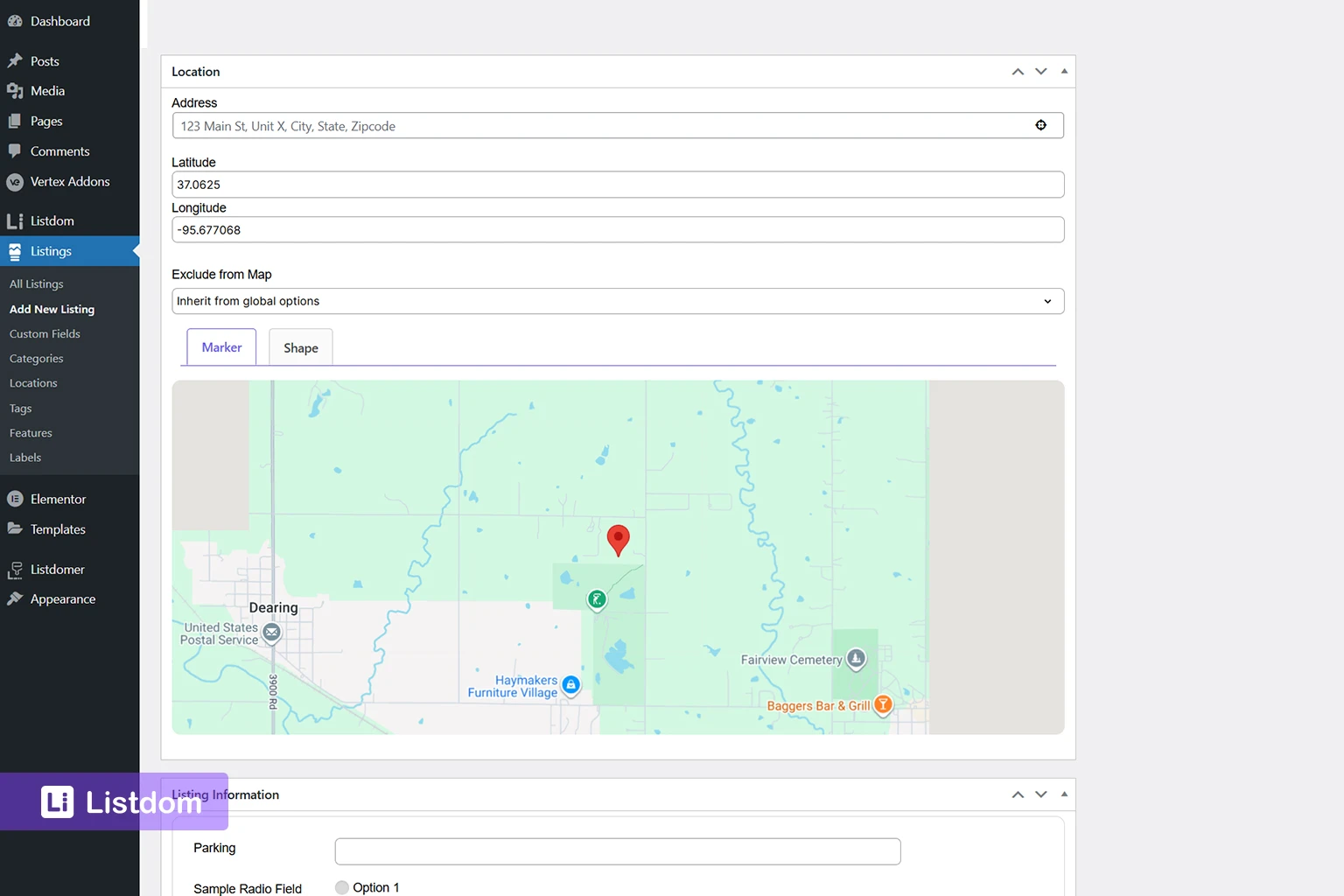
A location taxonomy is not always the same thing as a full address.
For example:
- Chicago may be a location term
- 123 Main Street, Chicago, IL is the actual address field
That means location helps organize the listing geographically, while the full address gives the listing its exact place.
You often need both.
This matters especially when your site uses maps, local search, and address-based display.
Implementation guide
Need the technical details?
Use the Listdom documentation to configure listings, shortcodes, search forms, maps, and add-ons with confidence.
Common beginner mistakes
Creating listings before categories and locations are ready
This creates cleanup work later.
Using categories for small attributes
Not every detail should become a category.
Using locations as if they were full address fields
Location taxonomy and full address data are not the same thing.
Creating too many categories too early
A huge taxonomy feels flexible at first, but it often becomes harder to manage.
Creating hierarchy that is deeper than users actually need
Just because you can create many levels does not mean you should.
Designing search before the structure is stable
Search usually works better after the directory structure is already clear.
What to configure first
A practical order looks like this:
- define your main listing types
- define your location model
- create the core categories
- create the core locations
- add real listings
- review whether features, labels, or custom fields are needed for the remaining details
- then move into search forms and shortcode display
That order keeps the structure strong from the beginning.
For the broader planning sequence before you move into page design, read How to Build Your Directory Structure Before Designing Anything in Listdom.
What to learn next
Once listings, categories, and locations are clear, the best follow-up topics are:
- How to Create Search Forms in Listdom
- How to Display Listings Using Listdom Shortcodes
- How Listdom Shortcodes, Search Forms, Archives, and Pages Work Together
- How Listdom Settings Work: Global, Shortcodes, Search, and Add-ons
- How to Navigate the Listdom Admin Menu
These topics help you move from structure into discovery, display, and site-wide control.
Listdom ecosystem
Build the directory workflow described in this guide
Use related Listdom products, add-ons, and planning pages to turn this guide into a structured directory project.
Final thoughts
Listings, categories, and locations are not a small setup detail in Listdom.
They are the structure behind the whole directory.
If you get this part right early, search feels better, shortcode output makes more sense, archive pages are easier to manage, and users can understand the site more naturally.
So before you spend too much time on design, spend enough time on structure.
That usually pays off everywhere else.
FAQ
What is a listing in Listdom?
A listing is the main content item in your directory, such as a business, place, service, property, or person.
What is the difference between categories and locations?
Categories organize what the listing is. Locations organize where the listing is.
Should I create categories before adding listings?
Yes. In most cases, it is better to create the basic structure first so listings can be assigned correctly from the beginning.
Should locations be hierarchical?
They can be, if that matches the way users actually browse the site. But avoid making the structure deeper than necessary.
Are categories the same as custom fields?
No. Categories define listing type, while custom fields usually store additional details that should not become taxonomy terms.
Do search forms depend on categories and locations?
Yes. Search and filtering usually work much better when the directory structure is already clear.
Can one listing have both a category and a location?
Yes. In fact, that is usually the normal and most useful structure.
FAQ
Common questions
What is a listing in Listdom?+
A listing is the main content item in your directory, such as a business, place, service, property, or person.
What is the difference between categories and locations?+
Categories organize what the listing is. Locations organize where the listing is.
Should I create categories before adding listings?+
Yes. In most cases, it is better to create the basic structure first so listings can be assigned correctly from the beginning.
Should locations be hierarchical?+
They can be, if that matches the way users actually browse the site. But avoid making the structure deeper than necessary.
Are categories the same as custom fields?+
No. Categories define listing type, while custom fields usually store additional details that should not become taxonomy terms.
Do search forms depend on categories and locations?+
Yes. Search and filtering usually work much better when the directory structure is already clear.
Can one listing have both a category and a location?+
Yes. In fact, that is usually the normal and most useful structure.