


Before you begin, it helps to understand what the Frontend Dashboard is. This guide explains the topic in practical terms and connects it to the decisions, setup, or Listdom workflow covered below.

Before you begin, it helps to understand what the Frontend Dashboard is. This guide explains the topic in practical terms and connects it to the decisions, setup, or Listdom workflow covered below.
What the Frontend Dashboard is

The Listdom Frontend Dashboard is a front-end user panel. It allows users and listing owners to manage listings, profiles, and related actions from the front end of the site instead of from the WordPress admin area.
That makes it very different from the Listdom admin menu in wp-admin.
A simple rule helps:
- The backend admin area is for site owners and administrators configuring Listdom inside the WordPress admin
- The Frontend Dashboard is for users or listing owners managing their own content from the front end
That distinction matters because the setup, user experience, and permissions are different.
Build with Listdom
Build your directory website with Listdom
Launch a polished WordPress directory with listings, locations, maps, search, and room to grow into a full directory business.
Who the Frontend Dashboard is for
The Frontend Dashboard matters most when your site is not just a directory you manage alone.
It is especially useful when:
- Users need to submit listings from the front end
- Listing owners need to edit their own listings later
- You want to avoid giving users access to wp-admin
- Your site uses paid packages, memberships, bookings, applications, or similar user-side flows
If your site is fully admin-managed and visitors never submit anything themselves, the Frontend Dashboard may not be a priority at the beginning.
What you need before it works
This is one of the most important onboarding points.
The Frontend Dashboard does not work just because the feature exists in the plugin. You need to create and assign the correct pages first.
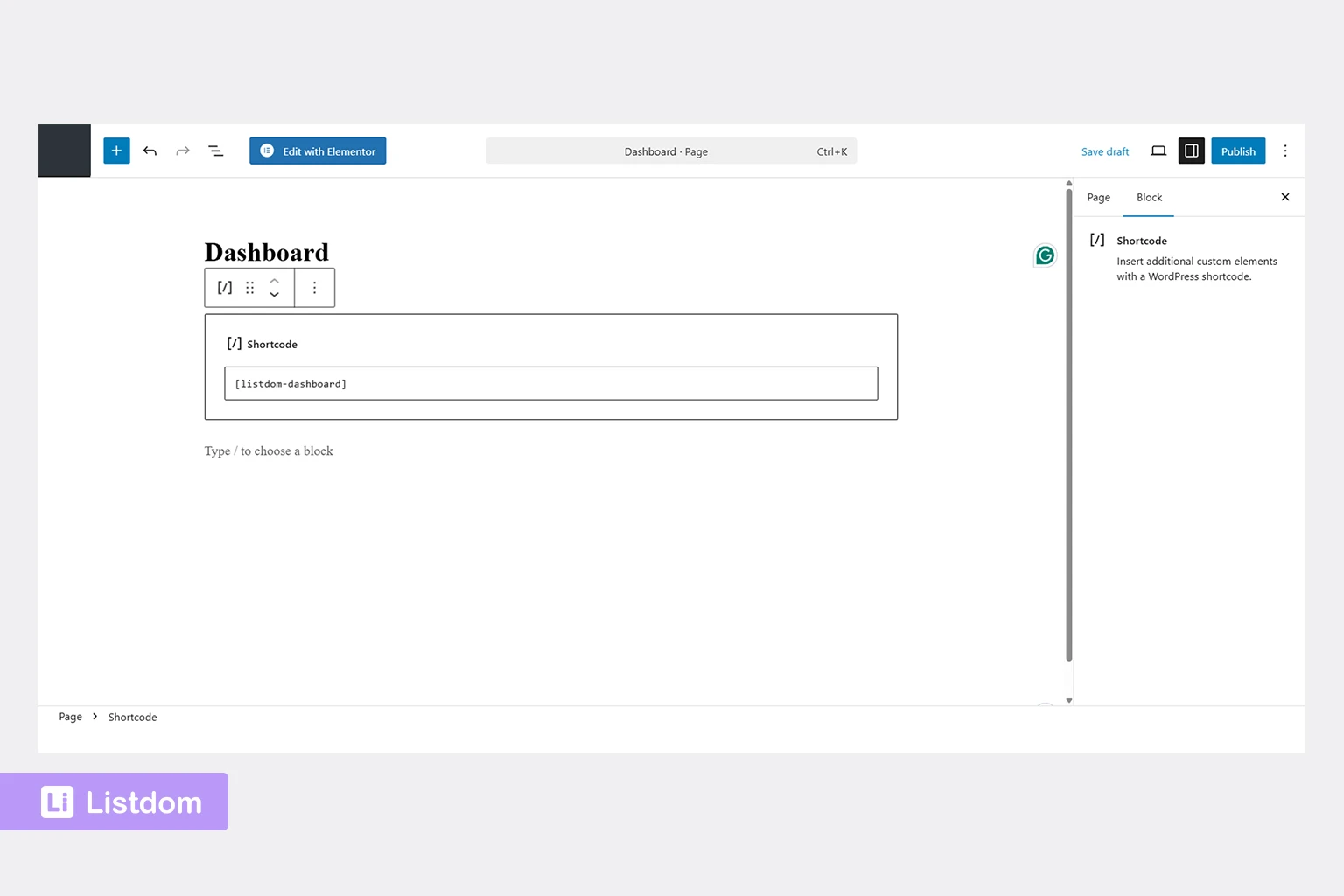
The standard setup starts with a Dashboard Page.
Create a normal WordPress page, insert the shortcode:
[listdom-dashboard]
Then go to:
Listdom → Settings → Frontend Dashboard
and select that page as the dashboard page.
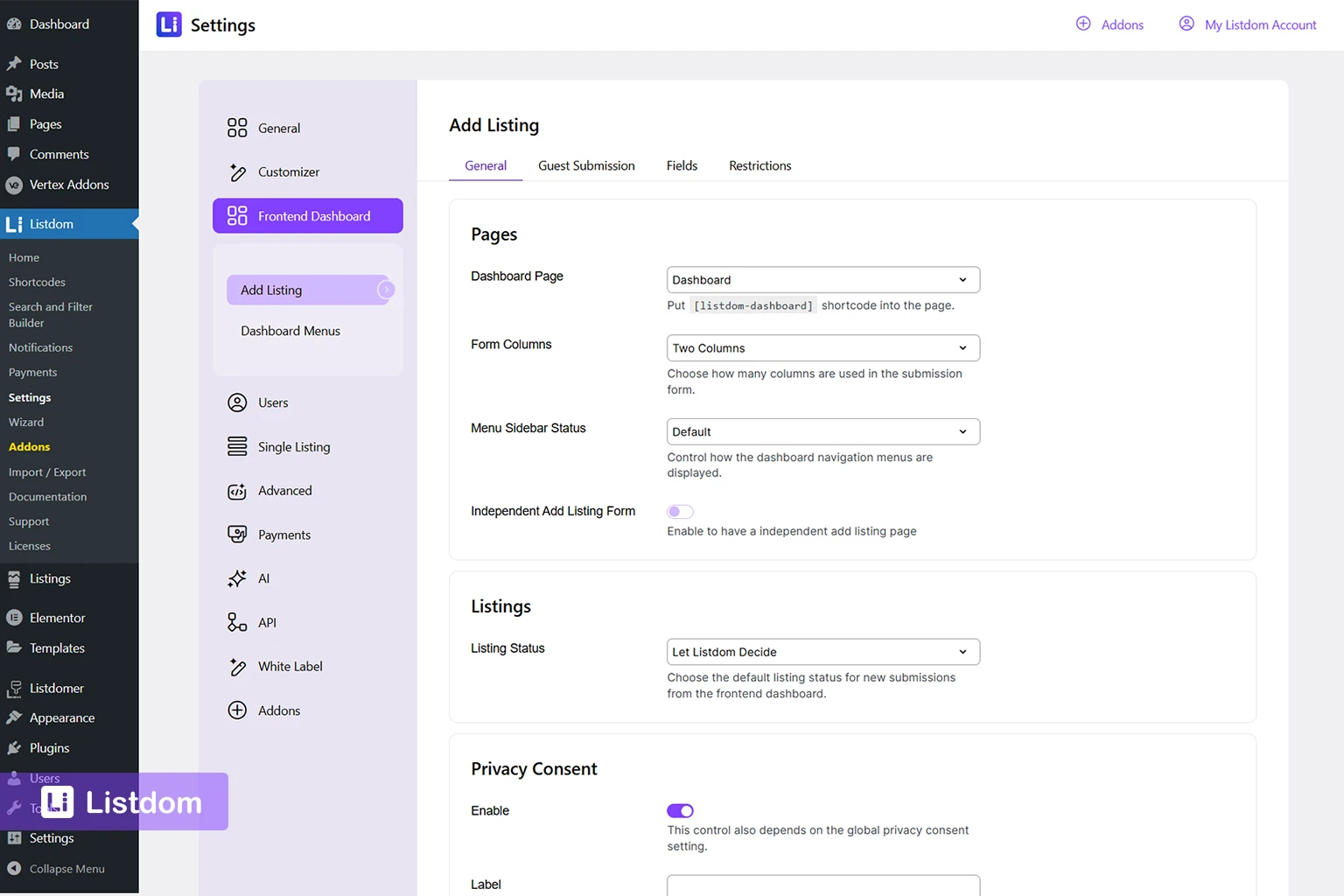
If you want a separate page only for submitting new listings, you can also enable the independent add listing form and use the shortcode:
[listdom-add-listing]
on a separate page, then assign that page in the Frontend Dashboard settings.
If you skip this setup, the dashboard will not behave the way you expect.
How the Frontend Dashboard is set up
For most new users, the basic setup flow looks like this:
- create the dashboard page
- insert
[listdom-dashboard] - assign that page in Listdom → Settings → Frontend Dashboard
- decide whether you also want a separate add listing page
- if yes, create that page and insert
[listdom-add-listing] - review guest submission, menu, and field behavior settings
- save changes and test the front-end experience with a real user account
That is the right order because it gives you the structure first and the refinements second.
The most important Frontend Dashboard settings to review first
The Frontend Dashboard settings live inside the main Listdom settings structure, under:
Listdom → Settings → Frontend Dashboard
You do not need to configure every option immediately. But a few areas matter much more than others during onboarding.
1. Pages
This is the first thing to check.
The key settings here are:
- Dashboard Page
- Independent Add Listing Form
- Add Listing Page when the standalone form is enabled
If these are not configured correctly, the dashboard setup will feel broken even when the rest of the configuration is fine.
2. Dashboard menus
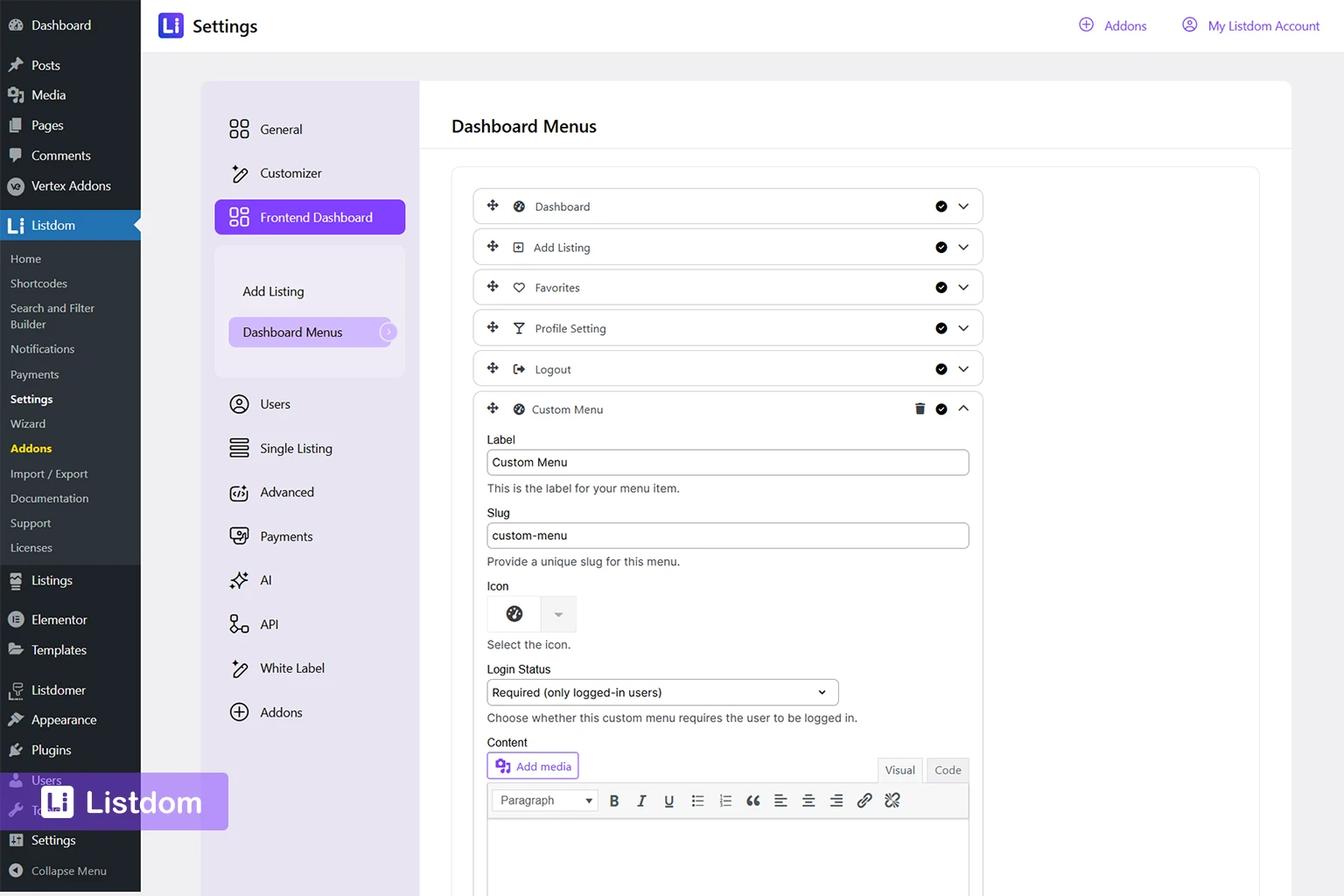
The dashboard menu controls what users see in the left-side navigation of the Frontend Dashboard.
This is not only a navigation area. It is part of the user experience design.
Built-in menus, add-on menus, and custom menus can be managed together in one place. You can reorder them, disable some of them, and create custom dashboard menu items. You can use the custom menus to integrate other plugins’ features, for example, WooCommerce My Account within the Listdom dashboard, and make the user-side experience feel more unified.
That means the Frontend Dashboard is not a fixed interface. You can shape the user journey based on the project.
For onboarding, this matters because you should decide early whether your users need a simple dashboard or a more feature-rich one.
This is especially useful when you want the dashboard to act as a complete user hub rather than only a listing form.
For example, a site owner may want to add:
- a support or help menu
- a policy or instructions menu
- a custom statistics section
- an account-related content block
- add-on-based user sections when those features are active
That flexibility is one of the reasons the Frontend Dashboard is useful for real-world directory projects.
3. Guest submission

If you want visitors to submit listings without logging in, this section matters early.
By default, guest submission is disabled. When enabled, you can control how non-logged-in users interact with the submission flow.
This setting changes the user journey significantly, so it should be a deliberate choice, not something you leave unclear.
What happens when guest submission is disabled?
When guest submission is disabled, non-logged-in users do not go straight into the listing submission flow. Instead, they are shown the Listdom login and registration form before they can continue.

This is important because it means the Frontend Dashboard is not only a submission area. It can also become part of the access and authentication flow for your users.
In practice, this affects the user journey in a few important ways:
- users may need to create an account before submitting a listing
- login and registration become part of the dashboard experience
- the quality of your authentication setup affects how smooth the dashboard feels
So if you disable guest submission, make sure you think beyond the add listing form itself. You should also think about the login, registration, and access flow that users will experience first.
It is important to understand this because it directly affects how the Frontend Dashboard behaves for new users.
4. Fields and terms behavior
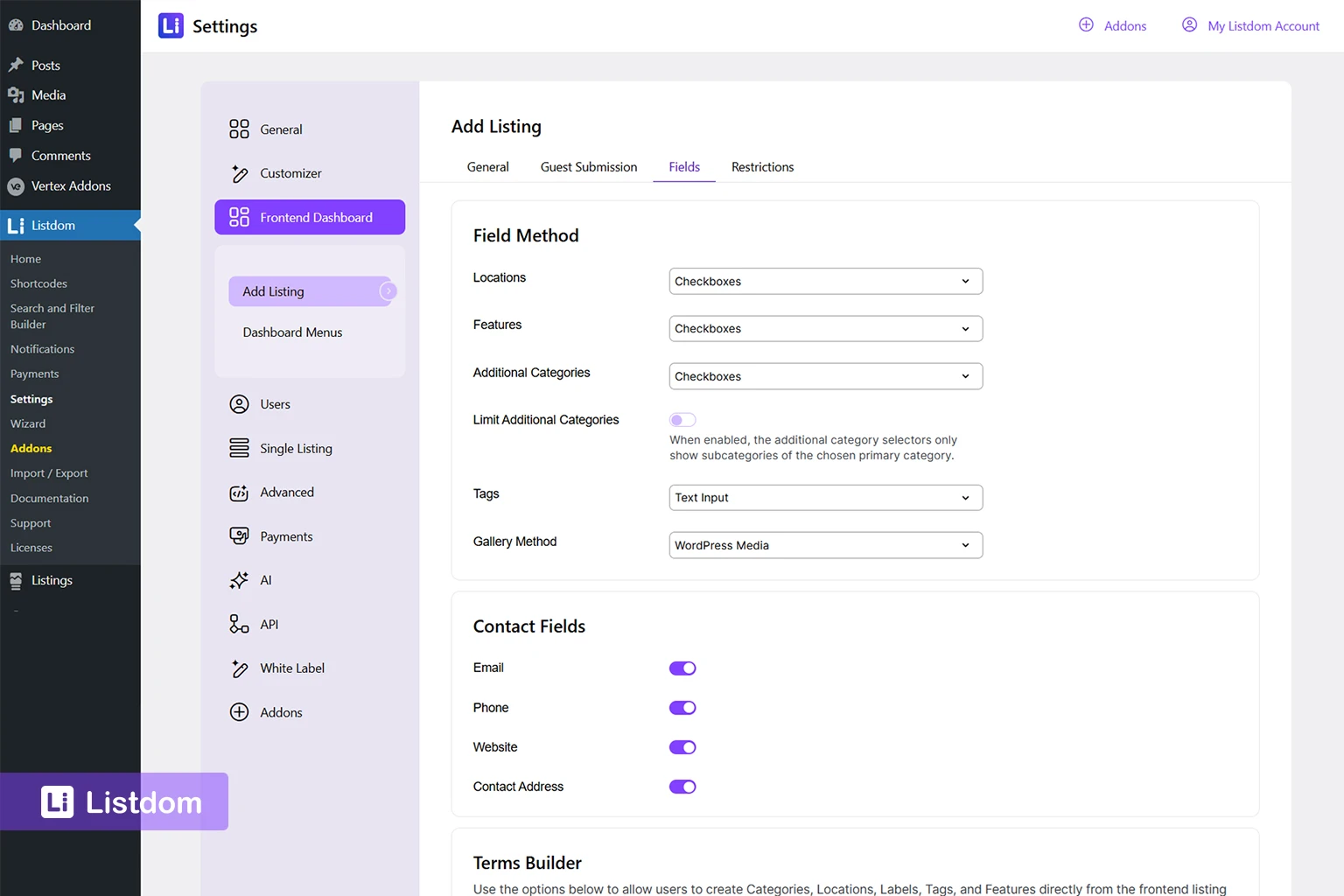
The Frontend Dashboard settings also let you control how some fields appear on the add listing form.
Examples include how locations, features, and tags are presented, and how gallery uploads work. The settings also include a terms builder, which can let users create new taxonomy terms directly from the front-end form, depending on how you configure it.
This matters because the front-end submission form should match the level of control you want to give your users.
5. Restrictions and required fields
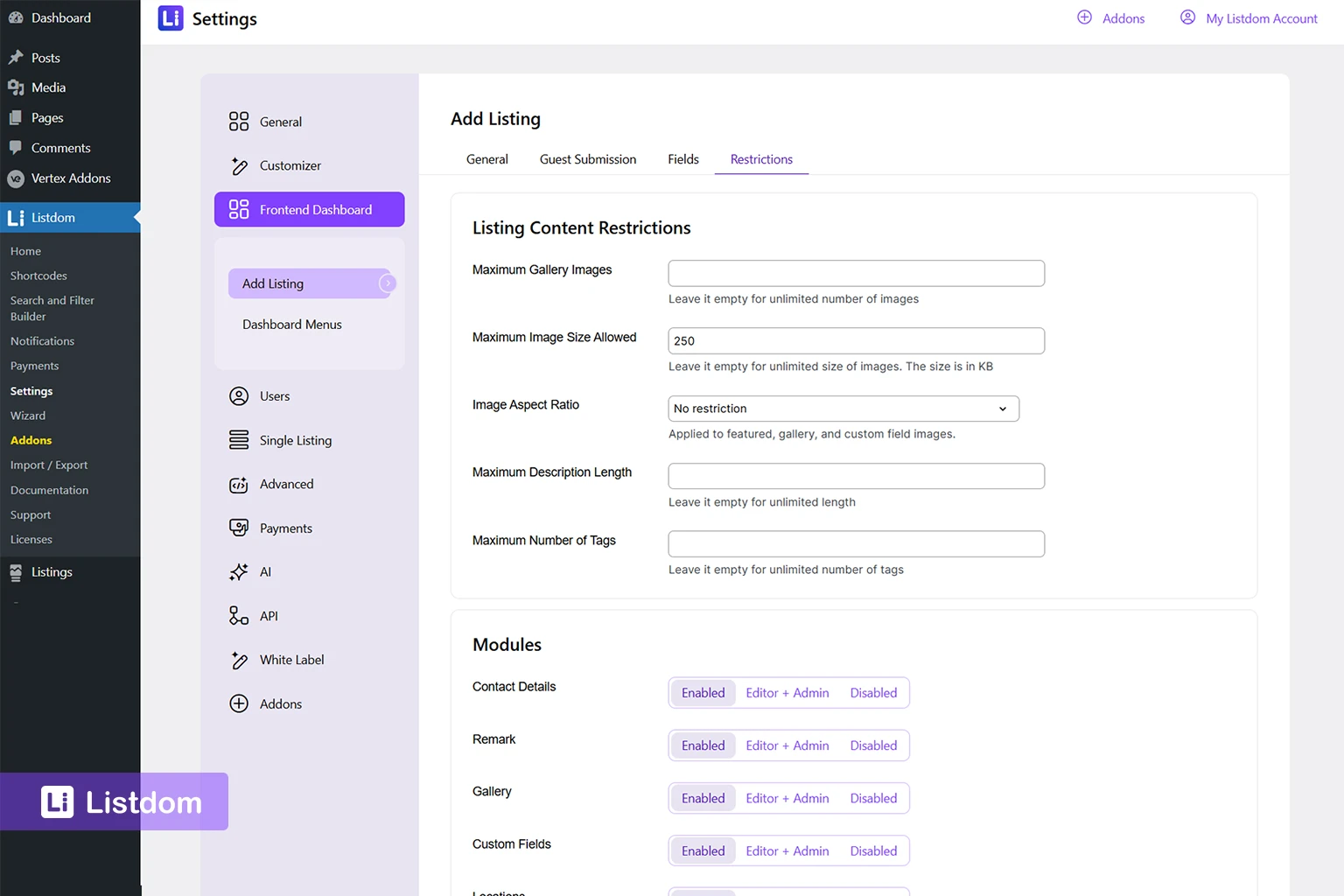
This is where the user-facing submission workflow becomes more controlled.
You can decide which fields are required and apply restrictions to the add listing form. That makes the dashboard much more than a simple front-end form. It becomes a managed submission workflow.
For most beginners, this section becomes more important after the first basic dashboard setup is already working.
Which Frontend Dashboard features depend on Pro or add-ons?
This is worth understanding early so your expectations stay realistic.
The core Frontend Dashboard idea is simple: create the dashboard page, assign it correctly, and let users manage listings from the front end.
But some dashboard features depend on Listdom Pro or on specific active add-ons.
A simple way to think about it is:
- core dashboard behavior covers the main front-end listing workflow
- some advanced dashboard options are available only with Pro
- some extra dashboard menu items appear only when the related add-ons are active
For example, a separate add listing page and dashboard menu customization options may depend on the Pro Addon. Likewise, sections such as memberships, inquiries, favorites, bookings, applications, or similar user-side areas appear only when the related feature add-ons are installed and active.
For example, the Connect Addon can add sent and received inquiry views to the dashboard. See how Listdom Connect manages directory inquiries when you are planning that visitor-to-owner workflow.
So if your dashboard looks simpler than another example you have seen, that does not mean something is broken. It may simply mean that the other site is using Pro features or a larger add-on stack.
Implementation guide
Need the technical details?
Use the Listdom documentation to configure listings, shortcodes, search forms, maps, and add-ons with confidence.
What can users do inside the dashboard?
Once the dashboard is configured, users can work with their own listings from the front end.

By default, the main dashboard area shows a listings overview where users can:
- view their listings
- see statuses such as published, pending, or draft
- search their listings by keyword
- filter them by category
- edit listings
- delete or trash listings
If add-ons are active, the dashboard can also include extra menu items and workflows. For example, memberships can appear as a dashboard section when the related add-on is installed and active.
That is why one site’s Frontend Dashboard can look richer than another. The active feature stack matters, and in some cases, Pro features also shape what is available.
Frontend Dashboard vs backend admin
This is worth repeating because it causes a lot of confusion.
The backend admin area and the Frontend Dashboard are not two versions of the same thing.
The backend is where administrators configure Listdom.
The Frontend Dashboard is where users or listing owners interact with the directory from the front end.
If the problem is:
- plugin settings
- shortcode display logic
- search builder configuration
- taxonomy setup
- add-on management
Then you usually need the backend.
If the goal is:
- let users add listings
- let listing owners edit their own content
- provide a user-facing management area
Then the Frontend Dashboard is the right layer.
Common beginner mistakes
1. Confusing the Frontend Dashboard with the admin menu
This is the most common issue.
If you mix up these two areas, the rest of the workflow becomes harder to understand.
2. Forgetting to create and assign the dashboard page
The dashboard depends on a real page with the correct shortcode and correct assignment in settings.
3. Expecting Pro or add-on features in a basic setup
It is common to compare one dashboard screenshot to another and assume everything should be available by default.
In reality, some parts of the dashboard depend on Pro or on active add-ons. Check that first before assuming the setup is wrong.
4. Enabling features before testing the basic flow
It is usually better to make the basic dashboard work first, then add guest submission, custom menus, or add-on-related sections afterward.
5. Not testing with a real user account
An admin view and a real user view are not always the same. Testing the flow with a user account helps you catch permission and menu issues early.
6. Ignoring permissions and role behavior
If a user cannot add a listing from the Frontend Dashboard, the issue may be related to roles and permissions, especially when paid packages or membership-based workflows are involved.
What to configure first
A practical beginner order looks like this:
- create the dashboard page
- assign the dashboard page in settings
- decide whether you need a standalone add listing page
- test the basic listing submission and edit flow
- review dashboard menus
- decide whether the guest submission is needed
- review restrictions, required fields, and field behavior
- only then add more advanced or add-on-based dashboard features
That order keeps the onboarding process much easier.
What to learn next
Once the Frontend Dashboard is working, the most useful follow-up topics are:
- How to Create Search Forms in Listdom
- How to Display Listings in Listdom with Shortcodes
- How Listdom Settings Work: Global, Shortcodes, Search, and Add-ons
- How to Navigate the Listdom Admin Menu
Those topics help connect the user-facing workflow to the backend setup that powers it.
Listdom ecosystem
Build the directory workflow described in this guide
Use related Listdom products, add-ons, and planning pages to turn this guide into a structured directory project.
Final thoughts
The Listdom Frontend Dashboard is one of the most practical parts of the plugin if you want user submissions and front-end listing management.
The key is to treat it as a user workflow, not just a shortcode.
Create the right pages first. Configure the basics. Test the real flow. Then expand with menus, restrictions, guest submission, and add-on features as needed.
Once you approach it that way, the Frontend Dashboard becomes much easier to use and much easier to explain to your users.
FAQ
What is the Listdom Frontend Dashboard?
It is a front-end user panel that allows users and listing owners to submit and manage listings without using the WordPress admin area.
Where do I set up the Frontend Dashboard?
Go to Listdom → Settings → Frontend Dashboard after creating the required dashboard page.
Which shortcode should I use for the dashboard page?
Use [listdom-dashboard] on the main dashboard page.
Can I create a separate Add Listing page?
Yes. You can enable the independent add listing form and use [listdom-add-listing] on a separate page. Depending on your setup, this can be part of a Pro-level dashboard workflow.
Can guests submit listings from the Frontend Dashboard?
Yes, but only if guest submission is enabled in the Frontend Dashboard settings. If guest submission is disabled, non-logged-in users are shown the Listdom login and registration form first.
Can I change the dashboard menu items?
Yes. You can reorder, disable, and customize dashboard menus, and you can also add custom menu items. Some of the more advanced dashboard menu controls may depend on Pro.
Why can a user see the dashboard but not add a listing?
That can be related to the dashboard setup, guest submission settings, user roles and permissions, or the fact that the feature you expect depends on Pro or an active add-on.
Is the Frontend Dashboard the same as the Listdom admin menu?
No. The Frontend Dashboard is a user-facing front-end area, while the admin menu is the backend configuration area inside WordPress admin.
FAQ
Common questions
What is the Listdom Frontend Dashboard?+
It is a front-end user panel that allows users and listing owners to submit and manage listings without using the WordPress admin area.
Where do I set up the Frontend Dashboard?+
Go to Listdom → Settings → Frontend Dashboard after creating the required dashboard page.
Which shortcode should I use for the dashboard page?+
Use [listdom-dashboard] on the main dashboard page.
Can I create a separate Add Listing page?+
Yes. You can enable the independent add listing form and use [listdom-add-listing] on a separate page. Depending on your setup, this can be part of a Pro-level dashboard workflow.
Can guests submit listings from the Frontend Dashboard?+
Yes, but only if guest submission is enabled in the Frontend Dashboard settings. If guest submission is disabled, non-logged-in users are shown the Listdom login and registration form first.
Can I change the dashboard menu items?+
Yes. You can reorder, disable, and customize dashboard menus, and you can also add custom menu items. Some of the more advanced dashboard menu controls may depend on Pro.
Why can a user see the dashboard but not add a listing?+
That can be related to the dashboard setup, guest submission settings, user roles and permissions, or the fact that the feature you expect depends on Pro or an active add-on.
Is the Frontend Dashboard the same as the Listdom admin menu?+
No. The Frontend Dashboard is a user-facing front-end area, while the admin menu is the backend configuration area inside WordPress admin.

