

Before you begin, it helps to understand why moderation matters more than many beginners expect. This guide explains the topic in practical terms and connects it to the decisions, setup, or Listdom workflow covered below.

Before you begin, it helps to understand why moderation matters more than many beginners expect. This guide explains the topic in practical terms and connects it to the decisions, setup, or Listdom workflow covered below.
Why moderation matters more than many beginners expect
A submission system is not finished when the form works.
It is finished when the site handles the submitted listing in a way that fits your business model.
That matters because different directories need very different approval logic.
For example:
- an open community directory may want strong moderation before anything goes live
- a paid package-based directory may want trusted package users to publish faster
- a staff-controlled directory may want only admins to publish
- a membership site may want package rules to override the default pending flow
So the right moderation setup depends on the kind of site you are building.
Build with Listdom
Build your directory website with Listdom
Launch a polished WordPress directory with listings, locations, maps, search, and room to grow into a full directory business.
Start with one simple mental model
If you only remember one thing, remember this:
- the add listing form controls how users submit
- the listing status logic controls what happens after submission
- roles, guest-submission settings, and membership/package rules can all change that outcome
That is why moderation in Listdom is not controlled in only one place. It also helps to understand the broader settings structure first in How Listdom Settings Work: Global, Shortcodes, Search, and Add-ons.
The three main layers that affect approval
A listing does not always get its status from one single setting.
In practice, moderation can be shaped by three main layers.
1. Frontend Dashboard default listing status
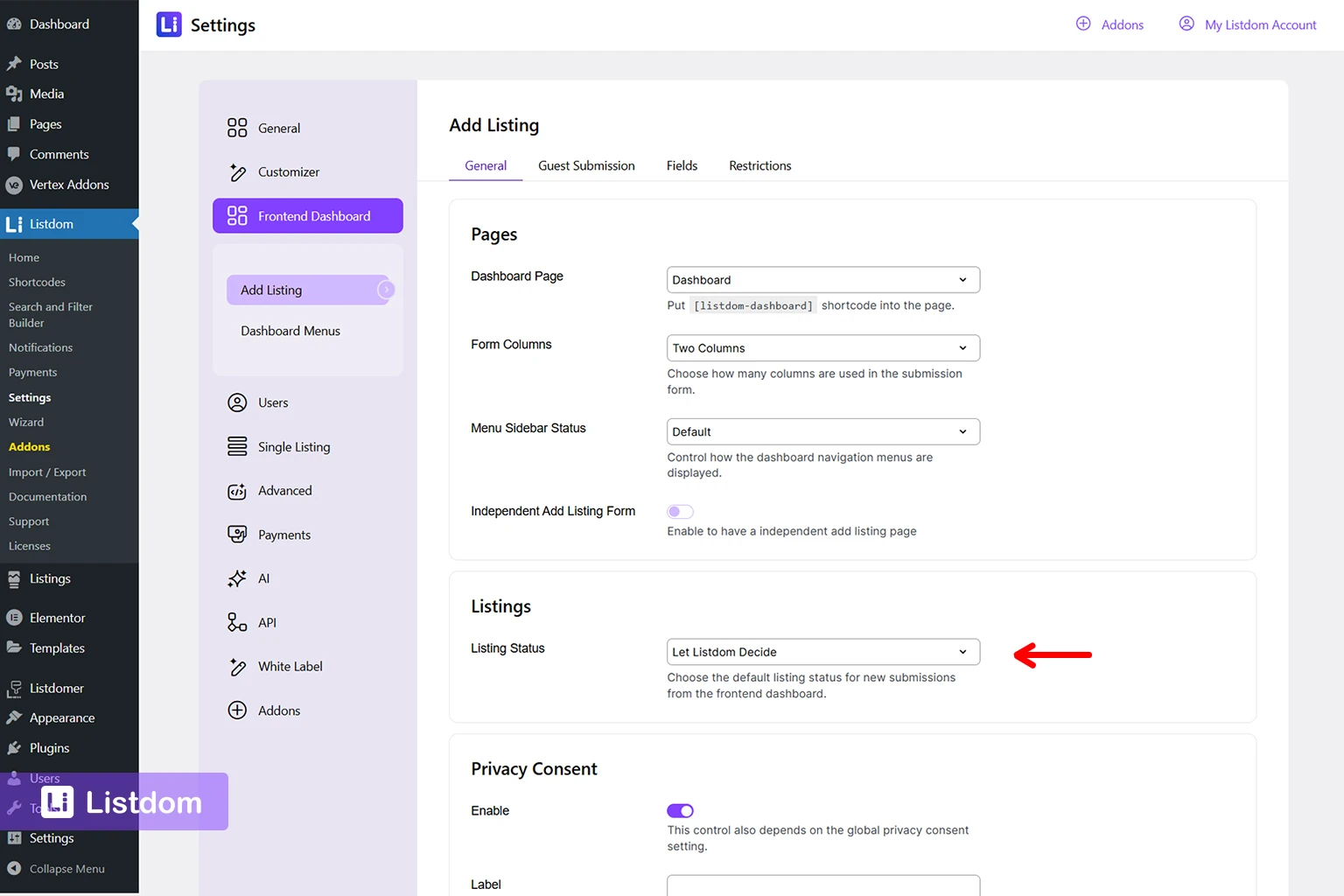
This is the main place many users should check first.
Go to:
Listdom → Settings → Frontend Dashboard → Add Listing → General → Listings
There you can review the default Listing Status for frontend submissions. The available options include:
- Let Listdom Decide
- Published
- Pending
There is also an Apply to Guest Listings option so you can decide whether the same status logic should apply to guest submissions too. For the exact status options, see the listing-status setup reference.
2. User role behavior
Listdom includes user roles that are especially relevant to moderation.
The two most important are:
- Listdom Author
- Listdom Publisher
A practical rule is:
- Listdom Author is better when submissions should usually stay Pending Review
- Listdom Publisher is better when trusted users can have listings published more directly
This means two users may submit the same kind of listing through the same form and still get different outcomes because of role-based behavior.
For the wider role and capability model behind those outcomes, see How User Roles and Listing Permissions Work in Listdom.
3. Membership package rules
If you use the Membership add-on, package logic can override the simpler moderation flow.
This is one of the biggest reasons users get confused.
A package can change whether the normal pending/published logic is respected or bypassed. In particular, Listing Auto Confirm at the package level can publish a listing even when the broader setup would normally lean toward moderation. If package-based submission is part of your project, it also helps to read How Listdom Membership Packages Work.
So the same site may have:
- one default status in Frontend Dashboard settings
- different role behavior for different users
- and package-level auto-confirm changing the final outcome again
Where to manage listing moderation in practice
If you want to configure or troubleshoot moderation, these are the most important places to check.
Frontend Dashboard default status
Go to:
Listdom → Settings → Frontend Dashboard → Add Listing → General → Listings
Check:
- Listing Status
- Apply to Guest Listings
This is the best first stop when you want to decide whether new frontend submissions should usually be published or held for review. If you want the broader submission context first, see How to Configure the Add Listing Form in Listdom.
Guest submission behavior

Go to:
Listdom → Settings → Frontend Dashboard → Add Listing → Guest Submission
This section matters because guest submission affects not only whether guests can submit, but also when user registration happens. If you have not reviewed the submission side yet, start with How to Configure the Add Listing Form in Listdom before finalizing moderation logic.
The key paths here are:
- Once Approved
- Once Submitted
- Disabled
Membership package behavior

Go to:
Listdom → Memberships
Then edit the relevant package and review whether package rules such as Listing Auto Confirm are changing the normal submission outcome. For the business-model side, How Listdom Membership Packages Work is the best companion article.
Listing review in admin
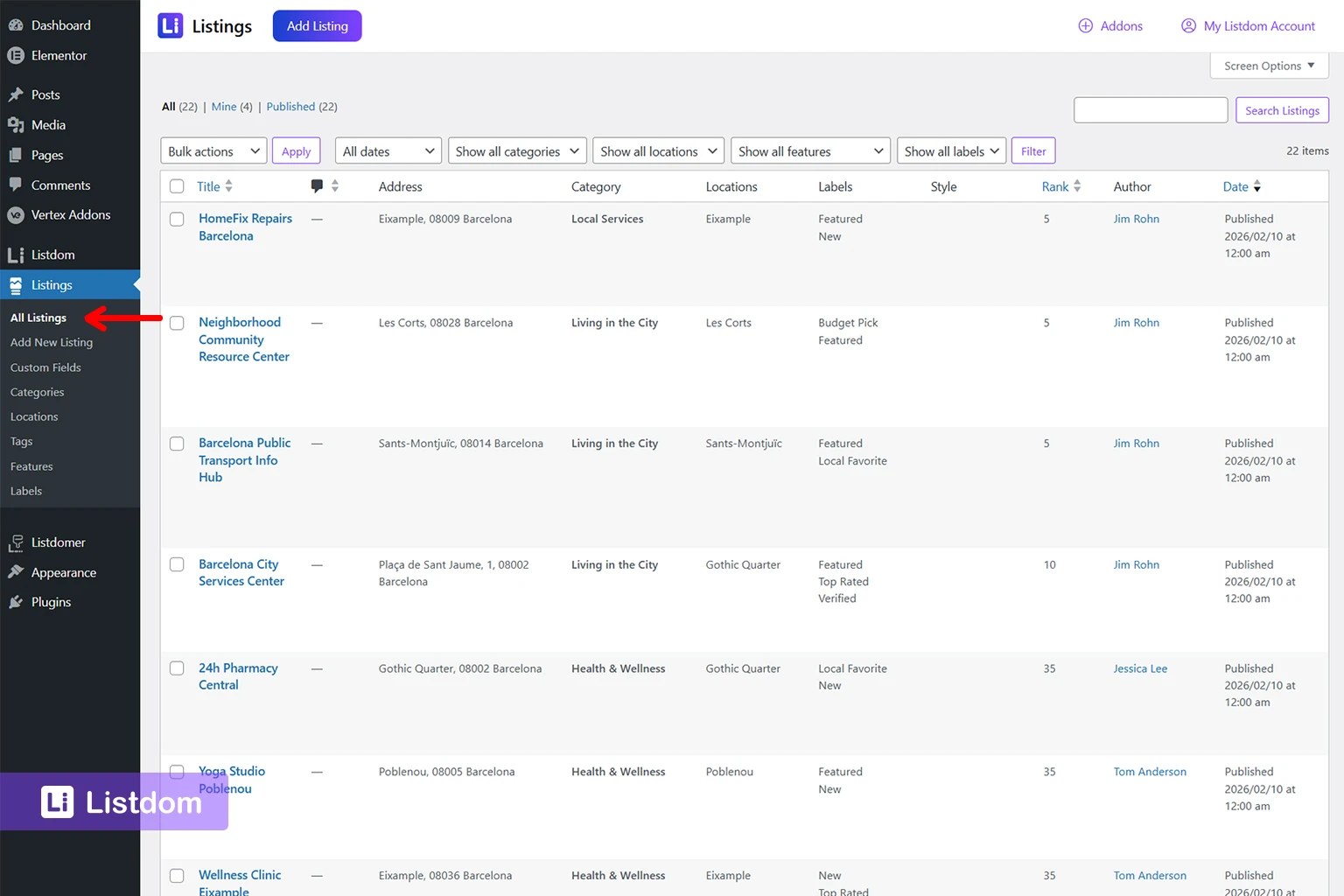
Go to:
Listings → All Listings
This is the practical admin review layer where you can see whether listings are:
- published
- pending
- draft
- or otherwise awaiting action
This is where moderation becomes visible in day-to-day management.
How the default listing status works
The default listing status is one of the most important moderation settings.
A practical way to understand the options is this:
Let Listdom Decide
This is the flexible option.
It allows Listdom to follow the wider logic of the site instead of forcing one simple outcome for every submission.
That can be useful when your site uses:
- role-based differences
- membership packages
- guest-submission rules
- more advanced approval flows
Published
This is the low-friction option.
It is useful when you want listings to go live immediately.
This can make sense when:
- submissions come only from trusted users
- the site is highly curated in another way
- speed matters more than review
- your users are already approved or paid members
Pending
This is the review-first option.
It is useful when:
- listing quality matters a lot
- spam is a concern
- you want to verify business information first
- you do not yet trust the incoming submissions enough for instant publishing
How guest submission changes moderation
Guest submission should never be treated as a small side setting.
It changes the moderation model directly.
Guest submission + Once Approved
This is the more controlled guest path.
The guest can submit the listing, but the user account is created only after approval. This is useful when you want moderation first and ownership second.
This is often a strong choice when:
- you want to reduce low-quality accounts
- you review submissions carefully
- you do not want every guest attempt to create an active user immediately
Guest submission + Once Submitted
This is the faster guest path.
The listing is submitted and the account is created right away. This is useful when you want the submitter to keep ownership from the beginning and come back later to manage the listing.
Guest submission + Disabled
This is the loosest version.
A listing can be submitted without user registration being created as part of the flow. That may reduce friction, but it can also make ownership and later management harder.
So when guest submission is involved, moderation is not only about the listing status. It is also about how ownership is created. That is why this section pairs naturally with How Listdom Login, Registration, and Access Flow Work and the official guest-submission settings documentation.
How user roles affect approval

This is one of the most practical reasons moderation outcomes can look inconsistent at first.
Listdom’s recommended frontend roles already imply different moderation expectations.
Listdom Author
This is better when submissions should usually stay pending until reviewed.
Listdom Publisher
This is better when the user is trusted enough to publish more directly.
So if one user’s listing goes live while another user’s listing stays pending, the first place to ask is not only:
- what is the default listing status?
It is also:
- which role does this user actually have?
If role-based behavior feels unclear while you test moderation, compare it with the wider frontend user journey in How the Listdom Frontend Dashboard Works and How Listdom Login, Registration, and Access Flow Work.
How memberships and packages can override moderation
This is where many sites stop behaving the way beginners expect.
With the Membership add-on active, the package can become part of the approval logic.
The key concept is Listing Auto Confirm.
When package auto confirm is enabled, the package flow can publish the listing even if the normal role or default-status behavior would have left it pending.
That means a package can function almost like a trust or commercial override.
Examples:
- a trusted premium package can auto-publish listings
- a free starter package can still leave them pending
- the site can use moderation by default, but paid packages can accelerate approval
That is a very practical business model, but it also means you should not troubleshoot moderation only from the Frontend Dashboard settings.
Implementation guide
Need the technical details?
Use the Listdom documentation to configure listings, shortcodes, search forms, maps, and add-ons with confidence.
What moderation setup makes sense for different site types
Scenario 1: open community directory
A good default is usually:
- guest submission allowed carefully
- Pending or strong moderation logic
- admin review before publication
This protects quality while still keeping entry friction lower.
Scenario 2: curated local business directory
A good default is often:
- account-based submission
- Pending by default
- clear ownership after review
This keeps quality and trust stronger.
Scenario 3: paid package-based directory
A useful model can be:
- membership required
- lower-tier or free plans go pending
- higher-trust paid plans use auto-confirm
This creates a meaningful commercial progression.
Scenario 4: internal or staff-managed directory
A good default is usually:
- only trusted staff submit
- Published or publisher-based workflow
- little or no manual moderation needed
A practical troubleshooting order
If moderation is not behaving the way you expect, check these in order:
1. Check the default listing status
Go to:
Listdom → Settings → Frontend Dashboard → Add Listing → General → Listings
2. Check whether guest-submission logic is changing the flow
Go to:
Listdom → Settings → Frontend Dashboard → Add Listing → Guest Submission
3. Check the user role
Ask whether the user is acting as:
- Listdom Author
- Listdom Publisher
- another role with different capabilities
4. Check whether memberships are active
Go to:
Listdom → Memberships
Review package behavior such as Listing Auto Confirm.
5. Check the listing itself in admin
Go to:
Listings → All Listings
Review the actual stored status and whether the listing entered the system the way you expected.
This order usually reveals the issue much faster than guessing. In practice, the fastest way to debug moderation is to test one full submission as a normal user, then compare the outcome against your Frontend Dashboard settings, guest-submission path, role, and package.
Common beginner mistakes
Assuming moderation is controlled in only one place
It often is not.
Enabling guest submission without deciding how ownership should work
That creates confusion later.
Using one moderation setup for all user types
Trusted users and first-time submitters may not need the same approval path.
Forgetting that packages can override the default behavior
This is one of the biggest surprises in paid directories.
Testing only as admin
Admin testing hides too many real submission differences.
What to configure first
A practical order looks like this:
- decide whether the site should lean toward Published or Pending by default
- configure the default listing status in Listdom → Settings → Frontend Dashboard → Add Listing → General → Listings
- decide how guest submission should work
- decide which user roles should have more publishing trust
- if memberships are active, decide whether any package should use Listing Auto Confirm
- test the full submission path with real non-admin accounts
- only then expand the moderation logic if your business model really needs more complexity
That gives you a much cleaner moderation system from the beginning.
What to learn next
Once moderation is clear, the best follow-up topics are:
- How to Configure the Add Listing Form in Listdom
- How the Listdom Frontend Dashboard Works
- How Listdom Login, Registration, and Access Flow Work
- How Listdom Membership Packages Work
- How Listdom Settings Work: Global, Shortcodes, Search, and Add-ons
These topics help connect submission, access, package logic, and final listing behavior. Together, they give the reader the full path from submission form to approval outcome.
Listdom ecosystem
Build the directory workflow described in this guide
Use related Listdom products, add-ons, and planning pages to turn this guide into a structured directory project.
Final thoughts
A good moderation system is not only about blocking bad listings.
It is about matching approval logic to the kind of directory you are actually building.
If you keep the status rules, guest flow, roles, and package behavior aligned, Listdom becomes much easier to manage.
If those layers are left unclear, moderation starts feeling unpredictable.
That is why approval in Listdom should always be planned as part of the user journey, not only as an admin setting.
FAQ
Where do I control whether listings are published or pending in Listdom?
Mostly in Listdom → Settings → Frontend Dashboard → Add Listing → General → Listings, where you can review the default Listing Status and whether it also applies to guest submissions.
What is the difference between Listdom Author and Listdom Publisher?
Listdom Author is better for users whose listings should usually stay pending for review. Listdom Publisher is better for users whose listings can be published more directly.
Can guest submissions still be moderated?
Yes. Guest submission can still use approval-based logic, and the registration timing can also vary depending on whether you use Once Approved, Once Submitted, or disabled guest registration.
Can memberships override the normal moderation flow?
Yes. Package-level behavior, such as Listing Auto Confirm, can change whether a listing stays pending or gets published more directly.
Why did one user’s listing publish immediately while another one stayed pending?
The difference may come from the default listing status, guest-submission settings, user role, or membership package behavior.
Should every directory use pending review by default?
No. Some sites benefit from review-first moderation, while others work better with faster publishing for trusted users or paid packages.
FAQ
Common questions
Where do I control whether listings are published or pending in Listdom?+
Mostly in Listdom → Settings → Frontend Dashboard → Add Listing → General → Listings, where you can review the default Listing Status and whether it also applies to guest submissions.
What is the difference between Listdom Author and Listdom Publisher?+
Listdom Author is better for users whose listings should usually stay pending for review. Listdom Publisher is better for users whose listings can be published more directly.
Can guest submissions still be moderated?+
Yes. Guest submission can still use approval-based logic, and the registration timing can also vary depending on whether you use Once Approved, Once Submitted, or disabled guest registration.
Can memberships override the normal moderation flow?+
Yes. Package-level behavior, such as Listing Auto Confirm, can change whether a listing stays pending or gets published more directly.
Why did one user’s listing publish immediately while another one stayed pending?+
The difference may come from the default listing status, guest-submission settings, user role, or membership package behavior.
Should every directory use pending review by default?+
No. Some sites benefit from review-first moderation, while others work better with faster publishing for trusted users or paid packages.

