
A search form can contain every available field and still fail to help visitors choose. If a service directory asks for an office location when people need an area served, the wrong question has been designed into the interface. If a property directory offers a filter that most records leave blank, useful listings may disappear from the results.
Directory search and filter planning begins before configuring controls. Write the visitor’s task, connect each decision to reliable listing data, and define what a useful result should show. Then build the smallest form that supports that journey. In Listdom, this plan becomes categories, locations, appropriate custom fields, a saved search form, and a connected results view.
Write a few requests in the visitor’s own language
Begin with three to five realistic requests. “Find someone to repair a dishwasher in my neighborhood,” “show apartments under this monthly budget,” and “find a venue with step-free access” are more informative than a list of proposed filter widgets.
For each request, identify what is essential, what is a preference, and what the visitor may need to confirm directly. This distinction prevents a preference from becoming an unnecessary restriction. Someone may prefer a provider in one neighborhood while accepting a nearby business that serves the same area.
Also distinguish exploratory browsing from a specific lookup. A visitor who knows a business name may need a simple keyword field. Someone comparing venues needs structured criteria. A single search box can be a useful entry point, but it should not be expected to express every kind of directory decision.
Use the complete directory build guide if you are still deciding how search fits alongside listings, submissions, and display. The planning work here defines that search layer before implementation.
Map each decision to a field you can maintain
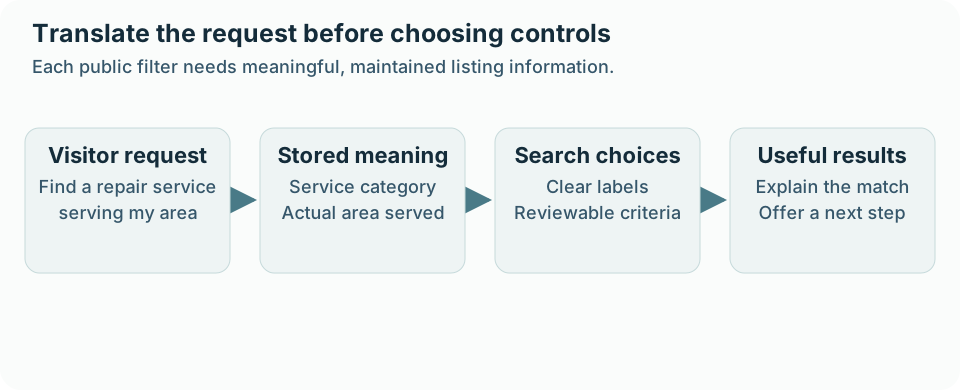
Create a small worksheet linking the visitor’s words to stored data. Use existing sample listings to test whether the information is present and consistently represented.
| Visitor decision | Data needed | Planning question |
|---|---|---|
| “Repairs dishwashers” | Service category or an appropriate service field | Do all relevant providers use the same concept? |
| “Serves my neighborhood” | Explicit service-area information | Is this different from the business’s office location? |
| “Within my budget” | Comparable price information and units | Are figures monthly, hourly, per visit, or estimates? |
| “Has step-free access” | A clearly defined accessibility detail | Was it confirmed, and what does the statement cover? |
| “Available on my dates” | A supported availability workflow | Can the site verify availability, or only display a claim? |
This is a requirements worksheet rather than a promise that every row is available as one built-in Listdom control. Check the supported fields and active products before choosing the interface. Some decisions need an inquiry or booking step instead of another filter.
Categories, features, locations, numeric fields, and free text have different strengths. A controlled choice is easier to compare across records; free text can preserve nuance. Choose the structure according to the question, not simply because the imported spreadsheet already has a column.
Check data coverage before exposing a filter
A filter is a commitment about the records behind it. If only a few providers have a service-area value, filtering by that field may hide many businesses that could actually help. The visitor cannot see the difference between “does not qualify” and “the directory never collected the answer.”
Audit representative records before adding the field. Define how unknown values are handled in your editorial process, improve collection where necessary, and decide whether the filter is ready for public use. Do not silently convert a blank value into a factual “no.”
Choose units and value conventions early. A price range is useful only when visitors understand what it measures. Mixing nightly, weekly, and monthly amounts under one unlabeled price field can produce a technically functioning filter with misleading results.
For data-model decisions, see how listings, categories, and locations work in Listdom. Planning the stored meaning first makes the eventual search form simpler to explain and maintain.
Give the first view only the most useful decisions
The first screen should help people begin. For a local services directory, a service and a location-related choice may be enough. For a property catalog, location, property type, and a clearly labeled budget may be the central decisions.
Put secondary preferences behind an expandable area when that helps the audience. Listdom’s More Options row allows fields below it to be revealed through the corresponding frontend control. Use that capability to prioritize questions, not to conceal essential information visitors must provide.
Keep labels understandable outside your team. An internal code, taxonomy abbreviation, or supplier term may save space while creating uncertainty. Prefer a short label with a clear unit or meaning, and use supporting text when two concepts are easily confused.
Avoid assuming more controls produce better matching. Each filter creates another way to narrow the collection, another field to keep consistent, and another interaction to test. A modest directory can be easier to use with four dependable filters than twelve fields with incomplete data.
Separate neighborhood selection, address search, and distance
Geographic intent deserves its own planning check. Selecting a neighborhood uses your directory’s location grouping. Entering an address supplies a reference point. Radius search compares distance using geographic data. These operations can produce different results even when visitors describe all of them as “nearby.”
Decide which meaning fits the audience. A city guide may benefit from neighborhood browsing. A person searching for an urgent repair provider may need businesses serving their address, which is not necessarily the same as having an office close to it.
Listdom supports several local-search workflows, with advanced options depending on the active product setup. Confirm the required provider configuration, coordinates, and dependencies before exposing a distance control. The local-search guide explains these relationships.
Also plan a route for visitors who decline location access or use a device that cannot supply it. A manually entered area or ordinary neighborhood selection can preserve the journey. Precise geolocation should be a useful choice, not an unexplained obstacle to browsing.
Plan what the results need to communicate
The results card is part of search design. If people filter by service and area, show enough related detail to understand why a listing belongs in the result set. Do not make them open ten pages to discover a fact the directory already knows.
Choose card details according to the task: business name, relevant location, short service summary, an appropriate price context, or another useful distinguishing field. Keep the main next step clear. A visitor comparing providers may need the full listing before making contact.
Plan the relationship between sorting and eligibility. Filtering decides which records qualify; sorting changes the order of the qualifying records. A “nearest” order does not by itself prove that the business serves the visitor, and a promoted position does not establish that it is the best match.
Explain paid prominence where applicable. When visitors can understand both the match and the ordering, the directory is easier to trust. Check the actual ordering configuration of the relevant Listdom view instead of treating a generic sort label as an editorial recommendation.
Decide how selections are applied and recovered
A form can apply several choices after a submit action or update results as choices change. Neither approach is universally preferable. Consider whether your audience knows several requirements in advance or is exploring and learning from each result set.
The Advanced Portal Search add-on supports configured updates without a full page reload. That can keep the selection and results close together, but test whether the page remains stable and whether loading and empty states are understandable. Use the Advanced Portal Search guide for the verified setup.
Let visitors see their current selections. In Listdom’s form settings, review Display Criteria when you want a summary of applied filters. Include an understandable reset route; a visitor should not have to reconstruct the original search after trying a combination.
Plan the empty-results experience before launch. Show which criteria remain active and help the visitor relax a constraint or try another area. Do not label unrelated listings as matches simply to avoid an empty screen. A clear explanation is more useful than a result that disregards the request.
Translate the plan into a Listdom form
Once the fields and behavior are decided, configure the implementation in Listdom → Search and Filter Builder:
- Create a form with an internal name that identifies its purpose.
- Add the required fields in the Fields builder.
- Keep the primary decisions visible and place suitable secondary fields under More Options.
- Review the Form settings, including Display Criteria where useful.
- Configure the destination and behavior in Search Results.
- Save the form and place its generated shortcode on the intended page, or attach it to the relevant listing view.
If you attach the search through a saved listing shortcode, go to Listdom → Shortcodes, edit that view, and review its Search settings, including Searchable and Search Form. A redirect destination also needs a working results view; choosing a page title alone does not create the listing output.
The search-form setup guide covers the detailed configuration. The official search builder documentation is the supporting reference for controls and placement.
Make mobile behavior part of the requirements
Do not wait for the final responsive styling pass to test search on a phone. Small screens change how easily visitors can compare a result, open secondary fields, read a label, and return from a listing page.
Listdom’s builder supports desktop, tablet, and mobile arrangements. Review inherited layouts and any device-specific changes deliberately. A desktop form with several side-by-side controls may need a different row order on a narrow screen.
Check that selected values remain understandable when the controls collapse or move out of view. Test keyboard access and ordinary touch use, including long option labels and the reset action. If the map dominates the viewport, confirm that visitors can still reach meaningful listing details.
A mobile design should preserve the task, not merely shrink the desktop controls. If an essential decision disappears on one device, the visitor may be unable to reproduce a useful search.
Use AI search where it improves an existing journey
AI-powered search can help people start with different wording or express a request in everyday language. It remains dependent on what the directory records, which search behavior is configured, and what the active integration supports.
For Listdom, verify the Advanced Portal Search mode and relevant AI configuration before promising a particular result. A structured interpretation and a meaning-based search are different approaches; neither should be described as a guarantee of factual suitability or availability.
Keep important constraints visible and reviewable when the chosen experience supports them. If someone asks for an accessible venue, the directory should only present that claim from supported information. An assistant should not infer it from an attractive photograph or a vague description.
Treat AI as another route into the maintained search model. Clear categories and fields help both ordinary filtering and compatible assistant experiences. They also provide a way for a visitor to correct or refine an initial interpretation.
Test the plan with tasks and keep the results
Use a short test set containing a known-name lookup, a broad exploratory request, a combination with several constraints, a genuine no-match request, and a case with missing data. Include geography and price edge cases relevant to the directory.
For each test, record what should qualify and why. Then check the full path: initial form, results, listing page, return navigation, changed criteria, and reset. Repeat the important tasks on mobile.
Review failures by cause. A data gap requires a collection fix; a confusing label needs interface work; a results page showing the wrong view needs configuration review. Do not keep adding filters to solve every problem.
Revisit the worksheet when the inventory or audience changes. New fields earn a place when they solve a real selection problem and the directory can maintain them reliably.
FAQ
How many filters should a directory have?
Use enough to support the main visitor decisions with dependable data. There is no universally correct number. Begin with the few that matter most and add others when testing shows a real need.
Is every custom field automatically a useful filter?
No. Confirm its supported search behavior, data coverage, value format, and relevance. A field useful on a detail page may be unhelpful as a public search control.
Should filters update results immediately?
Choose according to the task and test the behavior. Exploratory browsing can benefit from feedback after each choice; visitors with several fixed requirements may prefer applying a group of selections.
Does a location filter perform a distance search?
A location taxonomy and a distance calculation are different. Verify the selected workflow, geographic data, and required Listdom products.
Can AI compensate for missing listing data?
It cannot reliably establish facts your directory does not maintain. Improve the source records and make uncertainty clear rather than promising that a model will fill the gaps.
What should I test before opening the search to visitors?
Test realistic matches, non-matches, missing values, geographic edge cases, mobile layouts, results placement, return navigation, and resetting the form.