Before you begin, it helps to understand why are these three so often confusing beginners. This guide explains the topic in practical terms and connects it to the decisions, setup, or Listdom workflow covered below.

Before you begin, it helps to understand why are these three so often confusing beginners. This guide explains the topic in practical terms and connects it to the decisions, setup, or Listdom workflow covered below.
Why are these three so often confusing beginners?
At first glance, labels, features, and tags all seem like “extra things attached to a listing.”
That surface-level similarity is exactly why many beginners use the wrong one for the wrong job.
For example, a user may wonder:
- Should Featured be a tag?
- Should Has Parking be a label?
- Should Family Friendly be a feature or a custom field?
- Should Italian be a category, a tag, or both?
The right answer depends on what kind of meaning you want that item to carry.
A practical mental model helps:
- Labels usually add emphasis, status, or commercial visibility
- Features usually describe useful attributes or capabilities
- Tags usually add looser descriptive keywords for browsing and discovery
That is the core difference.
Start with one simple rule
If you only remember one thing, remember this:
- use labels for visual emphasis or status
- use features for important listing attributes
- use tags for looser descriptive keywords
That one rule already solves a lot of beginner confusion.
Build with Listdom
Build your directory website with Listdom
Launch a polished WordPress directory with listings, locations, maps, search, and room to grow into a full directory business.
How labels work in Listdom
Labels are usually the most visual of the three.
They are often used when you want a listing to communicate something quickly and prominently.
Examples:
- Featured
- Verified
- New
- Top Rated
- Urgent
A label is usually not a deep piece of data.
It is more like a clear visual signal.
That is why labels are often useful for:
- trust signals
- priority or premium presentation
- status-style emphasis
- monetized visibility upgrades
In many directories, labels are one of the fastest ways to make an important listing stand out.
Where to manage labels
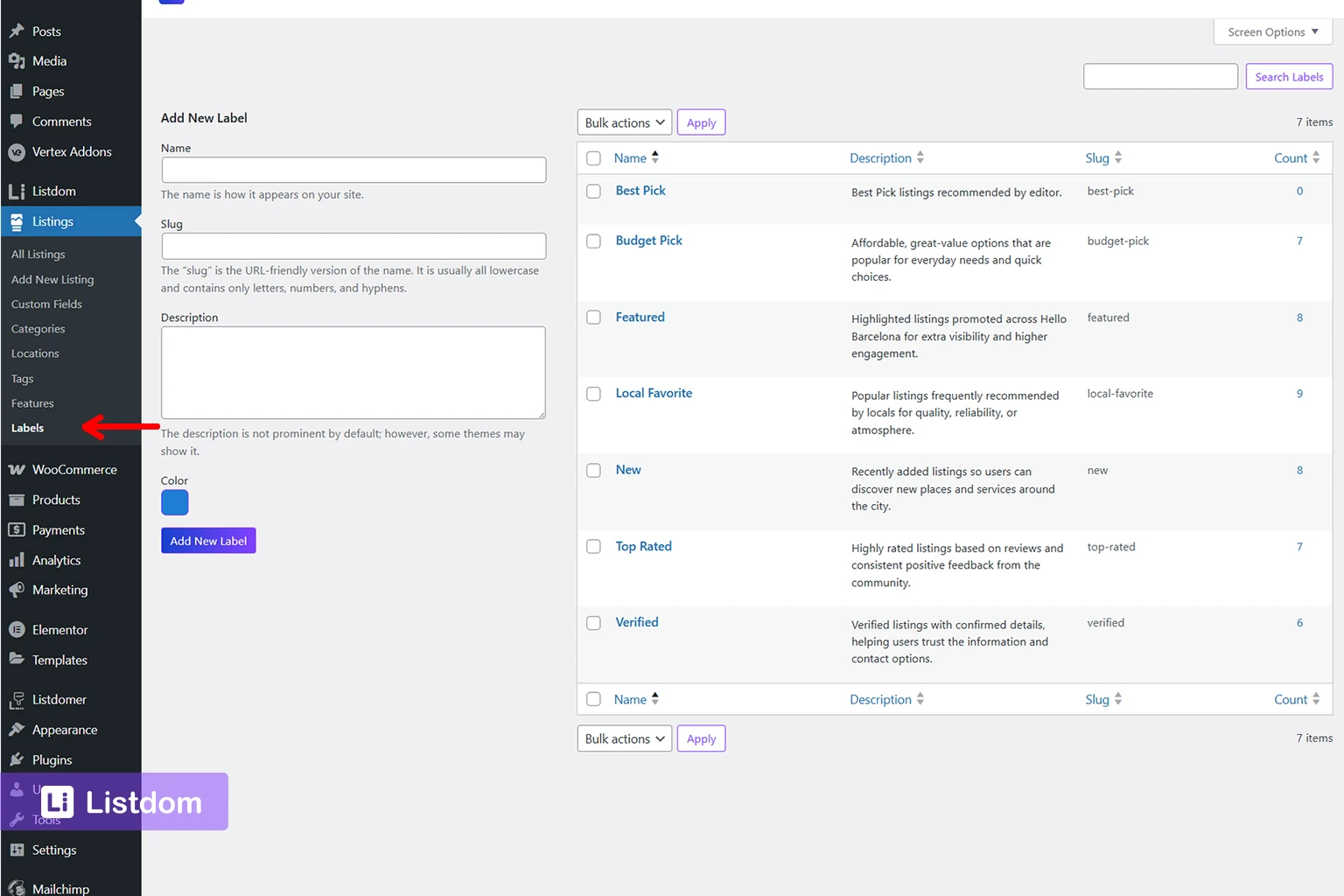
The core place to manage labels is:
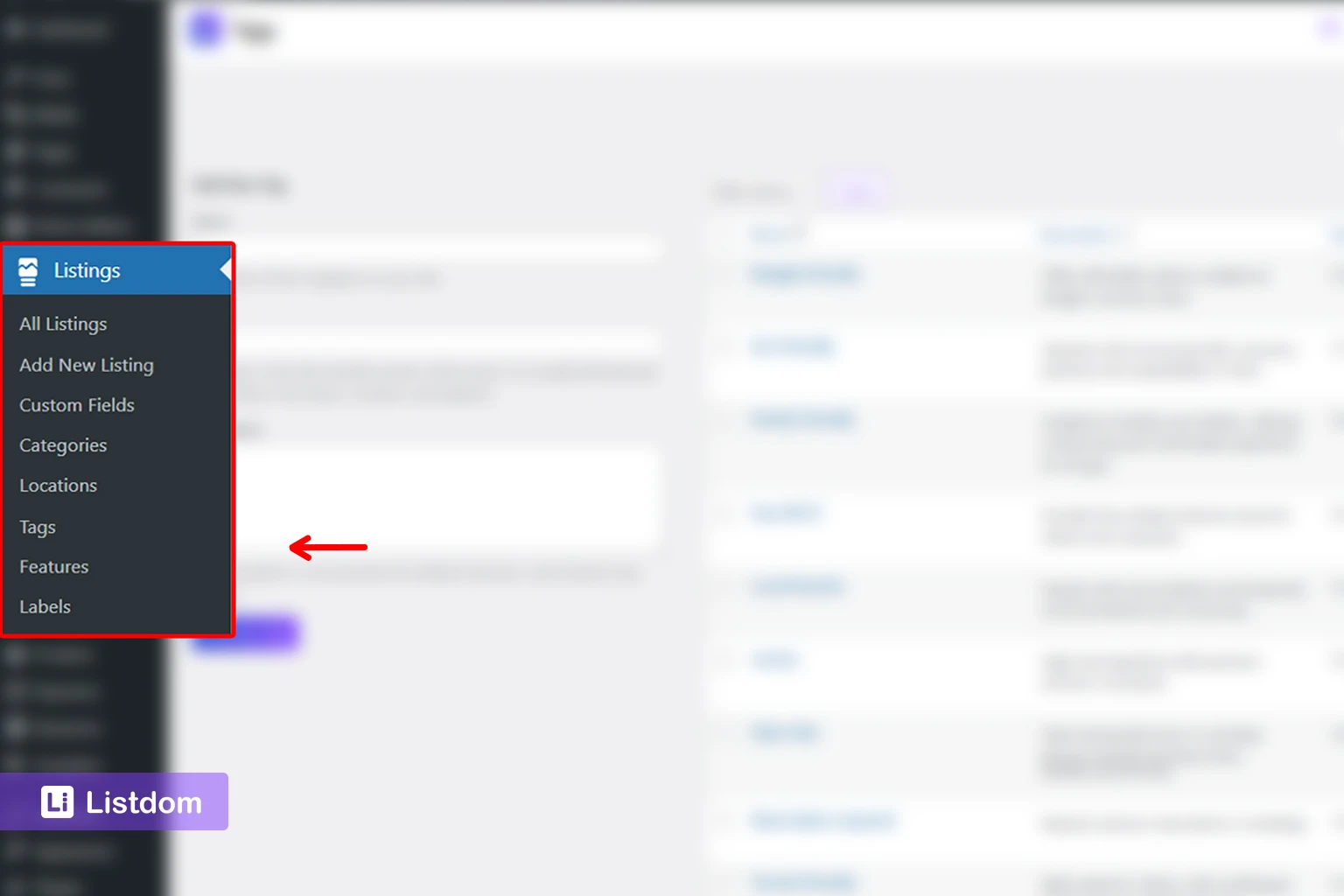
Listings → Labels
That is where you create, edit, and organize them.
If your site also uses paid labels or monetized visibility, the label logic may connect to payment-related settings too. But the label itself still belongs to the listing structure side.
If you want the monetization angle specifically, see How to Use Featured Listing Labels and Badges to Monetize a Directory Website.
How features work in Listdom
Features usually describe meaningful attributes of a listing.
They answer questions like:
- what does this place offer?
- what can this service do?
- what useful qualities does this listing have?
Examples:
- Has Parking
- Free Wi-Fi
- Outdoor Seating
- Wheelchair Accessible
- Pet Friendly
- 24/7 Support
A feature is usually more informative than a label.
It is not mainly there to create emphasis.
It is there to help a visitor understand the listing more clearly.
That is why features are often useful in:
- listing cards when you want quick attribute signals
- single listing pages when visitors need practical details
- search or filtering when attribute-based discovery matters
Where to manage features
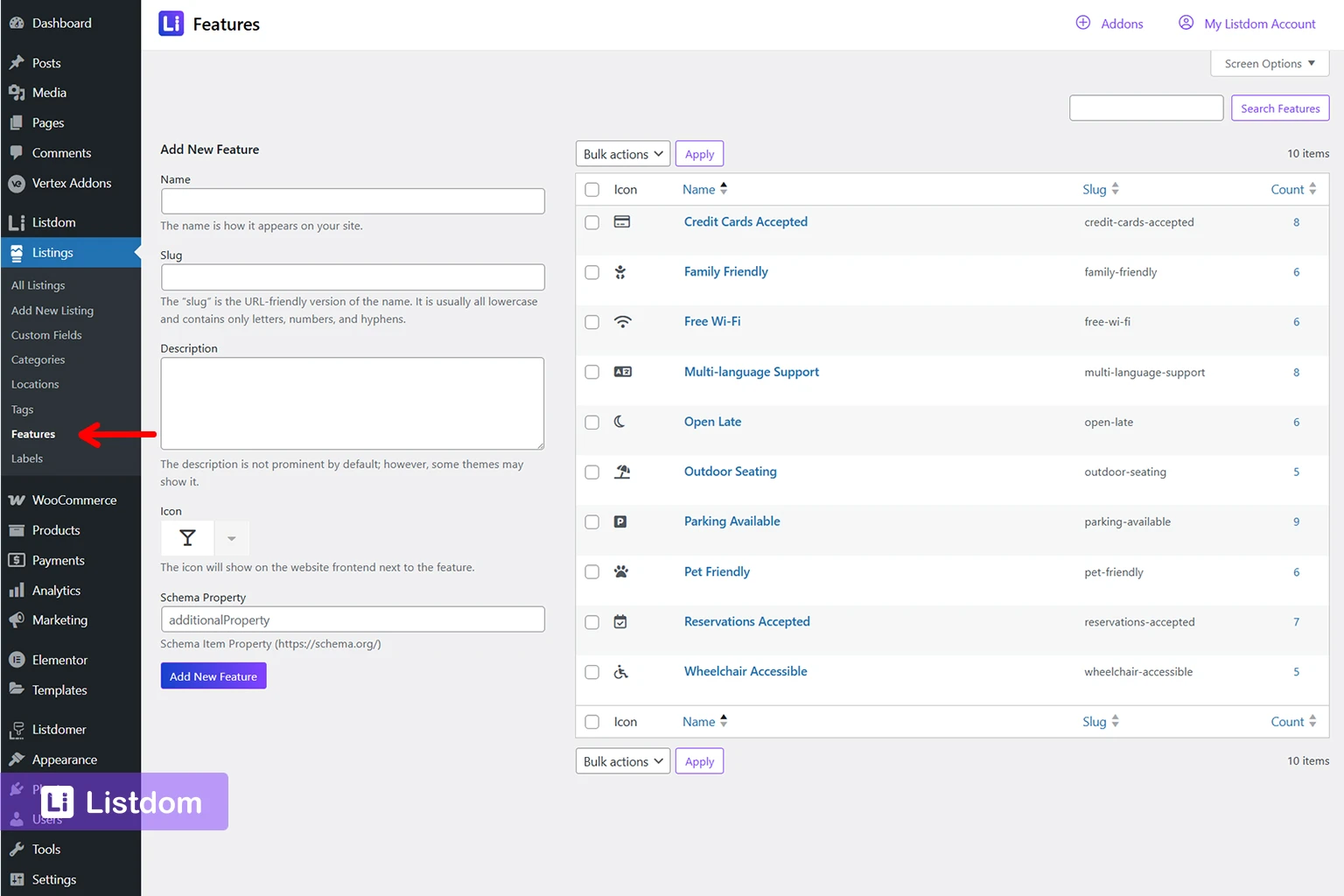
The core place to manage features is:
Listings → Features
That is where you create and edit the reusable feature terms.
The practical question to ask is:
Is this something visitors should understand as an attribute of the listing?
If yes, it is often a feature.
How tags work in Listdom
Tags are usually the loosest and most flexible of the three.
They help describe a listing with additional keywords that do not necessarily deserve category-level importance.
Examples:
- Romantic
- Family Friendly
- Luxury
- Budget
- Modern
- Vegan Options
A tag is often useful when the idea is descriptive but not strong enough to become:
- a category
- a major feature
- a custom field
- a visual label
Tags can help with looser browsing and keyword-style organization.
But they should be used carefully.
If you use too many tags, they quickly become messy and lose value.
Where to manage tags
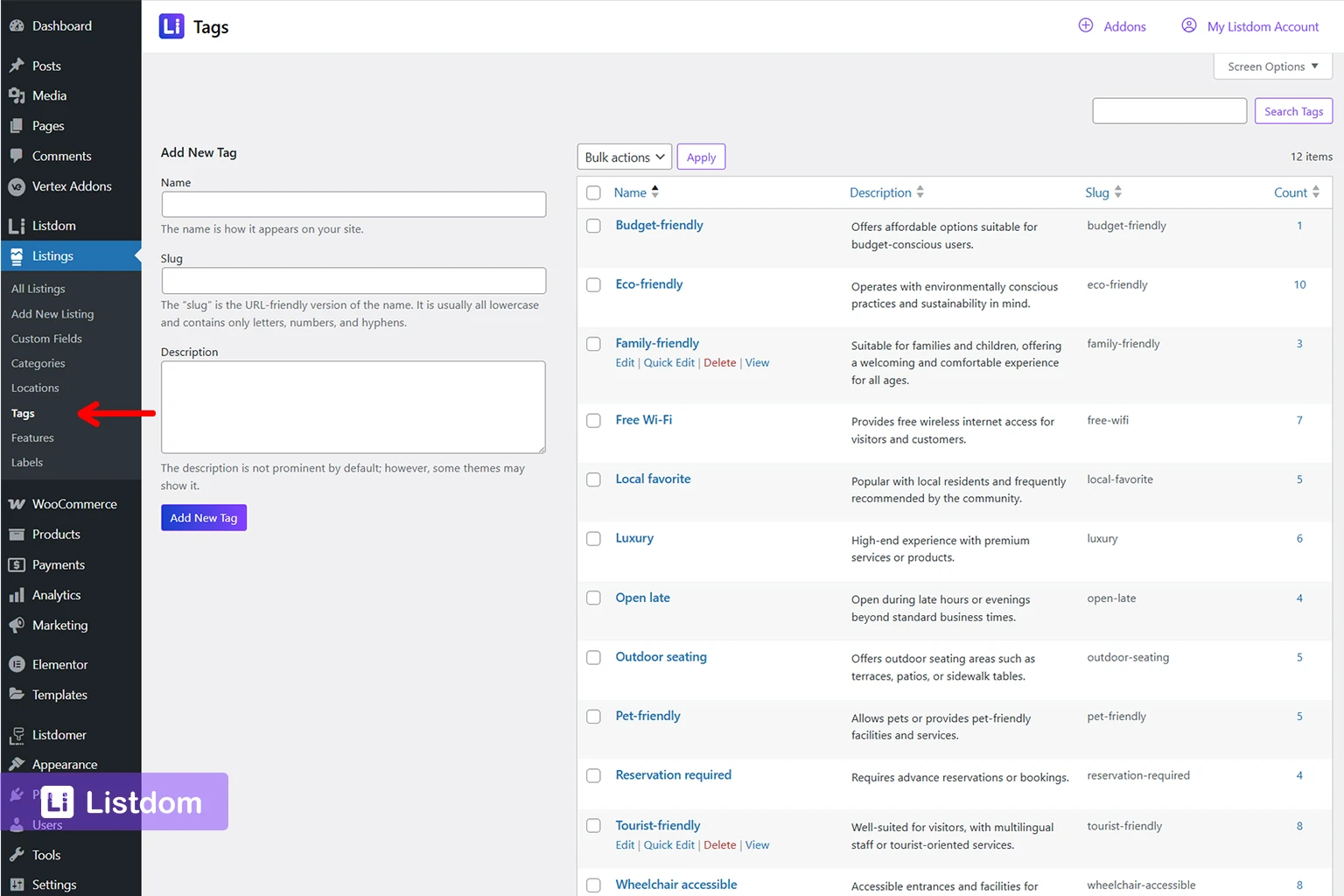
The core place to manage tags is:
Listings → Tags
That is where you create and edit them as part of the listing structure.
A practical beginner rule is this:
If the term feels like a soft descriptive keyword rather than a structural type, major attribute, or visual badge, it may be a tag.
Labels vs features vs tags: practical examples
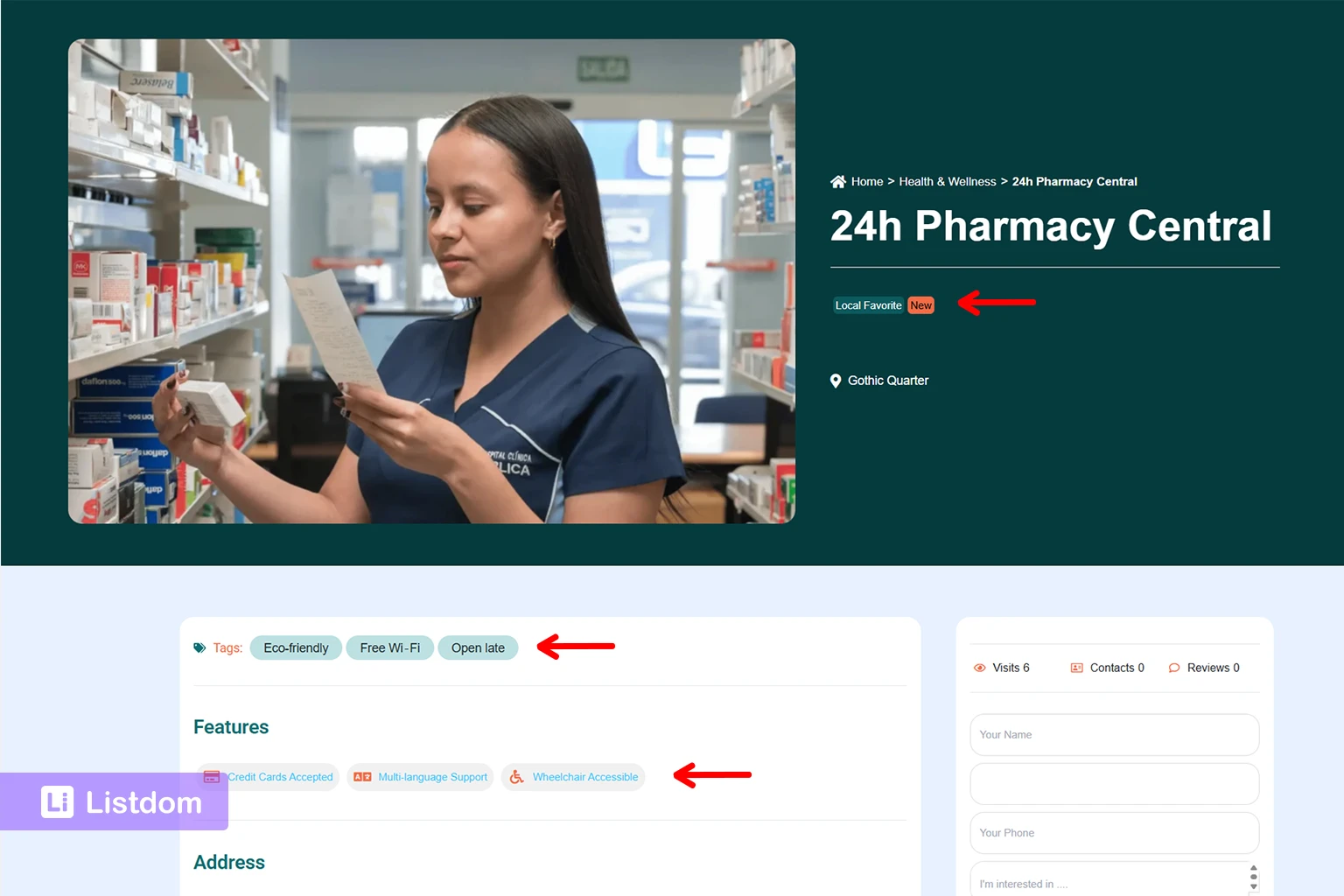
This is where the distinction becomes easier.
Example 1: restaurant listing
- Featured = label
- Outdoor Seating = feature
- Romantic = tag
- Restaurant = category
- Reservation URL = custom field
Example 2: hotel listing
- Verified = label
- Free Breakfast = feature
- Luxury = tag
- Hotel = category
- Check-in Time = custom field
Example 3: doctor listing
- Top Rated = label
- Accepts Insurance = feature
- Family Care = tag
- Dentist = category
- Languages Spoken = custom field
These examples show why the three should not be treated as the same thing.
Implementation guide
Need the technical details?
Use the Listdom documentation to configure listings, shortcodes, search forms, maps, and add-ons with confidence.
How they differ from categories and custom fields
This is another important distinction.
Categories
Categories answer:
What kind of listing is this?
Examples:
- Restaurant
- Hotel
- Dentist
- Lawyer
Custom fields
Custom fields store more structured listing-specific information.
Examples:
- Reservation URL
- Lot Size
- Opening Date
- Phone Number
- Service Radius
Labels, features, and tags
These sit in the middle ground between structure and presentation.
- Labels = emphasis or status
- Features = practical attributes
- Tags = softer descriptive keywords
If you are still building the main structure first, these companion articles help:
Where these items appear on listings
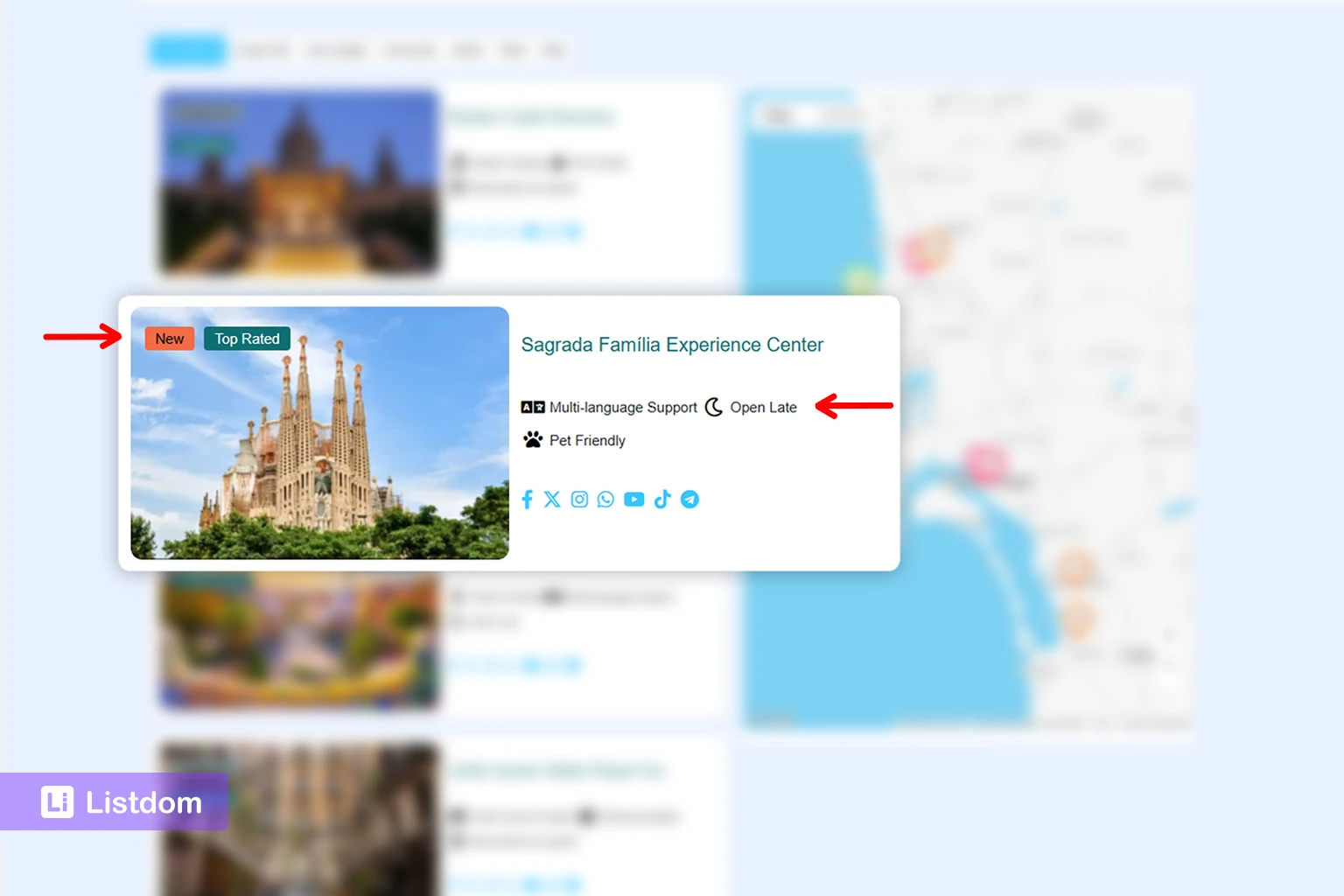
Labels, features, and tags do not all behave the same way on the front end.
That is another reason to choose them carefully.
Labels on the front end
Labels usually appear where visual emphasis matters most.
Depending on your setup, that may include:
- listing cards
- single listing pages
- archive or shortcode views
A label is often meant to be seen quickly.
Features on the front end
Features often work best where the visitor is evaluating usefulness.
That may include:
- listing cards with key feature highlights
- the single listing page where more practical detail is shown
- search forms when features are used for filtering
Tags on the front end
Tags usually feel lighter and less central.
They may appear more as supporting keywords than as major content blocks.
That is why tags should usually stay more restrained than features.
Where to manage how they show up
The listing structure itself is managed in:
- Listings → Labels
- Listings → Features
- Listings → Tags
But how they appear on the front end may be controlled in different places.
A practical checklist is:
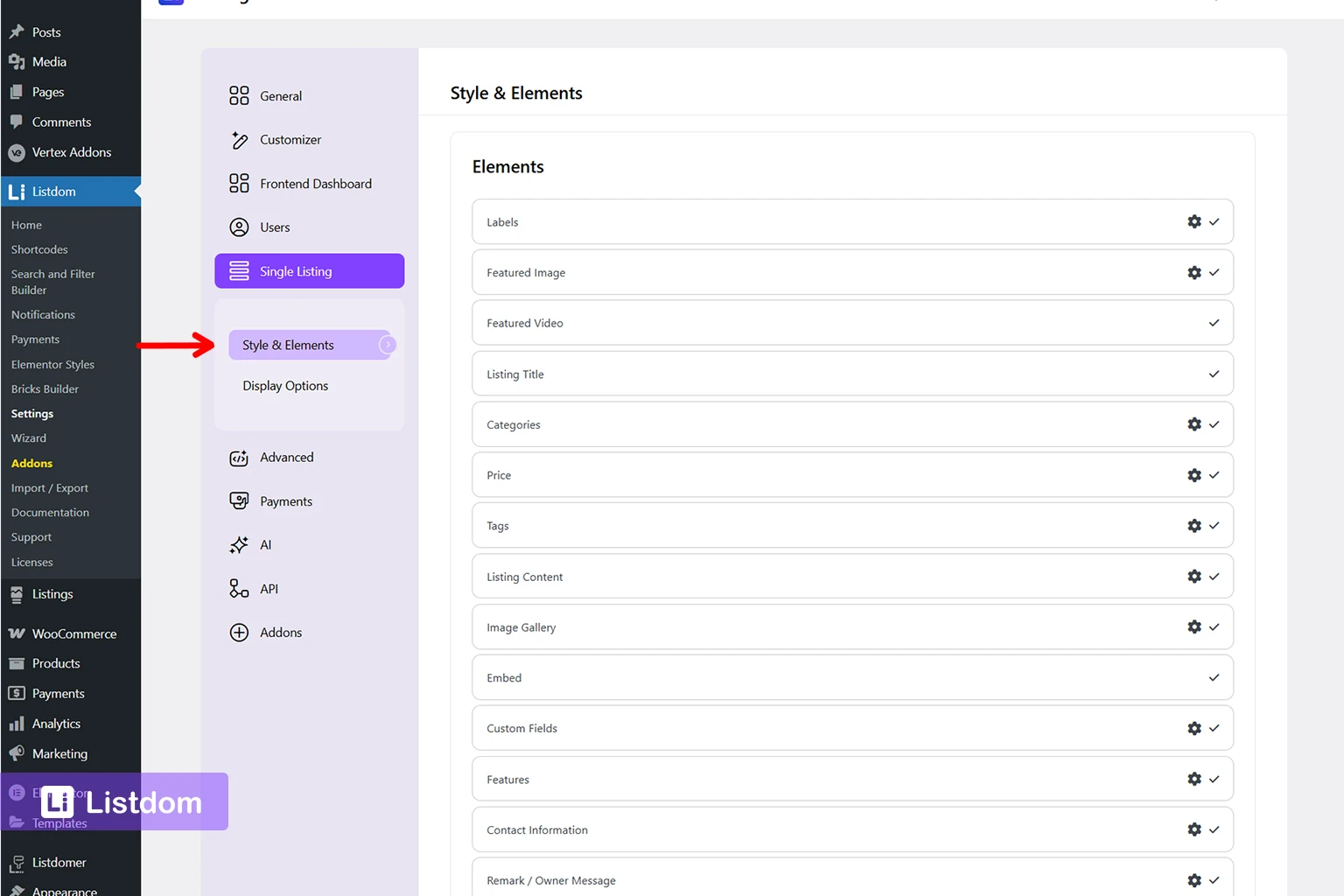
use Listdom → Settings → Single Listing → Elements if you need to review whether labels, features, tags, categories, or other sections are enabled on the single listing page
use your shortcode settings if you are checking how listings appear in a particular grid, list, carousel, or other output
use Listdom → Settings → Frontend Dashboard if you want to control whether users can assign or create these items during submission
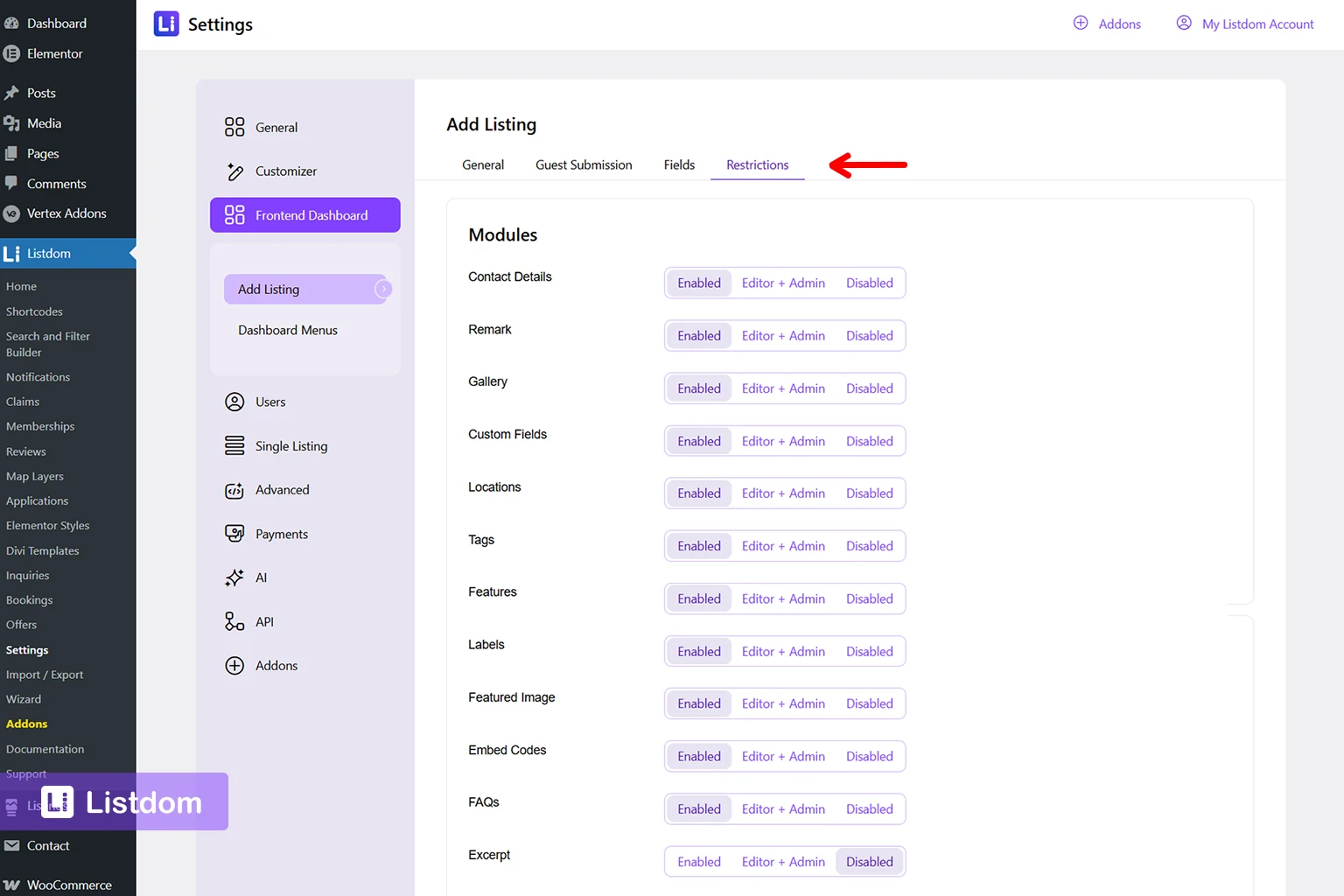
For the official single listing settings reference, see Listdom Single Listing Settings Documentation.
How they affect search and discovery
These three can influence discovery differently.
Features
Features are often the strongest candidate for filtering because they represent meaningful attributes users may actively look for.
Examples:
- Has Parking
- Free Wi-Fi
- Pet Friendly
Tags
Tags may help with looser keyword-style discovery, but they are usually not as strong or clean as features for practical filtering.
Labels
Labels can support visibility and emphasis, but they are usually not the first place to build serious search logic unless your project has a very specific reason.
If search is your next layer after structure, see How to Create Search Forms in Listdom.
How frontend submission changes the picture
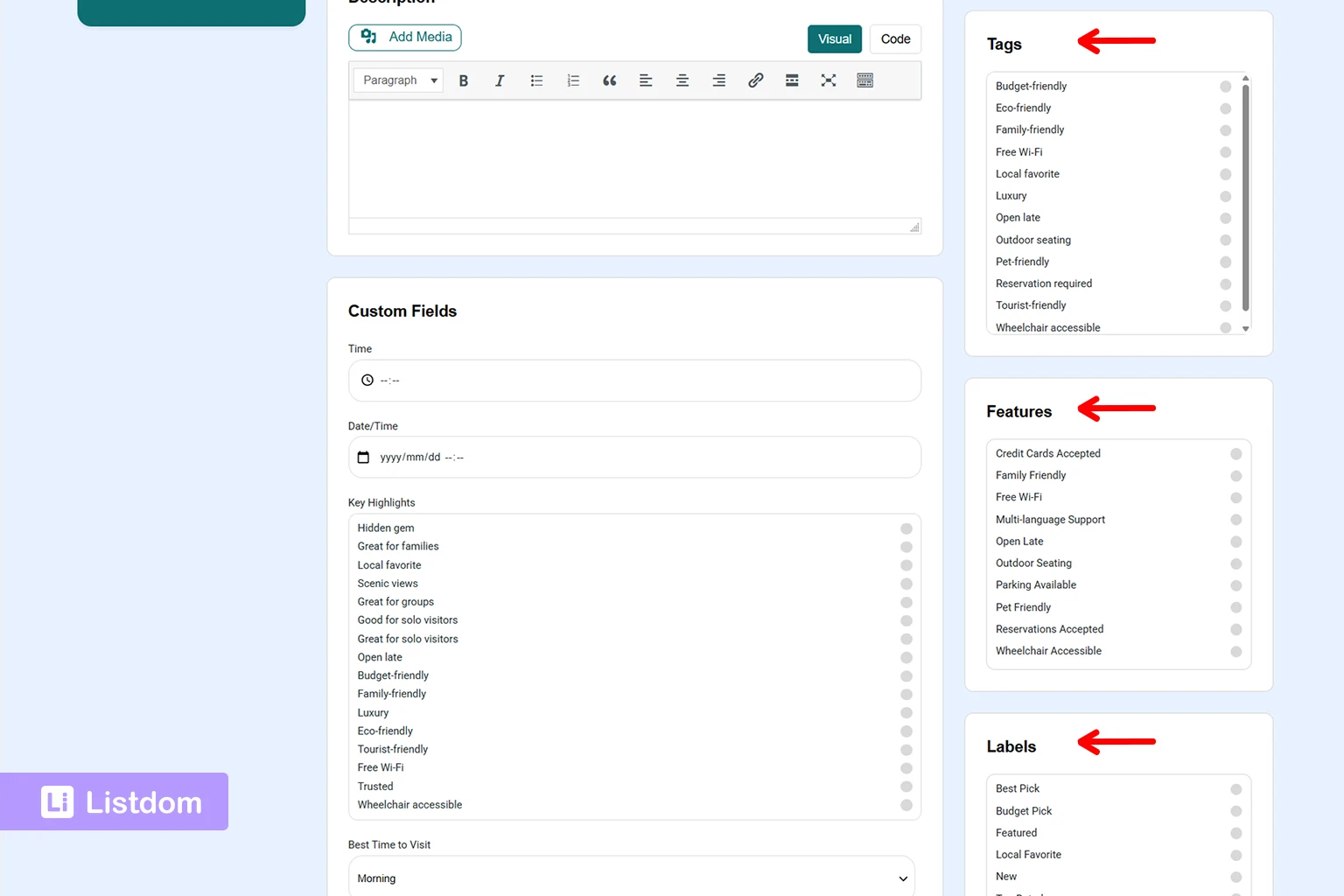
This is easy to miss.
Even if labels, features, or tags are well-designed, users may not interact with them the way you expect unless the submission flow supports it.
The practical place to review this is:
Listdom → Settings → Frontend Dashboard
In particular, review whether the add listing form allows or restricts the relevant taxonomy or module.
That matters because a label, feature, or tag may be correctly configured in the backend, but never actually show up on real listings if users cannot assign it during submission.
If your site depends on frontend submission, How the Listdom Frontend Dashboard Works is the best companion article for that layer.
How membership packages affect labels, features, and tags
This is one of the most useful advanced concepts to understand early, because it surprises many site owners later.
Labels, features, and tags are not controlled only at the taxonomy level.
If you use the Membership addon, a package can also decide how much access a user has to them when creating or managing listings.
That means two users can be working on the same kind of listing, but their package may allow different behavior.
In practice, package rules can affect things like:
- whether Labels are available at all
- whether Features are available at all
- whether Tags are available at all
- how many tags a user can add
- which labels a package is allowed to use
- which categories the package can be used for, which indirectly affects which labels, features, and fields make sense for those listings
This matters because a directory owner may correctly create labels, features, and tags in the backend, but users still may not be able to use them the same way on the front end.
Where to manage this at the package level
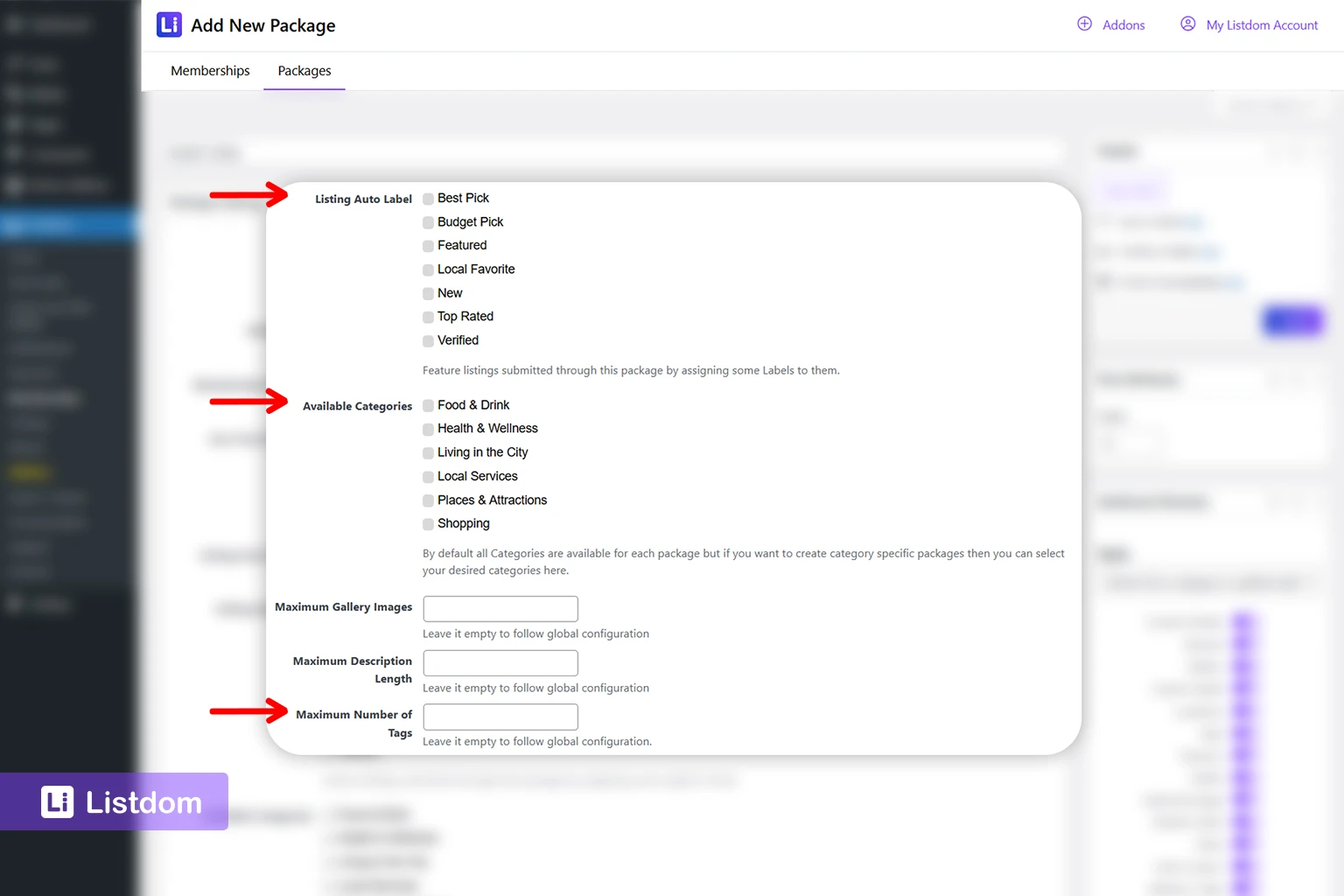
The practical path is:
- Go to Listdom → Memberships
- Edit the relevant package
- Review the package sections related to:
- Allowed Labels
- Max Tags
- Dashboard Modules
- Check whether the package enables or disables modules such as:
- Tags
- Features
- Labels
This is one of the clearest examples of why the same listing element can be controlled in more than one layer.
One package option that deserves special attention: Listing Auto Label
One especially useful package setting is Listing Auto Label.
This is different from Allowed Labels.
- Allowed Labels controls which labels a user is allowed to assign manually
- Listing Auto Label automatically adds selected labels to listings created through that package
That makes it a very practical tool when you want the package itself to shape listing visibility or status without asking the user to choose the label manually.
A few common use cases are:
- automatically marking listings from a premium plan as Featured
- applying a package-specific visibility badge
- keeping label usage consistent instead of relying on users to choose the right label themselves
The practical path is:
- Go to Listdom → Memberships
- Edit the package
- Review Listing Auto Label and Allowed Labels together
This matters because a site owner may think labels are broken when, in reality, the package is auto-applying one label while restricting manual access to others.
A good practical rule is this:
- use Listing Auto Label when the package itself should decide the label automatically
- use Allowed Labels when the user should still have some controlled choice
What this means in practice
A few practical examples make this much easier to understand.
Example 1: the package auto-applies a label
You may create several labels in Listings → Labels, and then use Listing Auto Label in a package so every listing created through that package automatically receives one of those labels.
That means the taxonomy exists globally, but the package decides that one specific label should always be applied.
Example 2: labels exist, but the package does not allow them
You may create several labels in Listings → Labels, but a package can still restrict which labels a user may assign.
That means the taxonomy exists globally, but package rules narrow access.
Example 3: features exist, but the package disables the module
You may create features in Listings → Features, but if the package disables the Features module, users on that package may not be able to use them during submission.
Example 4: tags are enabled, but capped
A package may allow tags, but also limit them through Max Tags.
So a user may see the tag system, but still be restricted in how many tags they can actually add.
Why this matters for monetization strategy
This is where packages become more than just billing tools.
They can also shape listing quality, listing richness, and premium differentiation.
For example:
- a free package may disable labels and limit tags
- a mid-tier package may allow features and a few tags
- a premium package may unlock labels, more tags, and fuller listing modules
That kind of setup can make your plans feel more meaningful without changing the whole listing system.
One important troubleshooting habit
If a user says:
- “I created the labels, but they do not appear for this user”
- “I enabled features, but they are missing on submission”
- “Tags work for one plan but not another”
then do not only check:
- Listings → Labels
- Listings → Features
- Listings → Tags
Also check:
- Listdom → Memberships for package restrictions
- Listdom → Settings → Frontend Dashboard for submission-side restrictions
- Listdom → Settings → Single Listing if the issue is about front-end display rather than submission access
For the official package reference, see the Listdom Membership Addon Documentation. It explains package options such as allowed labels, tag limits, package modules, allowed categories, and purchase flow. It also helps clarify why package-level controls can change what users can do with labels, features, and tags.
How labels connect to monetization
Labels deserve one extra note because they often connect to monetization more directly than features or tags.
For example, a directory may sell:
- Featured labels
- Verified-style badges
- premium visual emphasis
That does not mean labels are only for monetization.
It means they are often the one taxonomy-like element most likely to overlap with monetization strategy.
That is why the onboarding rule should be:
- first understand what a label is structurally
- then decide whether some labels will also be monetized
If the monetization side matters, the best companion article is How to Use Featured Listing Labels and Badges to Monetize a Directory Website.
Common beginner mistakes
Using labels when a feature would be clearer
A practical attribute should usually be a feature, not only a badge.
Using tags for important structured information
Tags are too loose for details that really need stronger structure.
Turning every descriptive word into a tag
This creates clutter very quickly.
Using a feature when the data should actually be a custom field
If the detail needs a structured value like a number, date, phone, or URL, it is probably not a feature.
Treating labels, features, and tags as interchangeable
They are not. Each one serves a different role.
Thinking only about the backend and not about front-end display
The real test is not only how these terms look in wp-admin. It is how useful they are to the visitor on the front end.
What to configure first
A practical beginner order looks like this:
- define your main categories and locations first
- decide which listing attributes should become features
- decide which visual/status items should become labels
- decide whether you really need tags, and keep them limited at first
- review where these elements appear on listing cards and single listing pages
- review whether the frontend submission flow should allow users to assign them
- only then connect labels to monetization if that is part of the business model
That order keeps the system cleaner and avoids taxonomy clutter.
What to learn next
Once labels, features, and tags are clear, the best follow-up topics are:
- How Listings, Categories, and Locations Work in Listdom
- How Custom Fields Work in Listdom
- How Single Listing Pages Work in Listdom
- How to Create Search Forms in Listdom
- How to Navigate the Listdom Admin Menu
These topics help connect the structure side, display side, and search side of the plugin.
Listdom ecosystem
Build the directory workflow described in this guide
Use related Listdom products, add-ons, and planning pages to turn this guide into a structured directory project.
Final thoughts
Labels, features, and tags are small parts of the plugin, but they have a big effect on clarity.
When you use them well, listings become easier to understand, browsing becomes more helpful, and your directory feels more intentional.
The key is to stop thinking of them as three versions of the same thing.
They are three different tools:
- labels for emphasis
- features for attributes
- tags for looser descriptive keywords
Once that distinction is clear, the rest becomes much easier.
FAQ
What is the difference between labels, features, and tags in Listdom?
Labels are usually for emphasis or status, features are for practical listing attributes, and tags are for looser descriptive keywords.
Should I use a tag or a feature?
Use a feature when the item is an important attribute users may care about directly. Use a tag when it is more like a supporting descriptive keyword.
Should “Featured” be a label or a tag?
Usually a label. “Featured” is normally a visibility or status signal, not just a loose keyword.
Where do I manage labels, features, and tags?
In the Listings menu in WordPress admin, using Listings → Labels, Listings → Features, and Listings → Tags.
Can these affect search and filters?
Yes, especially features. They can help users find listings based on useful attributes.
Do labels only matter for monetization?
No. They can be used for trust or status too. But they are often the one element most likely to connect to monetization later.
Should I create many tags at the beginning?
Usually no. Start with only the tags that truly help browsing or discovery, otherwise they can become clutter very quickly.
FAQ
Common questions
What is the difference between labels, features, and tags in Listdom?+
Labels are usually for emphasis or status, features are for practical listing attributes, and tags are for looser descriptive keywords.
Should I use a tag or a feature?+
Use a feature when the item is an important attribute users may care about directly. Use a tag when it is more like a supporting descriptive keyword.
Should "Featured" be a label or a tag?+
Usually a label. "Featured" is normally a visibility or status signal, not just a loose keyword.
Where do I manage labels, features, and tags?+
In the Listings menu in WordPress admin, using Listings → Labels, Listings → Features, and Listings → Tags.
Can these affect search and filters?+
Yes, especially features. They can help users find listings based on useful attributes.
Do labels only matter for monetization?+
No. They can be used for trust or status too. But they are often the one element most likely to connect to monetization later.
Should I create many tags at the beginning?+
Usually no. Start with only the tags that truly help browsing or discovery, otherwise they can become clutter very quickly.