


Before you begin, it helps to understand why this topic matters so much. This guide explains the topic in practical terms and connects it to the decisions, setup, or Listdom workflow covered below.

Before you begin, it helps to understand why this topic matters so much. This guide explains the topic in practical terms and connects it to the decisions, setup, or Listdom workflow covered below.
Why this topic matters so much
A lot of users can create a shortcode.
A lot of users can create a search form.
A lot of users can create a WordPress page.
But the real beginner challenge is understanding which piece does what.
For example, users often wonder:
- Does the shortcode create the page?
- Does the search form create the results?
- Do I need one page or two?
- Does the single listing page need a shortcode too?
- If I already made a search form, why do I still need a page?
Those are not small questions.
They shape the whole front-end experience.
Build with Listdom
Build your directory website with Listdom
Launch a polished WordPress directory with listings, locations, maps, search, and room to grow into a full directory business.
Start with one simple mental model
If you only remember one thing, remember this:
- the shortcode controls what listing output appears on a page
- the search form controls how users search or filter
- the WordPress page is the container where one or both of those things appear
- the single listing page is created automatically for each listing and is a different layer altogether
That is the core relationship.
What a shortcode does in Listdom
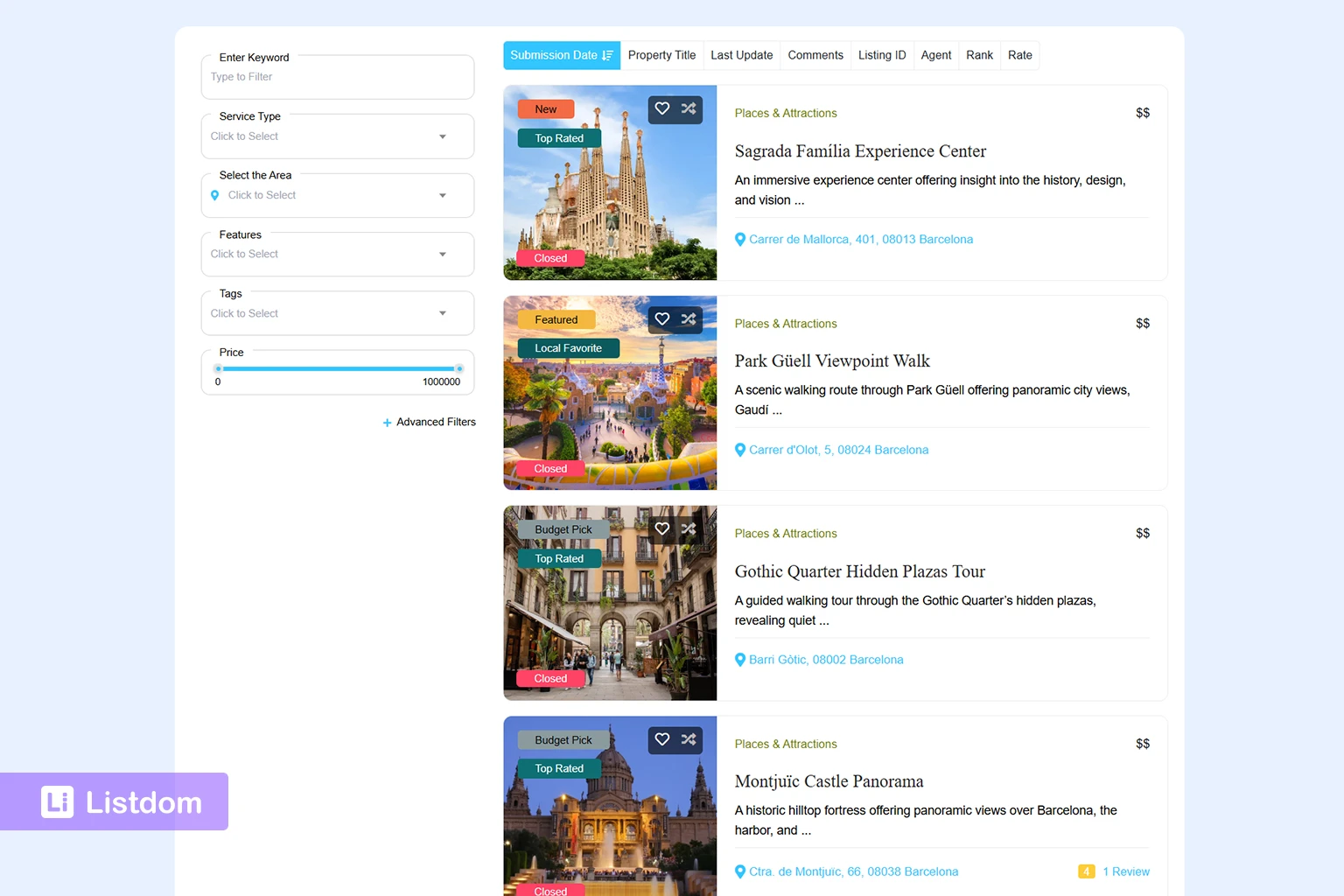
A shortcode is the output engine for listings.
It controls how listings are displayed on the front end.
Depending on the shortcode and skin settings, it may control things like:
- grid output
- list output
- map output
- carousel output
- masonry-style output
- timeline or other layout variations
- which listings should appear
- how many listings should appear
- category or location filtering at the output level
So the shortcode is mainly about displaying listings.
It is not the same thing as a search form.
It is also not the same thing as the single listing page.
If you want the detailed shortcode article, see How to Display Listings Using Listdom Shortcodes.
What a search form does in Listdom

A search form is the input side.
It helps the visitor search, narrow, or filter listings.
Depending on your setup, that can include things like:
- keyword search
- category filtering
- location filtering
- custom field filtering
- feature-based filtering
So the search form is mainly about how users search.
It does not replace the shortcode.
And there are two practical ways it can be used:
- it can be inserted separately on the same page as the shortcode
- or it can be selected inside the shortcode settings so it is tied to that shortcode and displayed with it
That is an important beginner concept, because both approaches are valid. The best choice depends on how much control you want over the page layout and whether you want the search form handled more independently or as part of the shortcode output.
If you want the detailed search article, see How to Create Search Forms in Listdom.
What a WordPress page does in this system
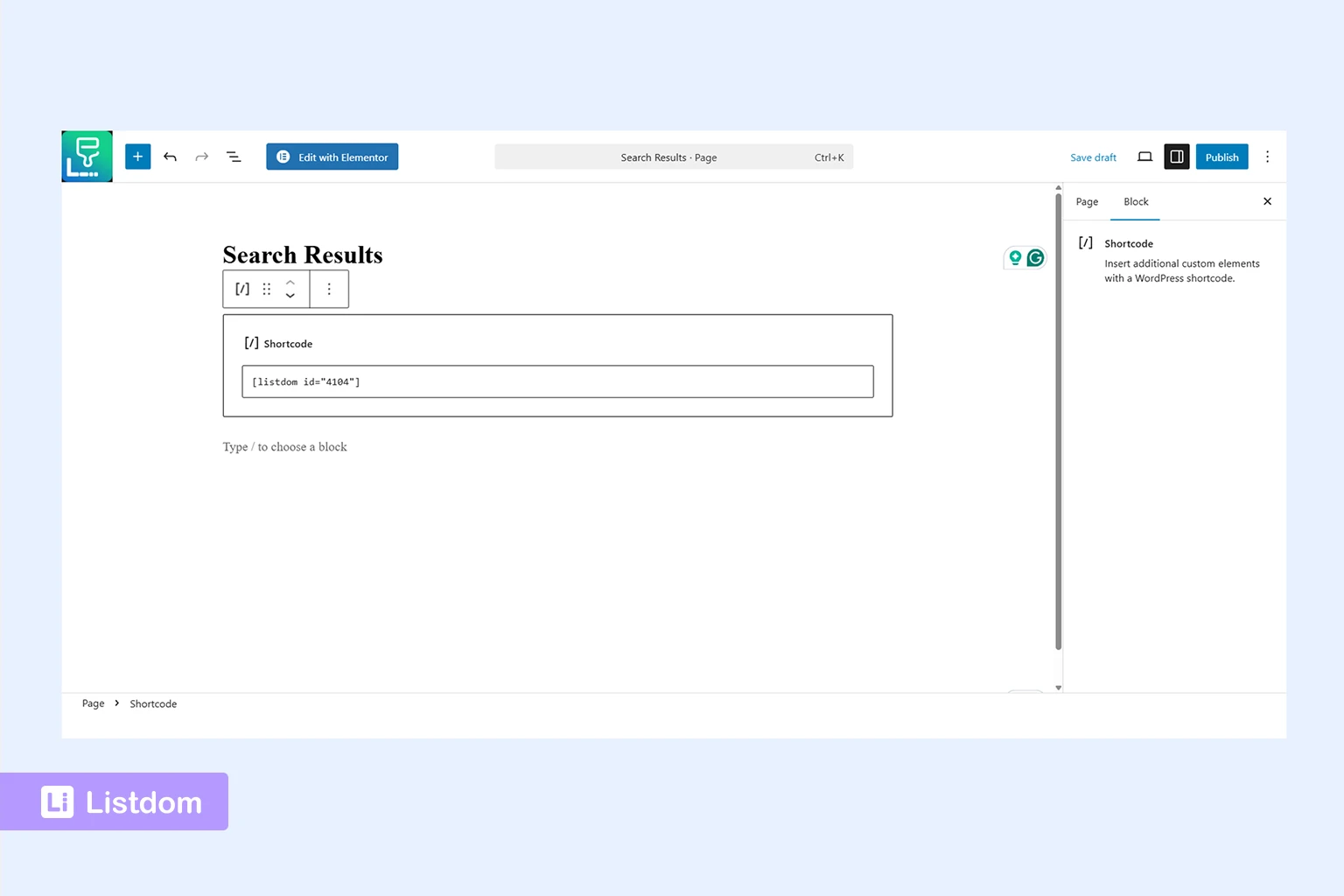
A WordPress page is the front-end container.
It is where you place the Listdom output.
That means the page may contain:
- only a shortcode
- only a search form in some special flows
- or both a search form and the listing output together
A page is not the logic itself.
It is the place where the logic appears to the visitor.
That is why beginners often feel confused: they are trying to solve a page-building question with only a shortcode or only a search-form mindset.
How the three pieces work together
This is the most practical part of the whole topic.
A simple version looks like this:
- you create listings and structure first
- you create a shortcode to control the output
- you create a search form if users need to search or filter
- you create or edit a WordPress page
- you place the shortcode, the search form, or both on that page depending on the experience you want
So the page is the container, the shortcode is the listing output, and the search form is the search/filter input.
The most common front-end patterns
Implementation guide
Need the technical details?
Use the Listdom documentation to configure listings, shortcodes, search forms, maps, and add-ons with confidence.
There is not only one correct way to use these pieces.
A few patterns are very common.
Pattern 1: one page with both the search form and the results
This is often the easiest beginner-friendly model.
The same page contains:
- the search form at the top
- the shortcode output below it
This can happen in two ways:
- you insert the search form separately on the page and place the shortcode below it
- or you select the search form inside the shortcode settings so the shortcode output includes it as part of the same front-end block
This works well when you want a clean all-in-one directory page.
Pattern 2: one search form connected to a separate results page
In this model:
- the user starts searching from one page or section
- the filtered results appear on a separate page
This can be useful when you want a cleaner landing-page experience or a dedicated results page.
Pattern 3: different pages for different directory sections
This is common when the site has multiple directory segments.
For example:
- one page for restaurants
- one page for hotels
- one page for doctors
- one page for featured listings
Each page may use its own shortcode logic, and the search form may be shared or customized depending on the use case.
Pattern 4: a homepage search block that leads into directory pages
This is very common in polished directory sites.
The homepage may show:
- a hero search form
- category shortcuts
- featured sections
Then users move into deeper directory pages that use shortcodes and results layouts more fully.
Where to create the shortcode

The practical place to manage shortcode outputs is inside the Listdom menu.
Depending on your setup, the shortcode area is usually managed through:
Listdom → Shortcodes
There you can create or edit the listing output and choose how it should behave.
That includes the skin, filters, display logic, and output settings tied to that shortcode.
It may also include selecting a search form so the form is tied directly to that shortcode output instead of being inserted separately on the page.
Where to create the search form

The practical place to manage search forms is also inside the Listdom menu.
The usual path is:
Listdom → Search & Filter Builder
That is where you build the form visitors use for searching or filtering.
If your site depends heavily on search, this area becomes one of the most important parts of the front-end journey.
Where the WordPress page fits in
The page itself is created in standard WordPress page management.
The practical path is:
Pages → Add New
That is where you create the actual page that visitors will open.
Then you place the Listdom piece you need on that page.
In practical terms, that means:
- create the page in WordPress
- insert the relevant shortcode or shortcode block
- either place the search form separately where appropriate or tie it to the shortcode from the shortcode settings
- publish the page
This is the step where many users finally see how the front-end pieces connect.
Taxonomy archive pages are another front-end path

Yes, there is one more important concept here:
taxonomy archive pages.
These are different from the pages you build manually with shortcodes.
In Listdom, taxonomies such as categories, locations, features, labels, or tags can have their own archive-style pages automatically. That means users may reach a front-end page simply by opening a category, location, feature, label, or tag term.
This is useful because it gives you a faster and more normal archive-style experience without needing to create a separate WordPress page and insert a shortcode manually.
A practical beginner way to think about it is:
- use taxonomy archive pages when you want a fast, normal archive-style page for a term
- use a shortcode on a WordPress page when you want more control, more detailed page design, or custom filtering logic
- use a results page when the page is mainly meant to show searched or filtered listings
That means these are related, but not the same thing.
Taxonomy archive pages
These are created automatically as part of the archive behavior for terms.
For example, a user may open:
- a category archive
- a location archive
- a feature archive
- a label archive
- a tag archive
without you creating a separate manual page for each one.
Shortcode-driven pages
These are pages you build intentionally in WordPress and control more directly.
This is the better choice when you want things like:
- a more custom landing page
- a page with a search form and output together
- a page that mixes directory content with other content blocks
- a more controlled filtered view
- a page that shows all listings in a specific style
So taxonomy archives are often the quicker default path, while shortcode pages are the more flexible custom path.
For a focused guide to choosing and planning those archive paths, see How Taxonomy Archive Pages Work in Listdom.
What a results page is in this system
A results page is still just a front-end page, but it is being used specifically to show search results or filtered listing output.
That is different from a taxonomy archive page.
A taxonomy archive is created automatically for a term. A results page is usually a page you intentionally use to display searched or filtered output.
That means the results page is often:
- a WordPress page
- containing a Listdom shortcode
- optionally connected to a search form that points users there
This is important because “results page” is more of a role than a separate object type.
It is usually still built from the same page + output logic, just used for search results.
How this differs from the single listing page

This is one of the biggest beginner misunderstandings.
A single listing page is not something you usually create manually with a shortcode.
You do not need to create a separate page for each single listing and insert a shortcode into it.
The front-end page of each listing is created automatically when the listing is published.
That means:
- archive or result pages are where many listings are displayed together
- single listing pages are the individual detail pages generated for each listing automatically
If you want that topic in depth, see How Single Listing Pages Work in Listdom.
A simple setup example
A good beginner example looks like this:
Example: restaurant directory page
- create your restaurant listings
- make sure categories, locations, and fields are ready
- create a search form in Listdom → Search Forms
- create a shortcode in Listdom → Shortcodes for the restaurant listing output
- create a page in Pages → Add New
- either place the search form and shortcode on that page separately, or connect the search form to the shortcode from the shortcode settings
- publish the page
- let users search or browse the results there
- let users open each single listing page automatically from the results
That is the full front-end chain in a very practical way.
What usually goes wrong
A lot of confusion comes from expecting one piece to do the job of another.
Mistake 1: thinking the search form replaces the shortcode
It does not.
The search form is the input side. The shortcode is still the output side.
Even when a search form is selected inside the shortcode settings, the shortcode is still the display engine. The form is just being attached to that output more tightly.
Mistake 2: thinking the shortcode creates the single listing page
It does not.
The single listing page is created automatically when the listing is published.
Mistake 3: building the page before the listing structure is ready
If the listings, categories, locations, and fields are weak, the page may still feel weak even if the layout works.
Mistake 4: mixing up taxonomy archives, results pages, and shortcode pages
A taxonomy archive page, a results page, and a shortcode-driven page may all show listings, but they are not the same kind of page.
Each one has a different role in the site structure.
Mistake 5: trying to solve display issues only from the WordPress page editor
Many display decisions actually belong to the shortcode settings, not to the page editor itself.
When the shortcode is visible as text, the output is empty, or the layout is not the one you expected, use the focused guide to fix Listdom shortcodes that are not displaying correctly before rebuilding the page.
What to configure first
A practical order looks like this:
- create and structure the listings first
- build the shortcode output
- build the search form if needed
- decide whether this should be a taxonomy archive path or a manual WordPress page
- if it should be a manual page, create the page in WordPress and place the shortcode on it
- decide whether the search form should be inserted separately or selected from the shortcode settings
- test the page as a visitor
- then refine the layout or filtering logic
That order helps you build the page with a clear logic instead of trial and error.
Which companion articles help most
If you want the whole flow to make more sense, these are the best companion articles:
- How Listings, Categories, and Locations Work in Listdom
- How Custom Fields Work in Listdom
- How to Create Search Forms in Listdom
- How to Display Listings Using Listdom Shortcodes
- How Single Listing Pages Work in Listdom
Those articles explain the pieces that feed this larger front-end page-building system.
Listdom ecosystem
Build the directory workflow described in this guide
Use related Listdom products, add-ons, and planning pages to turn this guide into a structured directory project.
Final thoughts
Shortcodes, search forms, and pages are not competing tools in Listdom.
They are different parts of the same front-end system.
- the shortcode displays listings
- the search form helps users search
- the page is where the experience appears
- the single listing page is created automatically for each listing
Once that relationship is clear, building the front end becomes much easier.
FAQ
What is the difference between a shortcode and a search form in Listdom?
A shortcode controls listing output. A search form controls how users search or filter that output.
Do I need both a shortcode and a search form?
Not always. Some pages only need listing output, while others need both search and display.
Where do I create a search form in Listdom?
Usually in Listdom → Search & Filter Builder.
Where do I create a shortcode in Listdom?
Usually in Listdom → Shortcodes.
Do I need to create a separate page for the single listing page?
No. Single listing pages are created automatically when each listing is published.
What is a results page in Listdom?
It is usually a normal WordPress page being used to show filtered or searched listing output.
Can one page contain both the search form and the listings?
Yes. That is one of the most common and easiest setups for beginners.
FAQ
Common questions
What is the difference between a shortcode and a search form in Listdom?+
A shortcode controls listing output. A search form controls how users search or filter that output.
Do I need both a shortcode and a search form?+
Not always. Some pages only need listing output, while others need both search and display.
Where do I create a search form in Listdom?+
Usually in Listdom → Search & Filter Builder.
Where do I create a shortcode in Listdom?+
Usually in Listdom → Shortcodes.
Do I need to create a separate page for the single listing page?+
No. Single listing pages are created automatically when each listing is published.
What is a results page in Listdom?+
It is usually a normal WordPress page being used to show filtered or searched listing output.
Can one page contain both the search form and the listings?+
Yes. That is one of the most common and easiest setups for beginners.

