A listing can exist in WordPress without appearing in every directory view. Its publication status controls one part of visibility; the page’s saved layout, filters, pagination, and visitor criteria control other parts. When listings are missing, identify the exact view that is failing before changing the records.
Use one known listing as your reference. If its direct page opens for a signed-out visitor but it is absent from a category page, focus on the archive. If it appears in a list but not on a map, investigate geographic data and map settings. This guide follows that evidence from the record to the screen, so you can fix a specific cause without rebuilding the directory.
Describe what is missing, and from where
“My listings disappeared” can mean the public page is empty, only the first page of results appears, the map has fewer markers than the list, or an owner cannot see a record in their dashboard. Those are different problems.
Start a short note with the affected URL, expected listing title or ID, visitor account state, and the time you first noticed the issue. Record the last relevant change: an import, a package renewal, a shortcode edit, a theme update, or a new search form. A recent change is a clue, not proof of a cause.
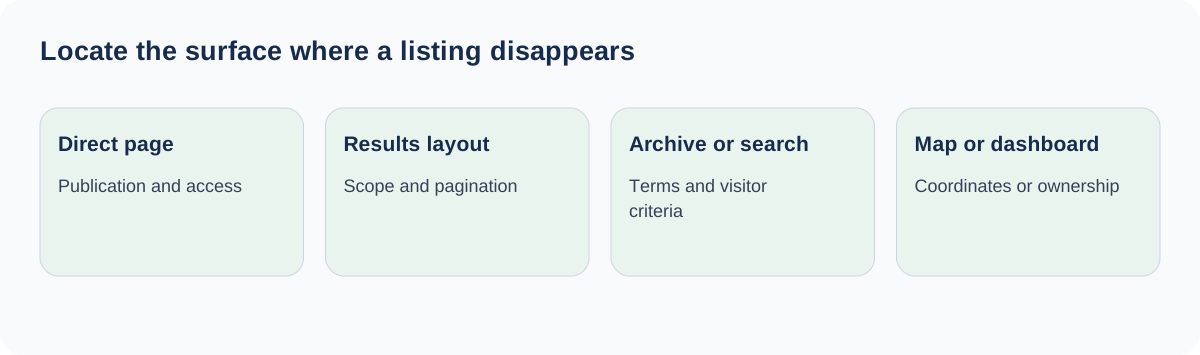
Then compare these surfaces:
| View | What a useful comparison tells you |
|---|---|
| Direct listing page | Whether the record is publicly accessible |
| Simple listing layout without visitor filters | Whether basic directory output includes it |
| Category or location archive | Whether taxonomy scope or archive assignment matters |
| Filtered results | Whether submitted criteria exclude it |
| Map | Whether geographic output needs separate investigation |
| Owner dashboard | Whether ownership, account, or status filtering matters |
Take a screenshot of the failing view and keep its URL. Avoid deleting or reimporting the listing while you are still locating the problem; a duplicate record can hide the original cause and create extra cleanup.
Open the record as an administrator, then as a visitor
Go to Listings → All Listings and search for the record. If Compact Menu is enabled, open Listdom → Listings. Inspect its actual status rather than relying on the success message from an earlier submission.
Drafts, pending submissions, scheduled listings, private records, and offline listings are not interchangeable with Published. A scheduled record has a future publication time. A pending record needs review. An expired or inactive state may involve an add-on’s lifecycle rules. Record the label and investigate the component that assigned it.
Next, open the public URL in a private browser window. An administrator can preview content that a normal visitor cannot access. If the public page fails, resolve that state before altering a result layout. If the public page works, you have a record to test against the display layer.
For a new frontend submission, review the owner’s role and Listdom → Settings → Frontend Dashboard → Add Listing settings. Package rules can also influence publication. The moderation and approval guide explains those decisions. Do not grant a broader WordPress role simply to force a single listing to appear.
Check that the page contains the intended listing output
Open the affected WordPress page in the editor. Confirm the saved Listdom layout actually embedded there. A page title such as “All Businesses” does not determine its query; the saved shortcode or corresponding Listdom block does.
In Listdom → Shortcodes, locate the referenced layout by title and ID. Check that the ID in the page matches it. If you duplicated a page, imported a demo, or replaced a builder section, the visible page may still use an older layout.
If the page has no results layout yet, follow how to display listings with Listdom shortcodes to create and embed one before investigating its filters.
Use a proper shortcode-compatible element. In the WordPress editor, a Shortcode block can render a saved shortcode such as [listdom id="123"], with your actual ID. Pasting it into an HTML-only builder element may display text or fail to execute it correctly. Builder widgets and native Listdom blocks should likewise reference the correct saved configuration.
Preview the actual published page after saving. Editor previews and builder canvases can supply a different context from the public page. For an overview of the separate objects involved, review shortcodes, search forms, and pages.
Read the layout’s fixed filters before changing listing data
The Filter Options tab of the results shortcode can restrict categories, locations, labels, features, tags, authors, packages, and custom fields. These settings narrow the page before a visitor enters a search.
Compare the expected record with each restriction. If the shortcode includes only a specific author, another owner’s listing is correctly excluded. If it requires a paid package, an otherwise published free listing may be outside the page’s intended inventory. A category exclusion can also explain why most records appear while one group does not.
Create a duplicate diagnostic shortcode if the original page has a deliberate business purpose. On the duplicate, remove one condition at a time and observe whether the listing returns. Keep the original intact until you understand which constraint matters.
For example, a directory has a city-wide page and a “Featured Cafes” section. A cafe without the Featured label should appear in the first but not necessarily the second. The solution may be to correct the section heading or its assigned label, rather than remove the filter and turn the section into a general list.
Distinguish a result limit from missing records
Count what the page shows. If exactly the same number appears every time, inspect the shortcode’s Layout settings, including Listings Limit and pagination. A disabled pagination method can make a layout stop at its initial limit even when more eligible records exist.
Determine whether the page should show a small selection or a browsable directory. A homepage carousel with six entries may be intentional. A full results page needs an appropriate way to reach the rest, such as supported page numbers or a load-more interaction.
Test the next page or loading action while signed out. If it fails, note whether the button is absent, inactive, or returning an error. That distinction helps separate a configuration choice from a script or request problem.
Sorting can also make a record hard to find without actually excluding it. Check the current order and look for the listing by a narrow, valid criterion. Do not assume it is missing just because it no longer occupies its previous position after new content was added.
Compare archives and search results separately
Category and location archives have their own scope. A listing needs the relevant taxonomy assignment to belong to an archive. Writing a city name in the description or street-address field does not necessarily assign the matching location term.
If an archive is affected, check its display configuration under Listdom → Settings → General → Archive Pages and the saved layout it uses. Test a known category and location separately. The taxonomy archive guide explains how those pages fit into directory navigation.
If the listing appears before a search and disappears after it, use the form’s actual criteria as the next test. Reset the form, then add one field at a time. A saved URL can carry a filter you did not intend to use, and repeated interactions should be checked against the current published Listdom version.
Inspect addresses and locations independently when local search is involved. A valid street address is not proof that a listing has the required location term, coordinate, or distance relationship. Keep the record’s data model consistent with the controls visitors are using.
Investigate map-only and dashboard-only symptoms
When a listing appears in a list but not on the map, first inspect its map data and the layout’s map settings. Confirm the map object, marker coordinates, selected provider, and map limits. Nearby markers may also be grouped into a cluster rather than shown individually.
A working list establishes that the record can be queried in that context. It does not establish that its marker can be plotted. The guide to showing listings on a map provides the narrower geographic checks, including component and provider setup.
When only the frontend dashboard is affected, sign in as the actual owner. Check ownership and any dashboard status or category filter. A record submitted by an administrator is not automatically owned by a business account that later registers with the same contact email.
Claims, team access, and other account workflows have their own requirements. Do not move ownership simply to test visibility on a production site. Record the current author and account relationship, then follow the relevant verified workflow.
Check the rendering layer after the query checks
If results exist but the layout is visually broken, inspect the public page at a normal viewport and on mobile. Theme wrappers, custom builder templates, and optimization settings can affect presentation without deleting records.
If Optimize Assets Loading is active under Listdom → Settings → Advanced, check whether the ordinary page containing the shortcode is permitted to load the required assets. Built-in single-listing and archive views have different asset requirements from arbitrary WordPress pages containing shortcodes.
Clear the relevant cache after a verified change. Then repeat the same signed-out test with the original expected record. Use a staging copy to isolate plugins or themes if the problem remains. Avoid changing several plugins and the shortcode simultaneously, because a successful result would no longer tell you which change solved it.
For support, supply the listing ID, page URL, shortcode ID, current status, account state, and the first surface where the record disappears. Include relevant error text, with private data removed. That report is much more actionable than a screenshot of an empty page alone.
FAQ
Does a listing in All Listings have to appear publicly?
No. All Listings can contain records in nonpublic states. Inspect the status, then test the public URL while signed out.
Why do only a fixed number of listings appear?
Check Listings Limit and the pagination method in the saved layout. Also distinguish a deliberately limited homepage section from a full directory results page.
Why is a listing visible in one layout but absent from another?
The saved shortcodes may have different category, author, package, or other filters. Compare their fixed scope before changing the listing.
Does an address automatically put a listing in a location archive?
Do not assume so. Check the listing’s location-term assignment separately from its address and map coordinates.
Should I reimport missing listings?
Locate the originals and determine why they are excluded first. Reimporting can create duplicates without correcting status, ownership, or display restrictions.
Why can an administrator see more than a visitor?
Administrator access and previews can expose content unavailable to ordinary visitors. Use a signed-out window as part of the public-visibility test.