
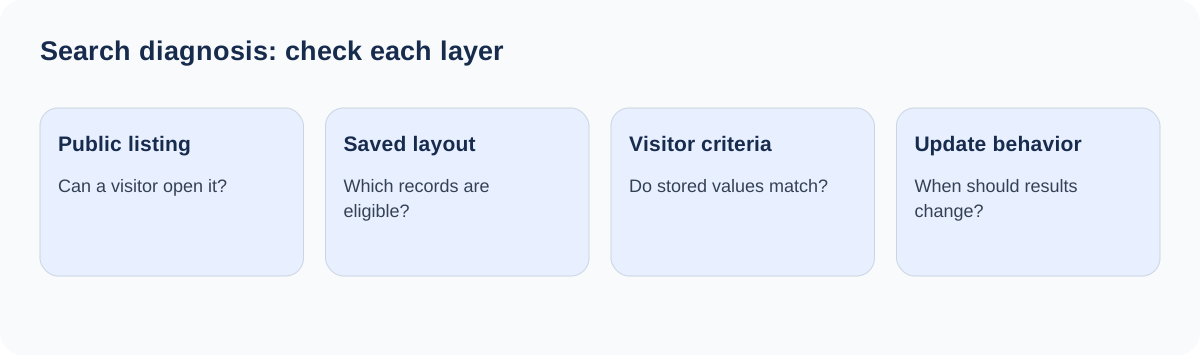
When a directory search returns nothing, start with one listing that should match. Confirm that a visitor can open it, then follow the connection between the search form, its destination page, and the listing layout on that page. This usually gives you a more useful answer than changing several search settings at once.
A search form collects a request; it does not provide the results layout by itself. A saved Listdom shortcode supplies that layout and can also impose its own restrictions. Optional Advanced Portal Search settings add another layer of behavior. This guide helps you identify which layer explains the result, whether the symptom is an empty list, an unexpected redirect, an unrelated listing, or a list that never updates.
Reproduce one search before editing anything
Write down the page URL, the values entered, the expected listing, and what actually happens. Include whether you clicked Search or expected the results to update while selecting options. Use a private browser window so your administrator session does not hide an access problem.
Choose a small test. If a published listing belongs to Cafes and Riverside, begin with no criteria, then Cafes, then Riverside, and finally both. Leave price, distance, opening hours, and other fields empty until that basic sequence works. Each additional condition introduces another reason for exclusion.
Record the difference between these symptoms:
| Symptom | Start investigating here |
|---|---|
| The form redirects to a page without listings | Results Page and the destination’s listing output |
| No listings appear before any search | Publication state and saved shortcode filters |
| One filter works but two do not | Actual listing data and matching rules |
| The wrong listing section changes | Target Shortcode or Connected Shortcodes |
| A button works but changing a field does nothing | The selected update mode |
| A saved change seems to have no effect | The deployed form, page cache, and script loading |
Keep a screenshot of the original configuration before changing it. A focused record makes it easier to restore a setting and compare the outcome.
Prove that the expected listing is public
Open Listings → All Listings, find the test listing, and inspect its status. With Compact Menu enabled, start from Listdom → Listings instead. A listing waiting for approval is different from a published listing that fails a filter.
Open its public URL while signed out. An administrator preview is not proof of public availability. Check the title and the exact category, location, price, or custom-field value that should satisfy your test. If the listing cannot be viewed publicly, resolve its publication or access state before adjusting the search form.
Next, visit a simple listing page with no visitor criteria. If the listing appears there but disappears after one filter, you have narrowed the problem to the criteria or the results layout’s scope. If it is missing even from an unrestricted layout, inspect status, fixed filters, pagination, and ownership-dependent output directly before testing more criteria.
This check also prevents a misleading diagnosis after importing data. Imported records may still be drafts, or their location names may have been saved only as text in descriptions. Search operates on the configured data, not on the fact that a person can see a familiar word somewhere in the editor.
Connect the form to a page that can display results
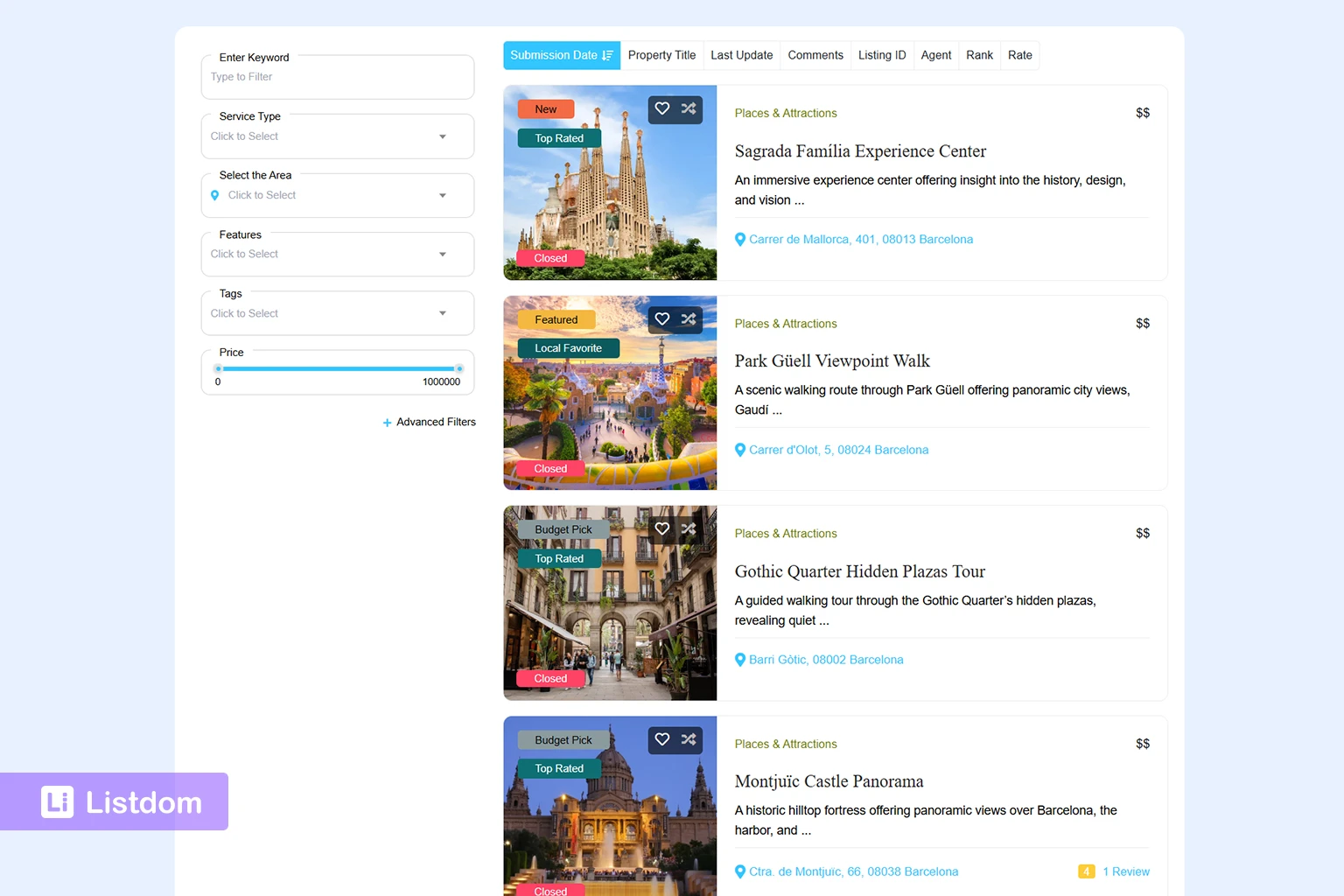
Go to Listdom → Search and Filter Builder and open the form actually used on the failing page. Check the Search Results panel and its Results Page choice.
For a separate destination, open that WordPress page and confirm it contains a Listdom listing layout, such as a saved Grid or List shortcode. A form placed on a page with an empty content area will not invent a listing section after submission. A normal WordPress search block is also a different component from a saved Listdom search form.
For results on the same page, use the current-page behavior and check that the listing section is on that page. Avoid assuming that two similarly named pages share the same shortcode. A duplicated landing page can still contain an older shortcode ID or an older form.
Where several listing sections exist on a separate results page, select Target Shortcode so the form affects the intended section. The Listdom search-form guide explains the normal setup path; use it to rebuild a clean connection if the current page has accumulated several experiments.
Before saving, give forms and result layouts descriptive administration titles. “Restaurant search — city page” is easier to identify than several entries all named “Search.” The title helps you select the correct saved object without changing its public label.
Inspect restrictions saved inside the results shortcode
Open Listdom → Shortcodes, identify the layout on the results page, and review Filter Options. These are fixed restrictions applied before a visitor’s search. A page restricted to Apartments cannot become an all-property directory merely because the form offers Houses.
Look for included or excluded categories, locations, labels, features, tags, authors, package filters, and custom-field bounds. Do not clear a legitimate restriction from a live niche page just to make the test pass. Instead, duplicate the shortcode for a temporary diagnostic page and compare a minimally restricted version with the original.
Suppose a cafe is correctly assigned to Riverside, but the results shortcode includes only Uptown. Searching Riverside can still return no results because the saved page scope remains in effect. The repair may be to remove Riverside from that page’s form choices, change the intended page scope, or use a different result layout. The right answer depends on what the page promises visitors.
Review the shortcode’s Search tab too. A layout configured as non-searchable should not be used as the target for an interactive search journey. For the responsibilities of saved layouts and pages, see how Listdom shortcodes display listings.
Match the field to the data it actually searches
A location taxonomy and a street address can describe the same business while serving different searches. Selecting a city term looks for that structured location assignment; typing an address can participate in a geographic search. Do not populate one and expect every other field to infer it.
Inspect one record in the editor and compare its stored assignments with the form control. Check custom-field choices for consistent values, confirm that numeric limits use the intended unit, and remove unintended defaults from the test. A price bound of zero can be a real constraint rather than an empty input.
If geographic search alone fails, verify coordinates and the configured distance behavior. Start with a generous radius and a known nearby listing, then narrow it. Browser location permission matters for a visitor-location request, but it does not explain every category or keyword failure. The guide to address search versus location search helps you choose the correct diagnostic path.
With APS, taxonomy matching can require all selected terms or accept any selected term, according to that taxonomy’s configuration. For example, requiring both Pool and Parking excludes a property that has only Parking. Do not describe this as one universal AND/OR switch controlling every field and every kind of query. Review the applicable taxonomy logic under Listdom → Settings → Addons → Advanced Portal Search.
Check update behavior separately from matching
APS can update connected listing sections without reloading the page. In the form’s current-page configuration, Connected Shortcodes selects the intended searchable layouts; the form-level Ajax Search options become available for connected output.
On Submit waits for the visitor to press Search. On The Fly responds as the visitor changes fields. If the form is set to On Submit, a stationary result list while you choose filters can be expected behavior. Test submission before treating it as a broken interface.
The results shortcode also has search settings. Check the actual form and shortcode combination rather than changing a similarly named global option. When several sections share a page, test which sections update and whether a deliberately fixed editorial section remains appropriate.
The Advanced Portal Search guide explains choosing this experience. First establish correct results; then choose when they update. Faster feedback cannot compensate for an incorrect field mapping or a page restricted to the wrong category.
Investigate AI search only when that mode is involved
If ordinary filters work but natural-language queries do not produce useful matches, inspect the optional AI search configuration separately. Structured interpretation and meaning-based similarity do different jobs. Semantic search also depends on prepared semantic data; an unprepared index should not be diagnosed by changing a location dropdown.
Test a direct, explicit request before a vague description. Compare the listing’s actual information with the requested qualities. “Quiet place for remote work” needs relevant content; a title and address alone give very little evidence about noise or suitability.
Verify the selected AI profiles, enabled search mode, and semantic preparation using the APS configuration reference. Do not promise that enabling AI will include every listing or guarantee a particular ranking. Keep the known-listing filter test as a separate baseline.
Isolate technical conflicts after the data checks
If the same saved configuration works inconsistently, clear the relevant page and browser caches, then repeat the exact test. Confirm you are viewing the correct domain and page. A cached page can contain an older form even after its administration settings have changed.
Check Listdom → Settings → Advanced if Optimize Assets Loading is enabled. Ordinary WordPress pages containing Listdom output need the relevant assets available. Missing scripts can prevent dynamic behavior even when the saved form is correct.
Use a staging copy for plugin and theme isolation. Change one optimization or integration at a time, then retest. Browser console errors and failed network requests can help support distinguish a blocked request from a valid empty response. Keep private keys and customer information out of screenshots or logs shared publicly.
For a useful support report, include the public page URL, saved form and shortcode titles or IDs, one expected listing, exact criteria, signed-in or signed-out state, and the result of the no-filter baseline. Explain which single change affected the outcome. This evidence often saves several rounds of guessing.
FAQ
Why does my Listdom search open a page with no results layout?
Check Results Page in the saved search form. Its destination must contain an appropriate Listdom listing shortcode, block, or widget. The form and the output are separate pieces of the page.
Why is a published listing still excluded?
Publication makes the record eligible for ordinary public discovery, but saved shortcode filters and visitor criteria can still exclude it. Compare one expected listing with both layers of conditions.
Does On The Fly change which listings match?
It controls when connected results update. Listing data, the page’s fixed scope, and the configured matching behavior still determine the result.
Should I enable APS to fix every search problem?
No. First verify the form, destination, listing output, and data. APS adds useful interaction and matching options, but it is not a substitute for a correctly connected basic search.
Why does the same search differ between two pages?
The pages may use different saved shortcodes, fixed filters, form instances, or cached content. Record the IDs and compare the actual objects embedded on each page.
Should I remove every filter while troubleshooting?
Use a duplicated diagnostic layout when the live page has an intentional scope. Test progressively, then preserve the restrictions that the page genuinely needs.