


Before getting into the steps, it helps to understand add the address where the listing is edited. This guide explains the topic in practical terms and connects it to the decisions, setup, or Listdom workflow covered below.

Before getting into the steps, it helps to understand add the address where the listing is edited. This guide explains the topic in practical terms and connects it to the decisions, setup, or Listdom workflow covered below.
Add the address where the listing is edited
Every listing can have its own address. That is the address visitors see when they need to understand where one particular business, property, venue, or service is based.
To add it, go to Listings → Add New or open an existing listing from Listings → All Listings. In the Location meta box, enter the listing Address and save or update the listing.
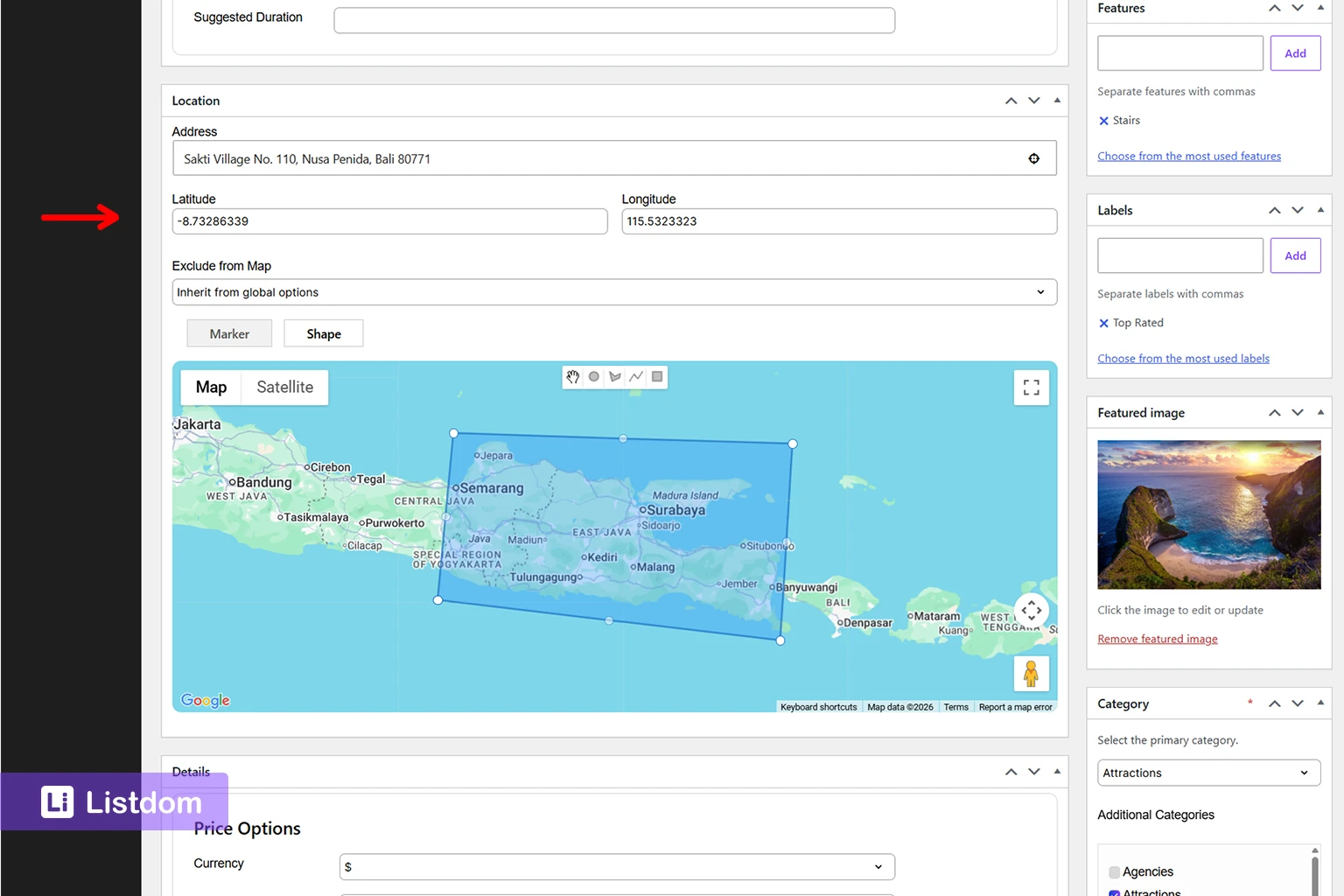
That address does more than create a line of text on the listing page. It gives Listdom the information it needs to place the listing geographically. When the address is usable, Listdom can use it to calculate a map position; the saved latitude and longitude then give the map an exact point to work with.
For the wider picture of providers, layouts, and map behavior, start with how maps and addresses work in Listdom. This guide stays focused on the address data for one listing and the checks that keep it dependable.
Address and Location are not the same field
An address answers: where is this exact listing?
A Location term answers: which area should visitors browse or filter?
For example, a restaurant could use 42 Market Street, Barcelona as its Address and Barcelona → Eixample as its Location. The address helps visitors find the venue and gives the map a precise point. The Location term groups the venue with other Eixample listings for archive pages and filters.
Use both when they help the directory. Do not turn every street address into a Location term, and do not expect a city Location term to replace a map-ready address. The full decision guide is Locations vs. Addresses in Listdom.
Let the address create a starting map point
After you enter an address, inspect the marker in the Location meta box before publishing. A clean, specific address usually gives Listdom a good starting position. The listing’s Map Center Latitude and Map Center Longitude store the position that map views use.
This is a sensible default workflow:
- Enter the most specific public address you can publish.
- Check the marker on the map preview.
- Save the listing so its coordinate data is stored.
- Open the listing on the front end and confirm that the place shown makes sense.
If automatic address-to-coordinate conversion is not available or does not return the right place, do not keep resaving the listing and hoping for a different result. Confirm the global map configuration first at Listdom → Settings → Map Module. The provider, required keys or tokens, default coordinates, and geo-point/geocoding behavior belong to that global layer, not to the individual listing; use the Listdom add/edit listing reference when you need the field-level reference.
Correct coordinates when the pin is wrong
An address can be clear to a person but still resolve to the wrong entrance, road, or neighborhood. This is especially common for large properties, rural venues, new developments, service locations, and addresses with similar names.
When that happens, use the Location meta box to adjust the marker and review the latitude and longitude rather than changing the customer-facing address to something less accurate. The address should remain useful to a visitor; the coordinates should place the marker correctly.
Manual checking matters when your directory supports map browsing, radius search, or near-me discovery. Those experiences depend on accurate geographic positions, not just readable text. If your main goal is a map results page, follow the next practical guide: how to show listings on a map in Listdom.
Choose the right level of precision
The best address is not always the most detailed one. Decide what visitors genuinely need to know.
Use an exact address for places visitors visit
Restaurants, shops, clinics, offices, hotels, and venues normally benefit from a precise street address. It helps visitors orient themselves, use directions, and judge whether a listing is nearby.
Use an approximate point when privacy matters
For home-based businesses, private professionals, or sensitive properties, an exact address may not be appropriate. In that case, use a public-facing location that matches your policy and place the marker at a suitable approximate point. Explain the arrangement in the listing text if visitors need to arrange access first.
Use a shape only when the listing represents an area
Most listings represent a single place and should use a marker. A shape is more suitable when the listing describes an area, boundary, route, or service zone rather than one physical point. Keep this choice intentional: a shape is not a fix for an uncertain address.
Test the address in the places visitors use it
Saving an address is only the first check. Test the result through the surfaces your visitors actually use:
- Open the single listing page and confirm the displayed address is correct.
- Check the marker on a map-capable listings page.
- Run a relevant address or nearby search if your directory offers local discovery.
- Check that the listing is not intentionally hidden by Exclude from Map when you expect it to appear.
If your listing uses a frontend submission flow, test with a normal user account as well as an administrator. The form configuration can affect what listing owners are able to enter. The setup guide for configuring the Listdom add listing form explains how the submission experience fits into the wider dashboard flow.
Common address mistakes
Using only a Location term
London or Downtown can be a useful Location term, but it does not give a map enough precision to place a specific listing reliably. Add listing-level address data when the listing should be mapped.
Treating a map-provider issue as a listing-data issue
If several otherwise well-configured listings fail on every map, inspect Listdom → Settings → Map Module before editing each address. A global provider or geocoding configuration issue needs a global fix.
Publishing coordinates without checking the result
Coordinates can be technically present and still place the pin in the wrong area. A quick front-end test catches this before visitors rely on the listing.
Showing a private address by default
Address accuracy and privacy are separate decisions. Decide the right public detail level first, then set the marker to support that decision.
A simple address-quality checklist
Before you publish a location-aware listing, check that:
- the Address describes the place visitors should understand
- the marker is positioned correctly
- the latitude and longitude match the intended point
- the listing uses a Location term only when it helps browsing or filtering
- the listing is visible on maps when it should be
- the single listing page and any relevant map or search page show the expected result
This small review is easier than correcting map and search problems after many listings have been published.
FAQ
Where do I add a listing address in Listdom?
Open the listing from Listings → Add New or Listings → All Listings, then use the Location meta box to add or edit its Address.
Can I use a Location instead of an address?
Use a Location term for directory organization and filtering. Use an address for the individual place a listing represents. Many directories need both.
Why is my listing marker in the wrong place?
First check the address and the marker in the listing’s Location meta box. If multiple listings have the same issue, review the map provider and geo-point/geocoding settings at Listdom → Settings → Map Module.
Do all listings need an exact street address?
No. Use the level of detail that fits the listing and your privacy policy. A public venue may need a precise address, while a home-based or service-area business may need an approximate public location instead.
Can I hide one listing from map outputs?
Yes. The Exclude from Map option in the listing’s Location meta box controls whether that individual listing appears on map outputs when the relevant advanced map capability is active.
What to do next
Once listing addresses are reliable, build the visitor experience around them. Set up your Listdom search forms for the way people search, then test map-based displays with real listing data before expanding your directory.
FAQ
Common questions
Where do I add a listing address in Listdom?+
Open the listing from Listings → Add New or Listings → All Listings, then use the Location meta box to add or edit its Address.
Can I use a Location instead of an address?+
Use a Location term for directory organization and filtering. Use an address for the individual place a listing represents. Many directories need both.
Why is my listing marker in the wrong place?+
First check the address and the marker in the listing’s Location meta box. If multiple listings have the same issue, review the map provider and geo-point/geocoding settings at Listdom → Settings → Map Module.
Do all listings need an exact street address?+
No. Use the level of detail that fits the listing and your privacy policy. A public venue may need a precise address, while a home-based or service-area business may need an approximate public location instead.
Can I hide one listing from map outputs?+
Yes. The Exclude from Map option in the listing’s Location meta box controls whether that individual listing appears on map outputs when the relevant advanced map capability is active.

