
Listdom Business Data helps you find businesses by category and area, select the records that fit your directory, and import them as listing drafts. You can start without collecting a spreadsheet or copying each available address, phone number, and website into WordPress by hand. You decide which candidates to import and when the resulting listings are ready for visitors.
The service works with free Listdom and uses separate Webilia Credits. It provides a starting set of business facts, while your directory supplies the selection, organization, descriptions, and review that make those facts useful. This guide walks through a focused first import and the decisions that keep a growing directory manageable.
Find business records without preparing a spreadsheet
Business Data is useful when you know the businesses you want to cover but have not assembled their details. For example, a neighborhood food guide might need cafés within a small area. Searching that area gives you candidates to assess instead of starting with a blank worksheet.
If you already maintain a suitable file, use the CSV listing import workflow to map its columns into Listdom. Business Data searches a business-record service; it is not a different CSV mapping mode. The Google Places add-on is another separate integration, with its own requirements and workflow. You do not need that add-on to use Business Data.
Start with a narrow collection you can review. A useful café guide needs relevant places and dependable details, not simply the highest possible listing count. The broader first-100-listings plan helps you choose the coverage and publication standard before expanding.
Connect your website and check your credits
Open Listdom → Webilia Connect and connect your Webilia account. Then go to Listdom → Import / Export → Business Data. If you see Connect your website to get started, finish the connection through Go to Webilia Connect before returning. That message means a prerequisite is missing; it does not mean a business search found nothing.
Business Data belongs to Listdom Core and is available with the free plugin. Data usage and product licensing are separate. Buying credits adds usage to your Webilia account; it does not upgrade your Listdom plan or unlock unrelated add-ons.
The first-website connection flow offers an initial 20-credit account allocation. At the supported search rate of five records per credit, that can cover up to 100 business records. The balance is shared across your account’s connected websites, so connecting another site does not create another independent allowance. Check the actual available balance and the current Webilia Credit options before planning a larger batch.
A new search consumes credits. Choosing to import only some returned businesses does not make the preceding search a free preview. Set the area and requested result count deliberately, then review the displayed credit information before confirming. Enrichment and refresh have their own estimates; do not apply the search rate to every data action.
You also need Map & Address enabled in Listdom settings and a configured map provider to position a new search. Check that the map loads before spending time adjusting the search criteria.
Search a focused area and business category
In Business Data, open Find Businesses. For a first attempt, choose one recognizable business type and an area small enough to assess comfortably.
- Type at least two characters in the category search and select the relevant business category. You can choose between one and five categories.
- Position the map marker at the center of your intended search area.
- Set Radius (km). The supported range is 0.1–50 km; the default is 25 km. A neighborhood guide will often need a much smaller area than that default.
- Set Maximum results, between 1 and 100. This caps the requested results rather than guaranteeing that many matching businesses exist.
- Review the balance and credit information, then choose Search Webilia Business Data when the request is correct.
Keep your first request proportionate to the review work you can do. Asking for more records is not useful if you will import them indiscriminately or leave most unfinished. If the balance is insufficient, follow the message to reduce the request or add credits rather than repeatedly starting the same search.
The search categories describe the source records you want to retrieve. They are separate from the categories you will assign inside your directory. Searching for cafés does not force your public category structure to use exactly the same names.
Select businesses that belong in your directory
Review the names, addresses, and available details before selecting candidates. Selections remain available as you move between result pages. Check the final selection before choosing Next.
A geographic match is only a starting point. A search circle can cross neighborhood boundaries, and two similarly named businesses can be different branches. Compare the address and business identity with the scope of your directory. Leave out records that do not help the visitor’s intended task.
Do not treat a missing phone, email, or website as information the importer will generate later. Available fields vary. Decide whether you can complete the essential details through an appropriate source before publication, or whether that candidate should wait.
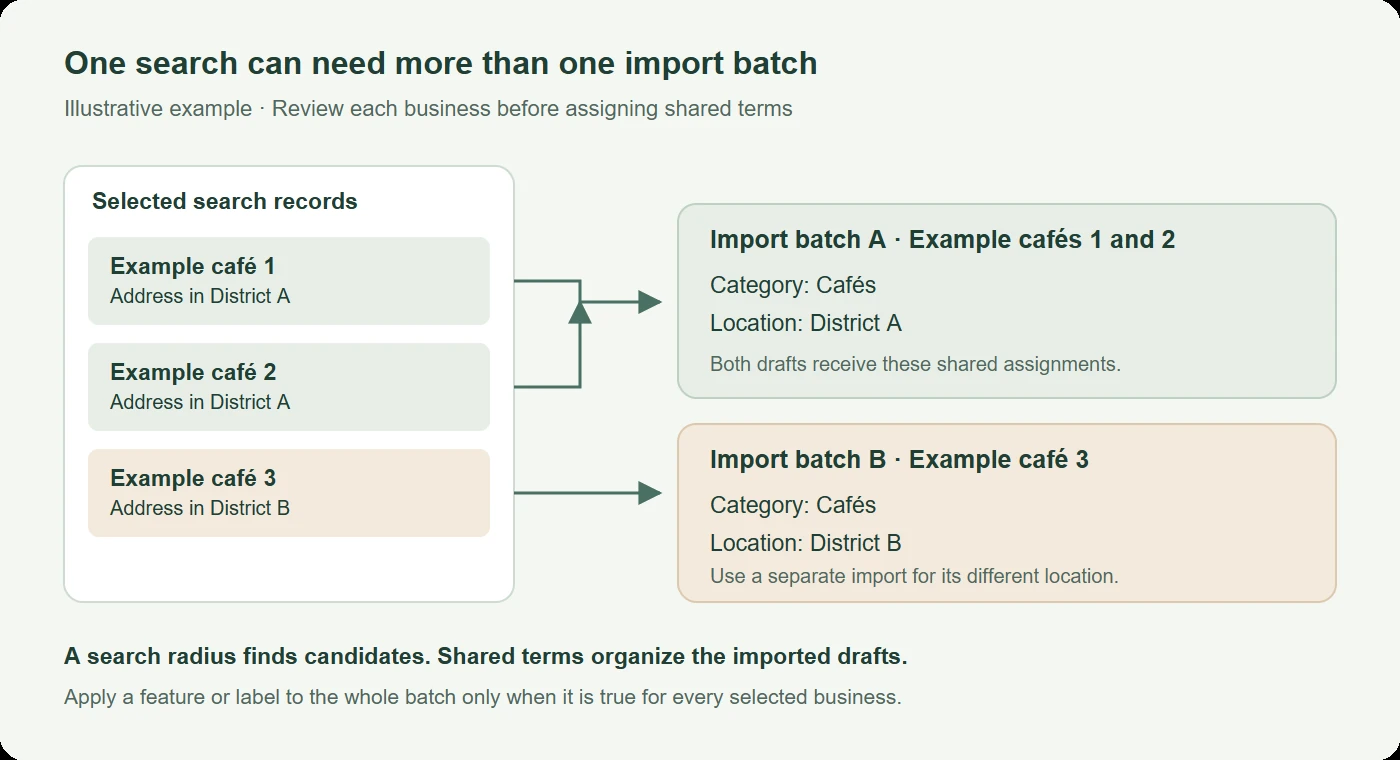
Suppose your illustrative food guide covers District A and District B. Your search returns two cafés in District A and another in District B. All three may be relevant, but that does not make them one suitable batch for every shared setting. The next step determines how each group will be organized.
Choose how the imported listings will be organized
The Create draft listings dialog lets you choose category handling and optional terms for the selected records. If you are still defining the structure, review how Listdom categories and locations work before assigning a large batch.
Leave Automatically assign each business category enabled when the supplied business categories suit your directory. Listdom can create the relevant categories when they do not already exist. Check the resulting taxonomy afterward so your public navigation remains understandable.
If you want to use your own category structure, disable automatic assignment and choose at least one Categories term. For a curated food guide, you might deliberately put the selected cafés under an existing Cafés category rather than introduce source-specific names into your navigation.
You can also choose Locations, Features, Tags, and Labels. These selections apply to every draft in the selected import. They are shared assignments, not individual suggestions calculated separately for each business.
| Illustrative selection | Shared directory assignments | Import decision |
|---|---|---|
| Two cafés in District A | Category: Cafés; Location: District A | Import together after reviewing both records |
| One café in District B | Category: Cafés; Location: District B | Use a separate import with its correct location |
| Café with uncertain outdoor seating | No confirmed outdoor-seating feature | Leave that feature unassigned until checked |
This example describes a planning decision, not a measured import result. Its purpose is to prevent a subtle error: assigning District A, an amenity, or a badge to every selected business because it is true for only some of them.
The dialog also offers Enrich listings previously imported from these results. Enable it only when you intend to fill supported empty contact and address details on existing imported records. That option does not replace your existing edits or categories, but it can change an already published listing. New-draft creation and existing-record enrichment should be deliberate choices.
Create drafts and understand the result
When the assignments are right, choose Create Drafts and wait for the completion result. Use Cancel if you need to leave the dialog without creating drafts.
New records are saved as drafts under the administrator performing the import. Review Drafts created, Existing listings enriched, and Skipped rather than treating the number selected as the number successfully added.
| Result | What happened | What to check next |
|---|---|---|
| Draft created | A new listing was saved for review | Open it and verify the imported details |
| Existing listing enriched | The selected option filled eligible missing details | Inspect the affected existing record |
| Skipped | The record was not created or updated | Read its reason before trying again |
Duplicate protection checks the saved business-source identifier. A previously imported record will normally be skipped instead of creating another listing. With enrichment enabled, it can instead receive eligible missing details; if there is nothing to fill, it remains skipped.
This is not universal name-based duplicate detection. A manually created listing may represent the same business without carrying that source identifier. Check your existing inventory before importing it again; reviewed enrichment is the appropriate maintenance route when you want to match an existing record.
Use Manage listings, Edit draft, or Edit listing where offered to inspect the outcome. If counts differ from your expectation, understand the skipped reasons first rather than immediately repeating the entire operation.
Turn each draft into a useful public listing
A draft keeps a new record out of ordinary public publication while you finish it. It is different from a published listing that happens to be excluded from one directory view. The listing-status guide explains those separate publication and visibility checks.
Open each imported draft and review the details that matter to your visitors:
- Identity and contact: confirm the business, branch, official website, and available contact route.
- Address and map position: check that the point represents the intended place and that the directory location is appropriate.
- Organization: inspect categories and shared terms, especially features or labels that could imply more than the source establishes.
- Useful content: add an original description that explains why this business belongs in the guide. Do not turn missing facts into confident claims.
- Images: add appropriate media through the normal listing controls. The import does not promise photos or permission to copy an image from another website.
After an authorized editor publishes the completed listing, inspect its public page and the directory results that should include it. Try the relevant category and location filters. Correct data in an editor does not automatically establish that the chosen layout presents it clearly.
Accurate, consistently organized public facts also give search and answer systems clearer information to interpret. Imported records alone do not establish accuracy or guarantee rankings or citations. Your directory’s value comes from the selection, useful context, and maintained details surrounding them.
Continue from saved results and resolve common blockers
Use Recent searches to reopen available saved results instead of paying for another search merely to reach the import step. Recent searches retains up to ten searches for 30 days; it is not an unlimited archive. History helps you inspect recorded activity and outcomes before repeating an interrupted action.
If you cannot start a new search, distinguish the cause:
- Connection prompt: finish linking the website through Webilia Connect.
- No available credits: review the balance and use Check balance again after a top-up. Available saved results can still be reopened without a new-search charge.
- Empty results: review the business categories, marker position, radius, and request limit before spending credits on another request.
- Missing details or skipped records: inspect the specific record and message. Another search is not a guarantee that an unavailable field will appear.
The Business Data workflow reference covers the complete controls and troubleshooting. Check the existing operation before retrying when its outcome is unclear.
Keep imported information useful over time
Importing gives you an initial collection, not permanent certainty about opening status, addresses, or contact details. Decide who reviews corrections and how visitors or owners can report a change.
Use Enrich Listings when an existing record needs a reviewed business match. Use Refresh Listings for records already linked to a business source. Both require attention to the estimate, the match, and the proposed changes; they are not an automatic continuous synchronization promise.
The directory data-quality guide explains how to prioritize changing facts and maintain a dependable collection. Start that process with your first imported batch rather than waiting until the directory is too large to review comfortably.
FAQ
Can I use Business Data with free Listdom?
Yes. Business Data is part of Core and works with the free plugin. Connect your Webilia account and check its separate credit balance for data usage. You do not need the Google Places add-on for this workflow.
Do I receive another 20 credits for every website?
No. The initial allocation comes through connecting your first website and belongs to the account. Connected websites share that balance. Check the current balance before starting another search.
Will selected businesses be published automatically?
New imports are drafts. Review and complete them before an authorized publication action. Optional enrichment can change existing records, including published listings, so review that choice separately.
Does Business Data import complete profiles and photos?
Available facts differ between records. Inspect the contact and address details, add useful descriptions, and supply appropriate media yourself. A returned business is not a guarantee of a complete profile.
Can I safely import the same businesses again?
Saved source identifiers help skip previously imported businesses. They do not guarantee detection of every manual duplicate. Review the results and existing records before repeating an import or enabling enrichment.
What should I do after the first batch?
Open the saved drafts, finish their essential details, and verify the public listing and search experience after publication. Expand the collection when that small workflow is dependable, using your coverage plan rather than importing every available result.