
A listing’s status tells you where it is in the publication lifecycle. Published is different from Pending, Draft, Scheduled, or Offline, even when the same owner can still see the record in a dashboard. Read that status before changing search filters, permissions, or payment settings.
Listdom combines WordPress publication states with directory-specific and add-on-managed states. The important question is not simply “Which label should I choose?” It is “What happened to this record, who is allowed to take the next action, and which rule will apply afterward?” Understanding those three points makes missing-listing and moderation problems much easier to resolve.
Locate the actual record and its current status
Administrators can inspect a listing under Listings → All Listings. With Compact Menu enabled, use Listdom → Listings. Listing owners use the frontend dashboard to review the records their account is allowed to manage.
Open the specific record and note its title, ID, owner, status, and publication time. If a package or other add-on is involved, record that association too. Two records with similar titles can have different owners and states, especially after a migration or repeated submission.
Do not use an administrator preview to determine public availability. Open the public URL while signed out. A dashboard row proves the record exists and is accessible to that account; it does not establish that ordinary visitors can discover it.
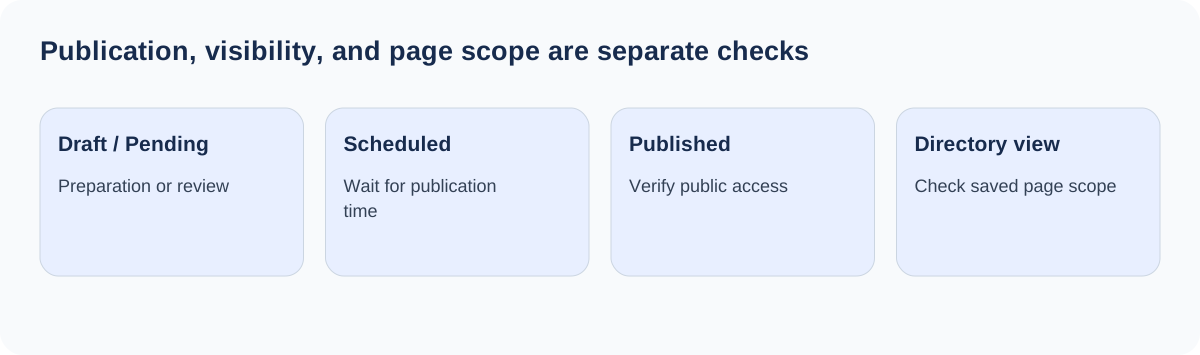
The status is also only one part of public discovery. A Published listing can still be outside a saved shortcode’s filters. First establish publication, then inspect the page or search that is supposed to include it.
Understand the main publication states
WordPress provides the underlying publication workflow. Listdom uses it for listing records and adds directory-specific behavior where required.
| State | What it tells you | Useful next check |
|---|---|---|
| Published | The record has been published | Test public access and the intended directory view |
| Draft | Work is saved without public publication | Complete the record and use an allowed submission action |
| Pending | The record is waiting for review | Have an authorized reviewer assess it |
| Scheduled | Publication is set for a future time | Check the saved date and site timezone |
| Private | Access is restricted rather than generally public | Confirm that restricted access is intentional |
| Trash | The record has been removed from ordinary use | Decide whether an authorized restoration is appropriate |
Draft is useful while collecting information. Pending expresses a review handoff. Scheduled expresses timing. These states should not be used as interchangeable ways to hide a listing, because the available next actions and expected workflow differ.
For example, a business owner may have finished a submission but lack publication permission. Pending is then a meaningful review state, not evidence that the submission failed. An administrator should review its content rather than ask the owner to keep resubmitting it.
For a broader explanation of the underlying states, see WordPress post statuses. Directory-specific actions still need to follow Listdom’s account and add-on rules.
Read Offline and add-on states in their own context
Listdom can retain states such as Offline, On Hold, Expired, Inactive, or Denied when the relevant workflow uses them. These labels are not a promise that every installation offers the same actions for every state.
An offline listing is not the same as a deleted listing. Its record can remain available for authorized management while no longer participating in ordinary public publication. One possible cause is the Maximum Visits setting under Listdom → Settings → General: when a configured visit threshold is reached, listings can be put offline. Check that setting if records repeatedly become offline after receiving traffic.
Other states can belong to package or add-on lifecycles. An expired entitlement, a denied submission, and a manually prepared draft need different remedies. Identify the component that assigned the state before changing it. Publishing an expired record manually may fail to resolve the entitlement that governs its continuing behavior.
If a previously used add-on has been deactivated, inspect existing records carefully. A stored lifecycle state does not necessarily disappear merely because its usual management interface is unavailable. Preserve the record and investigate the owning workflow rather than treating an unfamiliar label as disposable data.
Separate the three controls that influence submission
The submitted listing’s outcome can depend on user capability, frontend settings, and package rules. Review them in that order so you can explain the result.
User capability: The account must be allowed to edit or submit the listing, and publishing is a separate permission. Listdom Author and Listdom Publisher serve different publication expectations. Do not assume the ability to edit a form includes the ability to make its content public.
Frontend default: In Listdom → Settings → Frontend Dashboard → Add Listing, the Listing Status setting can use Let Listdom Decide, Published, or Pending. Apply to Guest Listings controls whether the chosen behavior is applied to guest submissions. Check the actual configured flow rather than generalizing from an administrator’s result.
Package rules: Membership package behavior can influence the final state. Review Listing Auto Confirm and the relevant package/payment conditions if the site uses memberships. A package-driven result should not be diagnosed by changing the owner’s WordPress role alone.
The roles and listing-permissions guide explains the account side, while the moderation guide explains review policy. This article focuses on reading and moving through the resulting lifecycle.
Use the next action the workflow actually permits
Frontend actions depend on the current state, ownership, capabilities, and validation. Listdom checks access to the listing before applying a status action. The presence of a dashboard does not authorize every account to manage every record.
When an eligible Draft, Scheduled, Offline, or Inactive record can be submitted or published, the user’s capability still matters. A requested publication can become Pending for an account without publishing permission, and package validation can also affect the outcome. A Denied record returns through review rather than bypassing it with a direct self-publication action.
Treat a missing or refused action as a reason to inspect these conditions, not as a reason to give the account administrator access. Confirm the listing belongs to the account, the account has the appropriate capability, and required package conditions are satisfied.
Test one controlled record with an ordinary owner account before changing a live publication policy. Write down the initial state, action, final state, public access result, and any message shown. That compact transition test is more informative than a screenshot of a button by itself.
Check scheduling and restoration deliberately
For scheduled listings, inspect the saved date and the WordPress site timezone under Settings → General. Compare the intended local time with the configured time. A future-dated listing is not expected to be public before its scheduled point.
If the intended time has passed but publication has not occurred, investigate WordPress scheduled-task operation and hosting conditions. Do not keep choosing new dates without recording whether the scheduled event actually ran. Use staging for technical diagnosis where changes could affect other scheduled content.
Restoring a trashed listing also deserves a public-access check. Its previous state and the current user’s capabilities or validation can influence the restored result. Restoration should not be treated as a guaranteed shortcut back to Published.
After restoration, reopen the listing and verify its state, ownership, package association, and public URL. Check whether it belongs in the intended category and results layout. The act of restoring a record does not review outdated business information or establish that it is ready to be promoted again.
Keep listing status separate from booking and payment status
A listing is the directory entry. A booking is a request or reservation associated with it. A payment order is another record with its own lifecycle. Similar words across these interfaces do not mean the states are synchronized in every situation.
An approved booking can still have payment due under the configured booking policy. A successful payment is not proof that every unrelated listing should be public. A published listing can offer bookable items while a particular request waits for review.
When resolving a customer problem, name the record precisely: “listing pending review,” “booking waiting for payment,” or “order failed.” Then inspect the relevant interface. This prevents a publication change from being used to address a checkout problem it cannot solve.
This separation also matters for automated or AI-assisted workflows. An action that creates a draft is not a publication action, and a returned record is not proof of public availability. Keep discovery and promotion tied to the verified final state, rather than treating an automation success message as a complete business outcome.
Build a small lifecycle acceptance test
Use representative accounts and a few test records. Check an owner submission that needs review, an authorized publication, a future-scheduled listing, and a restored record. Add the package-specific cases your business actually uses.
For each case, inspect four things: the saved state, the available owner action, the administrator view, and the signed-out public page. If those four agree with your policy, the workflow is understandable. If they differ, identify which layer explains the difference before changing a setting.
Keep an operational rule for reviewing old nonpublic records. Drafts may need completion; Pending submissions need review; expired packages may need owner communication. A directory becomes difficult to manage when every nonpublic state is treated as one undifferentiated backlog.
Recheck the test after changing moderation settings, membership behavior, relevant add-ons, or account roles. If a record is public but missing from a specific page, move on to its saved display filters and pagination instead of repeatedly republishing it.
FAQ
Is Pending the same as Draft?
No. Draft generally represents preparation; Pending represents a review handoff. Use the state that reflects the intended next action.
Why did a submitted listing become Pending instead of Published?
Check the user’s publishing capability, frontend Listing Status behavior, guest settings where applicable, and membership package rules.
Does Offline mean the listing was deleted?
No. The record can remain available for authorized management. Investigate the workflow or setting that put it offline, including Maximum Visits if configured.
Can a listing owner publish every record they can edit?
No. Editing and publication permissions differ, and validation or package rules can affect the final state. Ownership alone is not a universal publication permission.
Will restoring a trashed listing always publish it?
Do not assume that. Reopen the restored record, inspect its actual status, and verify signed-out access.
Is a paid booking proof that the listing is published?
No. Listing publication, booking approval, payment, and availability are distinct states. Inspect the record relevant to the problem.