
If your WordPress project already uses Advanced Custom Fields, you can bring those fields into a Listdom directory with the Listdom ACF Addon. The integration lets listing owners enter eligible ACF values through the frontend form and gives you an ACF section for displaying saved values on listing pages.
The useful outcome is a consistent collection and presentation workflow. A property owner can enter a building specification once; a visitor can read that specification beside the other listing details. Getting there involves three separate decisions: where the field group belongs, where owners enter its values, and where visitors see them. This guide walks through those connections without assuming ACF is necessary for every directory.
Decide whether this information needs ACF
Listdom has native custom fields under Listings → Custom Fields. They are often the direct starting point for directory attributes, category-specific input, and supported listing filtering or sorting. If you are building a directory from scratch, review how native Listdom custom fields work before installing a second field system.
ACF is a useful choice when the wider site already uses it, a developer maintains shared ACF groups, or the project needs an ACF-specific field workflow. For example, an agency may maintain an established property data model across an editorial website and its directory. Preserving that model can be more practical than recreating every field.
Avoid giving the same fact two editable homes. A native “Bedrooms” field and an ACF “Bedroom count” field can drift apart if owners update only one. Decide which system owns each fact, how it appears publicly, and whether search needs it. Connecting ACF does not automatically make every field available in every Listdom search control.
Plan a small group around a real listing
Choose one representative listing and write the values it needs. A service venue might need a booking-information URL, indoor capacity, and access notes. Use a number for capacity, a URL field for the link, and a short text area for the notes. Keep standard title, address, and contact information in their existing listing fields unless the project has a clear alternative data design.
For each new field, specify its label, internal name, type, sample value, required state, and public purpose. “Capacity” is ambiguous unless the owner knows whether it means seated guests, standing guests, or a fire-safety limit. A precise label reduces both form mistakes and misleading public comparisons.
Start with simple fields before testing a more complex group. This isolates the integration path from conditional logic, repeaters, and custom rendering. Once a text or number value can be submitted, saved, reopened, and displayed, you have a reliable baseline for expanding the group.
Document the meaning of the values as well as their formatting. Structured information helps visitors and systems interpret a directory only when the data is consistent. A neat field label cannot make an unsupported accessibility or certification claim true.
Install the three pieces and target the right post type
You need Listdom, the Listdom ACF Addon, and either the free Advanced Custom Fields plugin or ACF PRO active to use ACF field features. The Listdom add-on does not itself replace ACF. Choose ACF PRO only if the project needs its additional field types or functionality; it is not a blanket requirement for standard ACF integration.
In WordPress, open ACF → Field Groups and add a group with a descriptive title, such as “Venue specifications.” Add the planned fields. Under the group’s location rules, target the Listing post type used by Listdom, rather than ordinary posts or pages.
Save the group, then open a Listdom listing in the backend and verify that it appears. If it does not, check the group is active and inspect the location conditions before changing the frontend form. A field group assigned to Pages will not become a listing group merely because a listing is displayed on a WordPress page.
The ACF field-group reference explains the group editor and location rules. Keep the first ruleset simple enough to test with one listing before adding more conditions.
Test the owner’s frontend form
The integration adds eligible ACF groups to the frontend Add Listing workflow. Review Listdom → Settings → Frontend Dashboard, find the submission modules for Add Listing, and confirm the ACF module is enabled. The exact available controls also depend on your installed integration and configured form.
Use an ordinary listing-owner account. Create or edit the test listing and look for the group. Enter a distinctive test value, submit the form, and reopen the listing. Confirm the value persisted. Then review it from the backend to establish that both editing surfaces refer to the same record.
If a required field prevents submission, read its message and check whether the owner can actually see and complete it. A required field hidden by an unintended condition creates a confusing workflow. Test both a valid submission and a deliberately incomplete one; successful saving alone does not establish that validation is usable.
Keep the surrounding submission journey in view. The Add Listing form guide covers account access, form modules, and the difference between collecting data and publishing a listing. A correctly saved ACF value does not bypass moderation or package requirements.
Add conditional fields without making the form unpredictable
Use conditions when they remove genuinely irrelevant questions. For a venue that offers outdoor space, an “Outdoor capacity” field might be relevant only after the owner selects that option. Explain the condition in plain language and give owners a clear way to change the preceding choice.
ACF’s field-level conditional logic and a group’s location rules perform different jobs. Location rules decide which editing context receives a group. Conditional logic decides when fields within that group appear based on other values. Treating them as one mechanism makes hidden-field problems harder to trace.
Test both sides of every condition in the actual frontend form, not only inside the backend editor. Save with the condition enabled, reopen the listing, change the controlling value, and inspect the result. Do not assume that hiding a field means its previously saved value has been deleted.
For complex or third-party field types, verify the collection and public output independently. The availability of a field in ACF is not proof that every integration surface will present it exactly as your design expects. Keep a simple fallback for any value essential to the visitor’s decision.
Enable public output on the listing details page
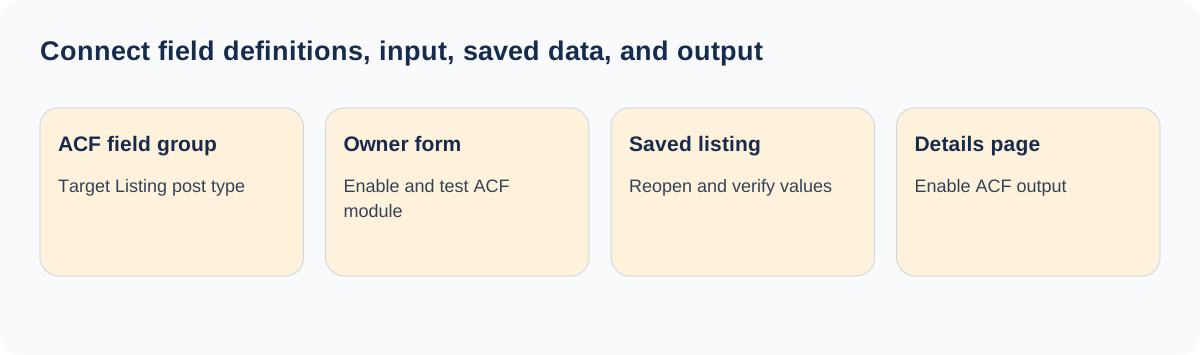
Collecting an ACF value does not by itself choose its position on the public page. Open Listdom → Settings → Single Listing, edit the active details-page configuration, and enable or place the ACF element. Set a useful section title that explains the information, such as “Venue specifications.”
The standard integration groups output by ACF field group and presents labels and values. A listing with no relevant ACF values can have no visible ACF section. That is different from a broken page: first check whether the record actually contains data.
Open the saved test listing while signed out. Check labels, number units, URL behavior, empty fields, and the mobile arrangement. An image or file needs suitable output, not a literal internal attachment identifier. Test the field types you use rather than approving the section after seeing only a text field.
If the listing uses a custom page-builder template, check that template’s integration path too. Global single-listing settings and builder output are separate layers. The single-listing page guide helps identify which layer currently owns the design.
The add-on also provides a native WordPress block for ACF listing content. When using that route, supply a valid listing context and test the published page. A block places configured content; it does not create the field groups or populate missing values.
Keep imports and migrations tied to the field model
The ACF add-on integrates with supported Listdom import/export workflows, but field definitions remain part of the site’s configuration. A CSV containing values is not a substitute for recreating the destination ACF groups and matching field names or keys.
Before a migration, document the group definitions, relevant field identifiers, value formats, and dependencies. On a staging copy, import a small representative sample that includes empty and populated values. Reopen the records in both backend and frontend editing, then inspect their public output.
Simple text, number, and choice fields are easier to validate than nested structures. Do not promise that every complex ACF value can be moved by copying a visually formatted spreadsheet cell. Use the verified format supported by your current importer, and consult the Listdom ACF integration documentation for the applicable boundaries.
Check whether a field is needed for public discovery, internal operations, or both. Keep internal notes out of public output, and avoid displaying every field simply because it exists. The listing should help a visitor compare relevant facts, not expose the editor’s entire data model.
Diagnose missing fields in a consistent order
If the group is absent everywhere, check ACF activation, group activation, and its Listing location rule. If it appears in the backend but not in frontend submission, inspect the ACF submission module, conditions, and actual account workflow. If it saves but is absent publicly, check the saved value, ACF details element, and active template.
When a condition causes the problem, simplify it on a staging copy and reintroduce one rule at a time. When a field type causes it, compare a simple text field in the same group. These controlled comparisons reveal whether you are investigating placement, validation, saving, or rendering.
Keep a small acceptance checklist for every group: owner can understand the labels, allowed values validate, saving persists, editing preserves the record, public output is accurate, and an empty group looks intentional. Run it after relevant updates or template changes. That maintenance is usually more valuable than adding more fields to an already crowded form.
FAQ
Do I need ACF PRO for Listdom’s ACF integration?
No. The integration works with the free ACF plugin or ACF PRO. Choose the edition according to the ACF features your project actually requires.
Does the Listdom ACF Addon create my field groups?
You create and maintain the groups in ACF. Assign them to the Listing post type, then test their integration with the listing form and details page.
Why are ACF values saved but not displayed publicly?
Check the active single-listing configuration and its ACF element. If a builder owns the page, inspect that template too. Confirm that the specific listing has values to display.
Can I keep native Listdom fields and ACF together?
Yes, but give each fact a clear owner. Avoid duplicate fields for the same value, and separately verify any filtering, sorting, or import behavior the directory needs.
Will hiding a conditional field delete its old value?
Do not assume so. Test the actual saved behavior before relying on a condition to remove information, and review what the public template displays.
What should I test before opening the form to owners?
Test a nonadministrator account, required and optional values, both sides of conditions, saving and reopening, and public output on mobile and desktop.