
A spreadsheet from a supplier, client, or previous directory rarely uses exactly the same field names as your new site. One file calls a listing title Business Name; another uses Provider. Matching every column by hand can become repetitive, especially when you receive different exports for each project. Listdom AI field mapping helps by suggesting which spreadsheet columns belong in which listing fields, giving you a first pass to review before importing.
The benefit is less time spent choosing obvious matches and more attention available for the columns that need your judgment. You still decide what the data means, correct unsuitable suggestions, and test the result. This guide follows a service-provider spreadsheet through that process, from AI setup to a reviewed mapping you can reuse.
When AI field mapping saves time
Smart Mapping is most useful when a file has unfamiliar headers or enough columns that matching them individually becomes tedious. A client might export Company, About Us, and Town, while your directory uses listing title, description, and location. AI can suggest relationships between those labels even when their wording differs.
The amount of setup work depends primarily on the number and ambiguity of the columns. A file with 5,000 rows and eight clear columns may be easier to map than one with 50 rows and 60 poorly named columns. AI mapping assists the field-selection step; it does not make every stage of a large import instantaneous.
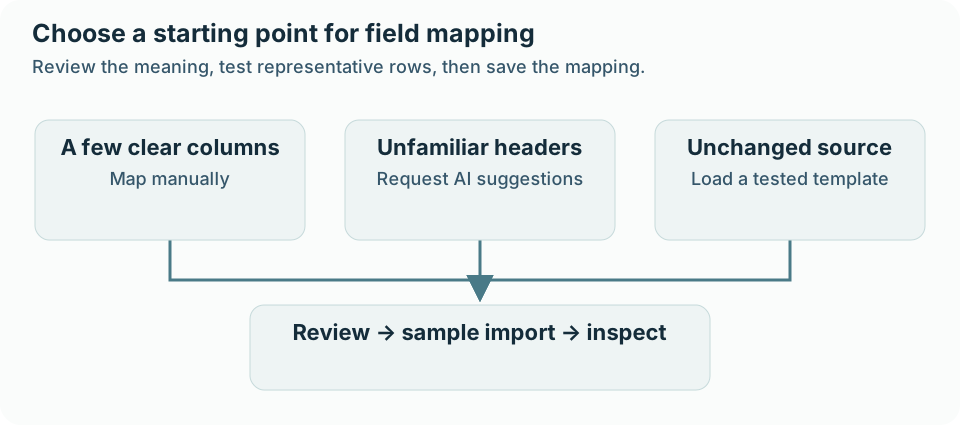
Choose the method that fits your source:
| Situation | A useful starting method |
|---|---|
| A few clearly named columns | Map them manually. |
| Many columns from an unfamiliar export | Use Smart Mapping, then review the suggestions. |
| The same source structure you already checked | Load its saved mapping template and confirm that the headers still match. |
Vague headers such as Value 1 and Code B | Clarify their meaning with the source owner before choosing destinations. |
If this is your first import, the bulk listing import guide explains file preparation, sample imports, and the complete import sequence. Here, the focus is the decision between the source column and its destination.
Prepare headers that communicate their meaning
Imagine you are importing local service providers. Your source contains a business name, a short description, a street address, the city where the business is based, an area it serves, a starting price, and a supplier reference.
Before uploading, identify what each column actually represents. City might mean the office location, while Service Area might include several places where the provider works. Both concern geography, but they answer different questions. A header that simply says Location would hide that distinction.
Use one clear header row, distinct column names, and one listing per row. Rename vague labels when you know their meaning: Phone is more useful than Contact 2, and Starting Price is more useful than Value. Keep the original export so you can trace changes if a question arises later.
Read a few values beneath each header too. A column called Title could contain business names, job titles, or a contact person’s honorific. The label alone cannot resolve all of those possibilities. Listdom’s AI mapping task uses source column headings and Listdom field labels and types to propose matches; your review of actual records provides essential context.
Clear mapping also depends on having suitable destinations. Decide which information belongs in built-in listing fields, which belongs in categories or locations, and which needs a custom field. For richer structures, use the advanced CSV and Excel mapping guide, which covers custom-field creation, multiple taxonomy columns, and repeatable content.
Configure AI for the import workflow
Start at Listdom → Settings → AI → Profiles. Create an AI profile with a descriptive name, select an available model, enter the required provider credentials, and save the changes. A name such as Import Mapping makes the profile easier to identify when several AI tasks use different profiles.
Then review Listdom → Settings → AI → Auto Mapping, where profile usage for import mapping is configured. Follow the Auto Mapping settings guide for that settings layer. The profile must be available to the mapping workflow; creating an entry with incomplete credentials will not produce usable suggestions.
An AI profile connects the task to a model service. Check the selected provider’s usage terms and charges before using it regularly. You do not need to train a custom model for each spreadsheet: the task is to suggest relationships between the supplied field names. Keep confidential information out of column headings, since those headings form part of the mapping request.
Choose the import format separately. Manual CSV import is available in Listdom core under Listdom → Import / Export → CSV. Direct .xlsx import requires the Excel add-on and uses Listdom → Import / Export → Excel. The CSV add-on’s scheduled-feed workflow serves a different purpose; it is not a prerequisite for manually mapping a CSV file.
For Excel-specific upload and template details, see the Excel import documentation. Keep your original workbook when exporting a CSV copy so formulas and formatting remain available in your working source.
Generate suggestions and review the mapping
Upload your prepared file through the appropriate import tab and continue to the listing mapping screen. Choose the smart mapping option, select the intended AI profile, and run the mapping request. In the current CSV interface, the option is labeled Smart Mappings, the profile control is Select AI Profile, and the request button is Map.
After the response fills in suggested selections, review the entire mapping. A populated dropdown means a match was suggested; it does not establish that the destination is right for your directory. Check required fields, optional details, and columns that remain unmapped before continuing.
For our service-provider file, a review might look like this:
| Source header | Destination to consider | What to confirm |
|---|---|---|
Business Name | Listing title | Values identify the provider, rather than its contact person. |
About Us | Listing content | Text is suitable for the public description. |
Street Address | Address | The column contains an address, rather than only a city name. |
City | Locations | Values fit the geographic taxonomy you intend to use. |
Service Area | A deliberately configured field or taxonomy structure | Decide how visitors should use this information before mapping it. |
Starting Price | Price | Values represent a compatible price amount and currency context. |
Supplier Reference | An appropriate supported identifier or custom field | Confirm whether it identifies the record or is merely descriptive. |
These are review decisions, not promises about what AI will select. Different header names and available fields can produce different suggestions. Leave a column unmapped when no appropriate destination exists, or configure the right destination before proceeding. Forcing every column into a vaguely related field makes the directory harder to trust and maintain.
Check the fields where mistakes matter most
Some errors are easy to spot on a listing page. Others quietly affect filtering, later imports, or publication. Give these fields a deliberate second pass.
Identifiers: A supplier’s reference is not automatically a WordPress listing ID. Establish which identifier the import workflow expects and how it relates to existing records. A wrong match can affect which records a later import updates. Test repeat-import behavior separately before relying on it for a live catalog.
Addresses and locations: A street address and a location taxonomy serve different purposes. Check both the visible address and the category-like geographic grouping. If the directory uses a city and neighborhood hierarchy, review the source values and hierarchy settings rather than assuming the AI suggestion creates the intended structure.
Prices: Determine whether a column contains a single amount, a range, a recurring rate, or text such as Contact for quote. Mapping a column to Price does not explain that business meaning or convert every value into an appropriate amount. Normalize the source or select a more suitable field when necessary.
Publication status: Inspect any status mapping and its default. Source labels such as Active may describe a supplier relationship rather than whether a listing should be public. Make an explicit publication decision before importing, especially when the records still need editorial review.
Custom fields: Confirm that the destination represents the same concept and accepts the intended value format. A numeric license reference may need to remain text to preserve leading zeros. A service area is not interchangeable with the business’s registered address simply because both contain place names.
These checks improve the directory beyond the import itself. Correctly placed details support useful filters, comparisons, and clearer public information for people and compatible discovery systems. AI mapping does not verify that a provider’s claims are true or that its opening hours are current.
Test a sample and save the reviewed mapping
Run a small, representative sample before importing the whole dataset. Include records with a blank optional value, an unusual price, a long description, and different locations. If an identifier will be used for future updates, include a controlled repeat-import check on a staging copy or other safe test setup.
Inspect the resulting records in the listing editor and on the public directory. Confirm that business names became titles, descriptions contain the right text, addresses and locations are distinct, and optional fields retain their intended values. Try the filters that depend on imported information; a value appearing somewhere on a page does not prove it was stored in the field your search uses.
When the result is correct, save the reviewed mapping as a clearly named template through the importer. Use a name that identifies the source and format, such as Service Providers — Supplier A. The CSV mapping and template documentation covers template management and the import controls.
On the next file, compare the headers and meanings before loading the template. A familiar filename does not guarantee an unchanged structure. If the supplier adds columns, changes labels, or redefines a value, review the affected destinations and repeat the sample check. A saved template preserves your choices; it does not monitor the source for changes.
Troubleshoot missing or unsuitable suggestions
Smart Mapping is unavailable or reports a configuration problem. Return to AI Profiles and Auto Mapping settings. Check the saved profile, required credentials, and access to the mapping task. If the request fails, read the displayed message and check the provider account or connection before retrying. You can complete a reviewed mapping manually when AI is unavailable.
A suggestion uses the wrong column. Inspect the values, correct the dropdown selection, and consider making the header more descriptive in your working source. Repeatedly requesting suggestions adds little value when the missing context is something only the source owner can explain.
Some columns receive no match. Check that they have meaningful, unique headers and that suitable Listdom fields exist. An unmapped column may be the correct outcome for internal notes or information you do not intend to publish.
The mapping looks right but imported values are wrong. Check source formatting, defaults, taxonomy separators, and the destination field type. Column matching selects where values go; separate import settings and source preparation determine how those values are interpreted.
FAQ
Does Smart Mapping import listings automatically?
The mapping request suggests source-to-destination matches. Review those selections and then continue through the importer. Generating suggestions is a separate step from importing the records.
Does AI field mapping clean spreadsheet values?
It proposes field matches from column headings and available Listdom field information. Prepare inconsistent dates, mixed price formats, duplicate terms, and inaccurate records separately. A correct destination does not make every source value valid.
Can I change an AI suggestion?
Yes. Review and correct the mapping selections before importing. Pay particular attention to identifiers, geographic fields, prices, status, and custom fields with similar names.
Should I use AI again for every file from the same source?
If the structure and meaning remain unchanged, a saved, tested mapping template is usually the more direct starting point. Revisit the mapping when the source changes or the template no longer fits.
Do I need the Excel add-on for a CSV file?
No. Manual CSV importing is available in Listdom core. The Excel add-on is needed when you want to upload an .xlsx workbook directly.
Is AI mapping more useful for more rows or more columns?
Its direct benefit is reducing field-matching work, so the number and familiarity of the columns matter most. Row count affects the subsequent import workload and the importance of testing, but does not by itself make the mapping decision more complex.
Build a mapping you can trust and reuse
Use Smart Mapping to handle the obvious first-pass matches, then spend your review time on meaning: which location a column describes, what a price represents, and whether an identifier can safely connect records across imports. A representative sample turns those choices into something you can inspect before scaling up.
Once the mapping is verified, save it with the source format it belongs to. That gives the next import a reliable starting point while keeping you in control when the source changes.