
What “showing listings on a map” means in Listdom
When you show listings on a map in Listdom, you are creating a directory view where listings can appear as markers or map items. Visitors can then explore listings visually instead of only reading them in a list, grid, gallery, accordion, timeline, or another listing layout.
This is useful for many directory websites, including local business directories, restaurant directories, real estate directories, hotel directories, healthcare directories, city portals, service provider directories, and attraction guides.
A map-based Listdom page can work in different ways. In some cases, the map is the main interface. In other cases, the map supports another listing skin, such as List, Grid, Accordion, Timeline, Gallery, Mosaic, Slider, or a similar display style.
For example, a real estate directory may use Half Map so visitors can compare property cards beside a map. A city guide may use Single Map for map-first exploration. A restaurant directory may use a visual skin with a map above or beside the results. A service directory may use filters and listing cards first, while the map gives visitors extra location context.
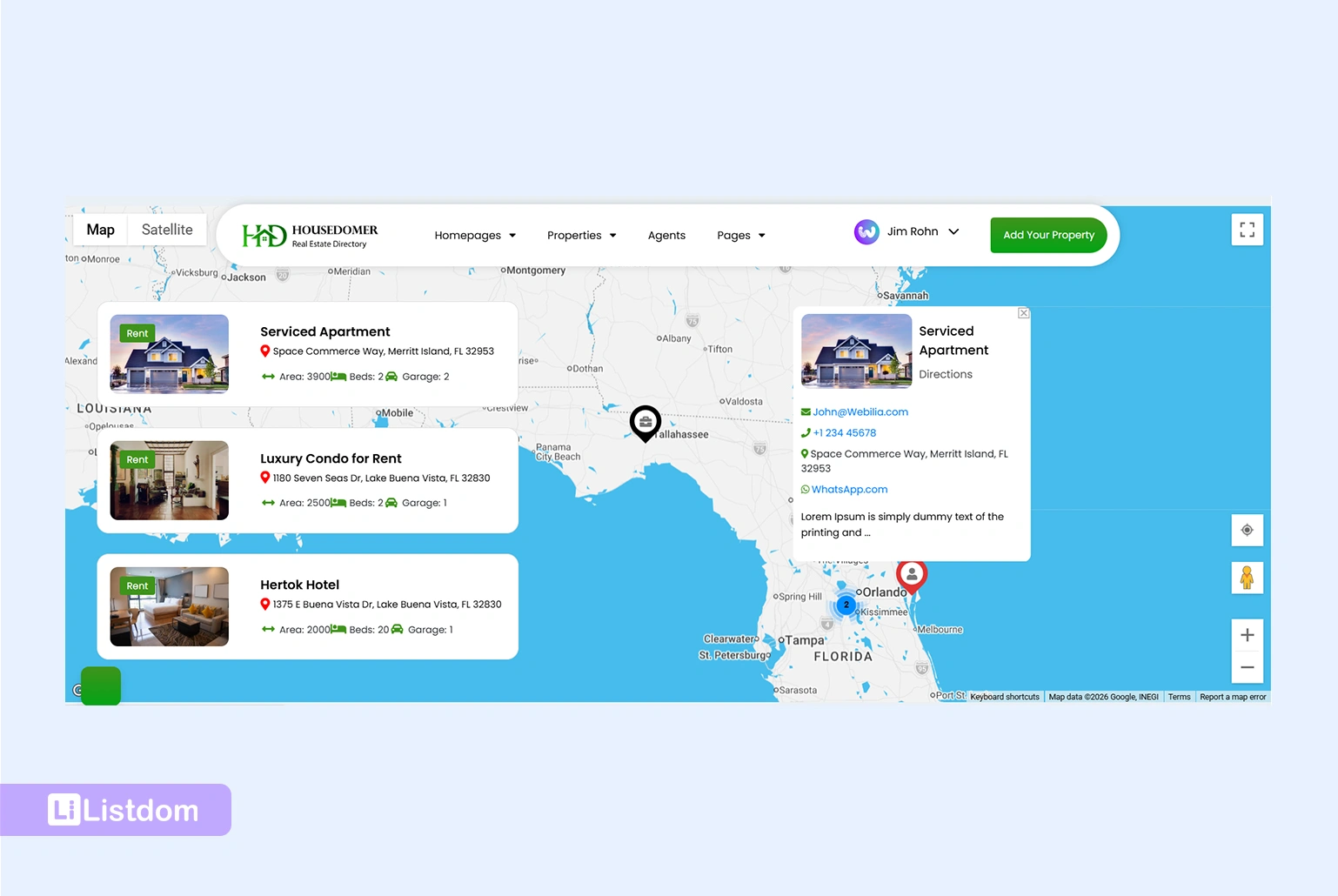
The important point is this: a map view is not the same thing as a location category.
A location such as “London,” “Barcelona,” or “New York” helps organize and filter listings. A map marker needs actual map placement data, usually an address and/or coordinates.
In simple terms:
- Location taxonomy helps users browse and filter by area.
- Address and coordinates help the map place a listing correctly.
For a broader explanation of this relationship, read How Maps and Addresses Work in Listdom. If you want to understand the difference between area-based organization and physical map placement, read Locations vs Addresses in Listdom.
What a listing needs before it can appear on a map
Before you create a map page, make sure your listings have the right data. A listing title and description are not enough to place something on a map.
A map needs location placement data. In a directory website, that usually means the listing should have a usable address and/or coordinates.
Listing address
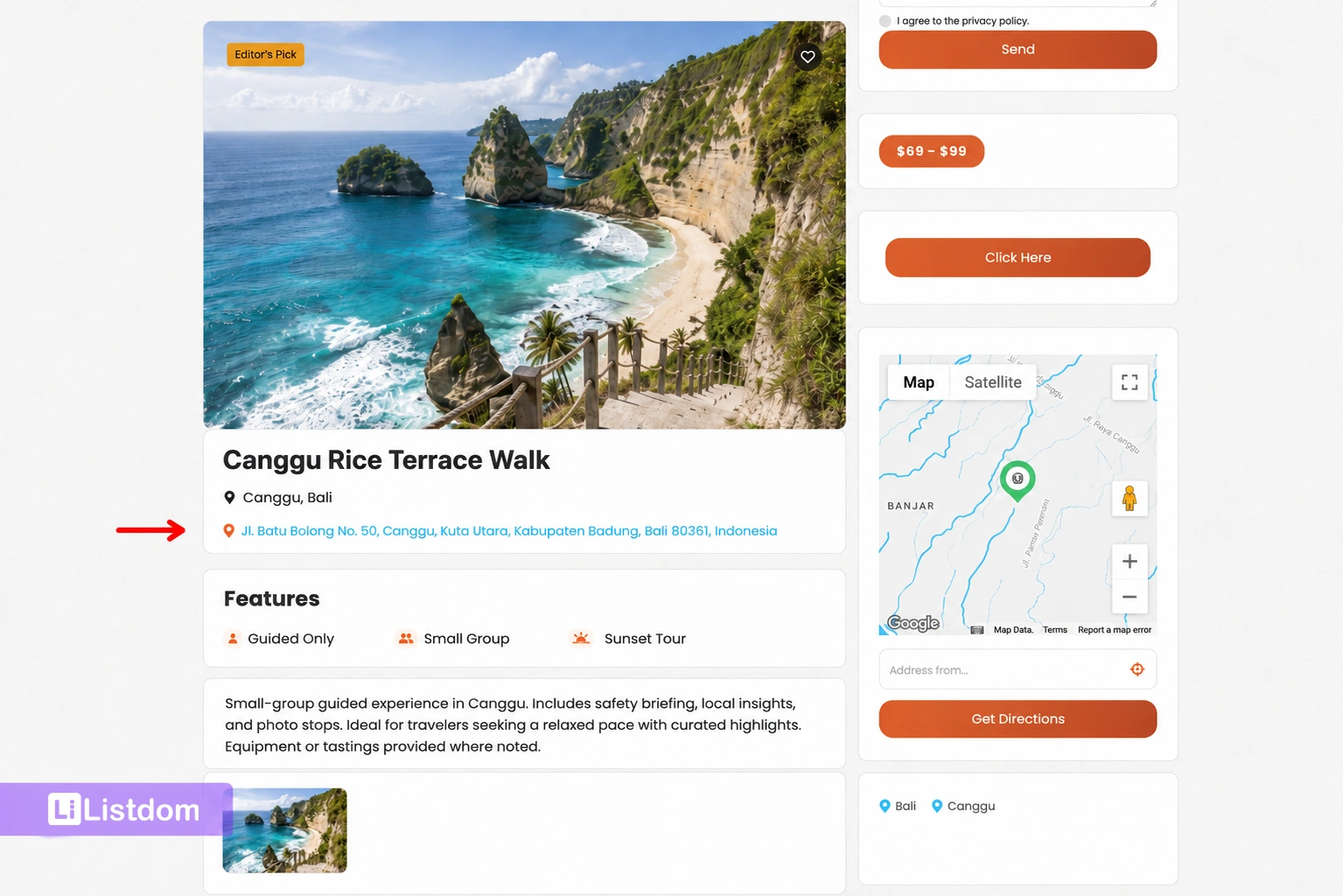
The address is the human-readable location of the listing. This might be a street address, business address, office address, property address, venue address, or service-area address, depending on the directory type.
For example:
- A restaurant listing may use the restaurant’s physical address.
- A hotel listing may use the hotel address.
- A real estate listing may use the property address.
- A doctor listing may use the clinic address.
- A local service provider may use an office location or defined service area.
The address helps visitors understand where the listing is. It also helps the map place the listing when the provider and geocoding behavior can use that data.
Coordinates
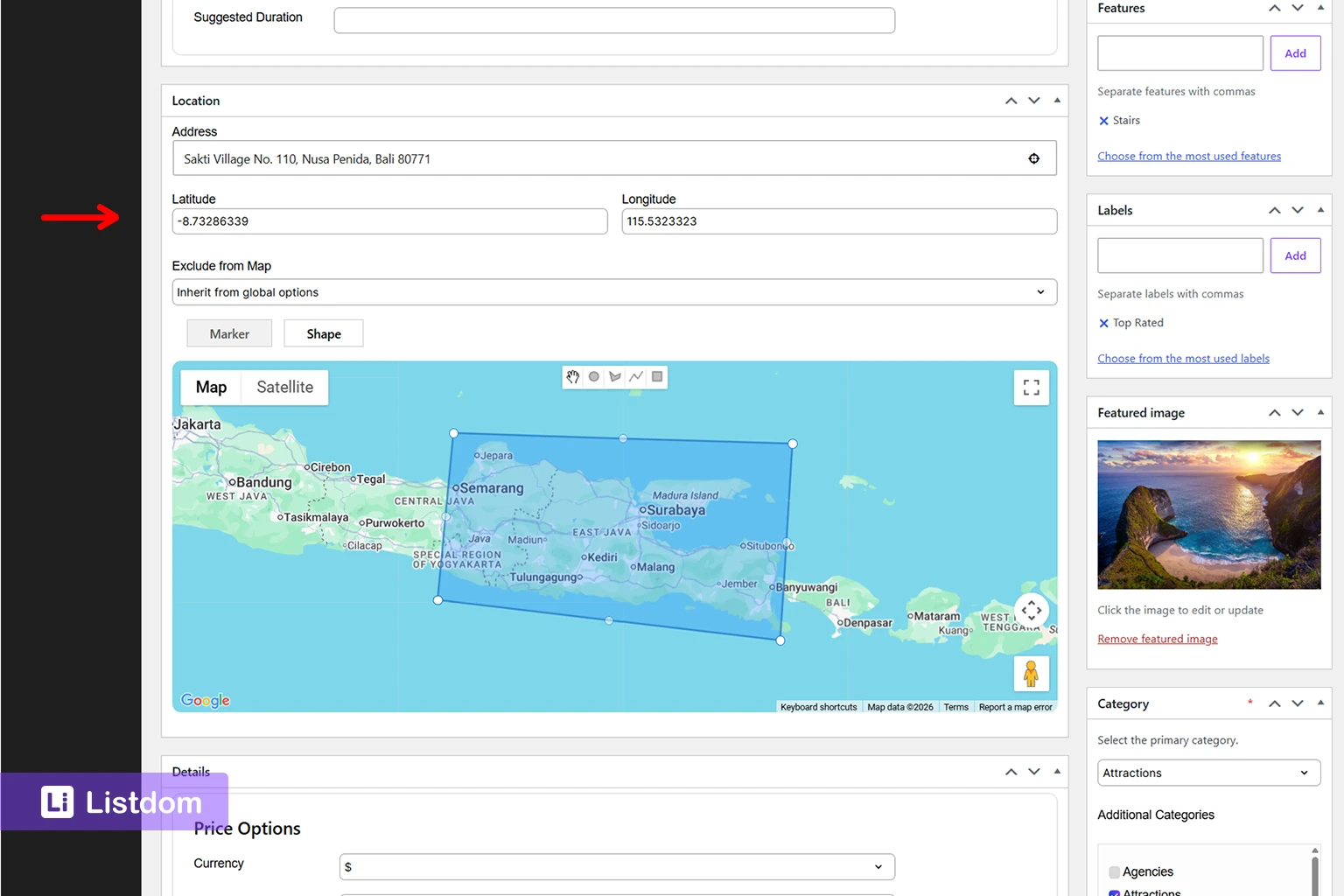
Coordinates are the latitude and longitude values that place a listing at a precise point on the map.
A map does not truly understand an address the way a person does. It needs a position. Coordinates provide that position.
If a listing has an address but no usable coordinate data, the marker may not appear correctly. The exact behavior depends on your provider setup, address quality, and how the listing data was entered.
This is why clean address data matters. If some listings use full street addresses, others only use city names, and others use vague neighborhood names, map placement may become inconsistent.
Location taxonomy
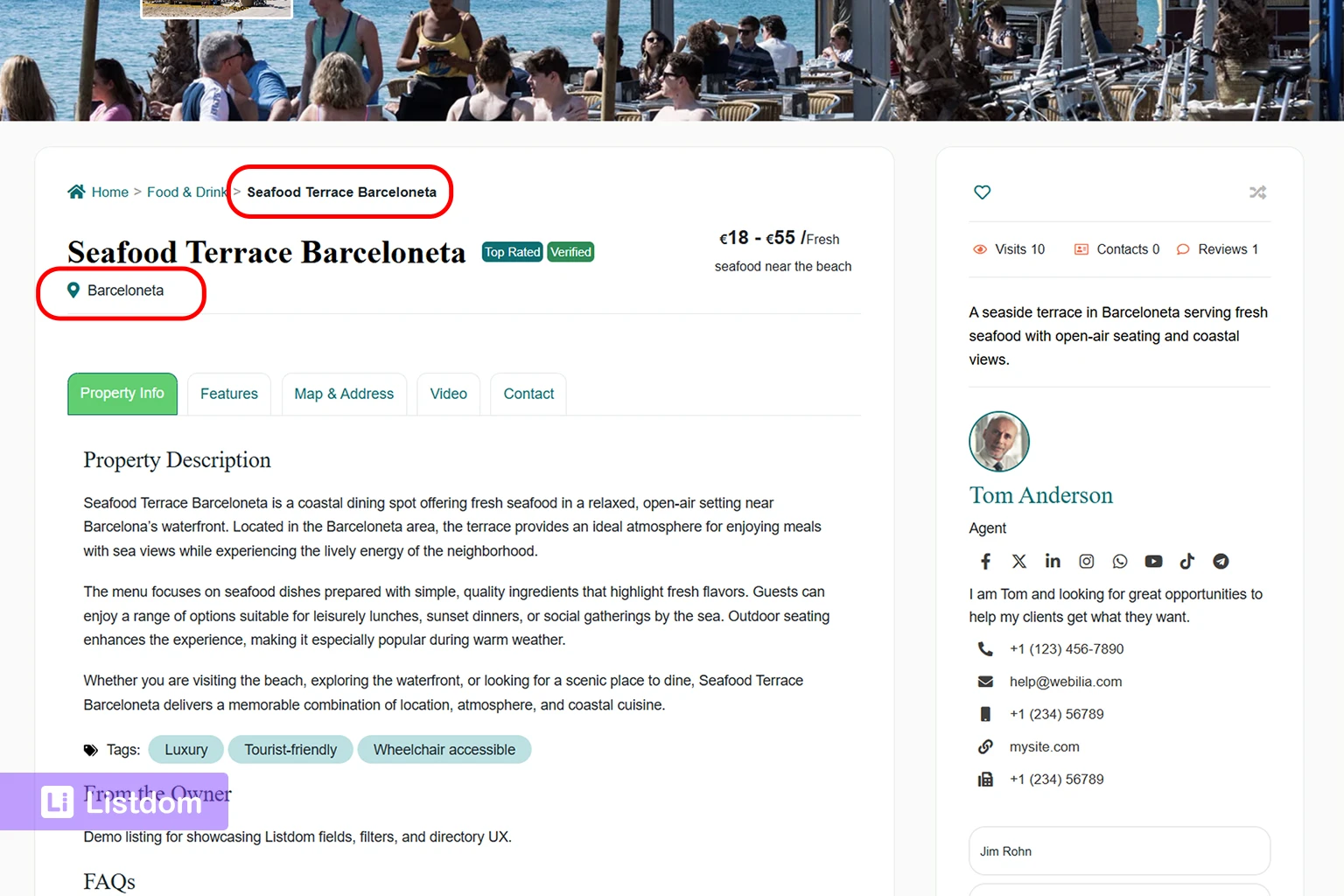
The Location taxonomy in Listdom is still important, but it has a different job.
It helps structure the directory by city, country, region, neighborhood, service area, or another geographic grouping. It can also support search forms, filters, taxonomy archives, and browsing.
For example, a listing can belong to a location such as:
- Barcelona
- London
- Downtown
- Brooklyn
- Dubai Marina
- North Tehran
But assigning a listing to “Barcelona” does not automatically mean the map knows the listing’s exact position. The location gives structure. The address and coordinates give placement.
Categories and filters
Categories, labels, features, tags, custom fields, and search filters can also affect which listings appear on a map-based page.
For example, if your shortcode is configured to show only restaurants, then hotels or real estate listings should not appear, even if they have valid addresses. If a listing is unpublished, pending review, expired, excluded by filters, or not part of the selected result set, it may also be hidden from the map output.
Before assuming there is a map problem, check the listing data, listing status, and shortcode filters.
The main ways to display listings on a map in Listdom
Listdom gives you different ways to display listings. Some are map-first layouts. Others are content-focused skins that can include map support when the Map component and map settings are available.
The right choice depends on what the page should help visitors do.
Single Map
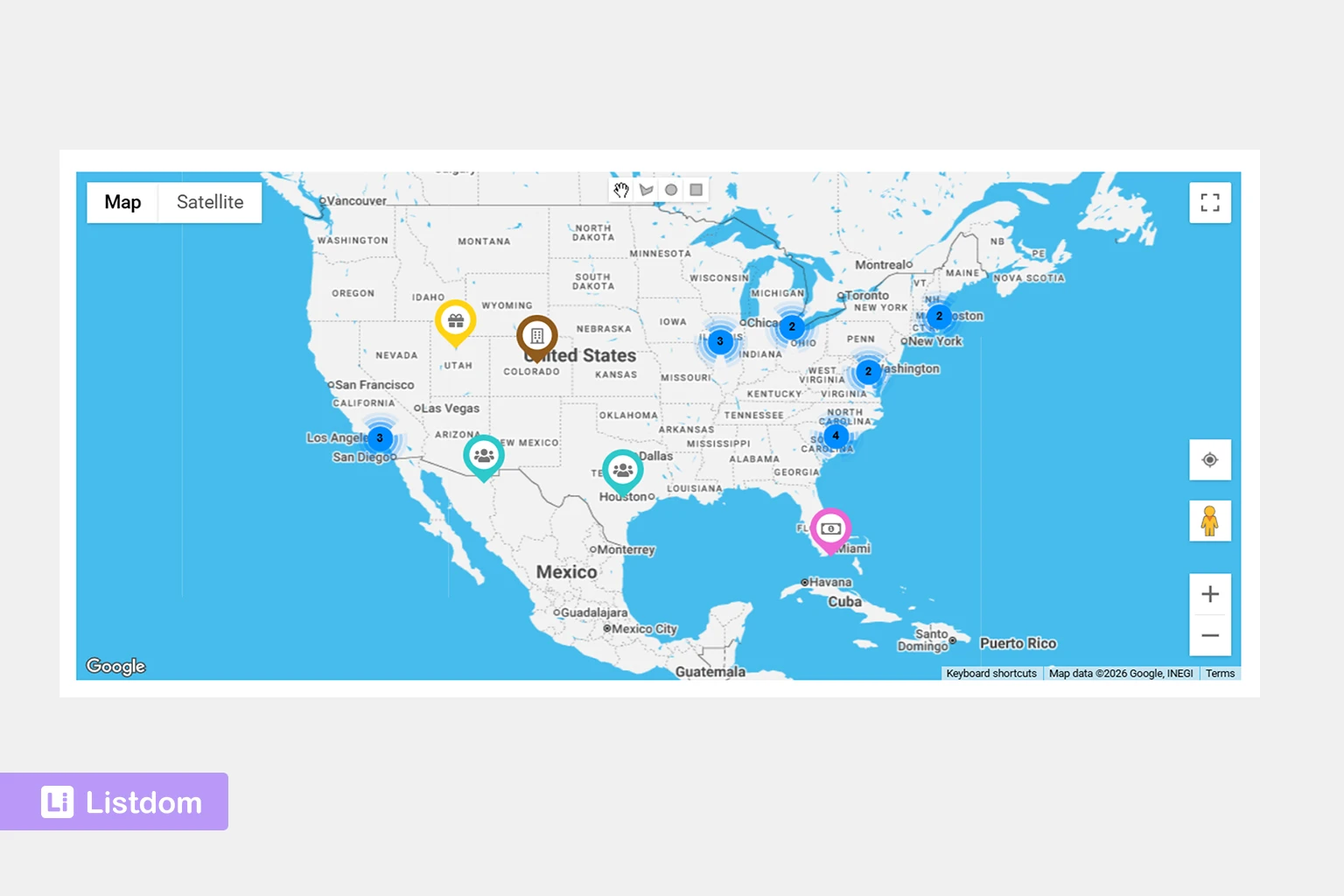
Single Map is useful when the map itself should be the main browsing interface.
Use it when visitors are expected to explore listings visually by geography. This can work well for city guides, attractions, local business discovery, outdoor activities, public places, service areas, and other location-heavy directories.
Single Map is usually best when:
- location is the main decision factor
- visitors want to explore nearby listings
- the map should be the dominant page element
- the listing set is not too crowded for map browsing
- the page is designed around exploration rather than detailed comparison
Single Map is not always the best choice when users need to compare many listing details. If they need images, prices, descriptions, labels, ratings, or other details before choosing, a content-focused skin with map support may work better.
Half Map
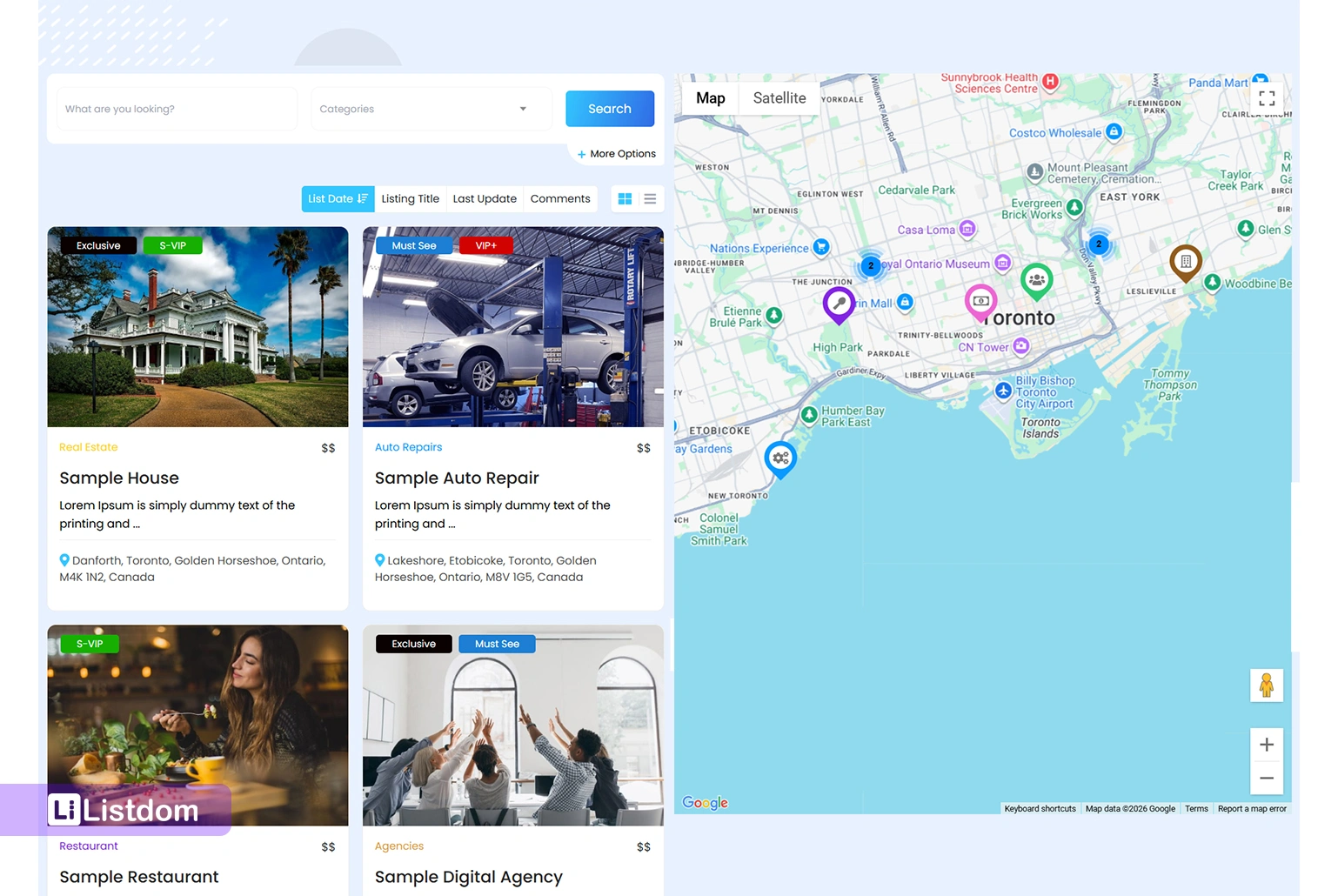
Half Map is useful when visitors need the map and listing results visible together.
This is one of the strongest layouts for location-based directory browsing because users can compare listing cards while keeping the map in view. It works especially well when both physical location and listing details matter.
Half Map can be useful for:
- real estate directories
- hotel directories
- restaurant directories
- healthcare directories
- local service directories
- business directories
- city portals
- classified-style location browsing
The benefit is simple: visitors do not have to choose between a map and listing details. They can use both at the same time.
Map-capable listing skins
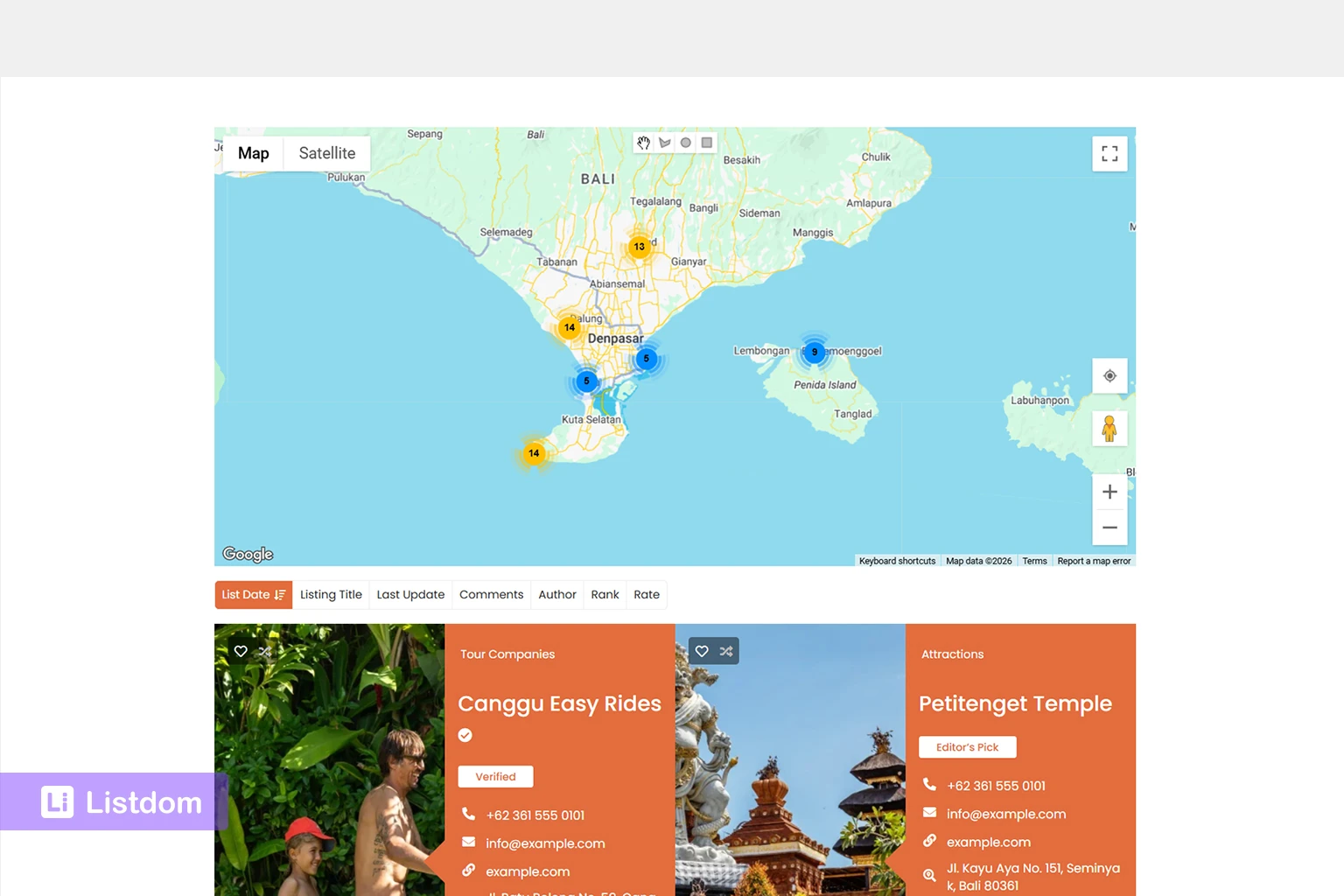
Listdom is not limited to showing maps only with List or Grid layouts. Several listing skins can support map display or map positioning when the selected skin includes map-related settings.
This means you may be able to create map-supported directory views using different presentation styles, such as List, Grid, List + Grid, Accordion, Timeline, Gallery, Mosaic, Masonry, Slider, Carousel, Half Map, Single Map, and other available skins depending on your Listdom configuration, version, and enabled components.
The important point is not the skin name alone. The important point is whether the selected shortcode skin includes map support.
For example:
- A List skin works well when users need readable listing details and a clear vertical structure.
- A Grid skin works well when users need visual card comparison.
- A List + Grid skin works well when visitors should be able to switch between browsing styles.
- An Accordion skin can be useful when you want a compact browsing experience with expandable listing details and map support.
- A Timeline skin can be useful when listings have a sequence, date, journey, or story-like structure, while still benefiting from geographic context.
- A Gallery, Mosaic, or Masonry skin can work well for visual directories where images matter, but location still helps users understand where each listing belongs.
- A Slider or Carousel can help when you want to feature a smaller set of listings and add map context where supported.
- A Half Map skin is useful when the map and listing results should stay visible together.
- A Single Map skin is useful when the map itself should be the main browsing interface.
So, instead of thinking “map means only List or Grid,” think in terms of map-capable skins. Choose the skin based on the browsing experience you want, then check whether that skin provides map settings.
Map position around listings
Depending on the selected skin and its available settings, the map may be positioned in different ways around the listing output, such as above, below, left, or right of the listings.
This matters because map position changes the user experience.
A map above listings works well when users should first understand the geographic spread. A map beside listings works well for comparison. A map below listings is more supportive and less dominant.
The best map position depends on the directory type, the selected skin, and the role of location in the visitor’s decision.
How to create a map-based listing page with a Listdom shortcode
Most Listdom listing display pages are built around shortcodes. A shortcode controls which listings appear and how they are displayed.
If you need the broader shortcode foundation first, read How to Display Listings in Listdom Using Shortcodes.
Here is the practical workflow for creating a map-based listing page.
Step 1: Go to Listdom shortcodes
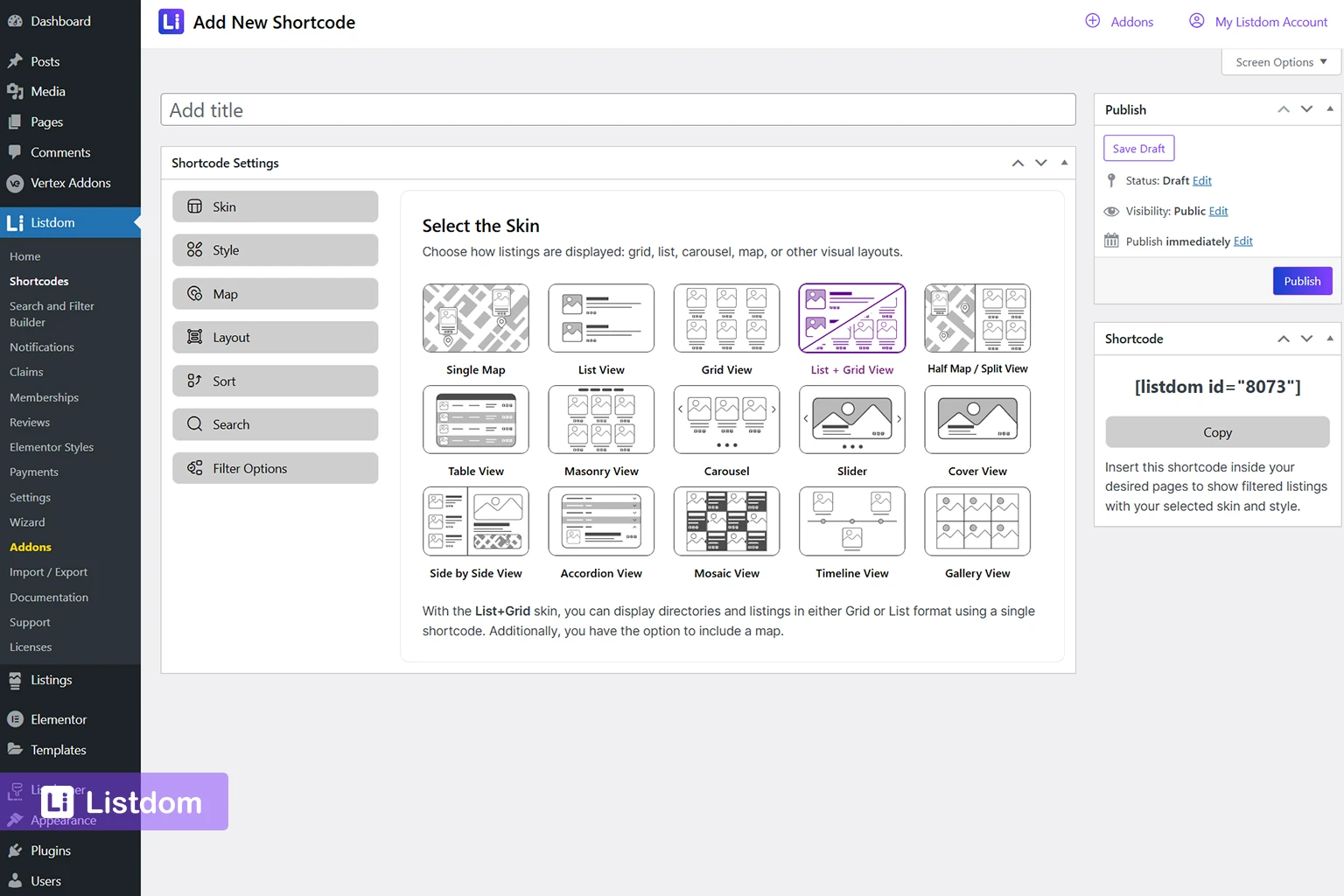
In WordPress admin, go to:
Listdom → Shortcodes
This is where you create or edit the shortcode that controls listing output.
A shortcode can define the skin, style, listing source, filters, sorting, display settings, and, when available, map-related settings.
Step 2: Create or edit a shortcode
You can create a new shortcode for your map page or edit an existing one.
If you are building a dedicated map page, it is usually better to create a new shortcode. This keeps the map page separate from other directory pages and makes future editing easier.
For example, you may create different shortcodes for:
- main directory page
- map browsing page
- Half Map page
- category-specific listing page
- city-specific listing page
- featured listings page
This helps you control each page intentionally instead of forcing one shortcode to handle every use case.
Step 3: Choose a map-capable skin or layout
Choose a shortcode skin that supports map display. This may be Single Map or Half Map, but it can also be another map-capable skin where the Map tab or map settings are available.
Do not choose a skin only because it looks attractive. Choose it based on the job of the page.
Ask:
- Should visitors browse primarily by location?
- Should they compare listing cards beside the map?
- Should the map support a visual Gallery, Mosaic, Grid, or Masonry-style experience?
- Should the page be compact, such as an Accordion?
- Should the content have a sequence or time-based structure, such as a Timeline?
- Is the page for local discovery, business comparison, real estate, hotels, attractions, services, or another niche?
- Will visitors mostly browse on desktop, mobile, or both?
The skin choice should match the user journey.
Step 4: Configure listing source and filters
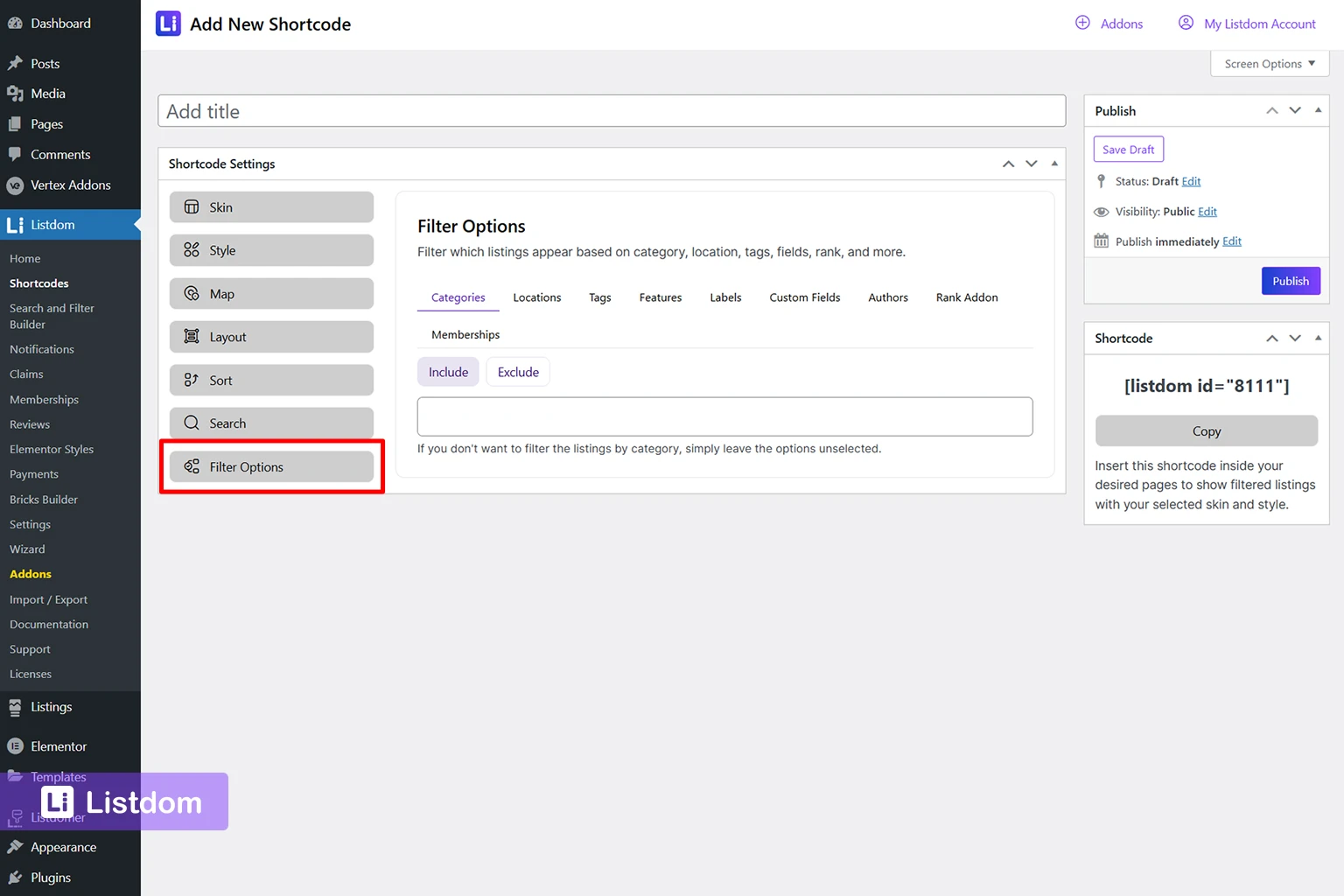
Next, decide which listings should appear.
Depending on your shortcode setup, you may be filtering by:
- category
- location
- tags
- labels
- features
- listing status
- author or owner
- featured status
- search results
- other shortcode conditions
This step is important because map output follows the same logic as listing output. If your shortcode excludes a listing, that listing will not appear on the map even if it has a valid address.
For example, if a shortcode is configured to show only “Hotels in Barcelona,” a restaurant listing in Barcelona should not appear. That is not a map error. That is the shortcode doing its job.
Step 5: Configure map settings
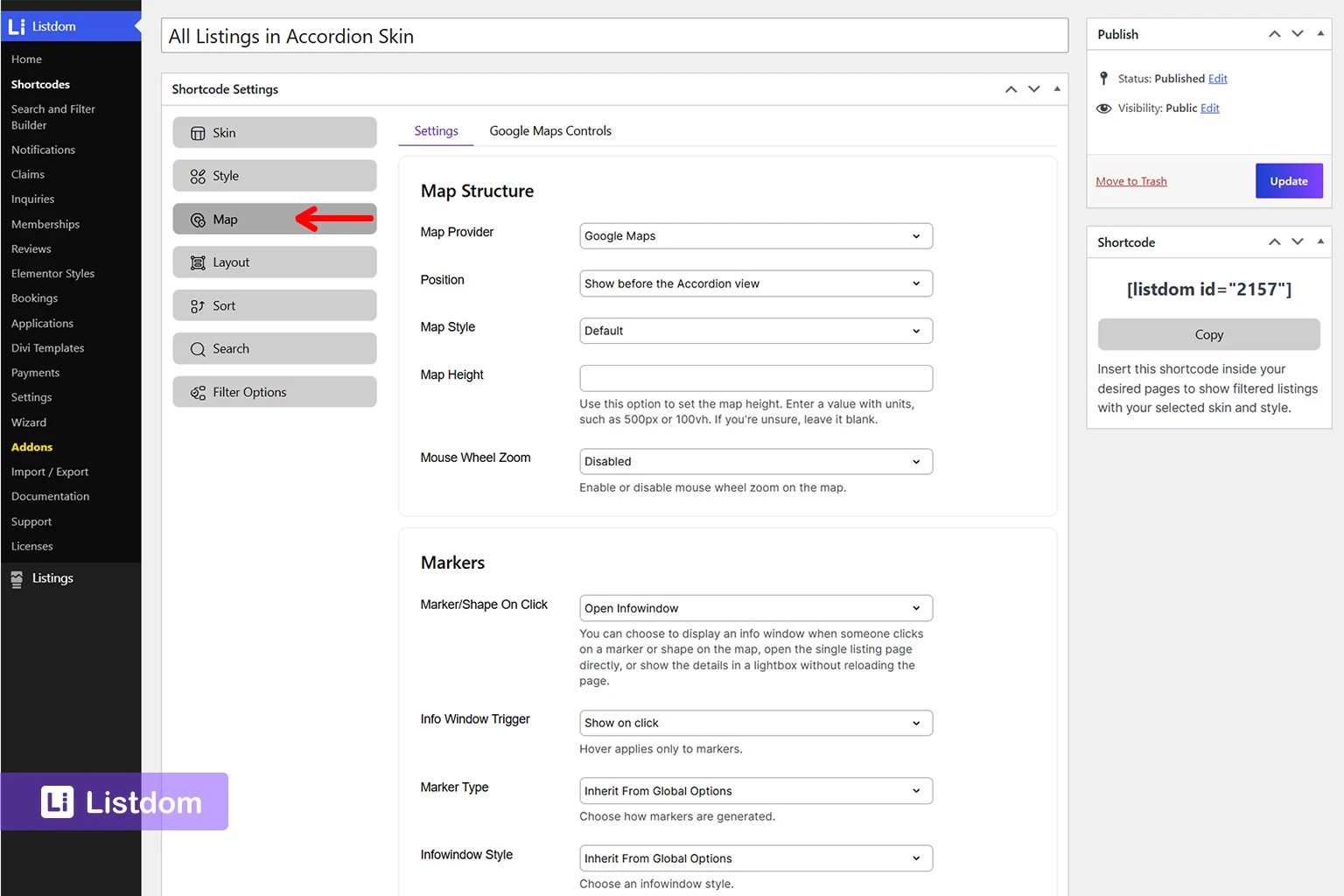
If the selected skin supports map display, open the map-related settings area for the shortcode.
The exact options can vary based on the skin and Listdom version, but map settings may include items such as:
- map provider
- map style
- map position
- map height
- marker behavior
- clustering
- marker limit
- zoom behavior
- infowindow behavior
Keep the settings simple at first. Start with a basic working map, then refine the experience.
A common mistake is to change too many display settings before confirming that listings are appearing correctly. First, make sure the listings show on the map. Then adjust style, position, height, clustering, marker behavior, and other details.
Step 6: Check global map provider settings

Listdom’s global map settings affect how map output works across the site.
In the global settings, you may need to confirm the selected map provider and provider-related configuration.
Common provider logic includes:
- OpenStreetMap/Leaflet as a practical non-Google map option
- Google Maps when you want Google’s map experience and have the required API setup
- Mapbox token usage where relevant for tile or map behavior
This article should not become a full provider comparison. That deserves its own dedicated guide. But for this workflow, remember that a shortcode cannot fully solve a provider setup problem.
If Google Maps is selected but the API key is missing, restricted incorrectly, or not configured properly, the map may not display as expected. If OpenStreetMap/Leaflet is selected, you should still check the related map settings and tile behavior.
Configure the provider first, then tune the shortcode layout.
Step 7: Save the shortcode
After choosing the skin, filters, and map settings, save the shortcode.
Do not skip this step before copying and testing it. If you copy an old shortcode or test before saving, you may be looking at outdated output.
Step 8: Copy the shortcode
After saving, copy the generated shortcode.
The shortcode is what you will place inside a WordPress page, builder area, or content block.
Step 9: Place the shortcode on a page
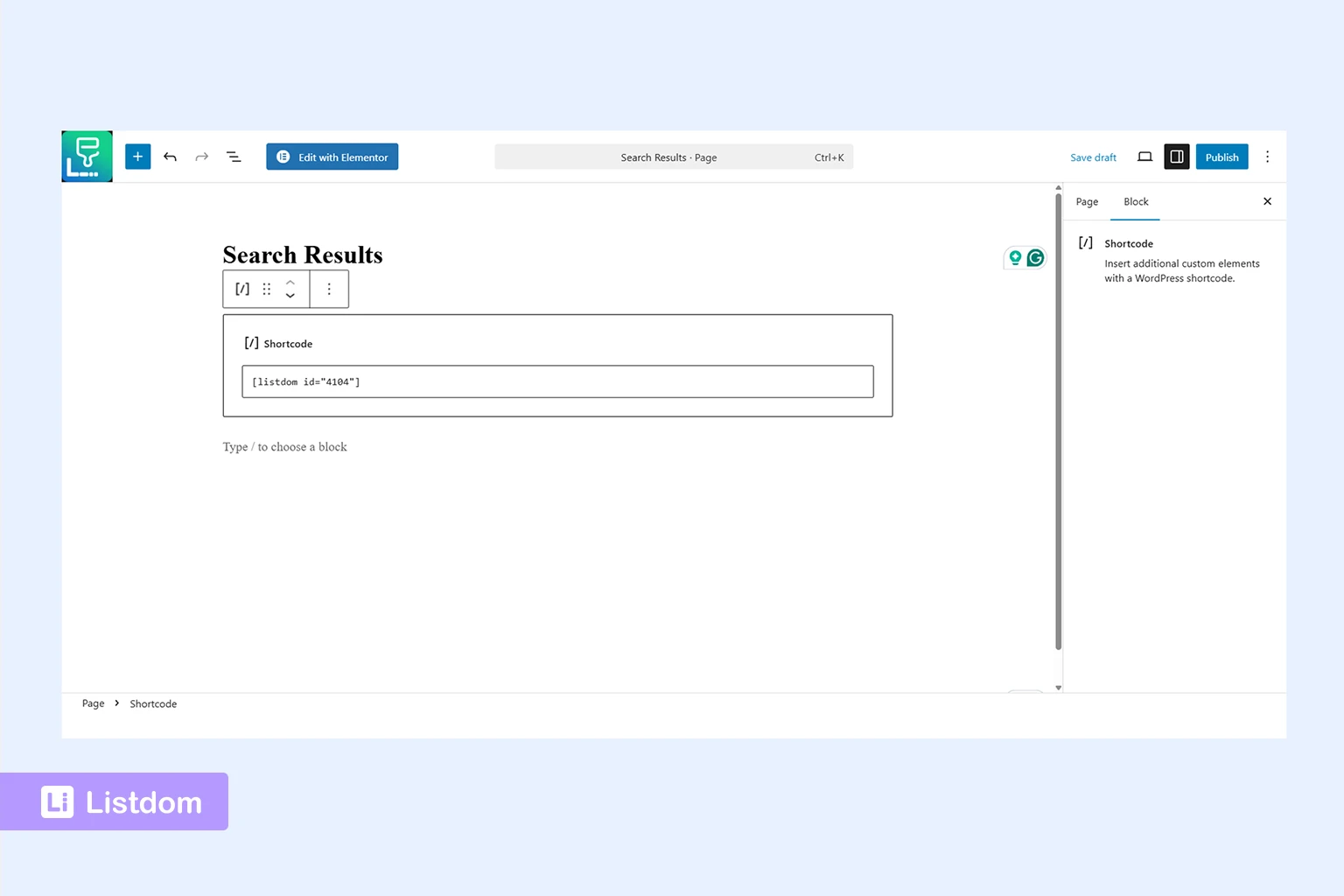
Create or edit the page where you want the map-based directory view to appear.
Paste the shortcode into the page content or into the relevant builder widget/module that supports shortcodes.
This could be a standard WordPress page, a page builder section, or a landing page layout.
After publishing or updating the page, view it on the frontend.
Step 10: Test with real listings
Testing with real listing data is important.
Do not test only with empty listings or listings that have no address. A map page needs valid map data to be meaningful.
Check:
- Do listings appear as expected?
- Are markers placed correctly?
- Does the selected skin display correctly?
- Does the map position make sense for the page?
- Does the layout work on desktop?
- Does the layout work on mobile?
- Are the right listings included?
- Are any listings missing?
- Does the search or filter behavior work as expected?
- Does the map load consistently?
If something looks wrong, check listing data, shortcode filters, provider settings, and cache before assuming the map layout is broken.
Choosing the right map layout or skin
A map layout should match the directory’s main user behavior.
Here is a practical way to decide.
Use Single Map when location is the main experience
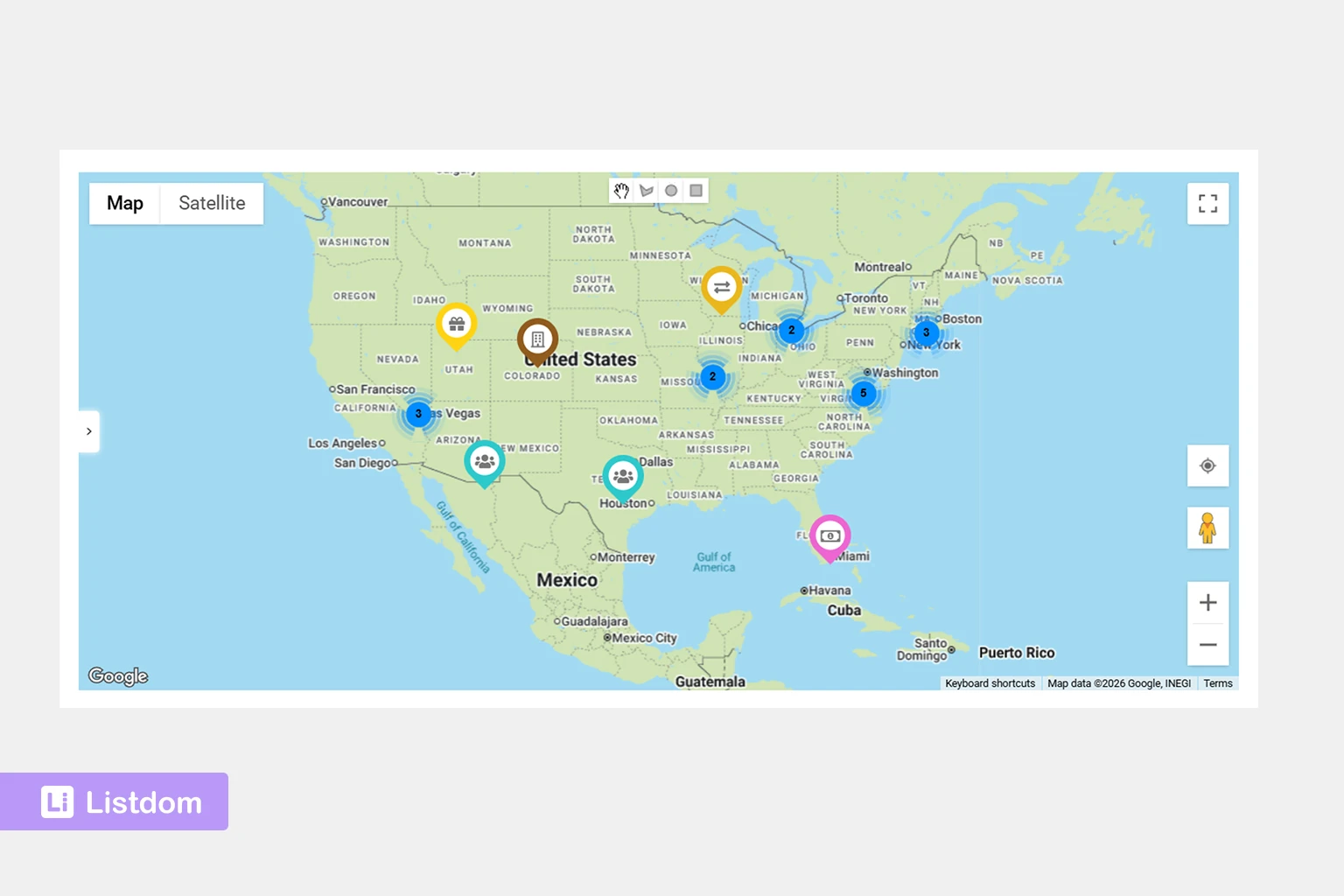
Choose Single Map when users should start by exploring places visually.
This is useful for:
- attractions
- city guides
- local discovery pages
- store or branch maps
- map-first directories
- outdoor activities
- area-based service directories
Single Map is less useful when users need to compare many listing details before choosing. If users care about images, descriptions, prices, ratings, labels, or other details, a content-focused skin with map support may be better.
Use Half Map when users need map and listing details together
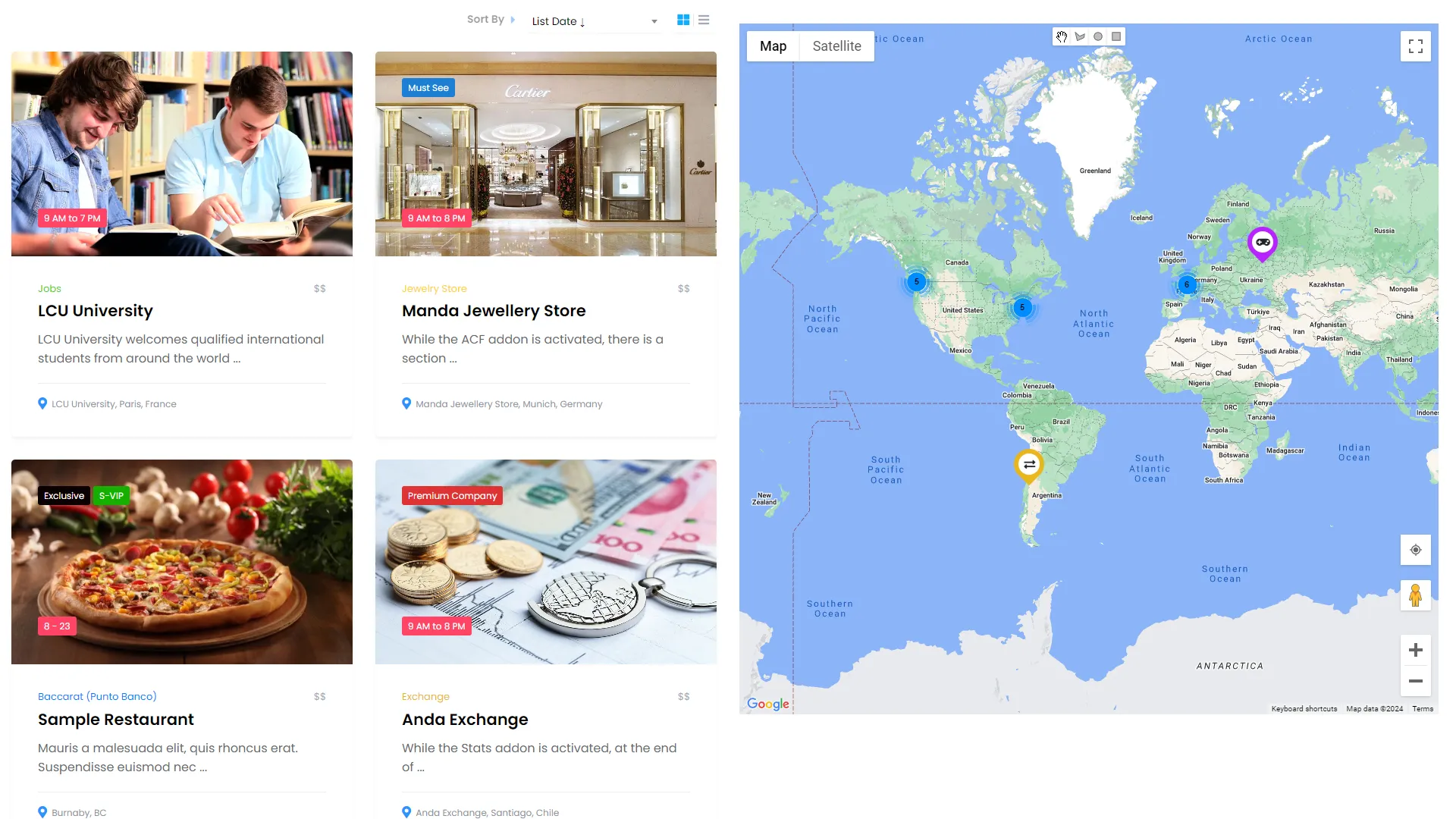
Half Map is usually one of the strongest choices for directory browsing when both location and listing details matter.
It works well for:
- real estate
- hotels
- restaurants
- doctors and clinics
- local services
- business directories
- classified-style location browsing
The benefit is that users can compare listings without losing map context.
Use map-capable content skins when the map supports the browsing experience
A map does not always need to be the whole page. In many directories, the main browsing experience comes from the selected skin, while the map adds geographic context.
This is where Listdom’s different skins become useful. Depending on the shortcode skin and its available settings, you can combine map display with different presentation styles.
For example:
- Use List when users need readable listing details and a clear vertical structure.
- Use Grid when images, cards, and visual comparison matter.
- Use List + Grid when users should be able to switch between both views.
- Use Accordion when you want a compact layout where users can expand listings for more detail.
- Use Timeline when the directory has date, sequence, journey, or story-based browsing value.
- Use Gallery, Mosaic, or Masonry when visual browsing matters, such as attractions, hotels, venues, portfolios, restaurants, or local experiences.
- Use Slider or Carousel when you want to feature a smaller group of listings with map context, where supported.
- Use Half Map when users need map and listing results visible together.
- Use Single Map when the map should be the main interface.
The best choice depends on the directory type. A restaurant directory may benefit from a Gallery or Grid-style experience with map context. A real estate directory may work better with Half Map. A city guide may use Single Map for exploration, while an event or attraction directory may use Timeline or Gallery when the content has a stronger visual or sequential element.
Before publishing the page, always check the selected shortcode skin settings. If the skin includes map options, configure the map provider, position, height, clustering, marker behavior, and related options as needed.
Use map position settings to control page flow
When a skin supports map positioning, the map can often act as a supporting layer around the listing output.
A map above the listings is good for giving visitors a quick location overview before they browse.
A map beside the listings is good for comparison-heavy experiences where users need both location and listing details.
A map below the listings is better when location is useful but secondary.
A map on the left or right can work well on desktop but should always be tested carefully on mobile.
How search forms and filters work with map-based listings
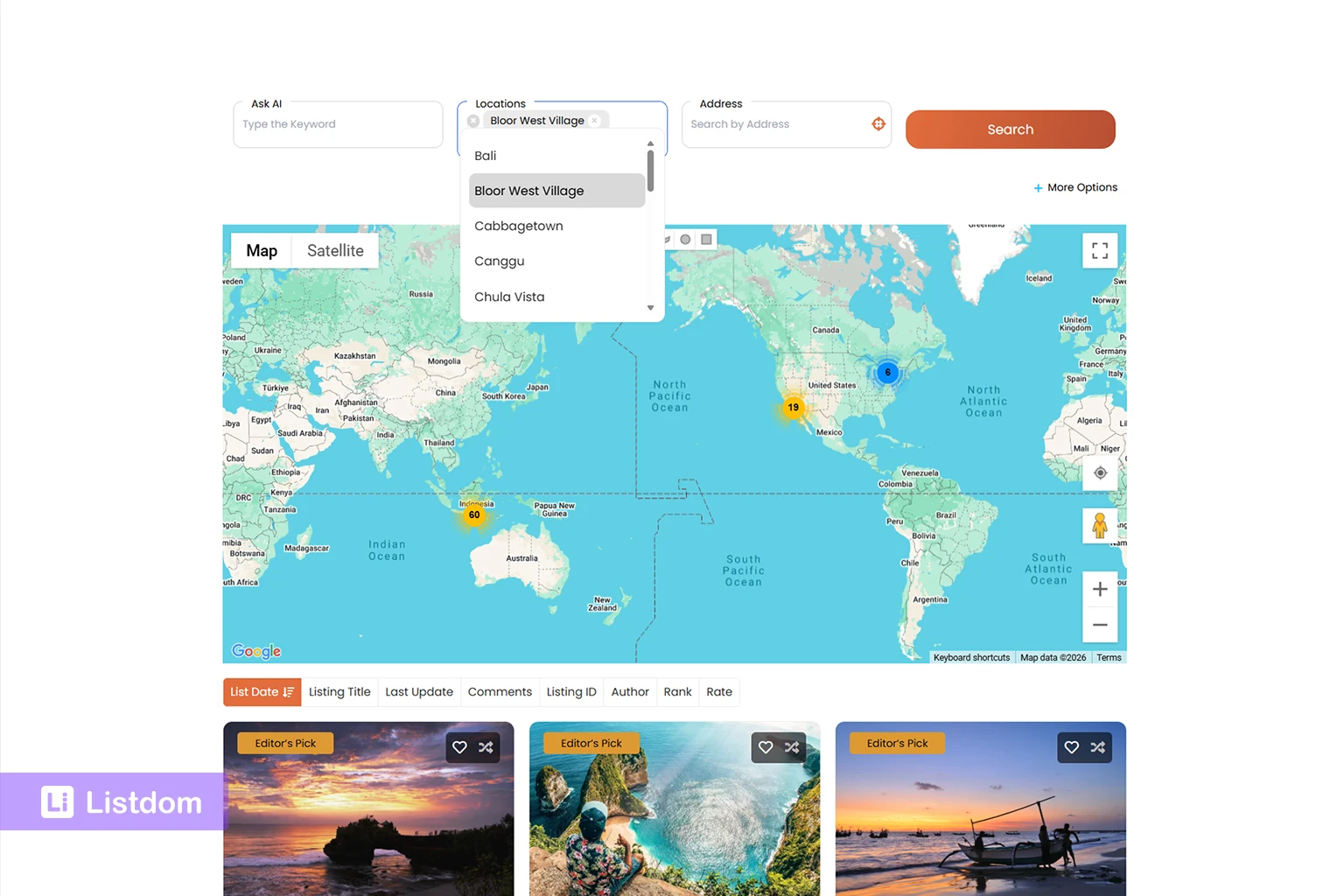
A map page becomes more useful when users can narrow the results.
Map browsing is helpful, but search and filters make it practical.
In Listdom, search forms can support different kinds of discovery depending on how the directory is structured. For example, users might search by:
- keyword
- category
- location
- address
- features
- labels
- custom fields
- radius or distance-based options where available
If you are still planning your search experience, read How to Create Search Forms in Listdom.
The important thing is to understand that search filters affect the listing result set. If a map-based shortcode is connected to a filtered result or a search form, the map should be thought of as part of the results experience.
For example:
- A user searches for “dentist” in “London.”
- The listing results update.
- The map supports that filtered discovery experience.
- Listings that do not match the filters should not appear.
This makes the map more useful because it reflects the visitor’s search intent.
However, do not confuse different types of search:
- Location filters usually use the Location taxonomy.
- Address search is closer to the listing’s physical address.
- Radius or near-me search depends on distance and location behavior where available.
- Map browsing lets users visually explore listing positions.
These can work together, but they are not the same thing.
Common reasons listings do not show correctly on a map

If listings do not appear on your map, do not rebuild the whole page first. Check the basics.
Most map display issues come from listing data, shortcode settings, provider configuration, or filtering.
The listing has no usable address or coordinates
This is one of the most common issues.
A listing may exist in Listdom, but if it does not have usable map placement data, it may not appear correctly on the map.
Check whether the listing has:
- a clear address
- correct coordinates if available
- a valid location setup
- no missing or inconsistent address fields
The Location taxonomy was used instead of an address
Assigning a listing to a location such as “Paris” or “Downtown” helps organization and filtering, but it does not always create a precise marker.
If a listing needs to appear at a specific point on a map, it should have address or coordinate data.
The selected skin does not include map support
Not every shortcode skin should be treated as a map output.
If your shortcode uses a skin that does not include map settings or the map component is disabled, the listings may appear correctly but without a map.
Check the selected shortcode skin and confirm that it supports map display in your current setup.
The map component or provider is not configured
Some map-capable skins depend on the map component and provider settings being enabled and configured.
If the map component is disabled or no provider is available, map-related options may not appear or the frontend map may not work as expected.
The shortcode filters exclude the listing
A listing can have a valid address and still not appear if the shortcode filters exclude it.
Check whether the shortcode is filtering by category, location, label, feature, status, author, or another condition.
The listing is not published or approved
If the listing is pending, expired, private, trashed, or not approved, it may not appear on the frontend.
This is especially important for directories that use frontend submission or moderation. If your directory accepts user-submitted listings, make sure the listing is visible according to your publishing and moderation rules.
The map provider is not configured correctly
If Google Maps is selected but the API setup is incomplete, the map may fail to load.
If another provider is selected, check the related provider settings.
Provider issues are different from listing data issues. A provider problem can affect the entire map. A listing data problem may affect only one or several listings.
Page cache or builder output is showing old content
If you recently changed shortcode settings, listing data, or map provider settings, clear relevant caches and test again.
Also check that the page contains the correct shortcode and not an older copied version.
Best practices for map-based directory pages

A map can make a directory much more useful, but only when it supports the visitor’s decision.
Here are some practical best practices.
Use map-first layouts only when location matters
Not every directory needs a map-first experience.
A map-first page makes sense when users care strongly about distance, area, neighborhood, or physical access.
It is less useful when users mainly compare content, pricing, service details, portfolio quality, or online-only providers.
Match the skin to the user journey
Do not choose a skin only because it looks impressive.
Choose it based on what the visitor needs to do.
If the visitor needs to compare listing details, use a skin that makes comparison easy. If the visitor needs to explore locations first, use a stronger map-first layout. If the visitor needs visual inspiration, use a visual skin with map context where supported.
The map should support the browsing experience, not fight with it.
Keep address data clean
Clean address data improves map quality.
Use consistent formatting across listings. Avoid vague addresses, partial entries, or mixed address styles when possible.
For example, do not enter full addresses for some listings, city names for others, and neighborhood names for others if they are all expected to appear as precise map pins.
Do not overload map pages
Too many markers can make a map harder to use.
If you have many listings, consider using filters, categories, locations, pagination behavior, clustering, or focused map pages for specific areas.
A map should help visitors make decisions, not overwhelm them.
Pair map views with useful listing cards
Map markers are helpful, but users often still need listing details.
A good map-based directory page should help visitors answer questions like:
- What is this listing?
- What category does it belong to?
- Where is it located?
- Is it relevant to my search?
- Can I contact it, book it, view it, or compare it?
This is why Half Map and map-capable content skins can be more useful than a plain map for many directory types.
Test on mobile
Map layouts can behave very differently on mobile.
A split map layout that looks great on desktop may need a different flow on small screens. A skin with a map beside the listings may need a more vertical structure on mobile.
Always test before publishing.
Check:
- Can users scroll normally?
- Is the map too tall?
- Are listing cards easy to read?
- Can users tap markers?
- Does the search form remain usable?
- Is the page loading smoothly?
- Does the selected skin still make sense on mobile?
Plan categories and locations before design
A good map page depends on good directory structure.
Before focusing on map style, make sure your listings, categories, and locations are organized clearly. If the structure is messy, the map page will feel messy too.
For a deeper foundation, read How Listings, Categories, and Locations Work in Listdom.
Example map page structures
Different directory types need different map experiences.
Local business directory
A local business directory usually works well with category filters, location filters, and a map with listing cards.
Recommended approach:
- use categories for business types
- use locations for cities, areas, or neighborhoods
- use addresses for precise map placement
- use a map-capable skin based on how users browse
- add a search form for category and location discovery
A local business directory does not always need a map-first layout. If users compare providers first, a content skin with map support may be better. If users explore by area first, Half Map or Single Map may be stronger.
Real estate directory
A real estate directory often needs a stronger map experience because location is a major decision factor.
Recommended approach:
- use Half Map or another map-focused layout
- make sure each property has accurate address or coordinate data
- use filters for property type, price, size, and location
- keep listing cards detailed enough for comparison
For real estate, users usually need both the property details and the map. A map-only experience may not be enough.
Restaurant directory
A restaurant directory can benefit from map browsing, especially for city or neighborhood discovery.
Recommended approach:
- use categories for cuisine or restaurant type
- use locations for city or neighborhood
- use addresses for map placement
- use Gallery, Grid, Half Map, or another map-capable visual skin where appropriate
- include search filters for cuisine, features, or area
Restaurants are often visual. A map helps with location, but photos and listing cards still matter.
Healthcare directory
A healthcare directory should make location clear without sacrificing trust details.
Recommended approach:
- use map views to show clinics, doctors, or hospitals
- keep listing cards focused on specialty, address, contact, and profile details
- use locations and categories carefully
- avoid making the map the only way to browse
Users may care about distance, but they also need professional information before choosing.
City portal
A city portal often works well with map-first browsing because visitors may be exploring attractions, services, restaurants, shops, and public places.
Recommended approach:
- use strong category structure
- use area-based locations
- use address data for exact pins
- create separate map pages for different city sections if needed
- use Single Map, Half Map, Gallery, or another map-capable skin depending on the page goal
A city portal can use different map experiences for different sections. Attractions may need a visual map-first experience, while services may need search and filters first.
What to learn next
This article focuses on the practical workflow for showing listings on a map. To build the full map and local search foundation, continue with these related guides:
- How Maps and Addresses Work in Listdom
- Locations vs Addresses in Listdom
- How to Display Listings in Listdom Using Shortcodes
- How to Create Search Forms in Listdom
- WordPress Map Directory Plugin: How to Show Listings on an Interactive Map
As the map cluster grows, this article should also connect to future guides about listing addresses, Google Maps vs Leaflet, local search, radius search, near-me search, and map troubleshooting.
FAQ
Can I show all Listdom listings on one map?
Yes, you can create a map-based listing view that displays listings through a map-capable shortcode or skin. The actual listings shown depend on the shortcode settings, listing status, filters, and whether the listings have usable address or coordinate data.
Do listings need addresses to appear on the map?
A listing generally needs usable map placement data, such as an address and/or coordinates, to appear correctly on a map. A title, description, or category alone is not enough for precise map placement.
Is Location taxonomy the same as a map address?
No. Location taxonomy helps organize listings by areas such as cities, regions, or neighborhoods. A map address or coordinate value helps place the listing on the map. They can work together, but they are not the same thing.
Can skins like Accordion, Timeline, or Gallery show maps?
Some Listdom skins can include map support when the Map component and the skin’s map settings are available. This means map support is not limited to List and Grid layouts. Always check the selected shortcode skin settings to confirm whether the Map tab or map options are available.
Can I show a map beside listing cards?
Yes. Map-based layouts such as Half Map are designed for experiences where users can view listings and map context together. Other skins may also allow the map to appear beside, above, or below listing results depending on the available settings.
Which map provider should I use in Listdom?
The best provider depends on your needs. OpenStreetMap/Leaflet can be a practical option for many websites. Google Maps may be useful when you specifically want Google’s map experience and have the required API setup. Provider choice should be configured carefully before testing the frontend map.
Why are some listings missing from my map?
Listings may be missing because they do not have usable address or coordinate data, they are excluded by shortcode filters, they are not published or approved, the selected skin does not include map support, the map component/provider is not configured correctly, or cached page output is showing old content. Start by checking listing data, shortcode filters, listing status, and global map provider settings.