
The Listdom Google Places Addon helps you find businesses and create a review queue for a new directory. It creates minimal listing drafts linked to a Google Place ID, then lets an editor review current business suggestions before deciding what to save as native listing content.
It does not automatically import complete Google business profiles or photos. That distinction is useful: you can move from an empty directory toward a considered set of entries without silently publishing unreviewed records. This guide explains the actual draft-first workflow, the two API contexts involved, and the work needed to turn each draft into a useful listing.
Choose the right source workflow
Use Google Places when you want to discover relevant businesses in an area, link an entry to a Google Place ID, and review supported suggestions. Keep the scope narrow enough that an editor can assess the results rather than accumulating hundreds of incomplete records.
If you already have an owned spreadsheet with permission to publish its content, the CSV listing import workflow may be the more direct route. If you are considering Webilia’s discovery, enrichment, or refresh service, inspect Business Data separately. It is a core service with its own account and credit workflow, not another name for the Google Places Addon.
A launch plan can combine sources, but each entry still needs a clear origin and review process. The first 100 listings guide helps define coverage and publication standards before you start collecting candidates.
For example, a neighborhood food guide might begin with ten bakeries in a defined area. The aim is to publish ten useful, accurately categorized entries, not to convert every map result into an immediate public recommendation.
Configure the map and Places request contexts
Install and activate the Listdom Google Places Addon. Open Listdom → Settings → Addons → Google Places and enter the Google Places API Key used for search and current Place Details suggestions.
Configure the map key separately under Listdom → Settings → General → Map Module. The administration map uses Maps JavaScript API; the add-on’s place search and suggestions use Places API (New). Both need the corresponding billed Google Cloud project configuration.
Prefer separate restricted keys when appropriate, with restrictions matched to each request context. A browser-loaded map and a Places request are not automatically compatible with the same application restriction. Follow Google’s Places API setup instructions and the current Google Cloud controls rather than copying an unrestricted key from another project.
Set Max Temporary Queue Size between 1 and 20; the documented default is 20. The queue exists in the current browser screen. Leaving or reloading can discard it, so do not treat the queue as a durable editorial backlog.
Before a larger review session, verify a map load and one small search. If the map works but searching does not, the two-key distinction gives you a focused place to investigate.
Search a defined area and review the candidates
Open Listdom → Import / Export → Google Places. Enter a Search Query, select an appropriate Place Type, and position the map over the intended area. The starting map position comes from the configured backend latitude, longitude, and zoom in the Map Module.
Select Search. Results reflect the query, type, and map area, with up to 20 businesses in the current search. The supported type list includes broad and specific choices such as Restaurant, Cafe, Bakery, Hotel, Gym, School, and Tourist Attraction.
If Update search results when the map moves is enabled, moving the viewport can trigger new results. That is useful for local exploration but can also create more requests. Move deliberately, and avoid confusing a new viewport’s results with a saved inventory.
Inspect each candidate’s identity and relevance. Similar business names, multiple branches, and nearby places outside your chosen boundary need attention. Confirm which business the directory should describe before adding it to the queue.
Make minimal drafts from the temporary queue
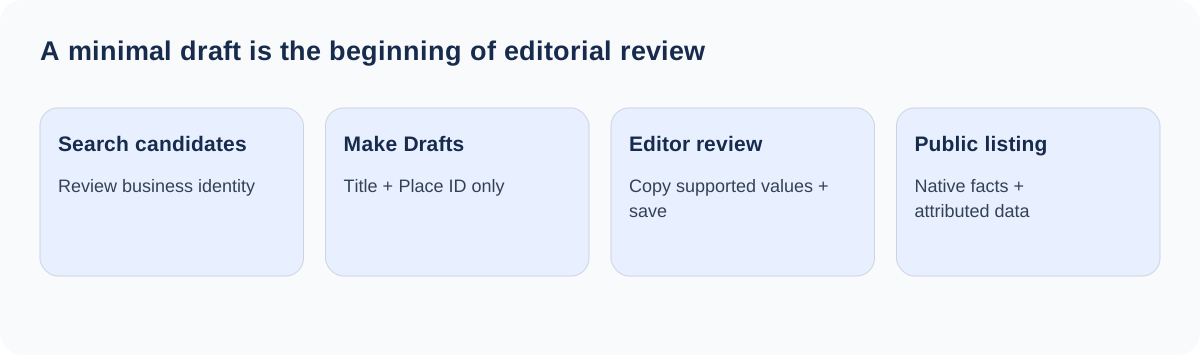
Select a result’s marker or business row, review its proposed draft title, and add it to the Temporary Queue. You can adjust the queued title and remove unwanted entries before choosing Make Drafts.
The generated draft stores the confirmed title, Google Place ID, current administrator as author, and Draft status. It does not populate native address, phone, website, opening hours, categories, coordinates, ratings, reviews, or featured images during that creation step.
The same Place ID cannot be queued twice. When making drafts, Listdom also checks for a matching Place ID in existing non-trashed draft, pending, published, scheduled, or private listings and skips that duplicate. This is identity-based protection; it is not a universal match for similar business names.
After creating a small batch, open Listings → All Listings and inspect the drafts. With Compact Menu enabled, use Listdom → Listings. Check the author as well as the title. The administrator who created the draft is not automatically the business owner, and a later owner claim is a separate verified workflow.
Review supported suggestions in the listing editor
Open a draft and find the Google Places metabox. A saved Place ID links the record to the business. Use Fetch Data to retrieve current suggestions. For a listing without an ID, enter at least two characters in Search Google Places and choose the correct business.
Supported suggestions include the place name, formatted address, phone, website, opening hours, primary type, matching category where available, coordinates, and price level. These suggestions do not all have the same save behavior.
| Information | Review action or boundary |
|---|---|
| Title, address, phone, website | Supported copy actions place values in native editor fields |
| Category | Apply the suggested exact normalized match, or select the correct term manually |
| Coordinates | Copy to map fields, then verify the marker and map object |
| Opening hours and primary type | Review information; do not assume automatic native import |
| Google Price Level | Display-only suggestion, not a native searchable price field |
Use the copy actions deliberately, then Save Draft, Update, or Publish to retain copied native fields. Selecting a business saves its Place ID through the editor, but copying a suggested native value and saving the listing are separate steps.
Treat business identity changes as a review event
Change Business links another Google place for future suggestions and frontend Google output. It does not clear native values previously copied from the old business.
If you change the linked business, inspect the title, address, phone, website, category, and coordinates before saving. Otherwise, the record can accidentally combine one business’s native information with another business’s Google rating or link.
The category match is also deliberately limited. It compares normalized Google type labels or codes against existing Listdom category names and slugs. An approximate semantic resemblance is not enough to guarantee a match. Create or select the appropriate directory category when no exact match is offered.
Keep a representative listing open through the whole test: link the business, fetch suggestions, copy one field, save, reopen, and check the public page. This establishes which values are durable native content and which are live reference output.
Add original content and appropriate media
A draft needs more than copied contact data to become a useful directory entry. Write an accurate description suited to your audience, assign the right categories and locations, check the address and marker, and add the details visitors use to compare options.
The add-on does not request Google Places photos for draft search, editor suggestions, or frontend output. It does not create a WordPress media attachment or assign a Google photo as the featured image. There is no Import Featured Image action to enable.
Use images you are permitted to publish through the normal media controls. An owner-supplied image, your own photograph, or another properly sourced asset can be reviewed separately from the business suggestions. Do not treat access to an image in another service as an automatic publishing workflow.
Maintain a clear source boundary for every fact. Structured and current native data helps visitors and discovery systems understand the directory, but copying a suggestion does not independently verify a business claim. Review important details with an appropriate source and provide a correction route.
Display attributed Google information where it helps
Open Listdom → Settings → Single Listing, edit the active details-page style, and add or enable the Google Places element. Review View on Google Button and Google Rating & Reviews according to what you want to display.
The public output uses clear labels such as Rating from Google, Reviews on Google, and View Business on Google. The rating and review count remain Google-sourced information; they are not merged into native Listdom reviews or ratings.
The element needs a valid Place ID and returned data. If both display settings are off, or none of the enabled values are returned, there may be no visible output. Check those conditions before treating an empty section as a template failure.
Compatible Elementor, Bricks, and Divi integrations provide their own Google Places output controls. Use a valid preview listing with a Place ID and test the actual public page. Keep Google attribution close to the information and consult the current Google Places policies and attribution guidance.
Finish each draft with a publication checklist
Before publishing, check business identity, unique title, native category and location assignments, contact information, marker, description, image source, and the public Google element. Test the listing while signed out and compare the native values with any live Google output.
Later Google changes do not silently overwrite native values you previously copied and saved. Give the entry a review process. For the ongoing maintenance side, use the guide to accurate and verifiable directory listings.
If map search fails, inspect the relevant API, key restrictions, billing, and quota. If draft creation skips a business, search non-trashed listings for its Place ID. If public output disappears, check its enabled values, saved ID, and whether current Google data can be returned. Preserve the native record while diagnosing a temporary service problem.
The Google Places Addon reference documents the detailed controls. A small, reviewed batch is a strong first result: it gives you a repeatable editorial process instead of a directory full of unfinished imported shells.
FAQ
Does Make Drafts import a complete Google business profile?
No. It creates a minimal draft with the confirmed title and Place ID, authored by the current administrator. Editors then review and complete the record.
Can the add-on import Google photos as featured images?
No. Google photo requesting and attachment import are not part of the documented workflow. Add appropriate media through the normal listing or WordPress controls.
Why are two Google API contexts involved?
The administration map uses Maps JavaScript API, while Places search and details use Places API (New). Configure the relevant keys and restrictions for each.
Will changing the linked business clear old copied values?
No. Review the native fields manually so one listing does not combine information from two different businesses.
Are Google ratings combined with native reviews?
No. The displayed Google rating and review count remain explicitly attributed Google information.
Do Google changes automatically update native fields?
No. Previously copied native values require your own review and update process. Live Google output and saved directory content are separate.