
Bricks can provide the visual structure for a Listdom directory while Listdom supplies the listings, saved search forms, and directory behavior. With the Listdom Bricks Addon, you can also design listing-specific templates using dedicated elements and dynamic data.
The key is choosing the right place to build each piece. A directory landing page, a single listing page, a reusable listing card, and a map infowindow do not use one interchangeable template. This guide maps those jobs to their actual administration paths and walks through a small implementation you can test before extending the design.
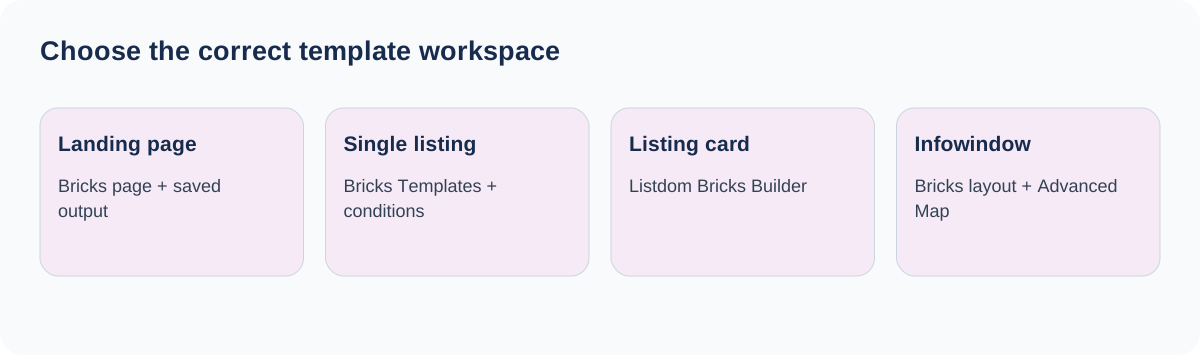
Choose the layer you want to design
Start with the visitor’s task. A category page helps people narrow options. A listing card helps them decide what to open. A single page helps them evaluate one option and take the next step. Bricks gives you design controls for these surfaces, but the data and directory rules still need to be configured in Listdom.
| Design job | Main place to manage it |
|---|---|
| Ordinary landing page around saved directory output | The WordPress page edited with Bricks |
| Full single listing template | Bricks → Templates, with listing conditions |
| Reusable listing card layout | Listdom → Bricks Builder |
| Map infowindow layout | Listdom → Bricks Builder, with Advanced Map support |
| Which listings a saved layout includes | Listdom → Shortcodes → Filter Options |
| Form fields and result destination | Listdom → Search and Filter Builder |
Keep a list of these responsibilities before you start. It prevents a common failure: repeatedly editing a page wrapper when the missing field belongs to a listing template, or changing a template when a saved filter is excluding the record.
Verify the integration before building a full page
The documented integration requires Listdom, Bricks 2.2 or newer, and the Listdom Bricks Addon active. If Bricks is absent, inactive, or below the required version, the integration will not load. Check the current requirements when updating an existing project.
Prepare at least two published test listings with noticeably different content: one with a long title and several fields, and one with a short title and optional values left empty. Include an actual image and valid location data where the design needs them. A template built around an empty preview record gives you very little evidence about real behavior.
Verify the directory itself before redesigning it. Open an existing listing page, a saved Listdom results layout, and its connected search. Confirm they work. Then a later regression can be compared with that baseline instead of being blamed vaguely on either product.
If you are still connecting the basic output, use the guide to Listdom shortcodes, forms, and pages first. Bricks is an optional design layer; it does not replace that relationship.
Place saved listings and search on an ordinary Bricks page
Create the saved results layout under Listdom → Shortcodes and the form under Listdom → Search and Filter Builder. Name both clearly and decide whether results belong on the current page or a separate page containing the appropriate output.
Edit the landing page with Bricks. Use an appropriate Listdom integration element where available, or Bricks’ Shortcode element to execute a saved Listdom shortcode. For example, [listdom id="123"] renders the saved layout with your actual ID. A separate form can use its own saved search shortcode.
Give the listing area enough width for its chosen skin. A narrow theme container can make a valid three-column layout look broken. Check the public page after saving, not just the builder preview, and ensure a search updates or reaches the intended listing section.
Avoid placing two independent forms around the same results merely because both look useful in the design. Establish one clear connection, test it, then add additional sections only when their scope is deliberate. The official Bricks Shortcode element reference describes its execution role; Listdom still owns the saved directory settings.
Build single listing templates in Bricks Templates
For a full details-page design, open Bricks → Templates and create a template for the relevant single-listing context. Add the dedicated Listdom elements from the Listings category and assign the appropriate Bricks template conditions.
Begin with a small composition: Listing Title, Listing Image, Listing Content, Listing Address, and one relevant contact action. Save it and open a real listing publicly. Verify that the values belong to that record rather than remaining fixed to the listing used during editing.
Then add useful sections such as custom fields, working hours, a gallery, or a map. Use a clear reading sequence. A service-provider page may need service area and inquiry information before a large gallery; a property page may need the gallery and key specifications near the top.
Bricks does not add a new “Bricks” choice to Listdom → Settings → Single Listing → Style Category. Its single-template assignment uses Bricks’ own template conditions. Looking for a nonexistent selector in Listdom settings will not establish the assignment.
For the wider control layers, consult how single listing pages work. Your Bricks template changes presentation; the record’s fields, supported add-ons, and access behavior remain relevant.
Create reusable cards in Listdom’s Bricks Builder
Listing cards use a different route. Open Listdom → Bricks Builder, select Add Layout, and choose Listing Card as the layout type. Give the layout a descriptive title and choose Edit with Bricks.
Design a compact decision surface rather than a miniature copy of the entire listing page. Include the information a visitor needs before clicking: a recognizable title, a useful image, location, and a few meaningful attributes. Keep secondary content for the details page.
Publish the layout. Then open the actual results shortcode under Listdom → Shortcodes, choose its Style tab, and select your saved style, displayed with the layout title and (Bricks). Verify that the chosen skin supports the intended card workflow.
Test several records in the same results view. Long titles should not obscure actions, empty prices should not leave misleading labels, and image proportions should stay usable. Confirm that each card opens the correct listing and that filtering or pagination does not repeat a preview record’s values.
Make the layout reusable by using listing elements and dynamic data, not copied business names or static links. A beautiful card with a hardcoded phone number is a data error waiting to spread across the directory.
Add map infowindows only when the project needs them
Infowindow layouts are also created through Listdom → Bricks Builder, with Infowindow selected as the layout type. The documented infowindow workflow requires the Advanced Map Addon.
Keep the popup focused on identification and the next step. A title, short location, modest image, and clear details link are often more useful than a tall stack of content. The popup has less space than a full listing page and may appear near a viewport edge.
Select the saved Bricks style in the applicable infowindow configuration and test the actual public map. Check multiple markers, clustered areas, mobile widths, and links. A builder canvas cannot show every interaction between the map container and popup dimensions.
Do not reuse single-page navigation elements indiscriminately. For example, the documented Back Button belongs to full single-listing templates and is hidden in Listing Card and Infowindow layouts. Each surface has a different navigation job.
Treat archive and query context as a separate test
Bricks archive templates can control headings, descriptions, and surrounding structure when its conditions target the relevant Listdom archive. That does not guarantee every listing-specific element automatically receives a third-party query loop’s current item.
Test the exact archive on the public site. If a listing element does not use the current item correctly, use Listdom’s own saved listing output for the result section and let Bricks handle the surrounding design. Do not populate repeated elements with one preview listing simply to make the layout look complete.
Check category and location archives separately if the site uses both. Their headings, descriptions, and result scope serve different visitor requests. A shared visual template should not erase those differences.
The Listdom Bricks documentation covers the supported template types, elements, and context limitations. Keep its integration instructions separate from generic Bricks query-loop examples.
Test actions, dependencies, and mobile output
Add-on-dependent elements need their corresponding Listdom products. Placing a booking, claim, review, or favorites element does not activate that functionality. Check each required integration and test the complete visitor action, not just the presence of a button.
Use a signed-out visitor and an ordinary listing owner where relevant. Confirm that contact links reach the correct recipient, forms show appropriate access requirements, and the template does not expose internal-only information. A saved field used in dynamic output should be suitable for that public context.
Inspect keyboard focus, content order, image proportions, map height, and button spacing on mobile. Long field values and missing images are useful stress tests. Keep essential information as readable text rather than an image so people and discovery systems can understand the record.
When a template fails to appear, inspect its published state, Bricks conditions, supported version, current listing context, and competing template assignments. Clear relevant caches after a verified change. Preserve a working baseline so you can compare the template against standard Listdom output without deleting your design.
FAQ
Do I need the Bricks Addon to use Listdom with WordPress?
No. It is the integration for projects using Bricks-specific Listdom elements and template workflows. Listdom can provide directory output without making Bricks a general dependency.
Where do I build a Bricks single listing template?
Use Bricks → Templates and its template conditions. Do not look for a new Bricks Style Category inside Listdom’s Single Listing settings.
Where do I build listing cards?
Create a Listing Card layout under Listdom → Bricks Builder, publish it, and select the saved Bricks style in the relevant results shortcode.
Are custom infowindows included without Advanced Map?
The documented Bricks infowindow layout workflow requires Advanced Map. Verify that dependency before designing around a custom popup.
Why does every repeated element show the same listing?
Check the listing context and any static preview values. A generic builder loop does not automatically establish the correct context for every Listdom listing element.
Can a builder element enable bookings or claims by itself?
No. The corresponding Listdom add-on and its configured workflow must be active. Test the entire action on the public page.