Why this topic matters so much
A directory site is rarely just about publishing listings.
It is also about deciding who can do what.
That includes questions like:
- Who can add a listing?
- Who can publish directly?
- Who should go through moderation?
- Who should stay out of wp-admin?
- Who should manage listings only from the Frontend Dashboard?
- What happens when packages and permissions overlap?
If those answers are unclear, the whole submission system starts feeling inconsistent.
Start with one simple mental model
If you only remember one thing, remember this:
- roles decide a user’s base level of access
- moderation settings decide what happens after submission
- Frontend Dashboard settings decide how users enter the workflow, such as whether they are pushed into login first, whether the add listing flow starts from the dashboard or a separate page, and which submission path they actually experience
- membership packages can add another control layer on top, for example by requiring a package before submission, changing which submission modules are available, or auto-confirming listings in some cases
That means listing permissions in Listdom are a workflow issue, not only a role label. The broader user-side journey matters here too, especially when login, registration, redirects, and dashboard access all influence what the user can actually do.
The two most important Listdom roles
When you install Listdom, it adds two especially important roles for frontend submission workflows:
- Listdom Author
- Listdom Publisher
These roles are recommended for users who submit listings from the front end.
Listdom Author
Listdom Author is the safer review-first role.
Listings submitted by a user with this role usually go into Pending Review instead of publishing immediately. That makes it a good fit when:
- you want moderation by default
- you do not fully trust new submitters yet
- listing quality matters more than submission speed
- you want admins or editors to review before publishing
Listdom Publisher
Listdom Publisher is the faster trust-based role.
Listings submitted by a user with this role can be published immediately without review. That makes it a better fit when:
- the user is trusted
- the site is staff-managed or partner-managed
- you want lower friction for approved submitters
- the business model depends on fast publishing for known users
This difference is one of the biggest reasons two users can submit the same kind of listing and still get different outcomes.
Where permissions are managed in practice
Permissions in Listdom usually need to be checked across several places.
1. WordPress user role assignment
The first layer is still the actual user role.
Go to:
Users → All Users
This is where you can assign a user to roles such as:
- Listdom Author
- Listdom Publisher
- or another higher WordPress role if your project needs it
If a user cannot add listings at all, or keeps getting the wrong submission behavior, this is one of the first places to check. The official frontend permission troubleshooting guide points directly to role assignment as the core fix.
2. Default role for new users
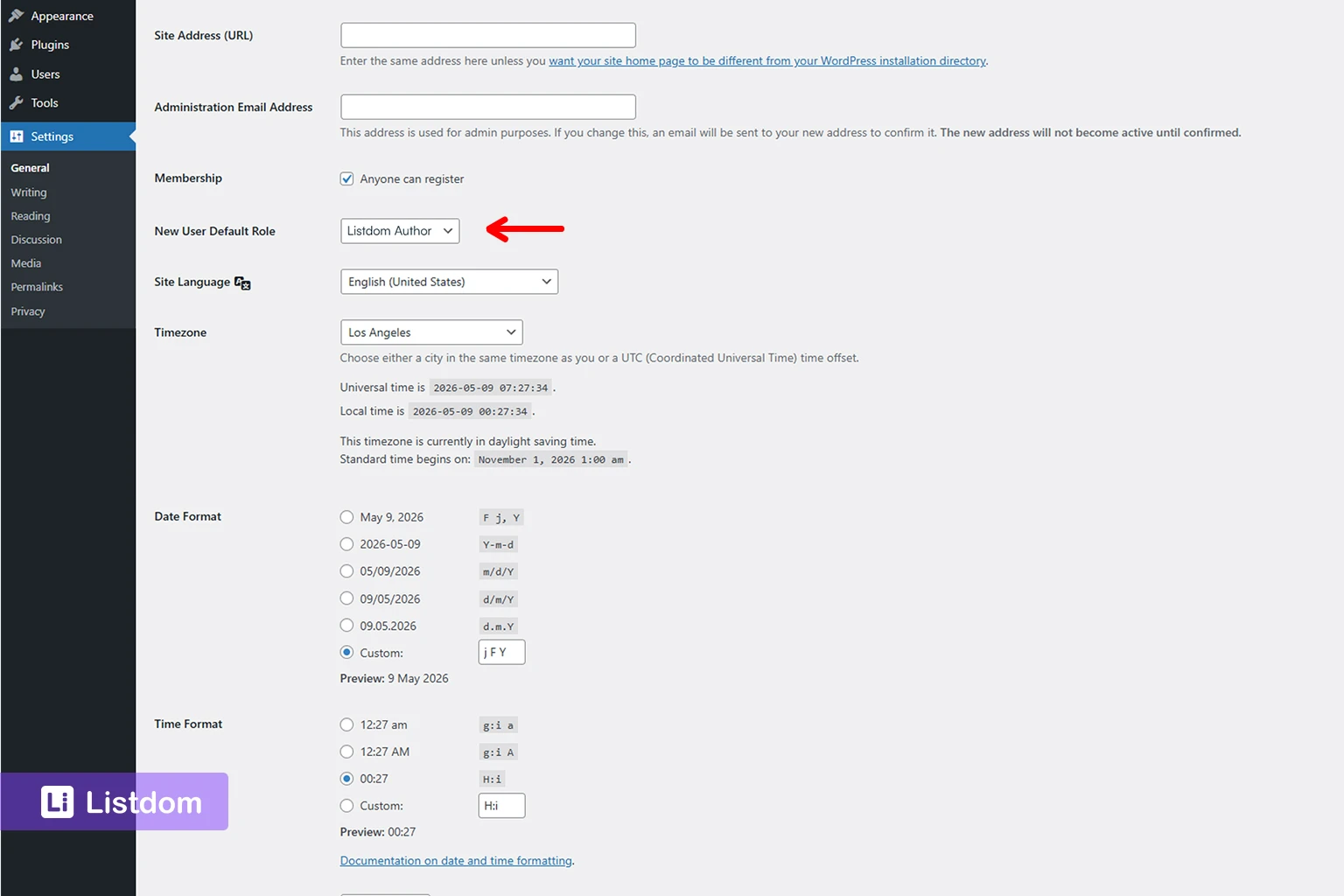
If your site allows user registration, this matters early.
Go to:
Settings → General
Then review the New User Default Role.
This is important because if new users are being created through your Listdom registration flow, but WordPress is assigning the wrong default role, the submission experience can break immediately.
3. Frontend Dashboard settings
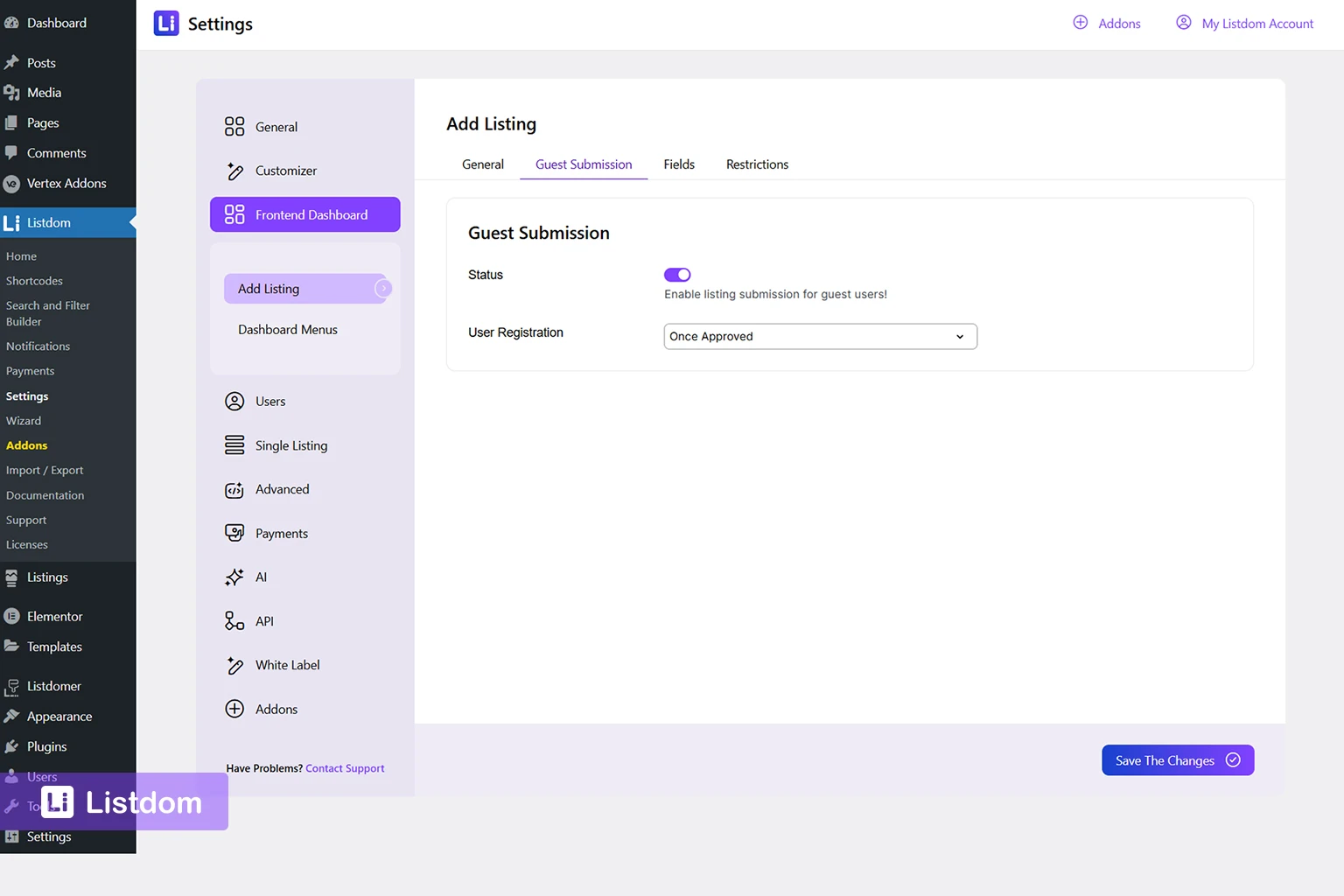
Go to:
Listdom → Settings → Frontend Dashboard
This layer affects the user-side submission workflow.
It does not replace roles, but it does decide how those roles actually experience submission on the front end. In practice, this is where permissions become visible to the user. A role may technically be allowed to submit listings, but the dashboard flow still decides whether the user is pushed into login first, whether the add listing form can appear before login, whether the submission ends in pending review, and whether the flow uses a standalone add-listing page or the full dashboard. That is different from guest submission settings, which control what can happen before the person is logged in and should not be confused with the permissions of an already logged-in user role.
That is why this section matters for permissions, not only for form design.
The most important things to review here are:
- whether guest submission is enabled
- whether users are redirected into login first
- the default listing status for frontend submissions, meaning whether a new submission is normally published right away or held for review
- whether the Add Listing workflow depends on dashboard or separate-page logic
If you need the broader dashboard-side workflow first, see How the Listdom Frontend Dashboard Works and How to Configure the Add Listing Form in Listdom.
4. Users settings inside Listdom
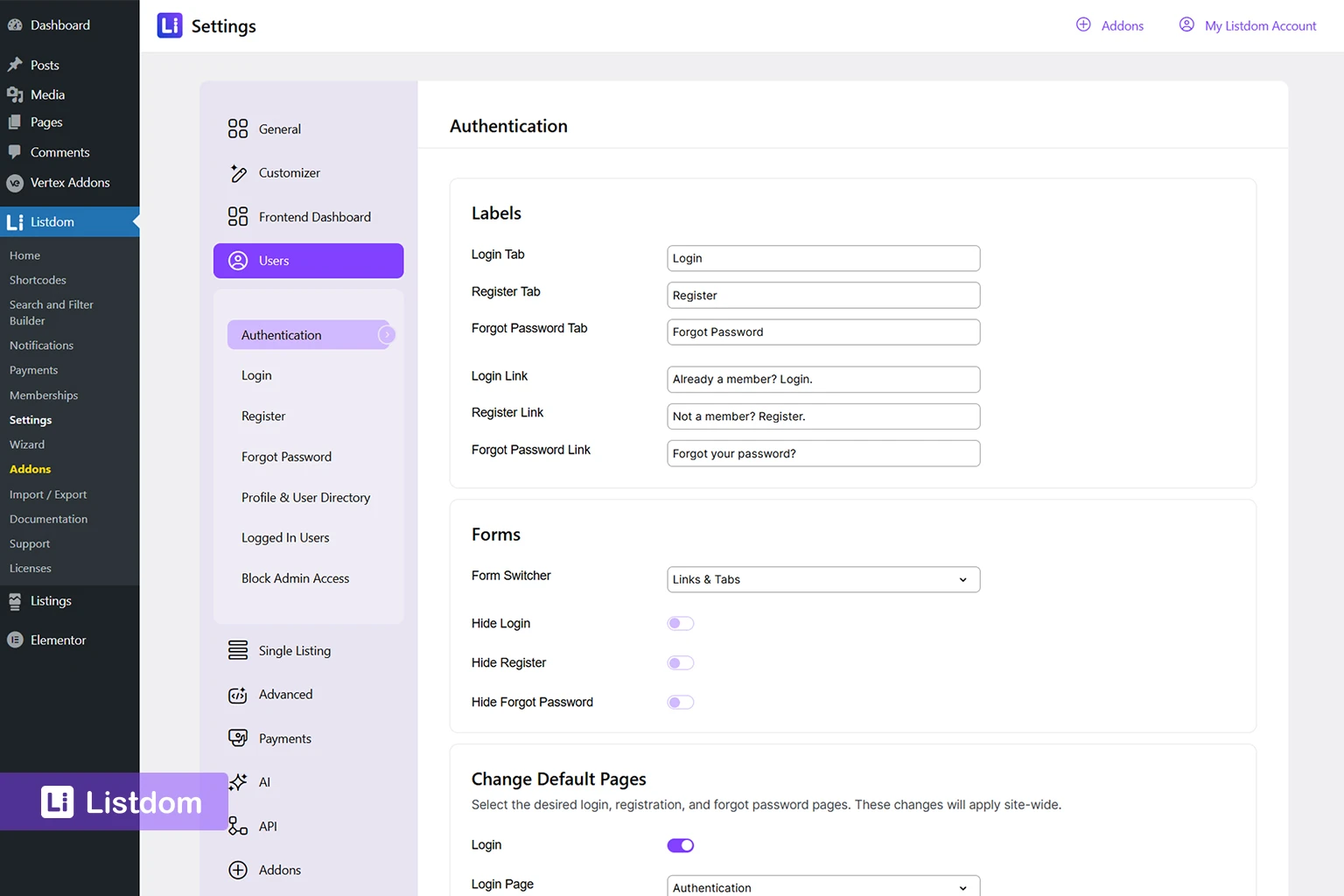
Go to:
Listdom → Settings → Users
This is where the broader account behavior is shaped.
This area can affect things like:
- authentication pages
- auto login after registration
- redirect pages by role
- account URL
- logout redirect
- blocking selected roles from wp-admin
That means permissions are not only about adding listings. They also affect where users land, how they authenticate, and whether they stay on the front end or can enter admin.
This is especially important on sites where the user journey should stay almost entirely on the front end. In those projects, a role decision is not complete until you also decide where that role should log in, where it should be redirected after registration, and whether it should ever reach wp-admin at all.
If you need the full access-flow side, see How Listdom Login, Registration, and Access Flow Work. That article is the best match here because this part of the workflow is really about authentication, redirects, and who is allowed to move between front-end and admin areas.
5. Membership package rules
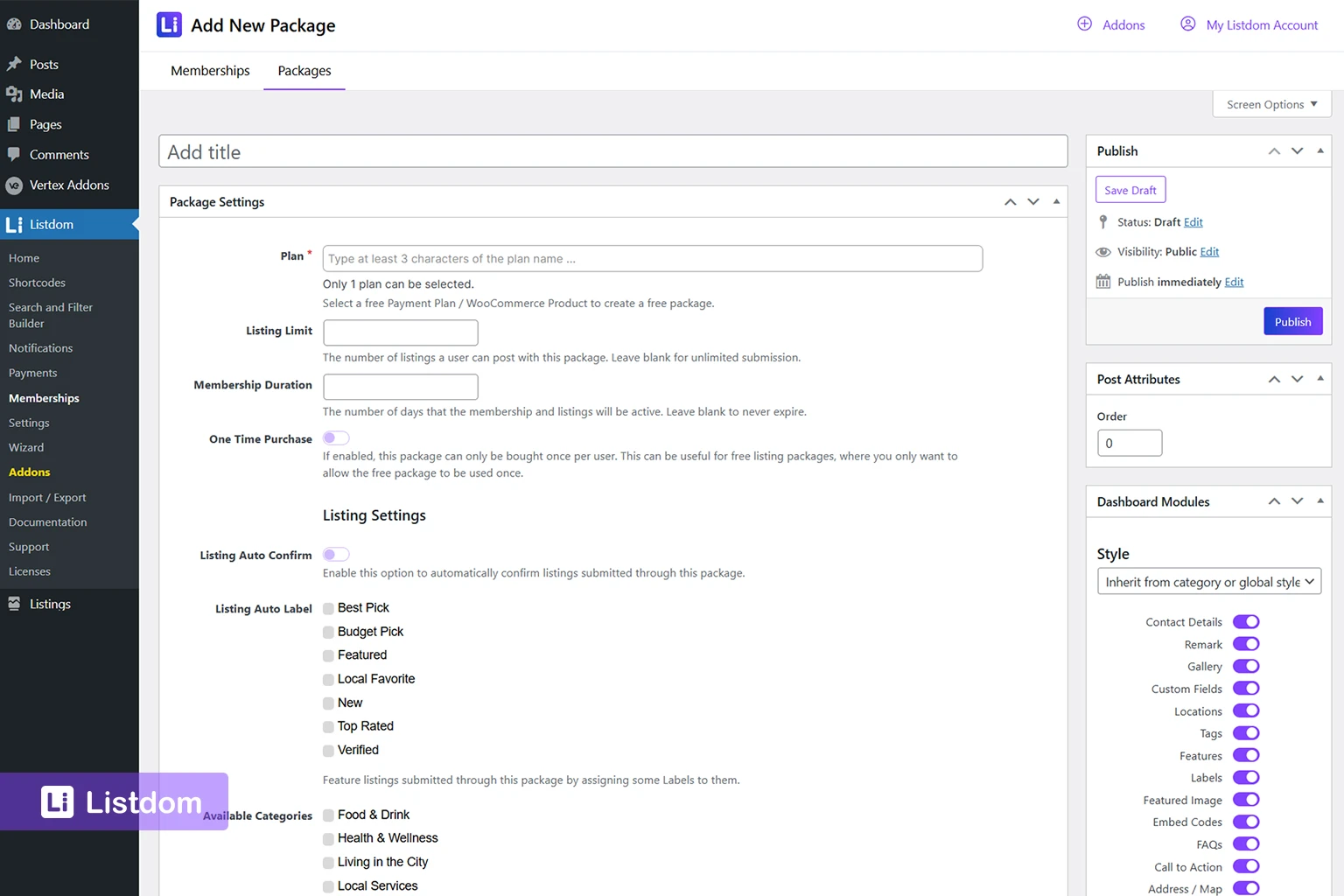
If the Membership add-on is active, permission logic can become more layered.
A package may affect:
- whether the user can submit at all
- whether package purchase is required before submission
- whether the package auto-confirms the listing
- which modules or elements are available during submission
So in a paid directory, a permission issue may not be only a role issue. It may also be a package issue.
This matters because a role may give the user a baseline permission level, but the package can still narrow or expand what that user can actually do in the submission workflow. In real projects, this is one of the easiest ways permission behavior starts looking inconsistent.
If that layer matters, see How Listdom Membership Packages Work.
The most common permission outcomes in Listdom
A practical way to understand this topic is to think in outcomes.
Outcome 1: the user can add a listing and it publishes immediately
This usually happens when:
- the user has a trusted role such as Listdom Publisher
- the moderation setup allows immediate publishing
- package rules are not forcing a different outcome
This is a good fit when speed matters and the users are trusted.
Outcome 2: the user can add a listing but it stays pending
This usually happens when:
- the user has Listdom Author
- the default status is Pending or compatible moderation logic is active
- the site wants review before publication
This is a good fit when quality control matters more than speed.
Outcome 3: the user reaches the dashboard but cannot add a listing
This is one of the most frustrating permission problems.
When that happens, the likely causes are:
- the user has the wrong role
- the default role for new users is wrong
- the membership/package requirement is blocking the workflow
- the dashboard is configured, but the user does not have the right permission level
The official permission-error troubleshooting guide points to role mismatch as the main cause and recommends assigning Listdom Author or Listdom Publisher.
Outcome 4: the user can submit, but the result is different from another user
This usually means one of these is different:
- the user role
- the moderation logic
- whether the listing was submitted before login through the guest-submission path or by an already logged-in user
- the package attached to the account
This is why debugging permissions should always compare both users, not only one setting screen.
How roles and moderation work together
Roles do not work in isolation.
They interact with moderation.
A simple way to think about it is:
- role influences the level of trust
- moderation settings influence the default publishing behavior after submission, such as whether a listing goes live immediately or stays pending for review
- package settings may override the expected result in some membership setups
In practice, this means a role is rarely the whole answer by itself. A site owner may assign the correct role and still feel confused later because the listing status, guest-submission path, or package behavior changes the final outcome.
That is why this article connects naturally to How to Moderate and Approve Listings in Listdom.
If you are troubleshooting whether a listing should publish or stay pending, always compare the role side with the moderation side.
Higher WordPress roles: when they help and when to be careful
You can also use higher built-in WordPress roles such as:
- Author
- Editor
- Administrator
But these should be used carefully.
The official troubleshooting docs note that higher roles can work, but they also grant broader access than the Listdom-specific roles.
That means:
- they may solve a permission block
- but they may also give users more admin-side access than you actually want
A good practical rule is:
- use Listdom Author and Listdom Publisher when you want cleaner directory-specific permissions
- use broader WordPress roles only when the user really needs broader site-management access
How blocked wp-admin access changes the permission model
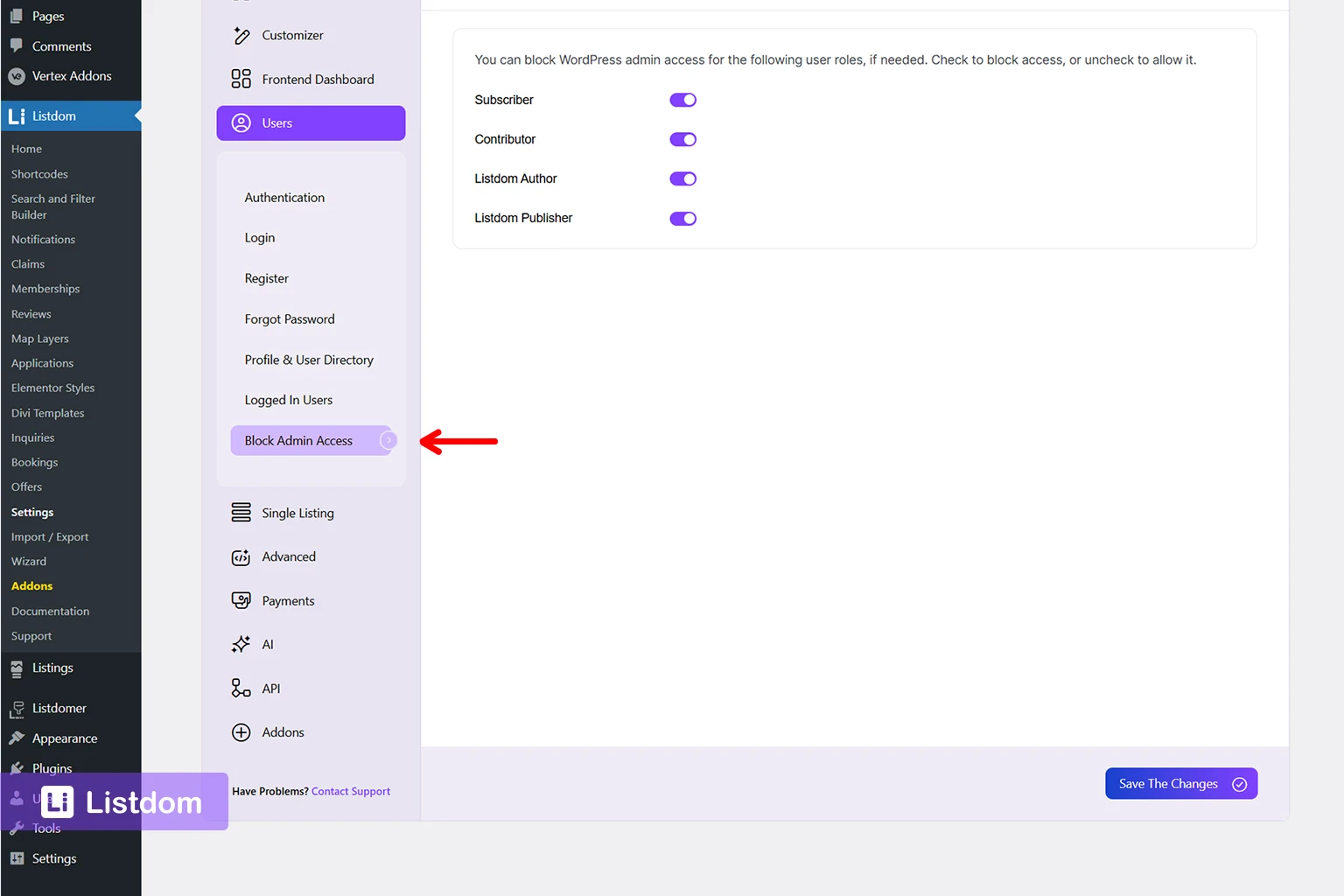
This is easy to miss.
If you block selected roles from entering wp-admin, then your Frontend Dashboard must be complete enough for those users to do what they need.
That means you should think about permissions in two layers:
- what the user is allowed to do
- where the user is allowed to do it
A role may be able to manage listings, but if wp-admin is blocked, the dashboard must carry that workflow properly.
This changes the practical meaning of a role. On a site with blocked admin access, a role is not just a permission label. It is also part of a front-end-only workflow design. If that workflow is incomplete, the role may look correct on paper while still failing in real use.
This is another reason why role planning and dashboard planning should not be separated. If blocked admin access is part of your setup, compare this section with How Listdom Login, Registration, and Access Flow Work because the permission model is tied closely to where the user is allowed to authenticate and continue the workflow.
A practical troubleshooting order
If a user cannot add a listing or gets the wrong permission behavior, check these in order:
1. Check the user role
Go to:
Users → All Users
Confirm whether the user is:
- Listdom Author
- Listdom Publisher
- another WordPress role
2. Check the default role for new registrations
Go to:
Settings → General
Review New User Default Role.
3. Check the Frontend Dashboard workflow
Go to:
Listdom → Settings → Frontend Dashboard
Review guest submission, listing status, and Add Listing behavior. This is the place to confirm whether the permission issue is really a role issue or whether the submission workflow itself is changing what the user experiences.
4. Check Users settings
Go to:
Listdom → Settings → Users
Review redirects, authentication behavior, and blocked admin access.
5. Check package requirements if memberships are active
Go to:
Listdom → Memberships
Review whether the user is being stopped because package ownership or package permissions are missing.
6. Test with a real non-admin account
Do not assume the admin experience reflects the real user experience.
This order usually reveals permission issues much faster than guessing.
What permission model makes sense for different site types
Open community directory
A good default is often:
- Listdom Author for most users
- moderation active
- stronger review before publication
This protects quality.
Curated business directory
A good model is often:
- account-based submission
- Listdom Author by default
- Publisher only for trusted partners or staff
This balances control and usability.
Paid package-based directory
A good model is often:
- login or registration required
- package required before submission or before advanced rights
- Listdom Author for standard paid users unless the business model specifically rewards direct publishing
This keeps billing, ownership, and moderation aligned.
Staff-managed or internal directory
A good model is often:
- trusted staff as Publisher or higher role
- little or no manual moderation needed
- dashboard or admin workflow chosen based on who manages the site
Common beginner mistakes
Assuming roles alone solve everything
They do not.
Roles, dashboard settings, moderation, and memberships can all influence the final outcome.
Giving users a higher WordPress role just to fix one permission problem
That may solve the issue, but it can also create much broader access than intended.
Forgetting the default role for new users
A registration flow is only as good as the role users receive afterward.
Blocking wp-admin before the Frontend Dashboard is ready
If the front-end workflow is incomplete, blocked admin access can create new frustration.
Testing only as admin
This hides too many real permission problems.
What to configure first
A practical beginner order looks like this:
- decide whether most users should publish directly or go through review
- choose Listdom Author or Listdom Publisher as the right default direction
- set the correct new-user default role in Settings → General
- review Frontend Dashboard submission behavior
- review Users settings for redirects and blocked admin access
- if memberships are active, decide whether packages add another permission layer
- test with real non-admin accounts
That gives you a much cleaner permission model from the start.
What to learn next
Once roles and permissions are clear, the best follow-up topics are:
- How to Moderate and Approve Listings in Listdom
- How the Listdom Frontend Dashboard Works
- How Listdom Login, Registration, and Access Flow Work
- How to Configure the Add Listing Form in Listdom
These topics help connect permissions, submission, moderation, and user journey.
Final thoughts
User roles in Listdom are not just technical labels.
They are part of the submission design.
If you choose the right role model early, your directory becomes easier to moderate, easier to manage, and much clearer for users.
The key is not only asking:
- which role should this user have?
It is also asking:
- what should happen after this user submits a listing?
Once you answer both, permissions become much easier to configure.
FAQ
What is the difference between Listdom Author and Listdom Publisher?
Listdom Author is better when listings should usually stay pending for review. Listdom Publisher is better when listings can publish directly without review.
Why does a user see “You do not have permission to add a listing”?
The most likely cause is that the user does not have the right role for frontend submission. The official frontend permission troubleshooting guide recommends assigning Listdom Author or Listdom Publisher and checking the default role for new users.
Where do I assign the right role to a user?
In Users → All Users inside WordPress admin.
Where do I set the default role for new users?
In Settings → General in WordPress.
Can memberships affect permissions too?
Yes. In paid or package-based directories, memberships can add another layer that affects whether the user can submit or what happens after submission.
Should I use higher WordPress roles instead of the Listdom roles?
Only when the user genuinely needs broader site-management access. Otherwise, Listdom Author and Listdom Publisher are usually safer and cleaner choices.