Before getting into the steps, it helps to understand lightbox in WordPress. This guide explains the topic in practical terms and connects it to the decisions, setup, or Listdom workflow covered below.

Before getting into the steps, it helps to understand lightbox in WordPress. This guide explains the topic in practical terms and connects it to the decisions, setup, or Listdom workflow covered below.
Lightbox in WordPress
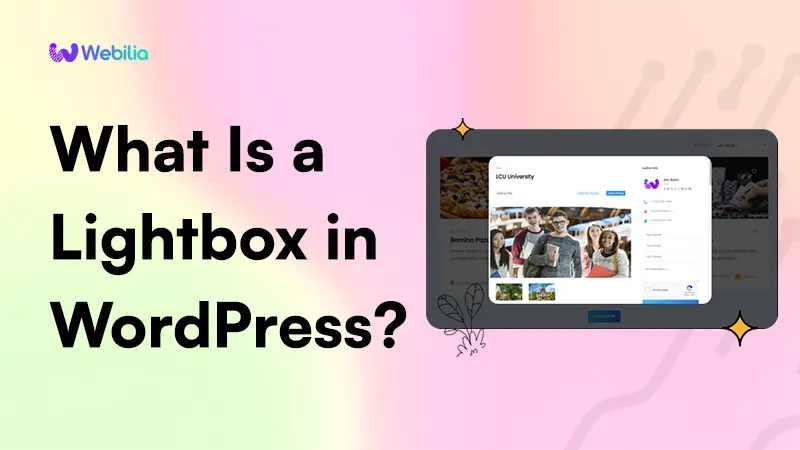
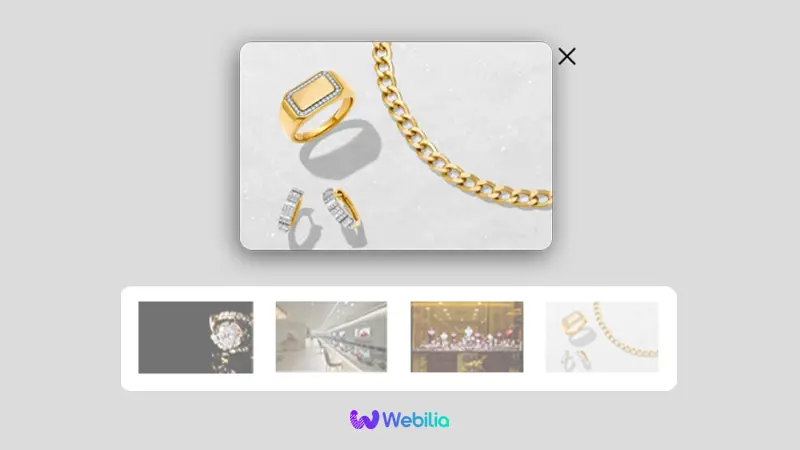
A lightbox is essentially a modal window that opens on top of the current page, dimming the background to focus on the content within the overlay. This approach is highly effective for showcasing media or detailed information without making a bad user experience.
Benefits of Using a Lightbox
- Enhanced User Experience: By displaying content in a lightbox, users can quickly view details and return to their previous position on the page, enhancing the overall user experience.
- Keeps Users Engaged: Since users do not navigate away from the current page, they are more likely to stay engaged with your content.
- Versatile Presentation: Lightboxes can display a variety of content types, including images, videos, forms, and more, making them a versatile tool for any website.

Implementing a Lightbox in WordPress
WordPress offers several plugins and built-in features to add lightbox functionality to your site. One of the notable plugins that utilize this feature is Listdom, which is a WordPress directory plugin that allows listing details to be displayed in a lightbox. Here’s a step-by-step guide on how to implement lightboxes using Listdom and some more WordPress plugins:
Step 1: Choose a Lightbox Plugin
There are numerous plugins available for adding lightbox functionality to your WordPress site. Some popular options include:
- Simple Lightbox: Simple Lightbox is a very simple and customizable lightbox that is easy to add to your WordPress website.
- Easy FancyBox: Easy FancyBox adds a lightweight and flexible lightbox for viewing images, videos, and other media on your website.
- Listdom: Specifically for directory websites, Listdom adds a lightbox in WordPress to display the listing details without redirecting users to another page. Listdom also uses the lightbox in WordPress to display the listings gallery images.
Step 2: Install and Activate the Plugin
- Navigate to your WordPress dashboard.
- Go to Plugins > Add New.
- Search for your chosen lightbox plugin (e.g., Listdom).
- Click Install Now and then Activate.
Step 3: Configure the Plugin Settings to make a Lightbox in WordPress
Once activated, configure the plugin settings to suit your needs.
Listdom’s Lightbox Feature for Directory Listings
With Listdom, you can enable the lightbox feature for listing details in the plugin’s shortcodes settings. Listdom, a powerful WordPress listing plugin, includes a lightbox feature that enhances how users interact with listings. Instead of redirecting users to a separate page, clicking on a listing opens a detailed view in a lightbox. This feature is particularly useful for maintaining user engagement and providing a seamless browsing experience using the lightbox in WordPress.
For a detailed guide on how to build a directory website with WordPress using Listdom, check out this comprehensive tutorial.

How to Enable Lightbox in Listdom Shortcodes
- Install and activate Listdom if you haven’t already.
- Create a new shortcode using skins like side-by-side or grid.
- Enable the lightbox option for listing links in the shortcode settings.
- Save your changes and test the functionality.
Learn more about showing listing details in a lightbox.
Enhancing Your Directory with Listdom
By incorporating Listdom’s lightbox feature, you can significantly improve the user experience on your directory website. Users can view detailed information about listings without navigating away from the main page, making it easier and more intuitive to browse multiple listings.
Key Features of Listdom’s Lightbox
- Quick Access: Users can quickly access detailed information about listings.
- Seamless Browsing: Enhances the browsing experience by keeping users on the same page.
- Improved Engagement: Reduces page load times and keeps users engaged with your content.
Additional Tips for Using a Lightbox in WordPress
To get the most out of lightboxes, consider the following tips:
- Optimize Images: Ensure that images and media displayed in the lightbox are optimized for fast loading. Try using compression sites like CompressJPEG to reduce the image size.
- Mobile-Friendly: Make sure the lightbox plugin you choose is responsive and works well on mobile devices.
- Customization: Customize the lightbox to match your site’s design and branding.
Conclusion
Using a lightbox in WordPress, especially with a versatile plugin like Listdom, can transform how content is displayed on your website. Whether you’re running a directory site, portfolio, or e-commerce store, lightboxes optimize user engagement and provide a more streamlined browsing experience. By enabling the lightbox feature in Listdom, you can offer your users a seamless and interactive way to view listing details, ultimately improving the overall functionality and appeal of your directory website.