
A useful WordPress job board connects a clearly described opportunity with an application the right employer can review. The Listdom Jobs Addon adds that application workflow to Listdom listings, including contact information, supported file uploads, and views for received and submitted applications.
Start with one job and two test accounts: the listing owner who receives applications and the applicant who submits one. Build their complete journey before adding a large collection of vacancies. This guide explains the setup decisions, the application controls, and the checks that make the board understandable to both sides.
Choose what counts as a job listing
A directory can contain only jobs or combine employment opportunities with other listing types. The difference matters because a café profile, a company profile, and a vacancy should not automatically present the same Apply Now action.
Under Listdom → Settings → Addons → Jobs, review Job Category. Selecting a category scopes the job workflow to that part of the directory. Leaving it blank treats all listings as jobs. Choose deliberately rather than enabling applications across unrelated records by accident.
Write down the intended structure. A local opportunities directory might use a Jobs category with clear subcategories and location assignments. Avoid using categories simultaneously for unrelated meanings such as job role, city, and employer account status.
For the underlying relationships, read how listings, categories, and locations work. A consistent data model improves browsing before any application is submitted.
Prepare an opportunity worth applying to
Install and activate Listdom and the Listdom Jobs Addon. Create one representative listing under Listings → Add New, or use Listdom → Listings when Compact Menu is enabled.
Give the job a specific title and a useful description. Explain the role, responsibilities, essential requirements, location or remote arrangement, and how the application will be reviewed. Use appropriate fields for details that visitors need to compare consistently.
Separate the employer’s claims from facts the directory independently checks. Publishing a vacancy does not certify the employer, guarantee a response, or establish that a job remains open indefinitely. Give the directory a way to handle corrections and outdated opportunities.
Assign the intended listing owner and test their management access. An administrator-created record does not automatically belong to the employer who later wants to receive its applications.
Decide whether applicants need an account
Use Guest Application to choose whether signed-out visitors can apply. Requiring an account and permitting guest applications create different journeys, so test the one your audience will actually encounter.
An account can give a candidate a place to review submitted applications through the supported personal view. A guest submission should not be advertised as automatically creating an account or providing an account history unless that separate behavior is configured and verified.
Make the requirement clear before a person starts writing a long application. If login is necessary, explain where to sign in and ensure the return journey leads back to the relevant job.
Keep access design proportionate to the task. The login and registration guide helps connect authentication, dashboard access, and the destination page without giving applicants unnecessary administration access.
Configure uploads and application limits
In the Jobs settings, review Allowed File Extensions for résumé or supporting-file uploads. Choose the formats your team can receive and review. A filename extension is not a reason to treat an uploaded file as trustworthy; retain the normal platform protections and controlled access to application material.
Give candidates plain instructions about what to attach. A form that accepts several formats still needs a useful description of the requested document. Avoid asking for sensitive information that is unnecessary for the application stage.
Application Limit controls how many applications a user can submit within the configured period. Limit Method distinguishes the current calendar month from the past 30 days. Those are different policies: a month boundary and a rolling window can produce different eligibility for the same candidate.
Explain the chosen policy near the journey if it materially affects applicants. Do not assume that a limit measured per user is a verified identity-wide restriction across guests or multiple accounts. Test the account types you actually allow before describing enforcement.
The Job Modules controls can remove irrelevant listing input for job records. Simplifying the form helps employers focus on useful vacancy information, but check that a needed field has not been disabled merely because it was optional for another directory type.
Place the Apply Now element
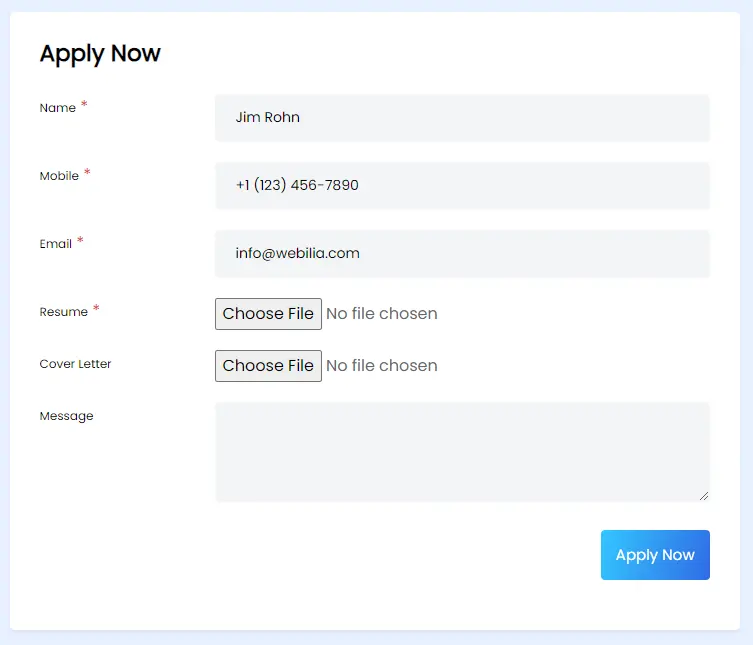
Open Listdom → Settings → Single Listing and enable the Apply Now element in the active listing layout. The saved job category and the public output must work together: configuring one without the other does not establish a usable application page.
If a custom builder template controls the listing, inspect its supported job output and listing context. Test a real public job rather than assuming a successful builder preview proves the published template has the same data and permissions.
The add-on’s native WordPress blocks offer another way to place the configured workflow. They do not replace the job-category, upload, or access settings. If several forms appear on a page, verify each form independently.
Open the job while signed out and with a normal candidate account. Confirm which experience appears, where the form sits, and whether the opportunity remains readable on mobile. The visitor should understand the job before being asked to provide personal information.
Build separate employer and applicant views
The shortcode [listdom-manage-applications] provides a view for listing owners to review applications received for their jobs. The shortcode [listdom-my-applications] shows applications submitted by the current applicant.
Place them on appropriate WordPress pages or within the supported dashboard arrangement, then name the pages clearly. “Received applications” and “My applications” describe different responsibilities; using the same ambiguous label makes access problems harder to diagnose.
Test with two ordinary accounts. The employer should see applications associated with the jobs they own. The candidate should see their submitted application in the applicable personal view. Neither successful view proves that every other user can or should see the same records.
If the employer sees nothing, first verify the listing ownership, the saved application, and the correct management view. Giving the employer administrator access is not a suitable substitute for understanding a page or ownership mismatch.
Walk through one complete application
Use a staging vacancy with clearly illustrative data. For example, create a part-time museum-guide opportunity with a known location, two required skills, and a short explanation of the review process. Use a test résumé rather than a real candidate’s personal document.
As the applicant, open the public job, enter the required information, attach an allowed test file, and submit. Record the confirmation and verify the saved application from the owner’s account. Then reopen the applicant’s personal application view.
Check that the application refers to the museum-guide vacancy and arrives at the intended owner. A success message proves less than the agreement between the submitted details, stored record, and both authorized views.
Repeat with an incomplete form and an unsupported attachment type through the normal validation flow. The error should explain what the person needs to correct. Avoid making repeated real submissions just to see whether an email eventually arrives.
This is a suggested acceptance exercise, not a claim that these tests have been performed on your site. Keep your own outcome record so an update can be compared with a known working baseline.
Test the limits before explaining them publicly
On staging, use a small application allowance that makes the boundary easy to reach. Submit the permitted number with the same test user, then attempt one more and inspect the result. Restore the intended policy afterward.
Record which limit method is active and what the message says. A calendar-month allowance should not be described as resetting exactly 30 days after each submission. Do not change the site date to force a test on a live system with other scheduled work.
Include the guest case if guests are allowed. Confirm how the configured experience behaves rather than assuming an authenticated-user rule covers every anonymous request in the same way.
Keep the policy useful to the directory. A limit may reduce repeated submissions but can also prevent a genuine candidate from applying to relevant opportunities. Choose it around the audience and operating model rather than treating the lowest number as automatically best.
Operate the review process and maintain the jobs
The add-on collects applications; someone still needs to review and respond to them. Decide which employer account owns that responsibility and what candidates should expect after submission. Avoid promising hiring outcomes or response times that the directory cannot deliver.
Keep résumé and contact information in the authorized application workflow rather than copying it into public listing content. Review the site’s privacy information and retention process for the actual material collected.
Give owners a procedure for correcting or withdrawing an outdated vacancy. A job that remains discoverable after recruitment ends can waste applicants’ time even if its application form technically works.
Measure useful outcomes separately: job-page visits, started applications, successfully saved applications, and employer follow-up are different events. Use the analytics actually available; do not call every page view an applicant or every application a hire.
Troubleshoot the layer that failed
If no form appears, check the job category, add-on activation, active Apply Now output, and template context. Compare the failing job with the controlled test listing before changing every page setting.
If a submission fails, record the validation message, guest or account state, attachment type, and application allowance. If it saves but an owner cannot see it, investigate the received-applications page and ownership. A candidate opening the owner’s view is not the same test as an employer opening it.
For a support case, use a test record and describe the exact path, expected result, and saved state. Keep personal documents and private contact details out of publicly shared evidence.
The Listdom Jobs documentation provides the settings and shortcode reference. A small complete implementation gives you a much stronger launch baseline than publishing hundreds of jobs before checking what an applicant and employer can actually do.
FAQ
Does the Jobs Addon replace Listdom?
No. It extends Listdom listings with the job-application workflow. Listdom remains the directory foundation.
Can I enable applications for only part of the directory?
Use Job Category to define the relevant job scope. Leaving it blank treats all listings as jobs, so verify the intended category behavior before launch.
Do all candidates need an account?
Guest Application controls signed-out applications. Test its actual behavior and describe any account-history features separately.
Which shortcode is for employers?
Use [listdom-manage-applications] for applications received by listing owners. [listdom-my-applications] is the current applicant’s own submitted-applications view.
Is Current Month the same as Past 30 Days?
No. One follows the calendar month; the other uses a rolling period. Choose and explain the policy you actually configure.
Does a saved application guarantee an employer response?
No. It establishes a submitted record. The employer’s review, communication, and hiring decision remain separate responsibilities.