What a single listing page is in Listdom
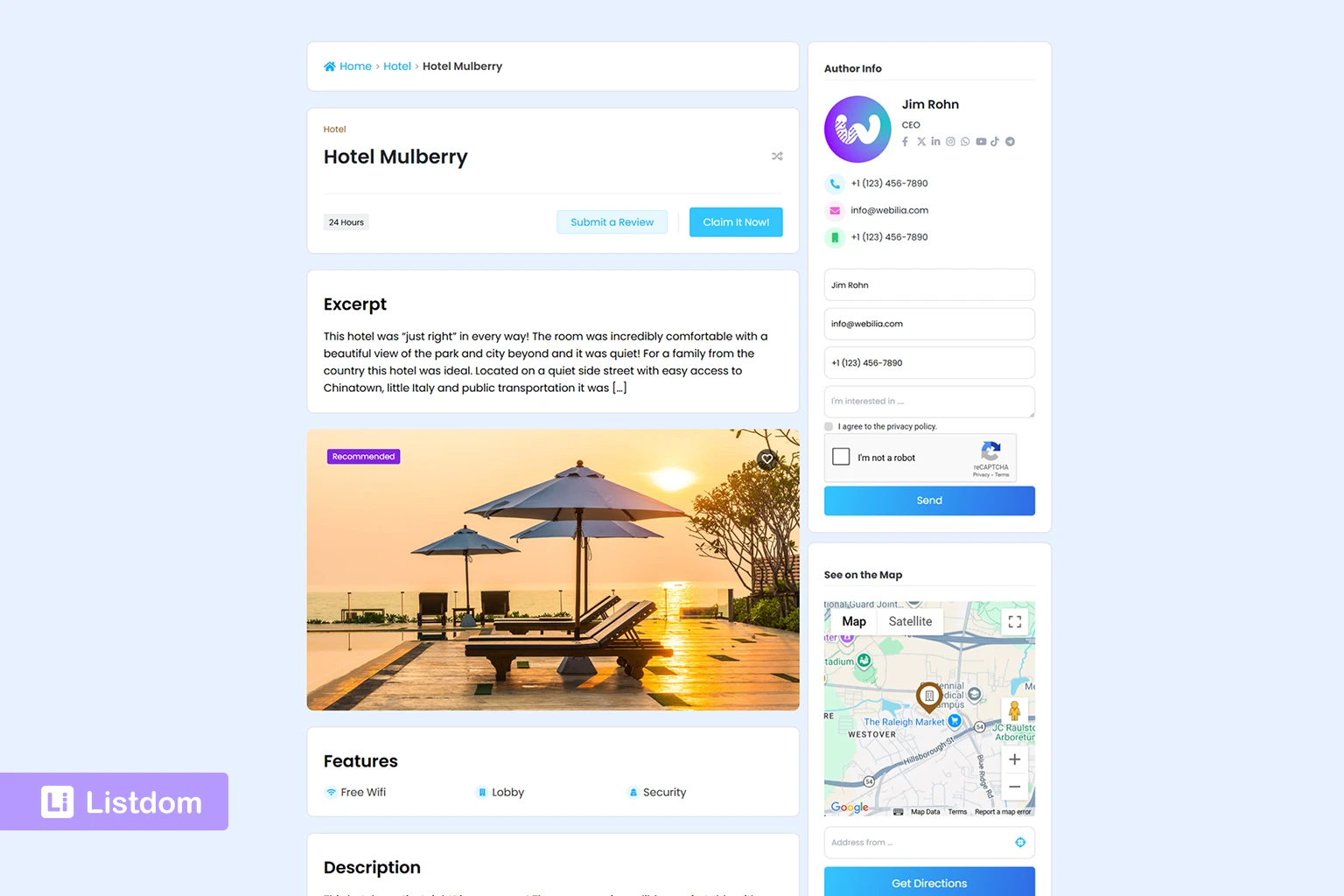
A single listing page is the detail page for one listing.
If a visitor clicks a business, property, service, place, or event from a listings view, this is the page they usually land on next.
It is the page that turns a listing from a small card or search result into a full information page.
For example, it may include things like:
- the listing title
- gallery or featured image
- address and map
- contact information
- description
- features and labels
- custom fields
- social links
- owner-related details
- actions like claim, report, share, booking, or inquiries, depending on the setup
So the single listing page is not just a layout. It is the full front-end experience of one listing.
One very important beginner point is this:
you do not need to create a separate page for the single listing page and place a shortcode inside it.
Listdom does not require a special single-listing shortcode that you insert manually into a page. The front-end page for each listing is created automatically when the listing is published.
That means the real question is usually not:
- where do I create the single listing page?
It is:
- how is the single listing page being shaped after the listing is published?
That distinction saves a lot of confusion, especially for users who are already familiar with shortcode-driven archive pages, search results, or builder-based landing pages.
Why the single listing page matters so much
A lot of directory owners spend time thinking about homepage design, listing grids, or search forms first.
Those are important.
But the single listing page is often where the real decision happens.
That is where users decide things like:
- Is this listing trustworthy?
- Does it have enough detail?
- Can I contact this business?
- Can I book, claim, visit, or act from here?
- Does this directory feel well-made or thin?
That is why this page deserves more attention than “whatever the plugin shows by default.”
The easiest mental model for understanding this page
If you only remember one thing, remember this:
A single listing page is usually shaped by three layers.
1. Listing data
This is the actual content stored in the listing itself.
Examples:
- title
- description
- images
- address
- phone number
- website
- categories and locations
- custom field values
2. Plugin features and settings
This is the behavior layer that decides which types of information or actions are available.
Examples:
- map behavior
- contact and social sections
- labels and features
- single listing settings
- add-on-related actions such as claim, booking, reports, or memberships
3. Layout or template control
This is the presentation layer.
It affects how the page is arranged, styled, or customized.
Examples:
- the single listing style
- single-page layout behavior
- builder or template tools when active
If you mix up these layers, the page quickly becomes confusing to manage.
What usually appears on the single listing page
The exact page can vary depending on your setup, but many single listing pages in Listdom include a combination of these sections:
- listing title
- image or gallery area
- categories and locations
- address and map
- contact details
- website or action links
- description or about section
- features
- labels
- custom fields or additional info
- share, report, or claim actions
- booking, inquiry, or other add-on actions when active
Not every page needs all of these.
That is one of the key beginner lessons.
A strong single listing page is not the one with the most blocks. It is the one that shows the right information clearly for that kind of listing.
Which parts come from the listing itself
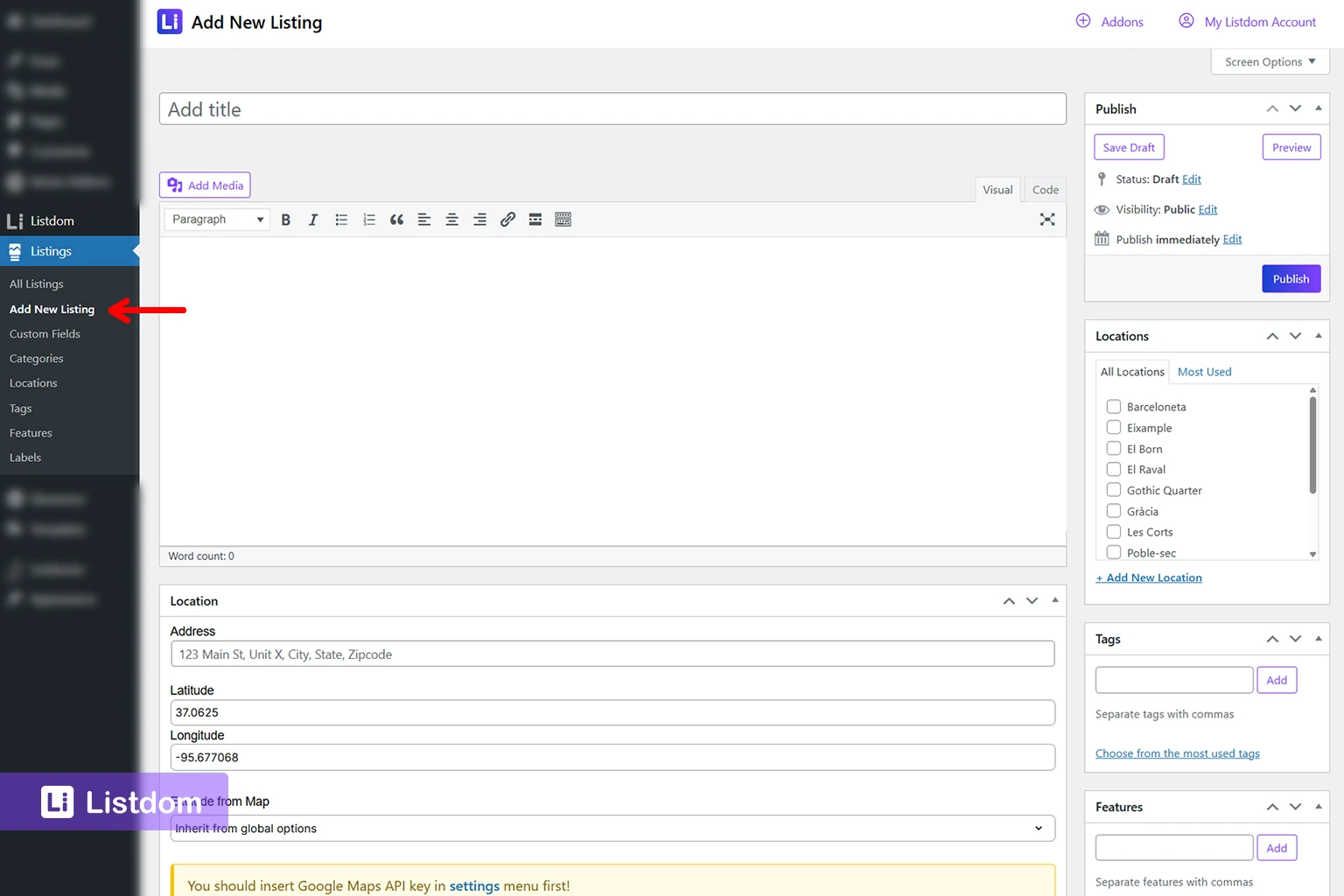
Many page elements come directly from the listing data.
That includes the content you enter when creating or editing a listing.
Examples:
- title
- description
- address
- images
- contact details
- selected category and location
- social links
- custom field values
So if something is missing from the page, the first question is often not “where is the design setting?”
The first question is:
Was the data added to the listing at all?
That is why understanding the listing structure matters before page customization.
If you need that foundation first, see:
- How to Create Your First Directory Listing with Listdom
- How Listings, Categories, and Locations Work in Listdom
- How Custom Fields Work in Listdom
Which parts come from settings

Some parts of the single listing page are not only about the data. They depend on Listdom settings.
For example, site-wide or function-specific settings may affect things like:
- map behavior
- listing-page style logic
- actions available on the page
- what is shown as part of the single listing experience
- add-on-related components that become available when features are active
That is why the single listing page is not controlled only from the listing editor.
Some page behavior belongs to the broader settings layer.
If you are still learning where those settings live, How Listdom Settings Work: Global, Shortcodes, Search, and Add-ons is the best companion article for that side of the workflow. And if you want the official setting-by-setting reference for the single listing page itself, see Listdom Single Listing Settings Documentation.
One important concept: an element can be controlled in more than one layer
This is one of the easiest things for new users to miss.
A section on the single listing page is not always controlled in only one place.
Depending on your setup, the same element may be affected by several layers such as:
- Global single listing settings
- Category-level rules
- Package-level rules
- Per-listing display options
- Frontend Dashboard restrictions for what users can fill in on submission
That means if something is missing, disabled, or visible only on certain listings, the answer may not be in one single screen.
A practical way to think about it is this:
Global
Use Listdom → Settings → Single Listing when you want to control an element for all listings by default.
In practice, the most important places inside that screen are:
- General for the overall style path such as pre-made styles, Design Builder, Elementor, or Divi
- Display Options for controls like Display Options Per Category, Display Options Per Package, and Display Options Per Listing
- Elements for turning individual sections on or off, such as Labels, Featured Image, Categories, Price, Tags, Custom Fields, Features, Contact Information, Locations, Address, Map, Working Hours, Owner box, Share buttons, Related Listings, Report Abuse, and more
This is the first place to check if a section is missing everywhere.
Category
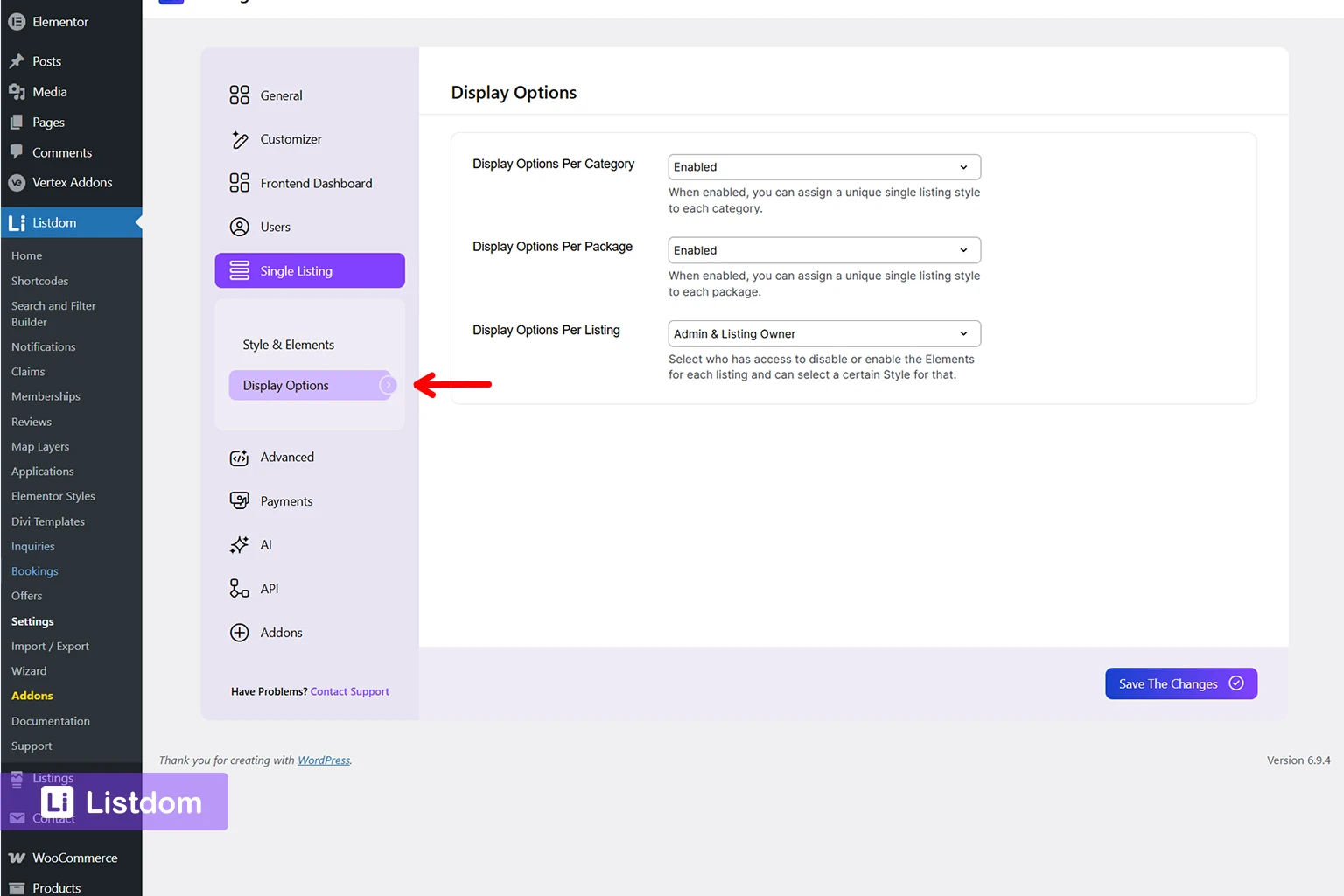
If you use Display Options Per Category or category-specific single listing controls, a category can override the broader default behavior for listings inside that category.
The practical path is usually:
- Go to Listdom → Settings → Single Listing → Display Options
- Enable Display Options Per Category
- Then edit the relevant category in Listings → Categories and review the category-level display options there
This is useful when one listing type needs a different detail-page experience than another.
Package
If you use the Membership addon, a package can also affect which elements are enabled or disabled for listings under that package.
The practical path is usually:
- Go to Listdom → Settings → Single Listing → Display Options
- Enable Display Options Per Package
- Then go to the Memberships area under Listdom and edit the relevant package to review its display-related controls
This is especially important in monetized directories where different plans unlock different listing capabilities.
Listing
If Display Options Per Listing is enabled, a specific listing can override the broader setup and show or hide parts of the page differently from the default.
The practical path is usually:
- Go to Listdom → Settings → Single Listing → Display Options
- Enable Display Options Per Listing
- Then edit the individual listing in Listings → All Listings and review its single-listing display options there
This is useful, but it also means a single listing page can look different for reasons that are not immediately obvious if you only check the global settings.
Frontend Dashboard submission restrictions
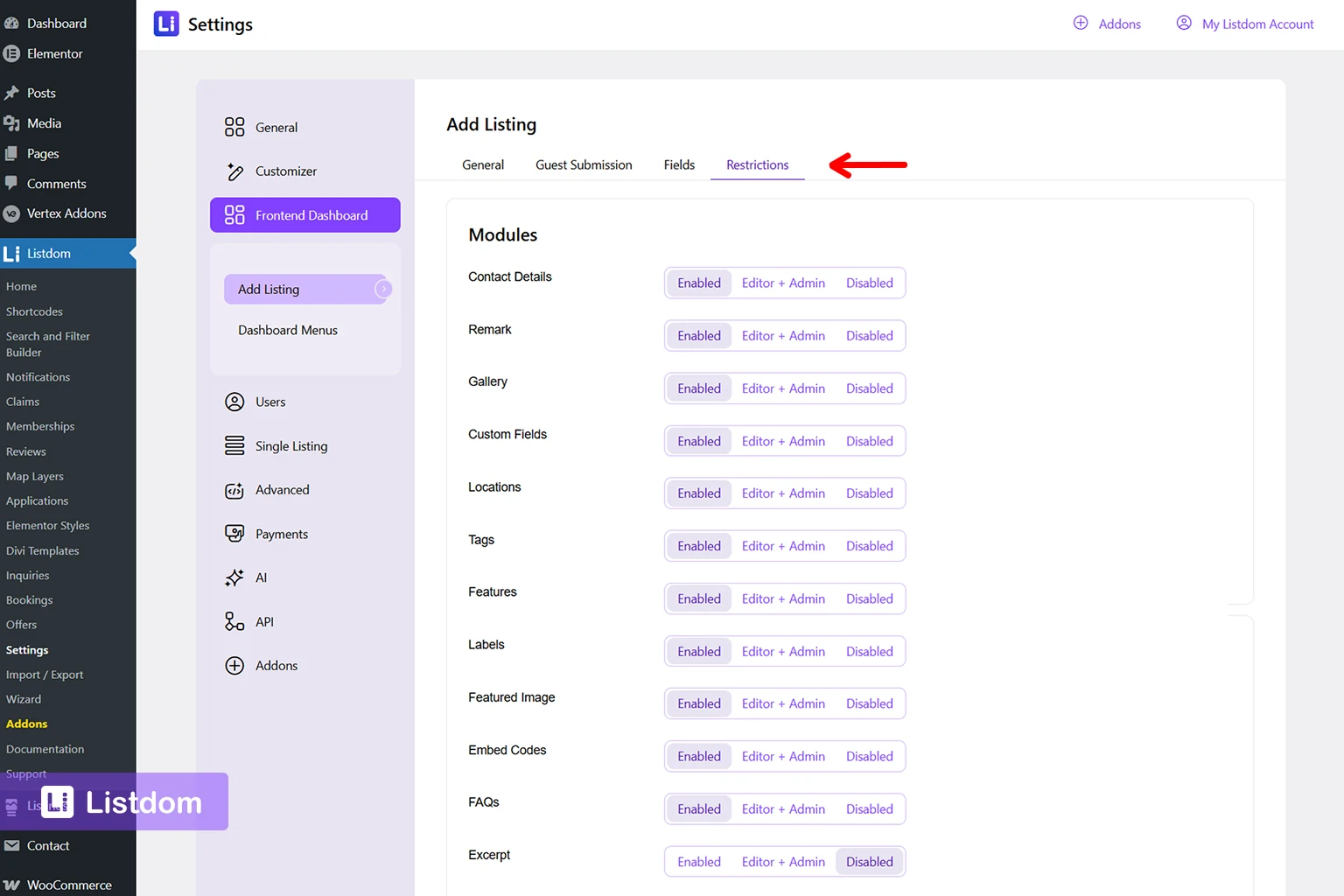
Some surprises actually begin earlier, at the submission stage.
If a field or section is disabled on the Add Listing form, users may never enter that data in the first place. In that case, the single listing page may look incomplete even though the display settings are technically correct.
The practical path is usually:
- Go to Listdom → Settings → Frontend Dashboard
- Review the Fields, Required Fields, Restrictions, and especially Modules sections
- Check whether the relevant module or field is enabled, restricted, or removed from the Add Listing form
So when something feels wrong on the page, remember to check both:
- whether the element is allowed to be shown
- whether the data was possible to submit in the first place
A very helpful official reference for this exact idea is How to Disable a Section on the Listings in Listdom. It explains how visibility can be controlled globally, per category, per listing, on the Frontend Dashboard, and per package. The Single Listing settings docs are also important here because they explain global element visibility and display options in more detail: Listdom Single Listing Settings Documentation.
This is one of the biggest reasons users get surprised by single listing pages. They change one setting and expect every listing to behave the same way, but another layer is still active somewhere else.
How custom fields affect the single listing page
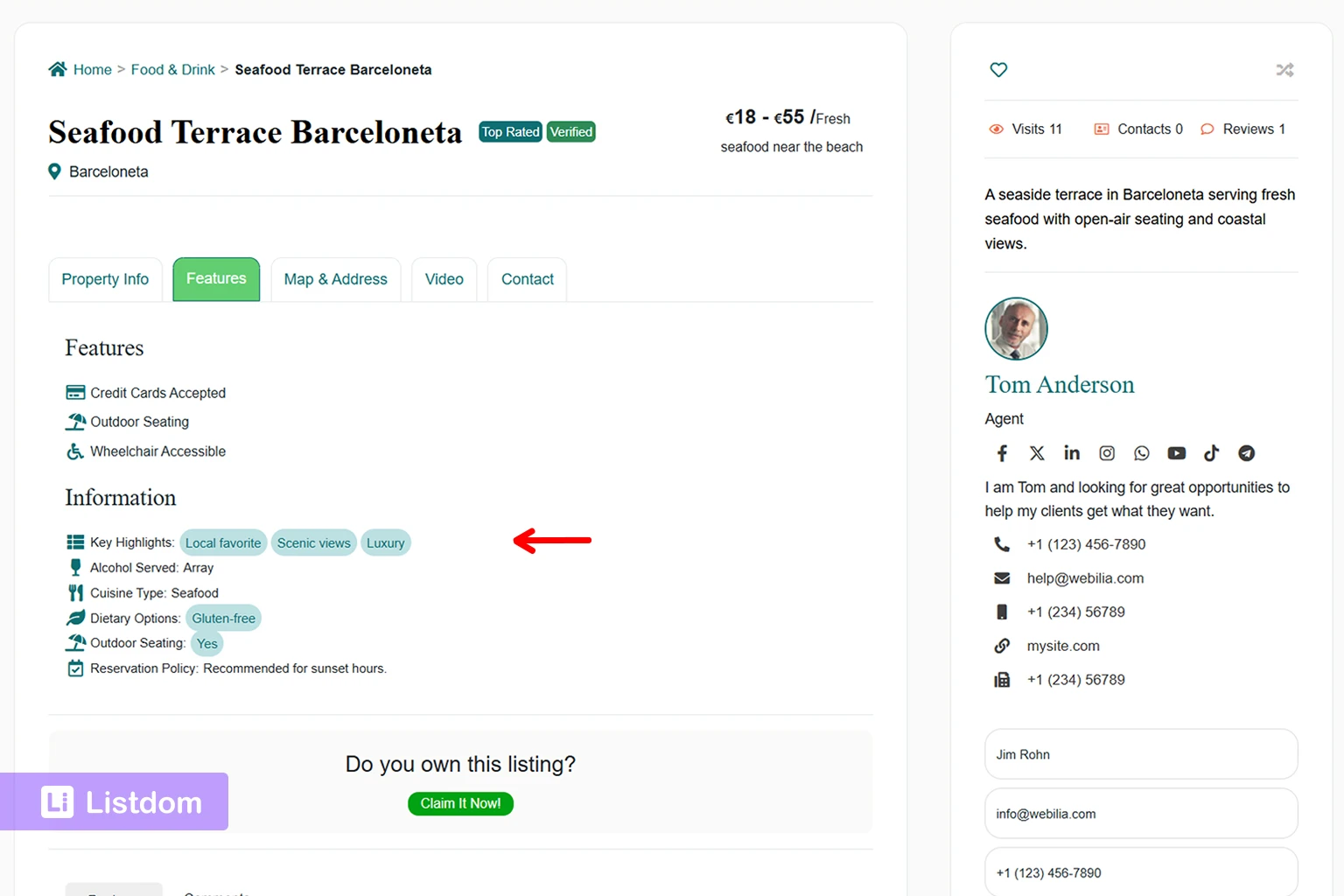
Custom fields are one of the most important ways to make a single listing page feel specific to your niche.
Without them, many directories feel too generic.
With them, the page can show the details users actually care about.
Examples:
- a restaurant listing showing reservation URL, cuisine type, and vegetarian options
- a real estate listing showing bedrooms, lot size, and year built
- a medical listing showing insurance support, languages, and appointment-related details
That is why custom fields are not just extra inputs. They often become one of the most useful parts of the final listing page.
If you are still designing those fields, How Custom Fields Work in Listdom is the best next step. For the official custom-field options and field-setting reference, see Listdom Custom Fields Documentation.
How features, labels, and locations fit on the page
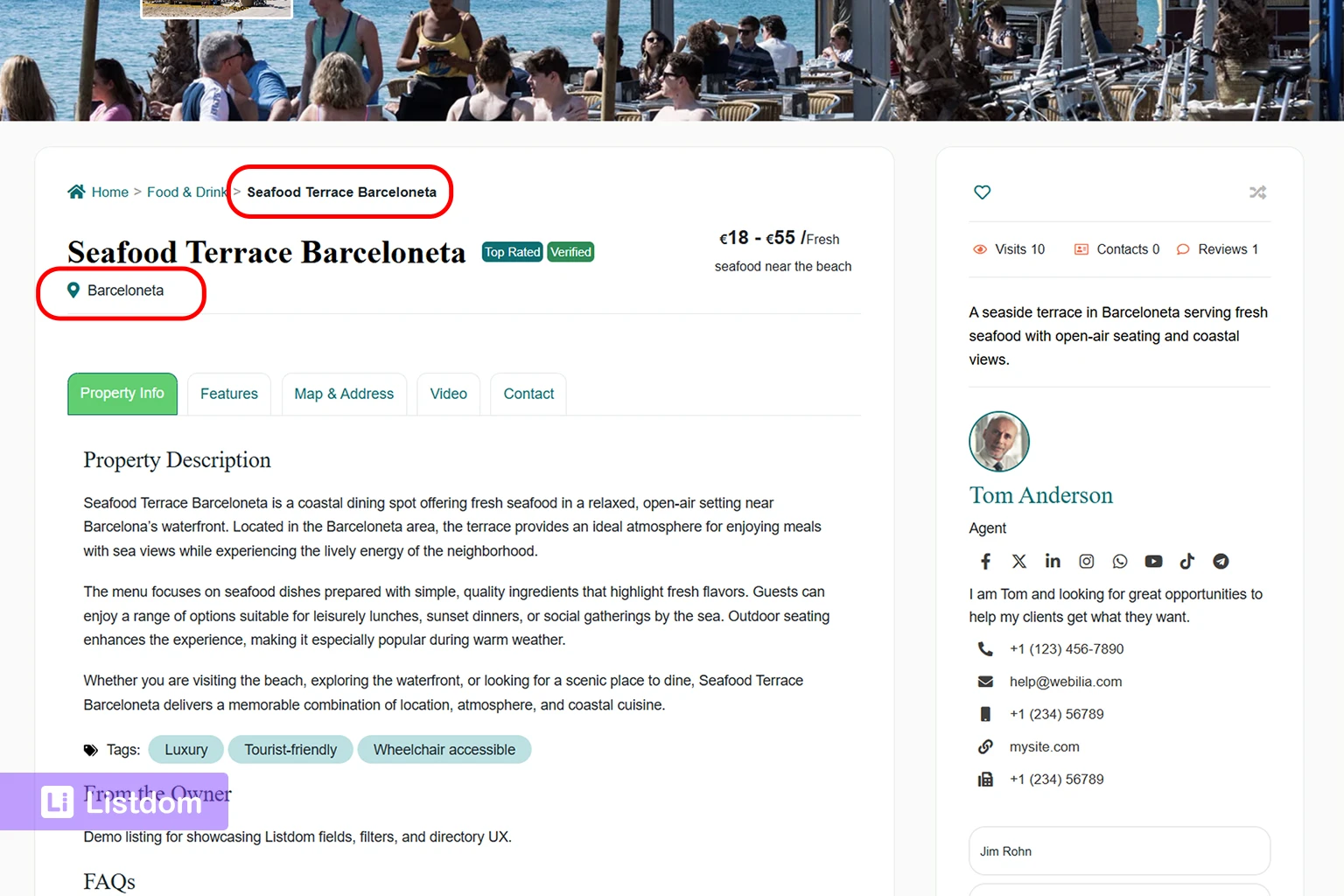
Single listing pages do not only show raw listing data.
They also show how that listing fits inside the broader directory structure.
Categories and locations
These help users understand what the listing is and where it belongs.
Features
These often help communicate useful attributes or capabilities at a glance.
Labels
These can add emphasis, trust, or monetization-related visibility, such as Featured or Verified-style presentation.
A strong listing page usually balances these elements instead of letting one of them do all the work.
How maps and contact actions fit on the page
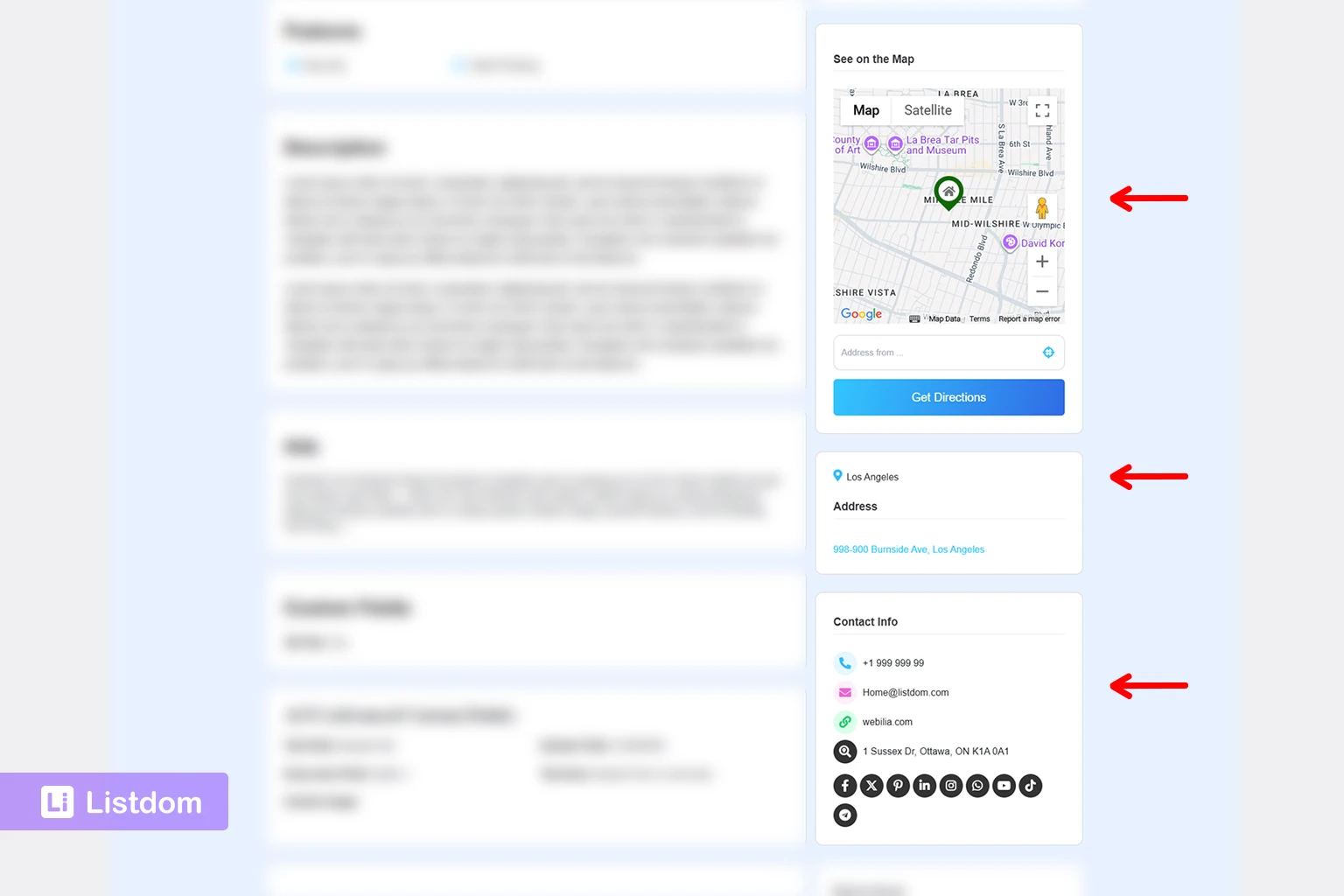
For many directories, this is where the single listing page becomes truly useful.
Maps and contact actions often turn a listing from “information” into “something the visitor can actually use.”
Depending on the site type, this may include:
- viewing the location on the map
- calling the business
- emailing the contact
- visiting the website
- opening directions
- booking or making an inquiry
These are often the sections that decide whether the page feels helpful in real life.
That is why it is worth thinking about the page from a visitor-action perspective, not only from a content perspective.
How builder or template tools change the page
This is where many beginners get confused.
They expect one universal single listing design setting.
In reality, the single listing page can become much more flexible when builder or template tools are active.
That means the page may be shaped by more than the default plugin behavior.
This matters because a beginner may see a highly customized single listing example and assume the same design should appear automatically everywhere.
Usually, it does not.
The more customized the listing page becomes, the more likely it is that template tools, builder integrations, or theme-level design decisions are involved.
So when you evaluate a single listing page, ask this first:
- am I looking at the standard plugin output?
- or am I looking at a builder/template-driven version?
That question saves a lot of confusion.
Listdom currently offers builder-focused support for Elementor, Divi, and Bricks, and each one can affect the single listing page in a slightly different way.
Elementor
Listdom includes an Elementor addon that lets you design single listing templates in more detail with Elementor-based widgets and template control.
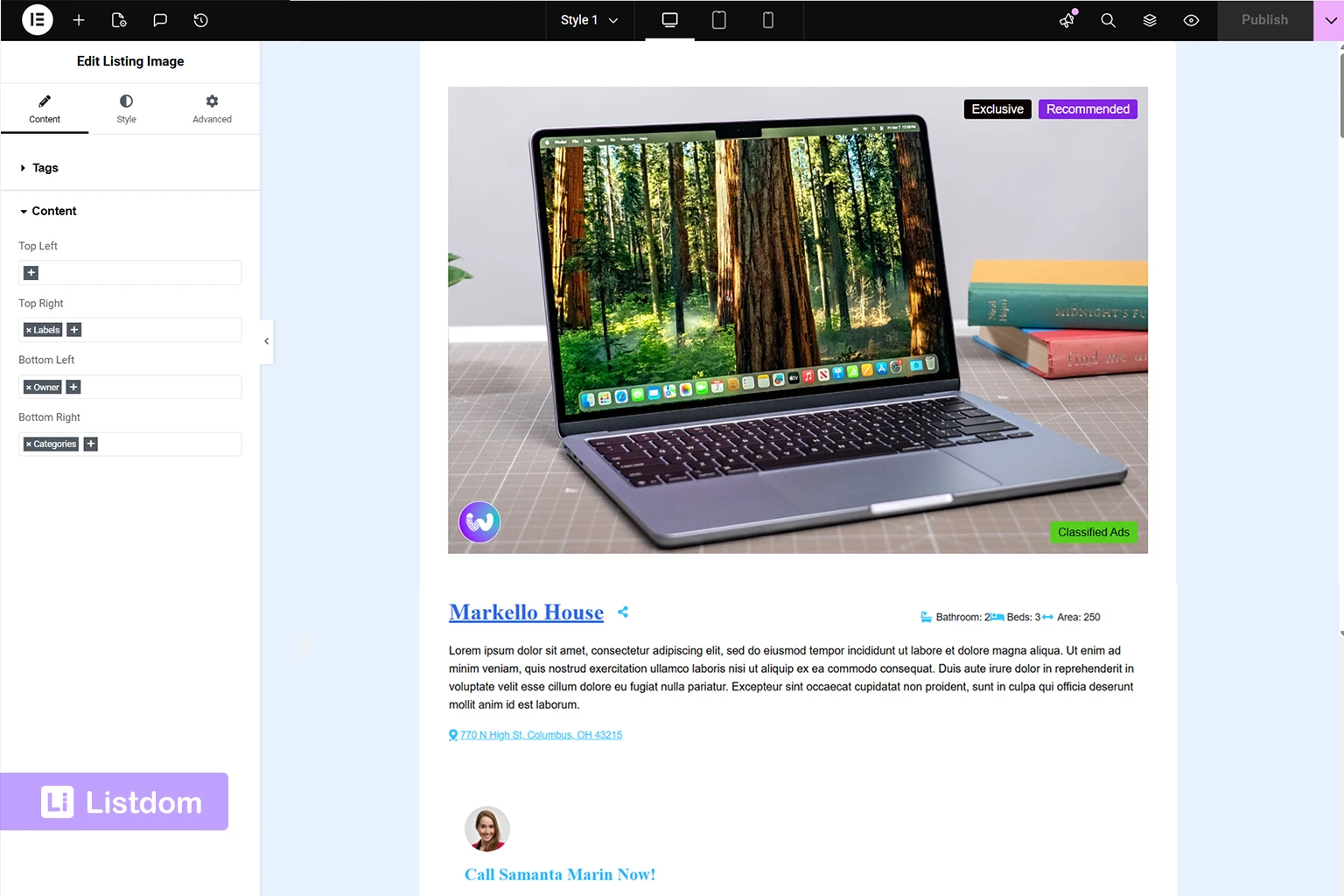
This is useful when you want more visual flexibility than the built-in single listing styles provide.
For the official setup details, see the Listdom Elementor Addon Documentation.
Divi
Listdom also includes a Divi addon for designing single listing pages with Divi Builder.
This is a strong option when the rest of the site already relies on Divi and you want the listing page to follow the same builder workflow.
For the official setup details, see the Listdom Divi Addon Documentation.
Bricks
Listdom also includes a Bricks addon.
Bricks support is important to mention because users can easily assume that every Bricks-related layout is controlled from the same place. In practice, single listing pages are handled through Bricks templates, while other areas such as listing cards or infowindows may be managed differently through the Bricks Builder menu of Listdom.
For the official setup details, see the Listdom Bricks Addon Documentation.
One more setting that still matters
Even when you use Elementor, Divi, or Bricks, the built-in single listing settings still matter because they define the overall style path and help you decide whether you are using a default style or a builder-driven approach.
For the official reference, see the Listdom Single Listing Settings Documentation.
A good practical rule is this:
- use the built-in single listing styles when you want something faster and simpler
- use Elementor, Divi, or Bricks when you want more detailed visual control
- but make sure the listing data, fields, and settings are already solid before spending too much time on design
The most common beginner mistake
The biggest mistake is trying to redesign the single listing page before understanding what supplies the page content.
That usually creates problems like:
- layout changes with weak underlying data
- custom fields added without a clear structure
- map or contact sections feeling incomplete
- labels and features used without a real page strategy
- confusion about whether the issue belongs to the listing, the settings, or the template layer
A better order is:
- make sure the listing data is strong
- make sure the useful sections actually exist
- make sure custom fields and taxonomy structure are doing the right job
- only then worry more deeply about layout and presentation
What to check first when the page feels wrong
A practical review order looks like this:
1. Check the listing data
Does the listing actually contain the information you expect to show?
2. Check categories, locations, and custom fields
Is the structure clear enough for the page to feel meaningful?
3. Check the relevant Listdom settings
Is the page behavior being shaped by a setting you have not reviewed yet?
4. Check the control layers
Could the element be controlled by category rules, package rules, per-listing display options, or Frontend Dashboard restrictions instead of only the main global setting?
5. Check whether add-ons are involved
Are claim, booking, labels, or other actions part of the expected page?
6. Check whether a template or builder layer is involved
Is the page using a more customized layout than the default output?
This order usually helps you diagnose the page much faster.
What to configure first
A practical beginner order looks like this:
- create a strong listing with complete real data
- make sure categories, locations, and custom fields are structured properly
- review single-listing-related settings
- decide which actions matter most on the page
- test the page with a real visitor mindset
- only then move deeper into template or builder customization if needed
That sequence keeps the single listing page grounded in useful content instead of premature design tweaks.
What to learn next
Once the single listing page makes sense, the best follow-up topics are:
- How to Create Your First Directory Listing with Listdom
- How Listings, Categories, and Locations Work in Listdom
- How Custom Fields Work in Listdom
- How Listdom Settings Work: Global, Shortcodes, Search, and Add-ons
These topics help you understand where the data, settings, and structure behind the page actually come from.
Final thoughts
A single listing page is one of the most important pages in a directory site.
It is where a listing stops being a small result card and becomes a full experience.
That is why the best way to improve it is not to start with styling alone.
Start by understanding what shapes the page:
- listing data
- plugin settings
- custom fields and structure
- add-on-driven actions
- template or builder control when relevant
Once those layers are clear, the page becomes much easier to improve.
FAQ
What information usually appears on a single listing page?
It can include the title, gallery, description, address, map, contact details, categories, locations, custom fields, features, labels, and add-on-related actions depending on the setup.
Do custom fields affect the single listing page?
Yes. They are one of the main ways to add niche-specific detail to the page.
Is the single listing page controlled only by settings?
No. It is usually shaped by listing data, settings, and sometimes builder or template tools.
Why does one single listing page look different from another example?
Because the content, settings, active add-ons, and template layer may all be different.
Should I customize the page layout first?
Usually no. Start with the listing data and structure first, then refine the page design after the useful content is already in place.