
Why search forms matter in a directory website
A directory website usually grows in layers.
At the beginning, users may be fine with browsing a few categories manually. But once you add more listings, more locations, more attributes, and more niche-specific details, browsing alone stops being enough. Visitors want to search by intent.
For example, they may want to:
- search by keyword
- narrow results by category
- find listings in a specific location
- filter by price or custom fields
- use a compact sidebar search on inner pages
- use a larger homepage search with advanced options
Listdom is designed for this kind of experience. Its documentation describes a dedicated search and filter builder where you can create forms with different combinations of fields, decide how the results appear, and publish those forms wherever they make sense in the front end.
That is important because not every page should use the same search form. A homepage search, a sidebar widget, and an advanced directory results page usually need different structures.
What to set up before creating a search form
Before you build your first search form, make sure your directory structure is already in decent shape.
A search form can only be as useful as the data behind it. If your categories, locations, and custom fields are still inconsistent, your search experience will also feel inconsistent.
Before starting, it is best to have:
- Your main listing categories ready
- Your locations configured if geography matters
- Your important custom fields already created
- at least a few sample listings published
- a clear idea of where the search results should appear
This order matters.
If you build the form too early, you may end up redesigning it when your taxonomy structure changes. On the other hand, if you wait too long, users may struggle to browse a growing site without enough filtering.
A practical middle ground is to create your first search form right after your basic listing structure is stable.
Where to create search forms in Listdom
To create a search form, go to:
Listdom → Search and Filter Builder
Then click Add a New Form.
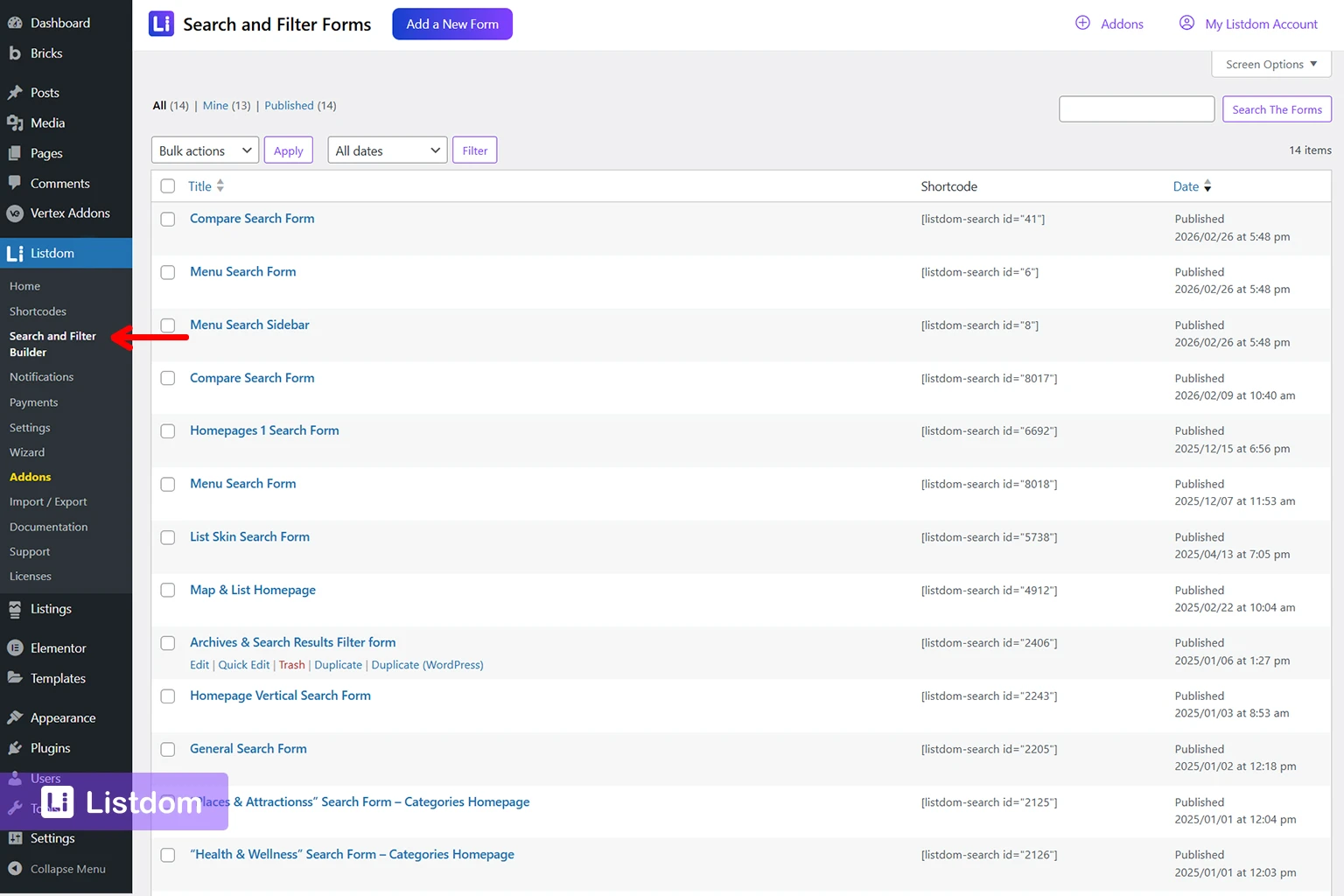
Give the form a title for internal reference. The title helps you recognize it later when selecting it in widgets, shortcodes, or builder integrations.
From there, you will work in the builder screen, where you can add fields, organize rows, choose how the search behaves, and save the form shortcode for later use.
You do not need to learn every panel before starting. For onboarding, the simplest path is this: create the form, choose where the results should appear, add the most useful fields first, and test the search journey on the front end.
This is one of the biggest strengths of Listdom’s search system. It does not only let you choose fields. It also helps you decide how the search behaves after submission.
Step 1: Configure the form settings
The first settings define the basic style and behavior of the form itself.
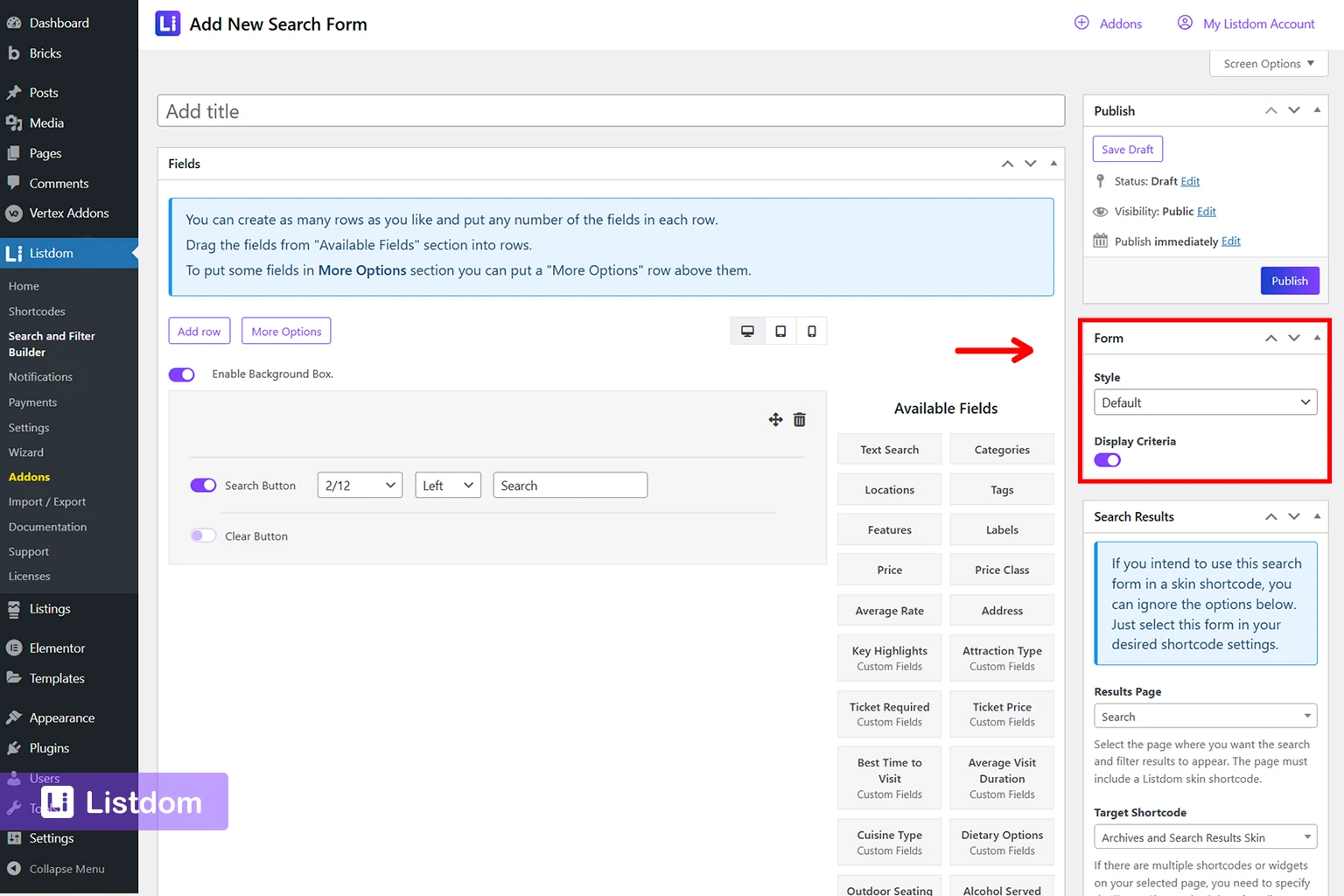
In the interface, these options appear in the Form panel on the right. For most users, the important thing at this stage is simply to choose a form style that matches the page where the form will appear and decide whether you want users to see their selected filters after they search.
One important choice is the form style.
Listdom supports a standard layout for regular content areas and a sidebar style that is better suited for narrow spaces where fields need to stack more cleanly. If you plan to place the form in a sidebar or widget area, this setting matters because it affects spacing and readability.
You can also enable the option to display criteria after a search. This shows users a readable summary of the filters they selected, which is especially useful when a search includes multiple conditions, such as category, location, and attribute filters.
This may seem small, but it improves usability. Users should be able to understand why they are seeing certain results.
Step 2: Decide how the results should appear
This is where many beginners make their first mistake.
They focus only on the search fields and forget to decide where the results should go.
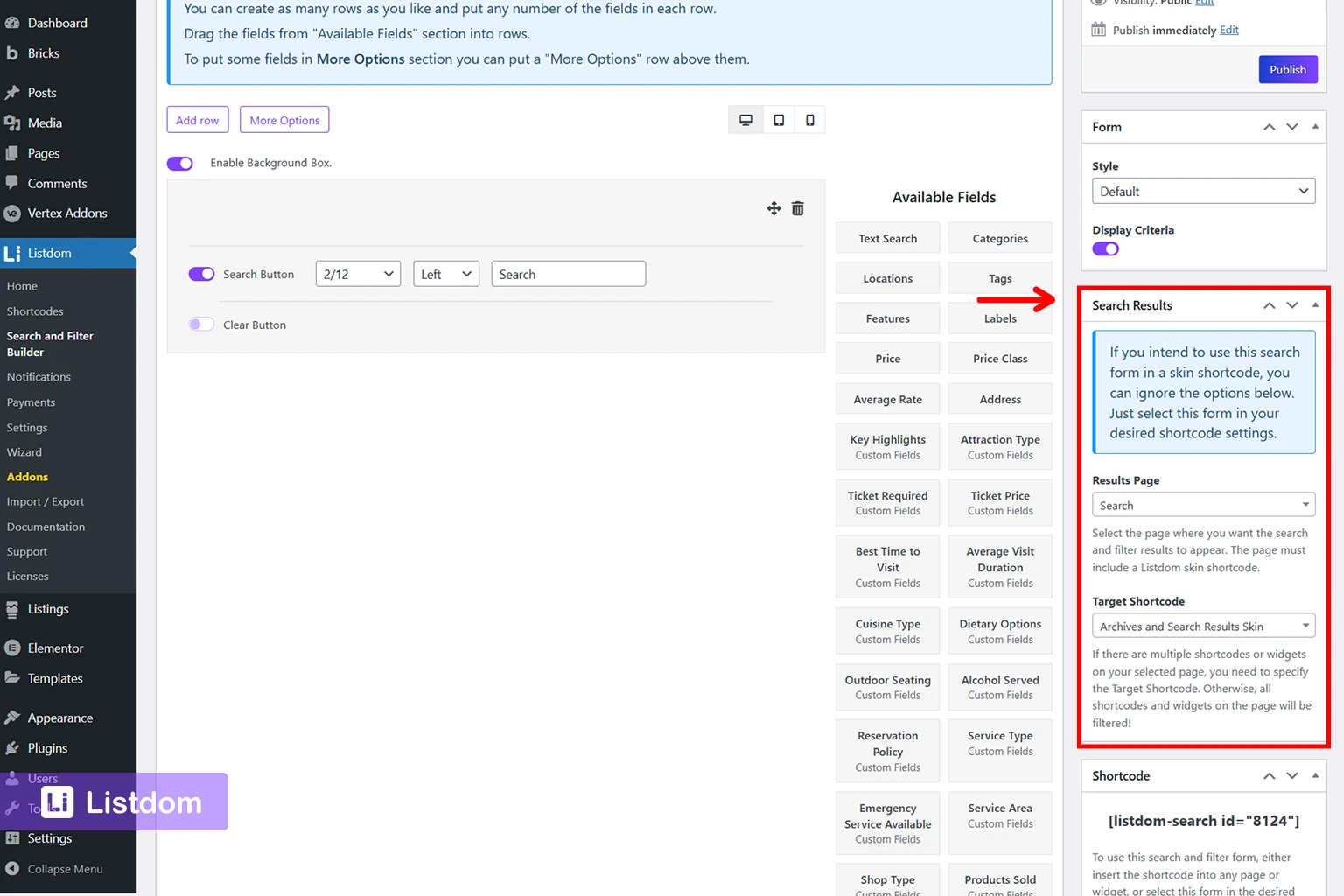
In Listdom, the Search Results panel in the right sidebar lets you choose between two main directions:
Show results on a separate page
If you select a results page, the form redirects users there after submission. That page must already contain a Listdom listing shortcode or widget that can display the results.
This is one of the most important setup decisions, because the form is only one half of the experience. The results page also needs to be ready.
This is often the best option when:
- You want a dedicated search results page
- You expect users to run more advanced searches
- The page needs room for filters, sorting, map views, or more detailed layouts
If the results page contains multiple Listdom listing sections, you can also select a target shortcode so the form updates the correct one. If you leave that target blank, Listdom will try to filter all compatible listing shortcodes and widgets on that page.
Filter listings on the same page
If you leave the results page empty, Listdom can keep the search on the current page and filter listings there instead.
This is useful when:
- You have a homepage section with listings under the search form
- You want a landing page with search and results in one place
- The user journey should stay compact and immediate
For more advanced same-page behavior, Listdom also supports Connected Shortcodes and Ajax Search through the Advanced Portal Search add-on. That makes it possible to update connected listing sections dynamically on the same page instead of reloading the page.
That is useful for more advanced directory layouts, but for onboarding, it is usually better to start with a simpler setup first and expand later.
Step 3: Add the right search fields
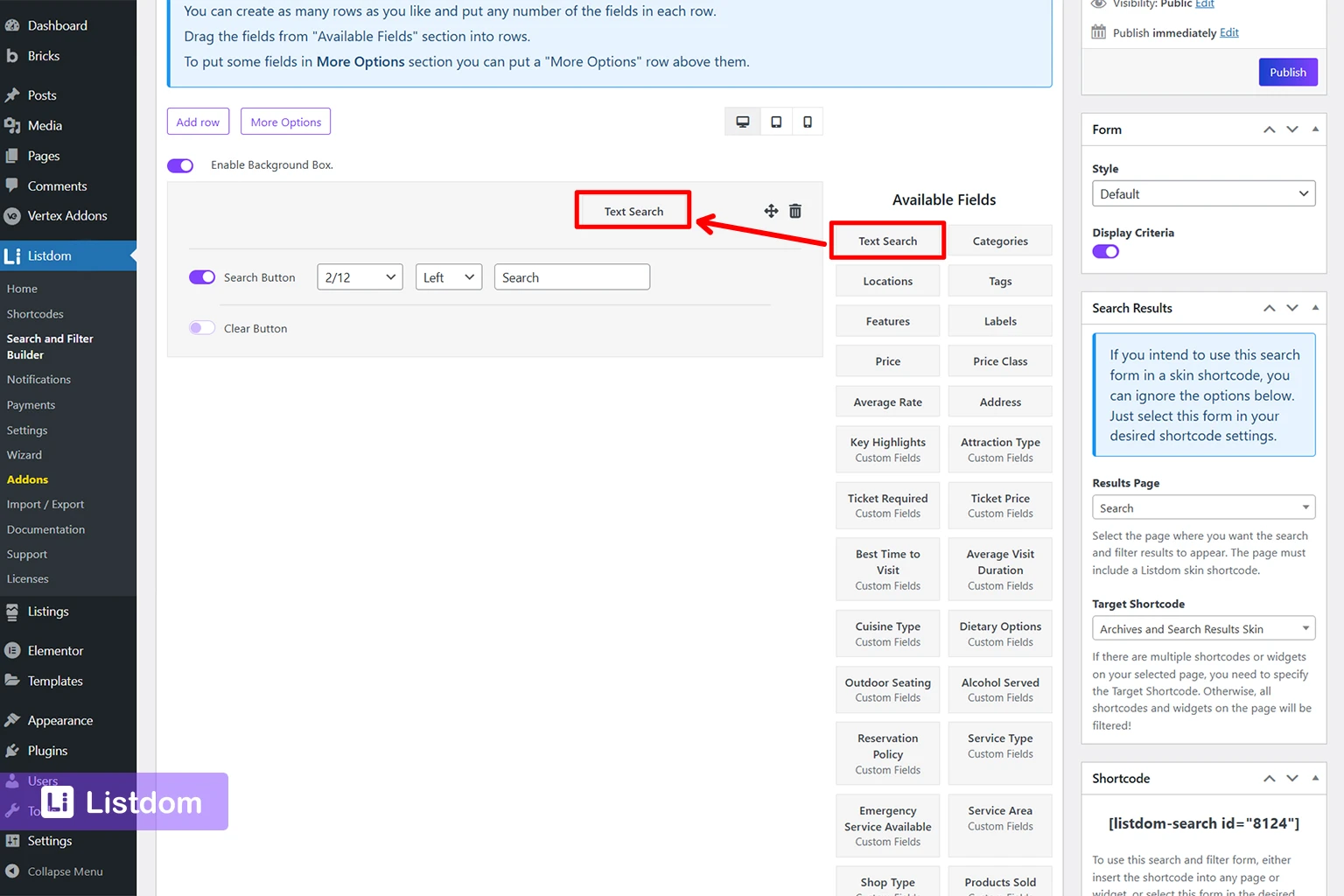
The fields builder is where the form becomes practical.
You can add rows, drag fields into the layout, arrange them for different devices, and build anything from a minimal search bar to a more advanced multi-row filter form.
The builder makes this part very visual. You can choose from standard fields like text search, categories, and locations, and also use custom fields that belong to your own listing setup.
At this stage, the key question is not “How many fields can I add?”
It is “Which fields actually help the user make a decision?”
A good search form often includes only the filters users need most. Too many fields can slow them down.
Common field choices include:
- keyword or text search
- categories
- locations
- price-related filters
- tags or features
- custom fields and attributes
Listdom’s documentation also notes that fields can be arranged in rows, reordered via drag-and-drop, and adapted for desktop, tablet, and mobile layouts. That means you should think about usability, not only functionality.
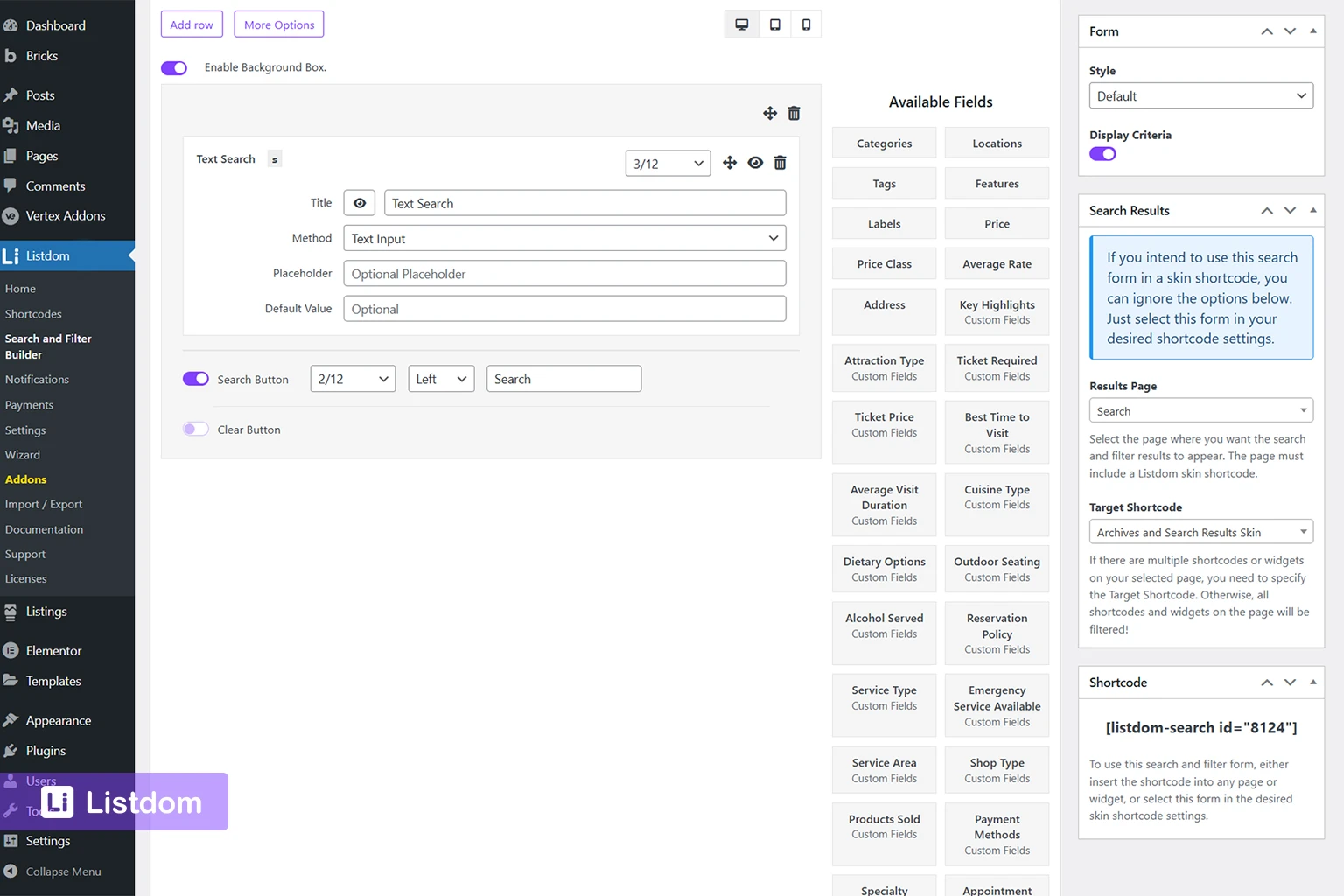
A good first form does not need to be complex. In most cases, you can start with a search button plus two or three useful filters, then improve it after testing how people actually use the site.
For example:
- A homepage form may only need keyword, category, and location
- A results page may justify additional custom field filters
- A sidebar form should usually stay narrower and simpler
Step 4: Use More Options when the form gets too heavy
A common onboarding mistake is trying to make the first search form do everything.
The result is usually a cluttered interface that overwhelms visitors.
Listdom includes a More Options divider in the form builder. Fields placed below that divider stay hidden behind a toggle until the user wants more advanced filtering.
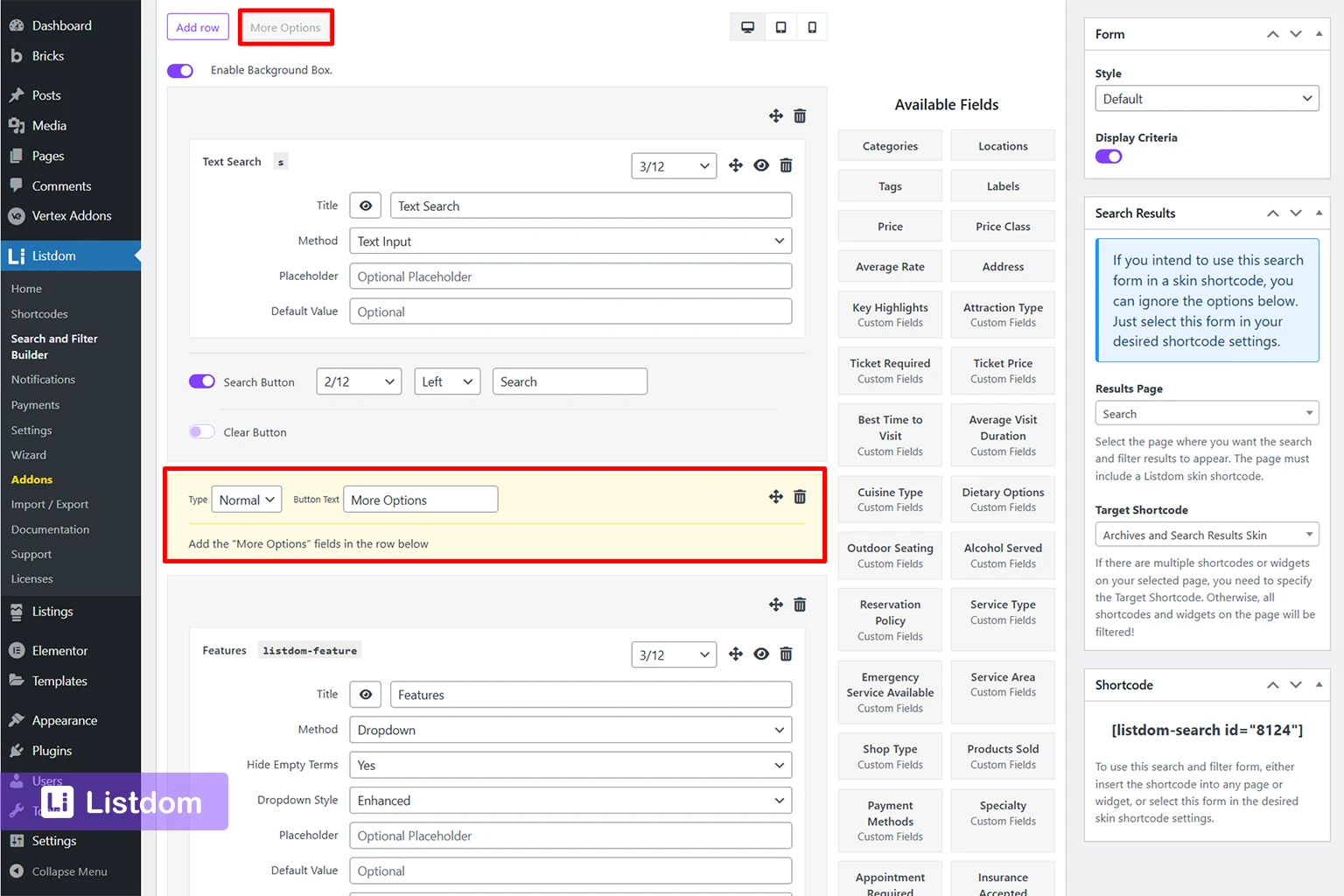
This is one of the best ways to keep your main form clean while still supporting advanced filters.
A practical setup looks like this:
Keep visible by default
- text search
- category
- location
Move under More Options
- detailed custom fields
- advanced taxonomies
- less frequently used filters
- secondary qualifiers that only some users need
That balance improves conversion because the form stays friendly for first-time users while still helping power users refine results.
Step 5: Publish the form and place it correctly
Once the form is ready, publish it and use it where it makes sense.
After saving the form, Listdom gives you the shortcode, which makes the publishing step much easier because you can immediately place the form where you need it.
Listdom lets you use the search form in several ways:
- by copying the form shortcode into a page or widget area
- by selecting the form inside the Listdom listing shortcode settings
- by placing it in widget areas with the Listdom Search widget
- by using supported builder integrations such as Elementor widgets
This flexibility matters because the same search form can support more than one layout pattern.
For example, you may create:
- a homepage search form
- a sidebar search form
- an advanced results-page form
- a category-specific search form
The Search widget is especially useful when you want to show a saved search form in a sidebar or another widget area. In that setup, the widget does not define the filters itself. It simply displays a search form you already created in the builder.
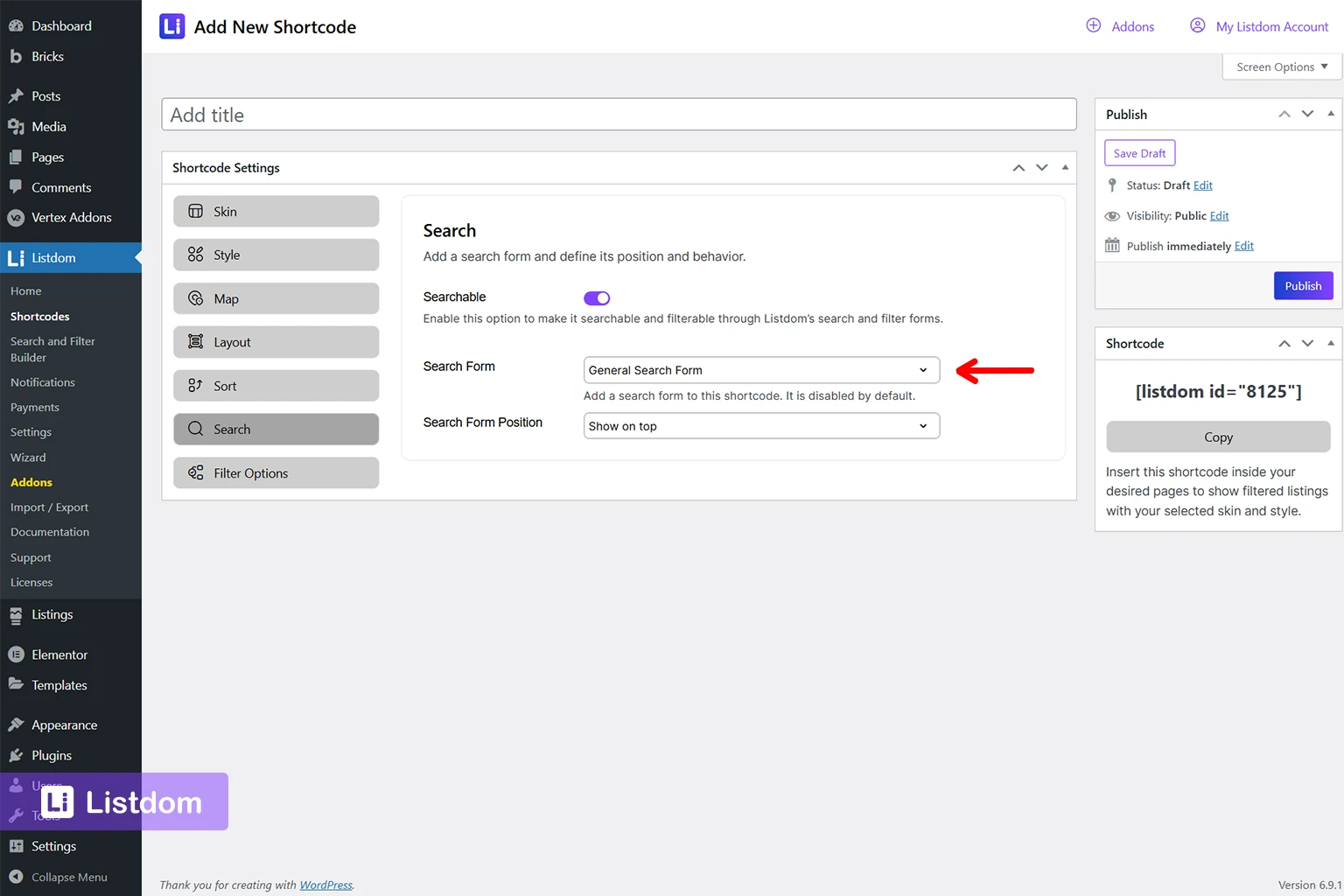
If you prefer, you can also attach a saved search form directly to a listings shortcode by editing the shortcode in Listdom → Shortcodes, enabling search, selecting the form, and choosing the form position.
Step 6: Test the full search journey, not just the form
Do not stop after the form appears on the page.
Always test the whole search flow.
That means checking:
- whether the correct results page opens
- whether the page actually contains a listings shortcode
- whether the form updates the intended shortcode
- whether fields return relevant listings
- whether the layout works on mobile
- whether the criteria summary is understandable
- whether the Clear All behavior feels helpful
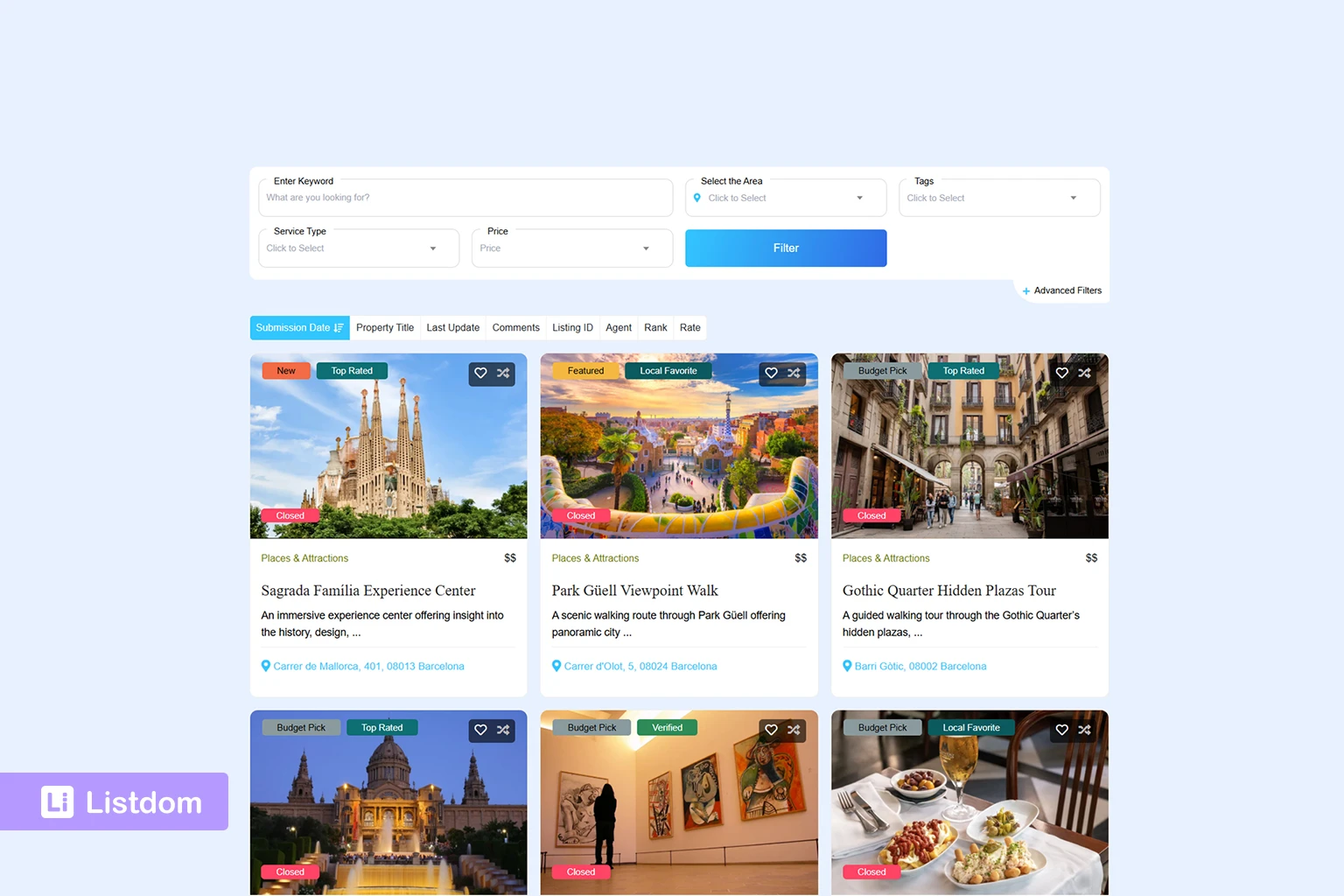
This step is important because a search form can look correct but still fail in practice if the results page is not configured properly or if the listing data is incomplete.
Common mistakes when building search forms in Listdom
1. Building the form before the listing structure is ready
If categories, locations, and custom fields are still changing, the form will likely need rework. Learn how to create listings with Listdom.
2. Sending users to a page without a listings shortcode
If the selected results page does not contain a Listdom listing section, the search cannot show results properly. Learn more about displaying listings using Listdom shortcodes.
3. Adding too many filters too soon
More fields do not always mean a better user experience. Start with the most valuable filters first.
4. Ignoring device layout
A form that looks acceptable on a desktop can become frustrating on mobile if too many fields are crowded into the first view.
5. Not separating primary and advanced filters
Use More Options to keep the interface clean.
6. Forgetting to test the reset flow
If you use several filters, make sure the Search and Clear All buttons behave the way users expect.
7. Forgetting that different pages may need different forms
A homepage search should not always be identical to a sidebar or dedicated results-page search.
Best practices for better search UX
If you want search forms that feel useful instead of decorative, keep these principles in mind.
Start with user intent
Ask what users are most likely to search first. Usually, this is the keyword, category, and location.
Build around real listing data
Only expose filters that are populated consistently across listings.
Keep the first version simple
A strong, simple form often performs better than a crowded advanced one.
Use advanced filters gradually
Move secondary filters into More Options or a dedicated results page.
Match the form to the page context
Homepage, sidebar, and archive-like results pages usually need different search experiences.
Think in journeys, not widgets
The user is not just interacting with a form. They are moving from a search intent to a filtered result set. The full path should feel clear.
When to use separate forms instead of one universal form
Many directory owners try to create a universal search form for the whole website.
Sometimes that works, but often it creates unnecessary complexity.
Separate forms usually make more sense when:
- Different listing types have different important filters
- The homepage needs a lighter search experience
- The sidebar needs a compact version
- Advanced filtering belongs on a full results page
- Category-specific landing pages need more focused filters
Listdom’s saved-form approach makes this easier because you are not forced into one global search box.
Final thoughts
If you are onboarding a Listdom site, search forms deserve attention early.
They shape how visitors discover listings, how quickly they reach relevant results, and how usable the directory feels as your content grows.
The best approach is usually simple:
- Organize your categories, locations, and custom fields first
- Create a clean search form in Listdom → Search and Filter Builder
- decide whether results should appear on the same page or a dedicated results page
- Choose only the most useful fields for the first version
- Place advanced filters under More Options when needed
- Test the whole front-end journey before considering the setup complete
That process gives you a search experience that is practical from the beginning and flexible enough to grow with the site.
FAQ
Where do I create a search form in Listdom?
Go to Listdom → Search and Filter Builder in your WordPress dashboard, then add a new form.
Can I show search results on the same page?
Yes. If you do not choose a separate results page, Listdom can filter listings on the current page instead.
Do I need a listings shortcode on the results page?
Yes. If you use a separate results page, that page should contain a Listdom listing shortcode or widget so the filtered results can appear.
Can I create multiple search forms in Listdom?
Yes. You can create different forms for different use cases, such as a homepage search, sidebar search, or advanced search page.
Can I place a search form in a widget area?
Yes. You can use the Listdom Search widget to display one of your saved search forms in a widget area, or insert the form shortcode into a supported widget or builder area.
Can Listdom search by custom fields?
Yes. Listdom supports search and filtering by custom fields and attributes, as long as those fields are set up and used in your listings.
Is AJAX search available?
Yes, but advanced same-page behaviors like connected shortcodes and AJAX search depend on the Advanced Portal Search add-on.
Should I add every available filter to my first search form?
No. It is usually better to start with the filters users need most and keep secondary filters under More Options or on a more advanced results page.