What Is a Listing in Listdom
A listing is the core unit of your directory website.
Examples include:
- A restaurant in a food directory
- A property in a real estate site
- A job post on a job board
- A local service in a city portal
Each listing contains structured data such as:
- Title and description
- Images and media
- Categories and locations
- Address and map coordinates
- Custom fields and attributes
Once published, each listing has its own dedicated page, even if you have not created any shortcode yet.
Before You Create Your First Listing (Checklist)
Before adding your first listing, make sure a few basics are ready.
- Listdom is installed and activated
- You have created at least one category
- You optionally created locations
- Map settings are configured if you plan to use maps
Technically, you can create a listing without taxonomies, but in practice, categories are essential for organizing and displaying your directory later. By default, an Uncategorized category exists in Listdom that is assigned to all of the listings. You can create new categories and change this option for each listing.
Where to Add a New Listing in WordPress
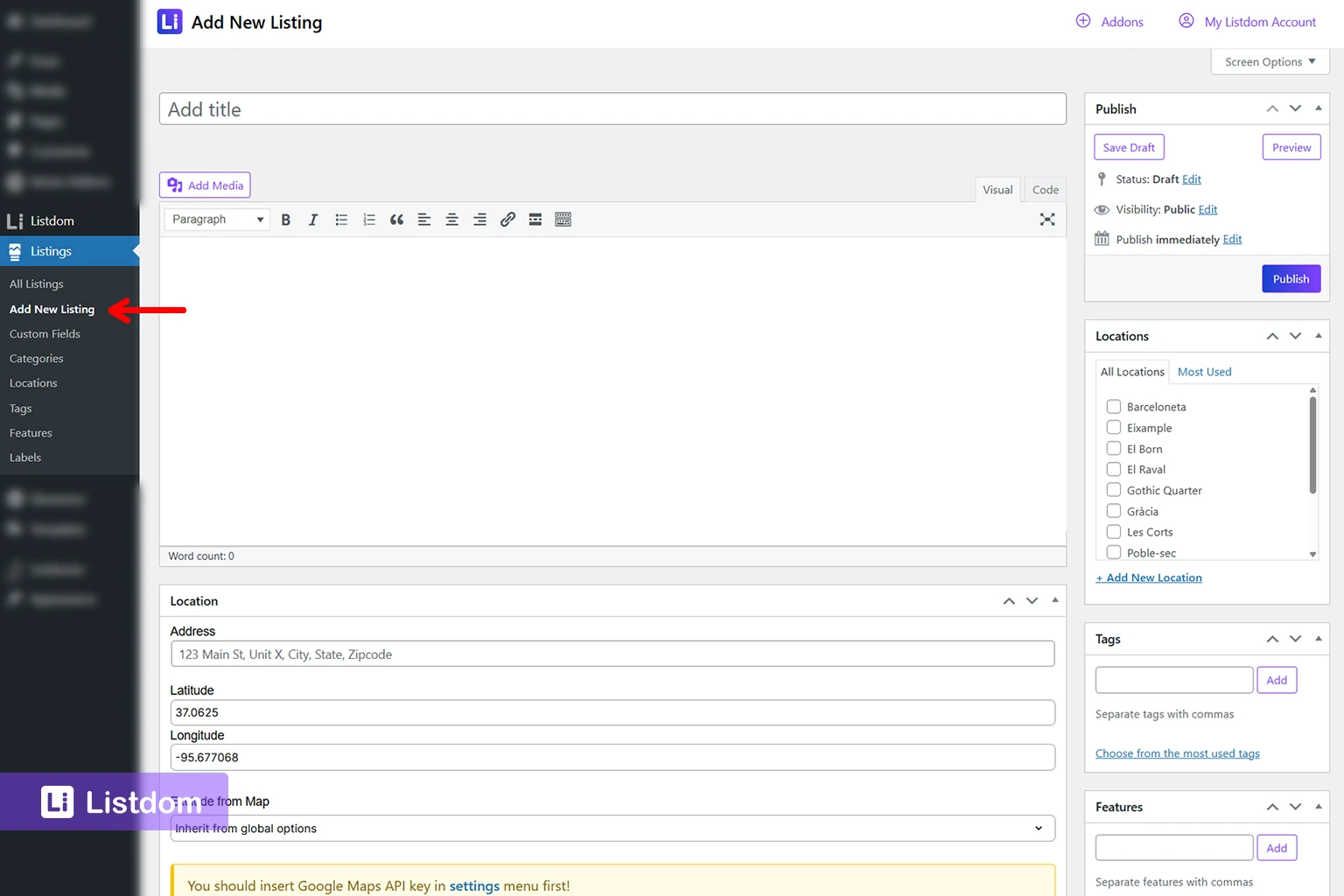
To create a listing, go to WordPress Dashboard → Listings → Add New Listing
This opens the listing editor, which looks similar to a WordPress post editor but includes many additional fields specific to directory data.
How to Fill Out Listing Fields in Listdom
Title and Description
Start by entering the listing title and main description.
- The title should clearly represent the listing (e.g., “Downtown Coffee House”)
- The description should explain what the listing offers
This content is important for both users and SEO.
Featured Image and Gallery
Set a featured image to represent the listing visually.
You can also add a gallery of images to provide more detail. Listings with strong visuals perform significantly better in directory layouts.
Categories and Locations
Change the Uncategorized category and assign the listing to at least one category you’ve created.
Categories help:
- Organize listings
- Enable filtering
- Structure your directory pages
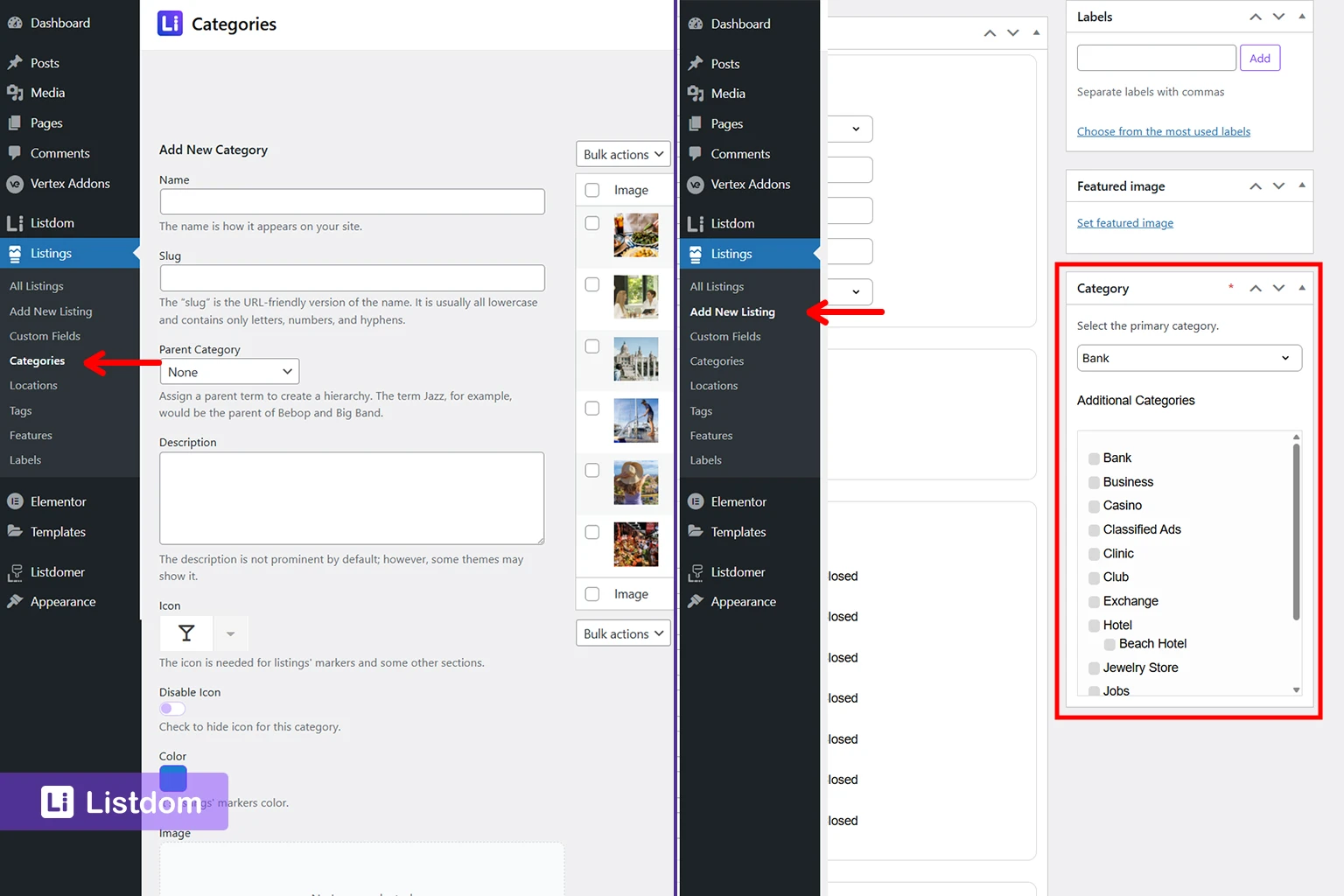
You can also assign locations such as cities or regions to make listings searchable by geography.
Address and Coordinates
If your listing has a physical location, enter:
- Address
- Latitude and longitude
This allows the listing to appear on maps.
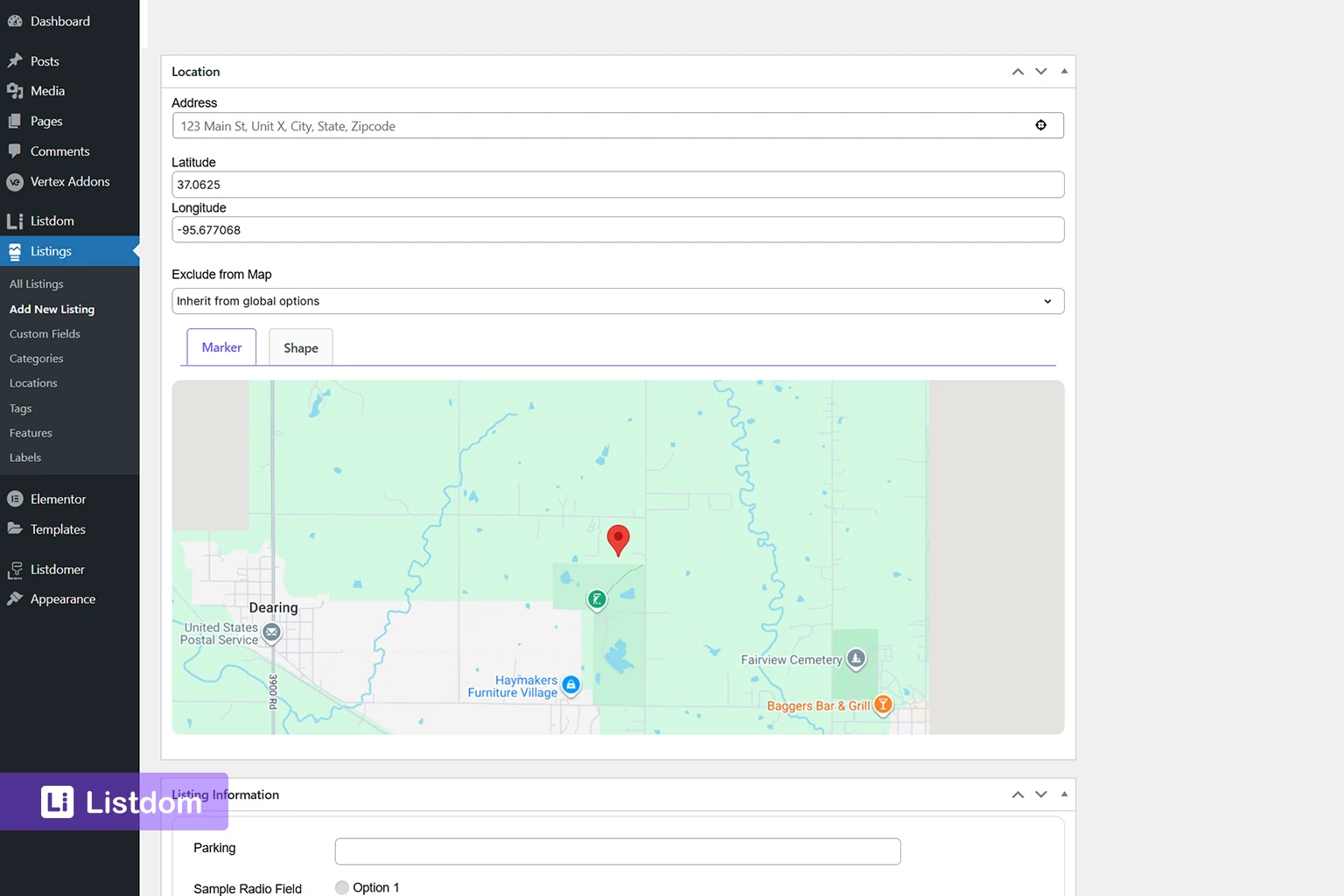
If you skip coordinates, map-based layouts may not display the listing correctly.
Labels, Tags, and Features
These taxonomies provide additional classification.
- Labels: highlight status (e.g., Featured, New)
- Tags: flexible keywords
- Features: attributes like WiFi, Parking, Delivery
Use them to enhance filtering and user experience.
Custom Fields
Custom fields allow you to store specific structured data based on your directory type.
Examples:
- Price range for restaurants
- Number of bedrooms for properties
- Salary range for jobs
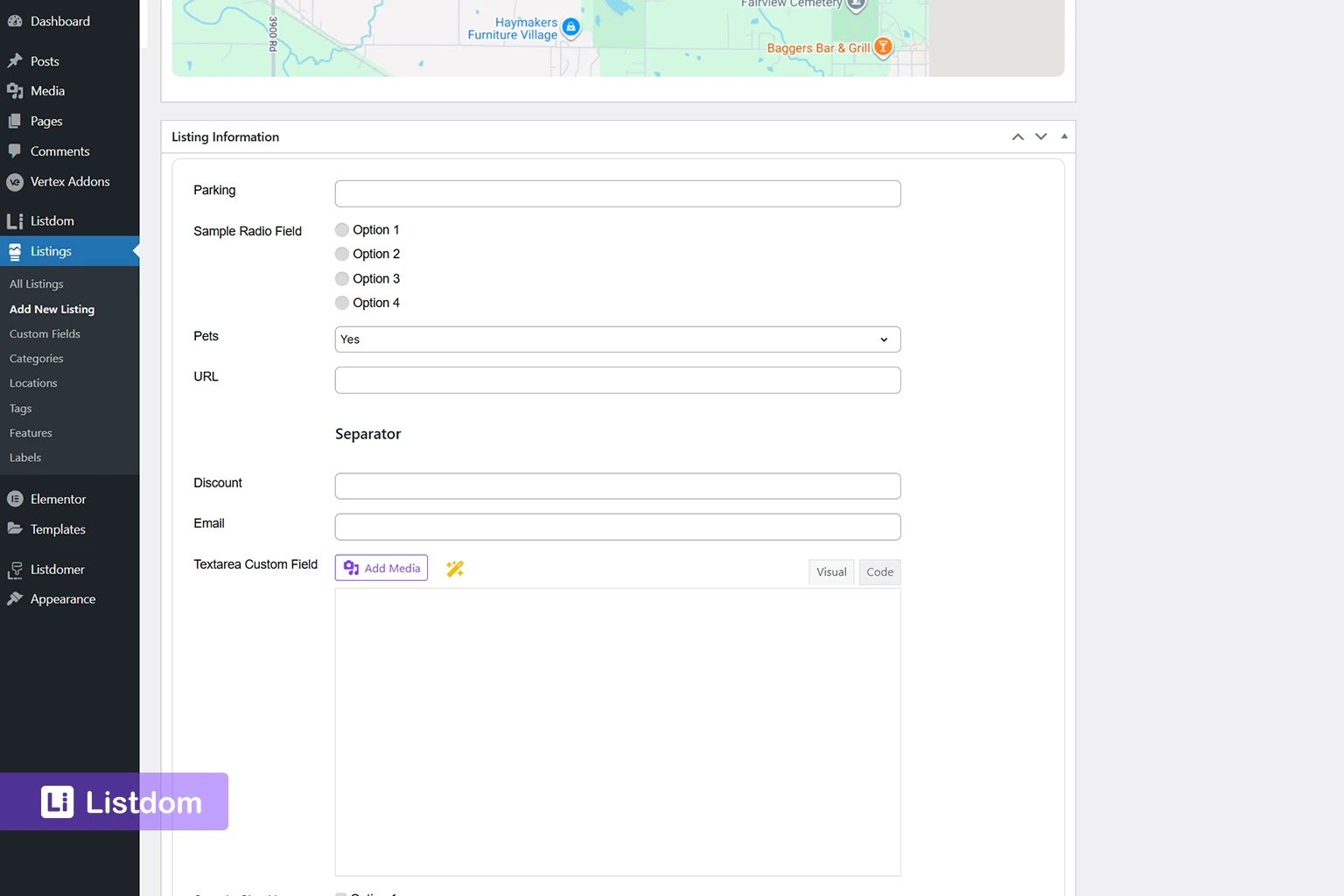
These fields can later be used in search filters and listing displays.
Optional Listing Details That Add Value
Price Information
You can define pricing details such as:
- Currency
- Price
- Maximum Price
- Price Description (e.g., per night, per month)
Working Hours
Useful for business listings.
You can define opening and closing times for each day.
Contact Details
Add information like:
- Phone number
- Website
This makes your listing actionable.
Listing Custom Link (External Link)
You can redirect users to another website instead of showing a full listing page.
This is useful for affiliate directories or external platforms.
Publish Your Listing and What Happens Next
Once all required fields are completed, click Publish.
Immediately after publishing:
- The listing has its own frontend page
- It is accessible via its permalink
However, it will not appear in directory pages until it is included in a shortcode layout.
You can view your listing immediately by clicking the “View” link after publishing or opening its permalink.
Example: Creating a Business Listing in Listdom
Let’s say you create a listing for a Hotel.
You would:
- Add title: “Hotel Mulberry”
- Add description about the hotel
- Upload images of the space
- Assign category: “Hotels”
- Assign location: “Raleigh”
- Add address and coordinates
- Add features like WiFi and Minibar
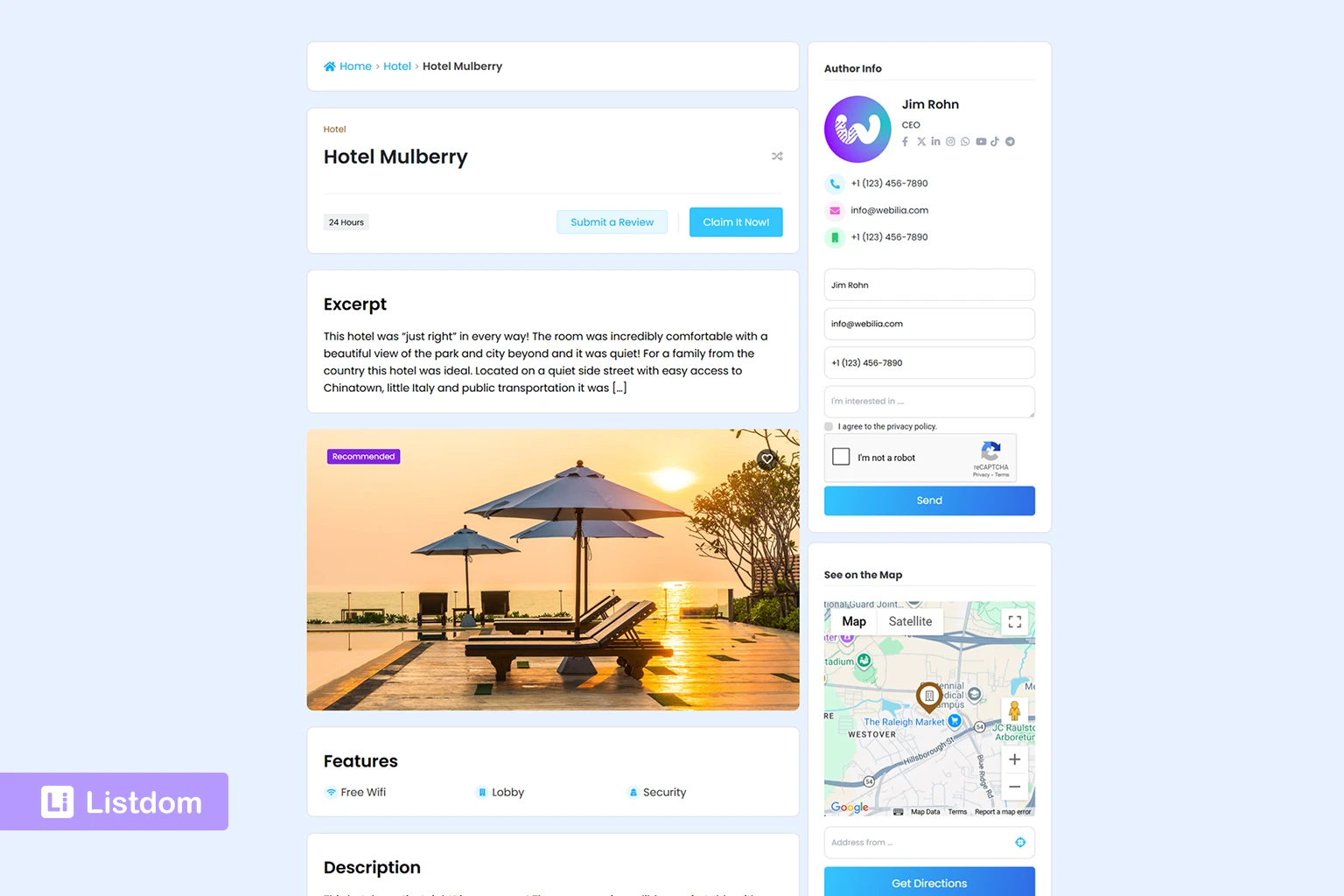
After publishing, the listing is live and ready to be displayed in your directory.
Common Beginner Mistakes
Many new users make similar mistakes when creating listings.
- Not assigning a category
- Forgetting map coordinates
- Publishing incomplete listings
- Expecting listings to appear as a list, grid, etc. without a shortcode page
Avoiding these issues will save time later.
What to Do Next After Creating Your First Listing
After creating your first listing, the next steps are:
- Create multiple listings
- Build a shortcode to display them
- Create a directory page
- Add a search form for filtering
These steps are explained in detail in the main setup guide https://listdom.net/blog/listdom-setup-guide/
You can also continue with these next tutorials:
- How to display listings using shortcodes
- How to create a directory page in WordPress
- How to build a search and filter form in Listdom
Frequently Asked Questions About Listdom Listings
Do I need to create categories before listings?
It is not required since all of the listings are assigned to an Uncategorized category by default, but strongly recommended. Categories help structure your directory and are essential for filtering and display.
Why does my listing not appear on my website pages?
Because listings need a shortcode to be displayed in a directory page.
Each listing exists individually, but collections of listings require a shortcode.
Can I edit a listing after publishing?
Yes. You can edit listings anytime from the WordPress Dashboard → Listings → All Listings.
Do all listings need coordinates?
Only if you want to use maps. For map-based layouts, coordinates are required.
What is the difference between a listing and a directory page?
A listing is a single item with its own dedicated page.
A directory page is a collection of listings displayed using a shortcode layout.
Can I add custom fields later?
Yes. You can define or modify custom fields at any time, even after creating listings.
Final Thoughts on Creating Listings in Listdom
Creating listings is the foundation of your directory. Once you understand how to structure a single listing properly, scaling your directory becomes much easier.
Focus on quality, structure, and consistency before adding large volumes of data.