

A quick reassurance before we start: demo content is safe and replaceable. You will not break Listdom by deleting sample listings or changing pages. Also, Listdom works with any WordPress theme. Themes only matter here if you want to import a ready-made demo design.
You may want to start a classified site like pet classified ads sites. However, this guide will help you with that too. Throughout this guide, I will use a business directory example to make things concrete, but the process applies to general directories, real estate directories, healthcare directories, travel directories, service directories, and more.
What a Directory Website Is
A directory website is a structured site that stores and displays listings in a consistent way.
A listing can represent almost anything: a business, a property, a hotel, a doctor, a local service, or even a classified ad. What makes it a directory is that listings are organized and searchable through a predictable system, usually involving categories, locations, and structured fields.
A good directory website lets visitors:
- Browse listings by category and location
- Search by keywords
- Filter listings using defined criteria
- Open a single listing page with details
From the site owner’s perspective, a directory website needs:
- A structured listing system inside WordPress
- A way to manage categories and locations
- A reliable way to display listing pages and archives
- A setup that can grow without rebuilding the site
Listdom provides the directory system inside WordPress. Themes can control the presentation of that system, and some themes can provide full demo imports that give you a ready-made site structure.
Understanding the Role of Listdom and Themes

Before you follow the setup steps, it helps to understand what does what.
- Listdom (plugin) handles the directory functionality. This includes listings, categories, locations, directory behavior, and the workflows around them.
- A WordPress theme controls design and presentation. Some themes also provide demo imports that create pages, menus, and starter layouts.
One important detail that keeps this guide future-proof: Listdom itself does not provide a full demo website. When installed on its own, Listdom includes sample or dummy data such as sample listings to help you understand how the listing structure works.
Full demos are delivered through compatible themes. Today that might be one theme that provides multiple demos. In the future, the demos may be delivered through dedicated themes for each niche, and the general directory demo may remain as a baseline. Regardless of how demos are packaged, the directory engine remains Listdom, and the setup flow remains the same.
What You Need Before You Start
Keep this simple. You need:
- A working WordPress installation
- Access to the WordPress admin dashboard
- The ability to install a theme and plugins
- The Listdom plugin
If you want to start from a ready-made demo:
- A compatible theme that offers directory demos and a demo importer
You do not need coding, custom development, or advanced integrations to complete this guide.
Before you start to build a directory website with WordPress
- Determine the purpose and niche of your directory website.
- Find the target audience and their needs.
- Consider successful directory websites in your niche.

Before diving into the technical details and starting to build a directory website with WordPress, it’s essential to have a clear understanding of your directory website’s concept. Consider the purpose of your site, your target audience, and the specific niche or industry you’ll be focusing on. Take inspiration from existing directory websites and identify what sets yours apart. Common examples include Yelp, Yellow Pages, and even eBay. Knowing what you’re doing is so important and can prevent major problems in the future.
Step-by-Step: Build a Directory Website with WordPress Using Listdom
The steps below follow a clear and repeatable process. Each section is separated so you can place one full-screen desktop screenshot right under the heading.
Step 1: Download a Directory-Ready WordPress Theme (For Demo Import)
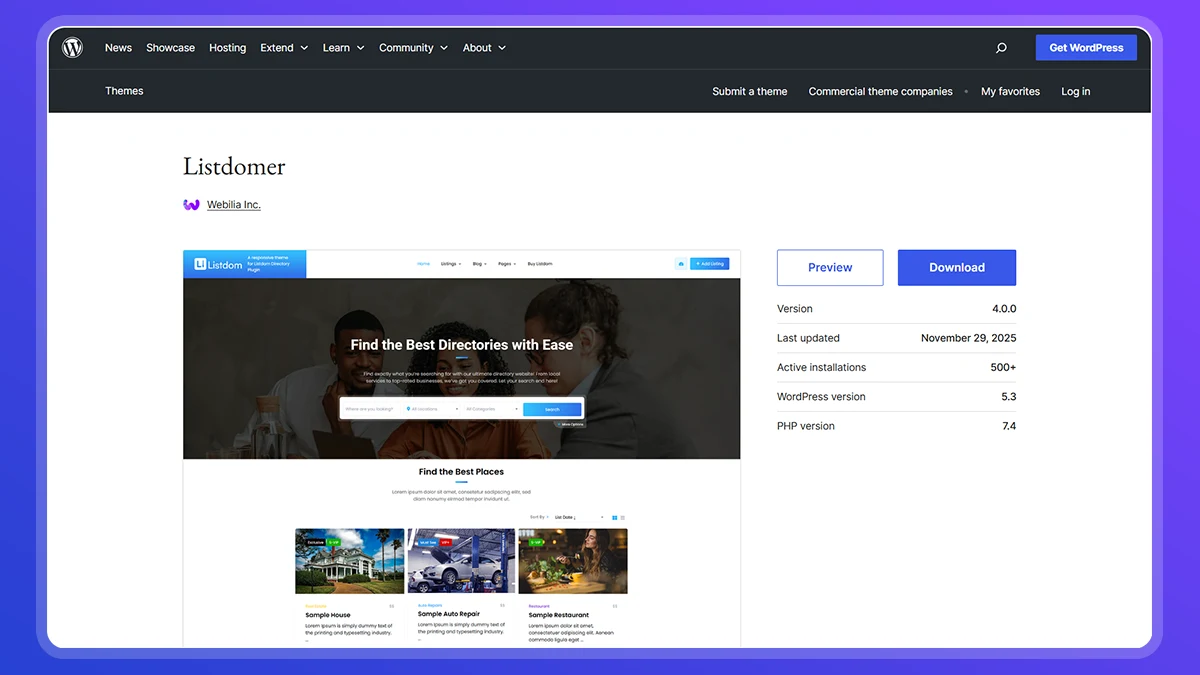
Goal: Get access to a demo importer and a ready-made directory layout if you want to start fast.
Listdom works with any theme, so you do not need a special theme to use Listdom. However, if you want to import a complete demo website with pages, layouts, and starter design, you will need a compatible theme that provides those demos.
Choose a directory-ready theme that includes demo import for directory sites. If you already have a theme and do not need a demo, you can skip the demo path and still build your directory with Listdom. The core directory functionality remains the same.
Screenshot to add: The theme download page or theme file ready to upload in WordPress
Step 2: Install and Activate the Theme
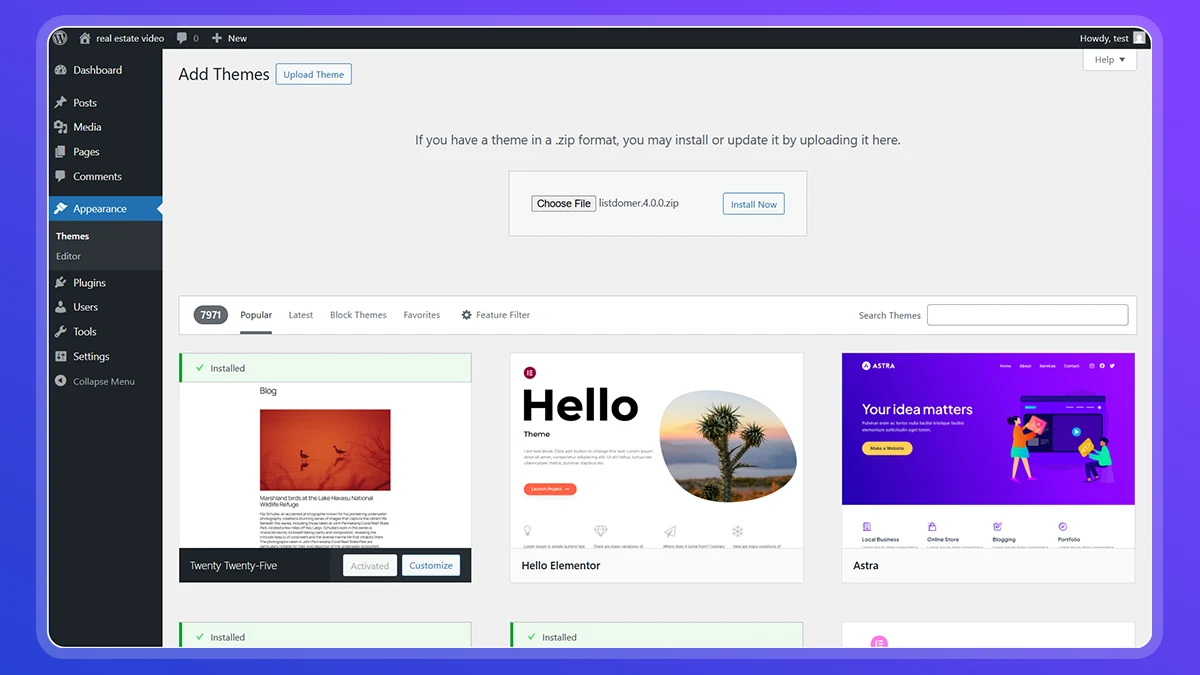
Goal: Make the theme active so its demo importer and layouts can run.
To install the theme:
- Open your WordPress dashboard
- Go to Appearance, then Themes
- Add a new theme and upload the theme file if needed
- Install and activate the theme
Once activated, the theme may add its own menu in the WordPress dashboard. This is commonly where you find demo import and setup tools. At this stage, do not spend time customizing design. The goal is simply to activate the theme so demo import and required plugins can be installed cleanly.
Screenshot to add: WordPress Appearance > Themes showing the selected theme activated
Step 3: Install Required Plugins Including Listdom

Goal: Install the plugins required for the directory system and for the demo to function.
After activating the theme, you will typically be prompted to install required or recommended plugins. One of those plugins should be Listdom, which provides the directory functionality.
Install and activate the required plugins so the demo import can run without missing components. If you are not using a demo theme, you can install Listdom directly from Plugins in your WordPress dashboard and activate it.
Important note for future-proofing: even if themes and demos change later, Listdom remains the part that controls listings, categories, locations, and directory behavior.
Screenshot to add: WordPress Plugins screen showing Listdom installed and activated
Step 4: Open the Demo Importer
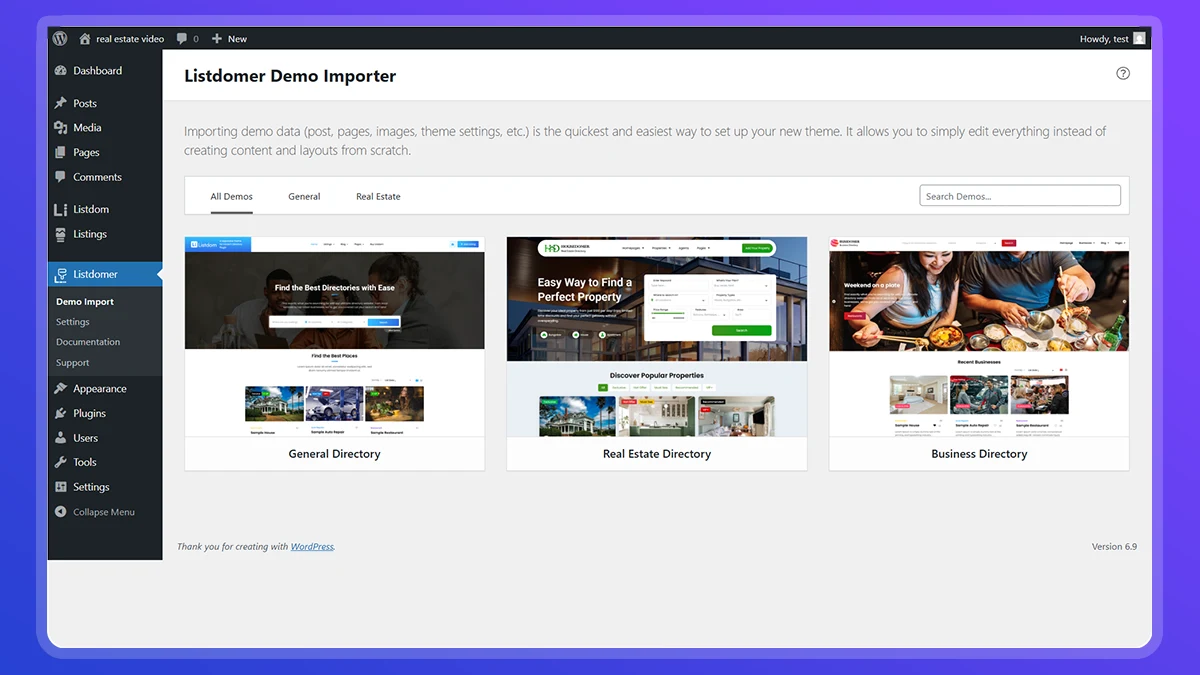
Goal: Access the tool that imports a complete starter directory website.
If you are using a demo-capable theme, open the theme menu in your WordPress dashboard and find the demo importer. The importer is the tool that creates a working website structure in a predictable way.
The demo importer usually imports:
- Pages (home, listings, single listing pages)
- Menus and navigation
- Starter layouts
- Sample content that demonstrates the directory structure
Do not worry about whether the demo looks exactly like your final site. The purpose is to start with a working structure and customize gradually.
Screenshot to add: The demo importer screen before selecting a demo
Step 5: Select a Directory Demo (General or Business Example)
Goal: Choose a demo closest to your intended directory type.
Inside the demo importer, choose a demo. You may see options such as:
- General directory demo
- Business directory demo
- Real estate demo
- Other niche demos
For this pillar guide, the best default is the General directory or Business directory demo. Both represent a clean directory structure and help you understand how listings, categories, and locations work.
These demos use the same Listdom directory system. They differ mainly in presentation, sample data, and the field naming used in the example listings.
Select the demo and confirm the import.
Screenshot to add: Demo importer with the chosen directory demo highlighted
Step 6: Wait for the Import to Complete
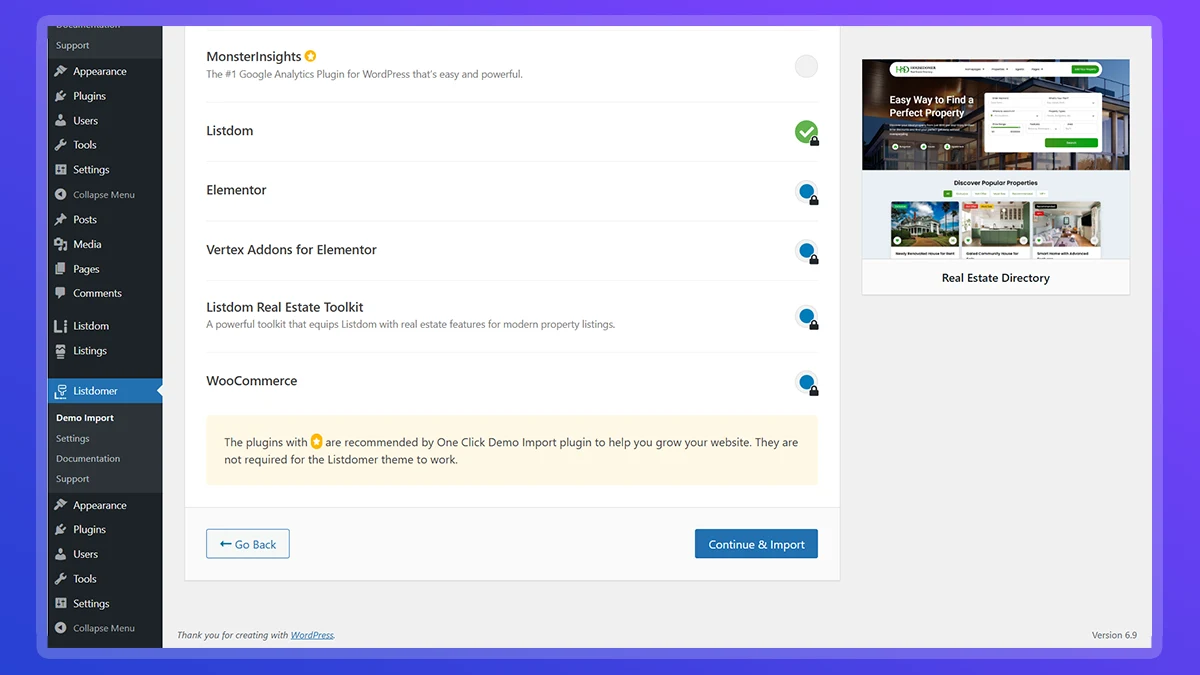
Goal: Let the importer finish creating pages, listings, and settings without interruption.
Demo import can take a few minutes. During import, the system typically:
- Creates pages automatically
- Adds listings and categories
- Applies starter directory settings
- Configures layouts and templates
Do not refresh or close the page until the import is finished. Once complete, you should see a confirmation message.
Screenshot to add: Demo import progress or completion confirmation screen
Step 7: Confirm Your Directory Website Is Ready
Goal: Verify that the directory is working and that key pages load correctly.
After import, visit the front end of your site. You should be able to:
- Open the homepage
- Navigate to the directory or listings page
- Open a single listing page
- Browse categories or locations if they exist
At this point, your directory website should be functional. It is normal if it contains demo content. The demo is a starting structure, not your final directory.
Screenshot to add: The imported directory homepage in the browser
Step 8: Explore Where Listings and Directory Controls Live
Goal: Understand where the real control is before you edit anything.
Now move back into the WordPress dashboard and locate the areas that matter most. You are not changing settings yet. You are simply learning where things live.
Look for:
- Listings management: where listings are created and edited
- Categories and locations: how listings are organized
- Listdom settings: where directory behavior is controlled
- Layout and template areas: how listing archives and single listing pages are displayed
This step is crucial for beginners because it prevents random editing. Once you know where control lives, customization becomes calm and predictable.
Screenshot to add: WordPress dashboard showing the Listdom menu and listings area visible
Safety and Reassurance About Demo Content
If you imported a demo, you may feel hesitant to touch anything. That is normal.
Here is the key reassurance: demo content is replaceable.
- Demo listings exist to show structure and field usage
- Demo pages exist to show layout and navigation
- Demo categories and locations exist to show organization
You can delete demo listings, rename categories, and rebuild pages without breaking Listdom. The plugin remains intact because it controls the directory engine, not the demo content.
Also remember this: if you did not import a demo, Listdom still provides sample listings and dummy data to help you understand how listings work. That content is also safe to remove when you are ready.

Common Beginner Mistakes
This section is short on purpose. These are the most common issues that slow people down:
- Customizing design before you understand how listings are structured
- Deleting demo content before confirming what it was connected to
- Changing many settings at once and then not knowing what caused a problem
- Treating listings as regular pages or blog posts
- Expecting a perfect directory on day one instead of launching a working version
If you avoid these, your progress becomes much smoother.
What to Do After Your Directory Website Is Live
Once your directory is working, your next stage is not “build everything again.” It is gradual replacement and refinement.
Here is where control typically lives:
Listings and categories
This is where you replace demo listings with real content. You add, edit, and organize listings. You adjust categories and locations to match your niche. A business directory might focus on business categories and city-based locations. A travel directory might focus on regions and attraction types. The structure is the same.
Directory settings
This is where behavior is controlled. Settings govern how listings are displayed and how users interact with the directory. Do not try to master every setting immediately. Make small adjustments only when you have a reason.
Layouts and templates
This is where you refine how listing cards, archive pages, and single listing pages look. Depending on your setup, layouts may be editable with a page builder. If Elementor is part of your current theme demo, treat it as an implementation detail that may change over time. The important point is that your data and directory logic remain inside Listdom.
Styling options
This is where you adjust typography, spacing, and visual presentation without changing directory logic. If you switch themes later, your listings and directory structure remain.
When you are ready to go deeper, use the official documentation as a reference library, not as something you must read before you can move forward:
https://docs.webilia.com/listdom/
Future guides in this onboarding series will cover managing listings, directory settings, and layout customization in focused, beginner-friendly steps.
If you have any questions or need help, you can contact Listdom support.

Test and Launch Your Directory Website
After you build a directory website with WordPress and before launching it, test all of its features to make sure it works properly. This includes testing the search functionality, listing submissions, and payment processing. If you find any issues or bugs, fix them before you launch your site. Once everything works smoothly, launch your website and share it with the world!
Optimize Your Directory Website for SEO and Marketing
Search engine optimization (SEO) is essential for driving organic traffic to your directory website. Optimize your listings and content with relevant keywords, meta tags, and descriptive titles. Use SEO plugins like Yoast SEO or Rank Math to improve your website’s visibility in search engine results.
Directory Website Maintenance
Maintaining a directory site is a dynamic and ongoing process that ensures the site’s optimal performance and user experience. It involves regularly updating the site’s content to keep it relevant and accurate. This could mean adding new listings, updating existing ones, or removing outdated entries. It’s also crucial to monitor and manage user-generated content, such as reviews or comments, to maintain the site’s credibility and integrity.
When you build a directory website with WordPress, technical maintenance is equally important and includes tasks like checking and fixing broken links, optimizing site speed, ensuring mobile responsiveness, and implementing regular backups for data security. Regularly updating the site’s software, themes, and plugins is also a part of technical maintenance, which helps in keeping the site secure and functioning smoothly. Lastly, SEO optimization is an ongoing task that helps improve the site’s visibility on search engines. In essence, directory site maintenance is a comprehensive process that plays a vital role in the site’s success and longevity.

Final Thoughts
A directory website is defined by its structure, not by its demo.
If you start with a demo, you are simply starting with a working example you can safely replace. If you start without a demo, you still have the same foundation: Listdom as the directory engine, and WordPress as the platform that manages content and design.
Now you have a working directory website and a clear understanding of the correct next steps. Launch first, then improve gradually.



8 Responses
Hi, Can I make a job listing website with this plugin?
Hello Locus
Yes you can the Listdom Jobs Addon to make a job listing (job portal) site.
Hey Webilia, Thanks for this detailed tutorial. I have an issue with my site, How can I contact you? Di you offer support for the free version?
Hello Za’far
Yes! Feel free to open a support ticket at https://webilia.com/support
Hello team
I have a question about the Listdom. I just imported some listings and the locations of all of them are shown on the same point on the map. What could be the problem?
Hello Colin
The problem is related to the listings geo-points. Probably all of the listings have the same longitude and latitude. Contact us at Webilia.com/support for more detailed help.
Hello there and thank you for this tutorial. Is there a refund policy included if I buy the pro version?
Hello Anita
Yes, Webilia Has a 30-day money-back guarantee on all plans except the monthly plans.