Why Listdom settings take a little time to understand
Many plugins try to place everything inside one universal settings page.
Listdom does not work like that.
Instead, it divides settings by function.
That means:
- Global plugin behavior has its own area
- Listing display has its own area
- Search has its own builder and settings
- Add-ons extend the system with their own controls
- Theme-side settings stay in the theme layer when Listdomer is active
At first, this can take a little orientation.
In practice, it is more logical.
A shortcode should control how listings appear on a page. A search form should control how users search. A frontend dashboard section should control user submission behavior. A global settings tab should control broader plugin behavior.
Once you stop expecting one giant settings panel, the system starts making much more sense.
Start with one simple rule
If you only remember one thing from this article, remember this:
- Global settings control broader plugin behavior inside Listdom → Settings
- Shortcode settings control how listings are displayed
- Search form settings control how users search and filter
- Add-on settings control feature-specific behavior
- Theme settings control presentation and theme-level behavior when Listdomer is active
Inside Listdom → Settings, you may still see multiple internal sections such as General, Frontend Dashboard, Single Listing, Advanced, API, Addons, and Toolkits. That is still part of the main settings structure, not a completely separate settings world.
That single rule will save you a lot of time.
1. Global plugin settings: what they control
The main global settings live in Listdom → Settings.
This is where you handle broader plugin behavior across the site.
These settings usually affect things such as:
- date and time formatting
- currency behavior
- listing-related defaults
- map configuration
- social links and sharing-related setup
- archive page behavior
- slugs and URL structure
- spam protection and privacy controls
- integrations
- frontend dashboard behavior
- single listing behavior
- advanced behavior
- API and add-on-related configuration
This is the right place when the question is something like:
- How should Listdom behave across the site?
- Which provider should my maps use?
- What should my listing URLs look like?
- How do I protect forms from spam?
- How should frontend submission work in general?
This is not always the right place when the question is:
- How should this specific listing page look?
- How should this search form behave?
- Why is this shortcode showing the wrong layout?
Those questions usually belong somewhere else.
2. The first global settings new users should review
This is the most practical part of the article.
You do not need to study every settings tab on day one. But there are a few areas worth reviewing early because they affect the overall experience and can save you time later.
Map settings

If your directory uses location-based listings, maps are one of the first things to review.
A good first pass includes:
- Choosing the map provider you want to use
- Adding a Google Maps API key if you plan to use Google Maps
- Setting a sensible default backend location and zoom level
- Enabling better address accuracy options if needed
This matters because maps affect more than just visual display. They also shape address input, geocoding accuracy, and how location-based features feel throughout the site.
If your site depends heavily on local listings, do not leave map setup until the very end.
Slugs and URLs
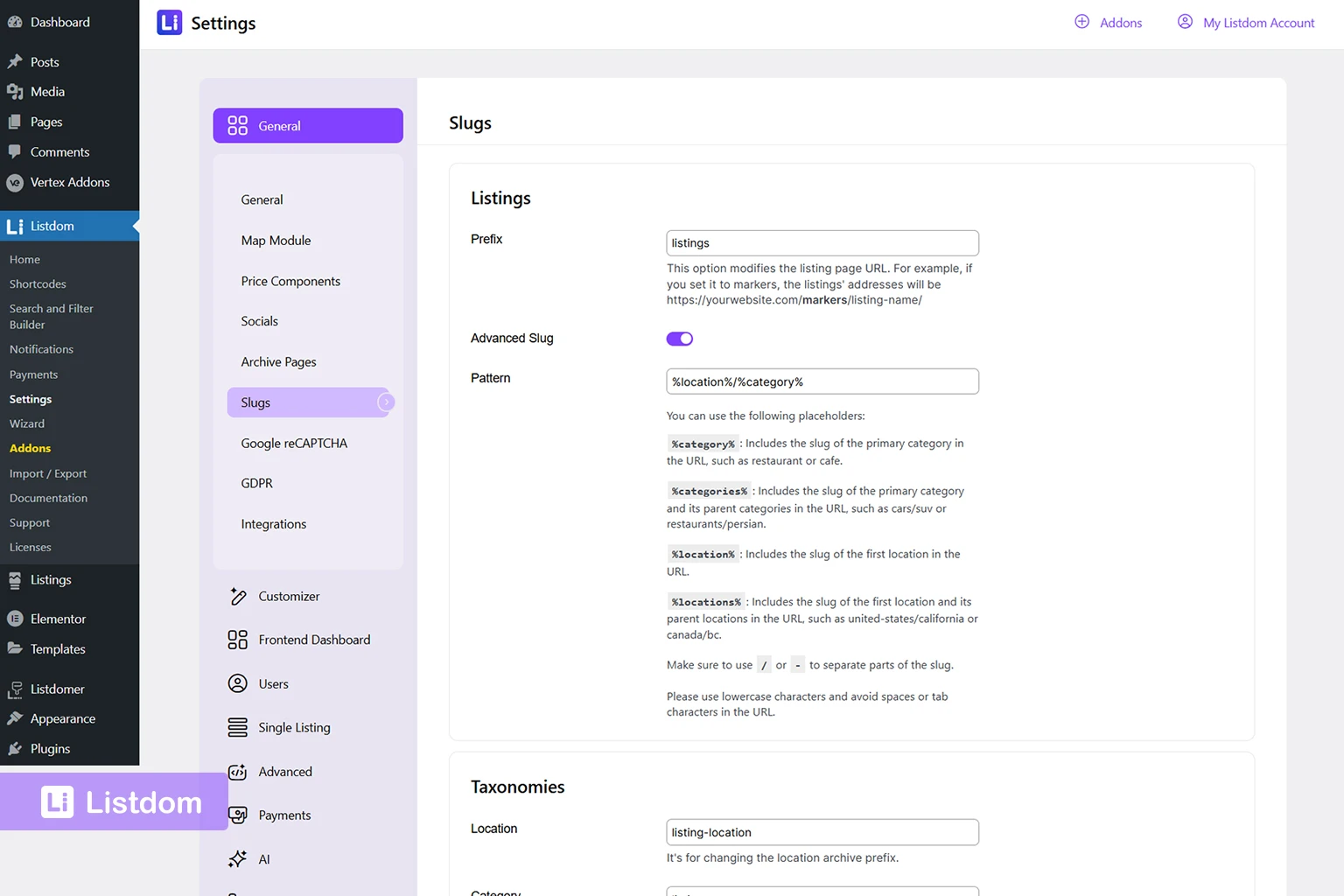
Slug settings are easy to ignore early, but they can become annoying to change later.
This is where you should review things like:
- listing URL slugs
- category or location-related slugs
- other URL-sensitive naming choices
A simple beginner rule is this:
If you already know how you want your directory URLs to look, decide that early.
You can still change them later, but it is cleaner to make major slug decisions before the site has a lot of content and internal links.
And whenever you make important slug changes, it is smart to refresh WordPress Permalinks in WordPress settings so the updated URLs work properly.
Form protection and privacy
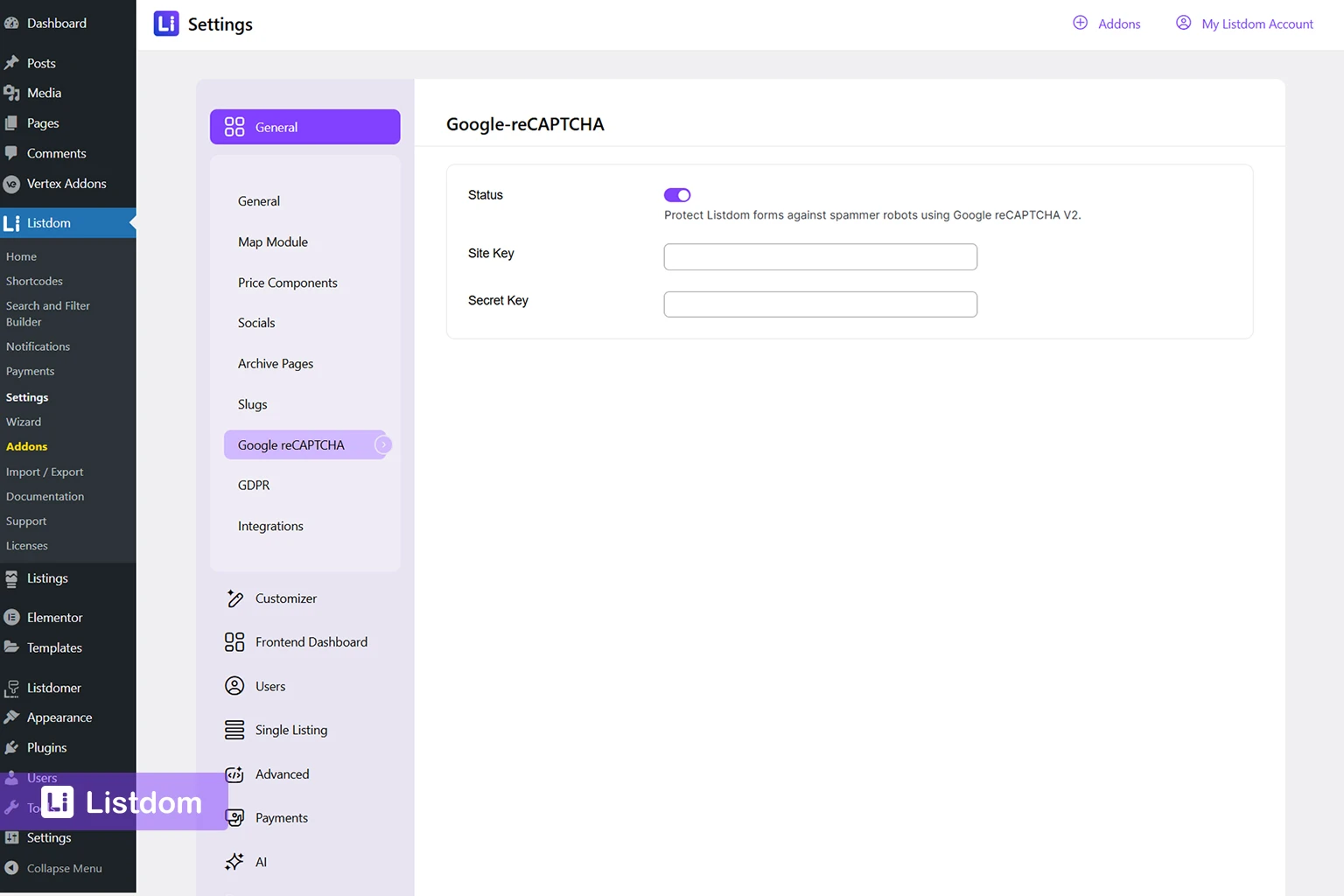
If your site includes forms, submissions, or public interaction, this is worth reviewing early.
The two big examples are:
- Google reCAPTCHA for spam protection
- GDPR related consent settings for forms
This is especially important if you plan to use contact forms, submission forms, or user-facing workflows. It is much better to set these basics early than to react to spam or privacy issues later.
Basic integrations
Some integrations only matter in specific projects, but it is still useful to know where they live.
Examples include:
- Mailchimp integration, if you want to use its services for site emails and notifications
- Block Editor-related behavior if you want a specific listing editing experience
You do not need to activate everything. The goal here is awareness, not maximum setup.
Listing-related basics
Inside the general settings area, you may also find small but useful options that affect the listing experience across the site.
Examples can include:
- listing-specific defaults
- address field behavior
- image-related defaults
- no-results style messages in some cases
- visit or feed related behavior, depending on the project
You do not need to obsess over every field here. Just understand that some small settings can quietly affect the user experience across many listings.
What can usually wait
A new user does not need to tune every setting tab deeply immediately.
In most cases, these can wait until you have a clearer reason:
- deeper advanced settings
- feature-specific settings for add-ons you are not actively using yet
- highly customized integrations
- niche configuration that depends on your exact project model
That is why a problem-driven approach works best.
Review the most important global basics first, then go deeper only when the site structure is already clearer.
3. Frontend Dashboard settings inside the main settings area
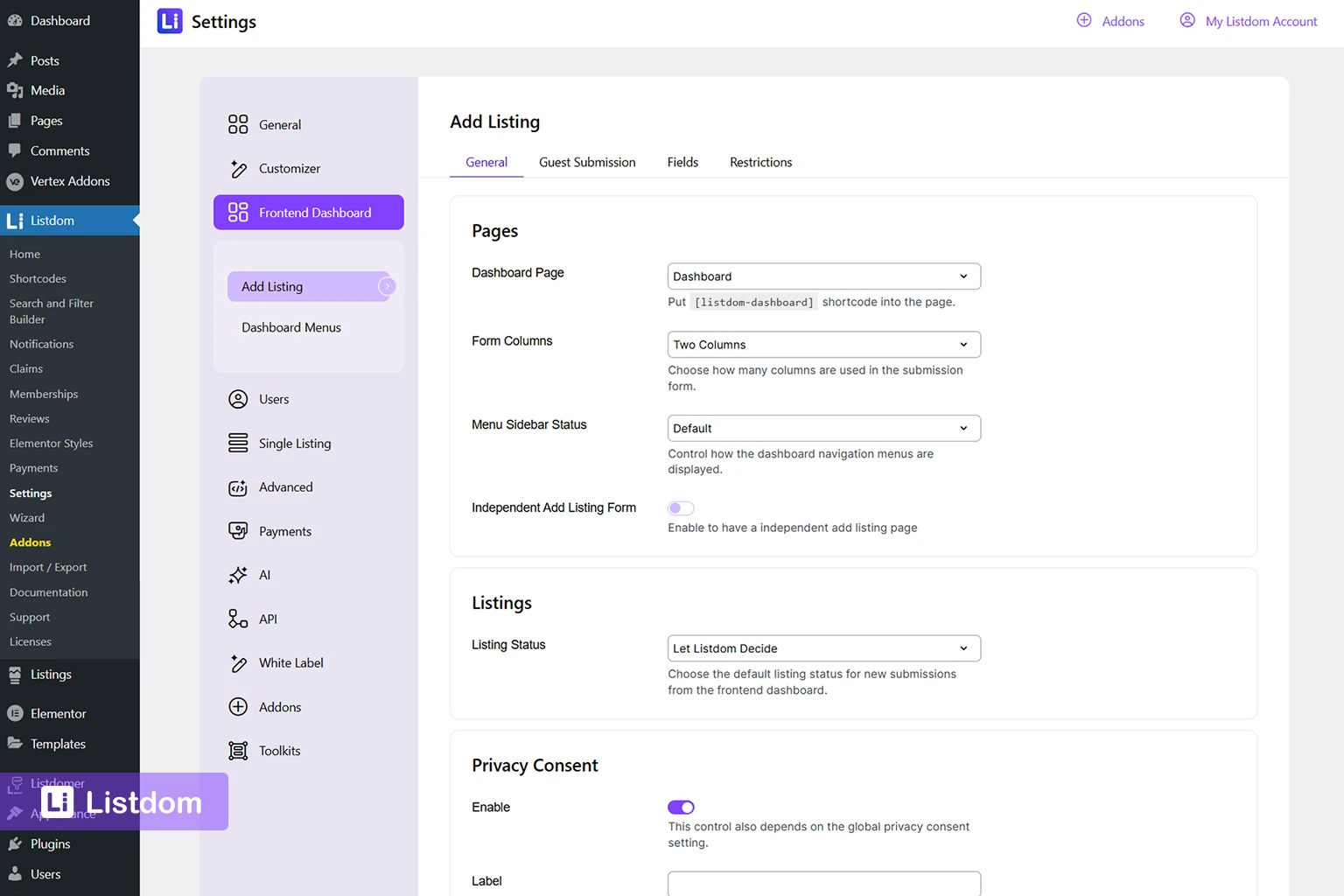
The Frontend Dashboard section is still part of Listdom → Settings.
It deserves attention because it controls a very specific kind of behavior: the user-facing submission and management workflow on the front end.
This section matters when you want users to:
- Submit listings from the front end
- Manage their own listings without WP-Admin
- Use a user-facing dashboard page
- Access account-related directory actions on the site itself
The most important first-pass settings here usually include:
- the main dashboard page
- a standalone add-listing page if you want one
- whether guest submission is allowed
- which dashboard menus or actions are available
So while this section is specialized, it is not outside the main Listdom settings structure. It is simply one of the settings groups inside it.
If you are not planning to use front-end submissions yet, you do not need to spend much time here immediately.
But if user submissions are central to your project, this section becomes very important early on.
4. Shortcode settings: display and layout control
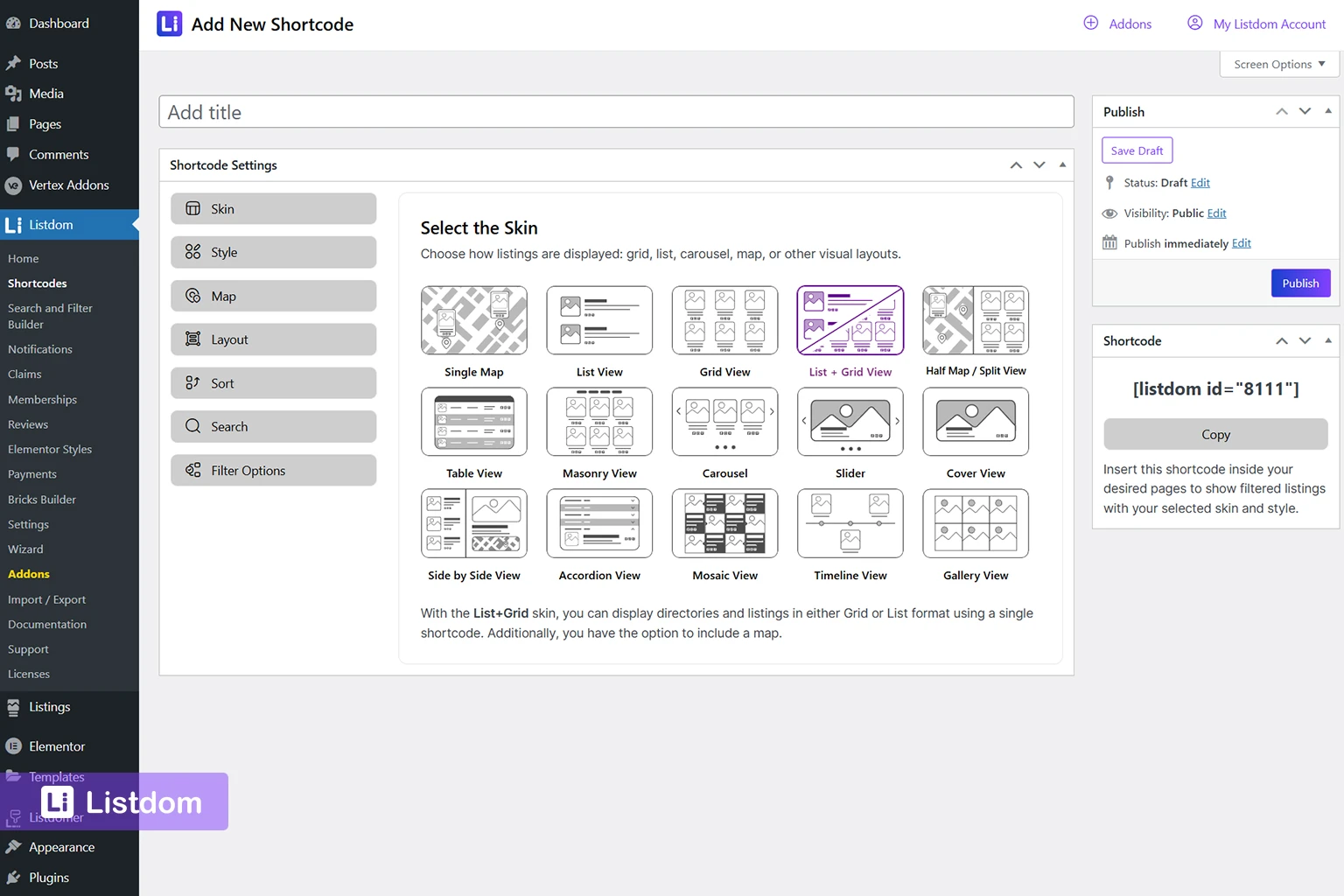
Shortcode settings are not global settings.
That distinction is very important.
In Listdom, shortcodes usually define how listings are displayed in a specific place.
That means shortcode settings typically control things like:
- the skin or layout style
- which listings are shown
- how many items appear
- whether filters are connected
- whether search is attached
- how a particular page behaves visually
This is the right place when your question is something like:
- Why does this page show the wrong layout?
- Why is this page displaying the wrong set of listings?
- Why is this listings section using the wrong skin?
- Why is search attached to this page in the wrong way?
This is not the right place when the issue is a broader plugin-wide rule.
A practical beginner test helps here:
If the problem only affects one set of listings output on one page, it probably belongs in the shortcode settings, not the main global settings menu.
5. Search form settings: search and discovery control
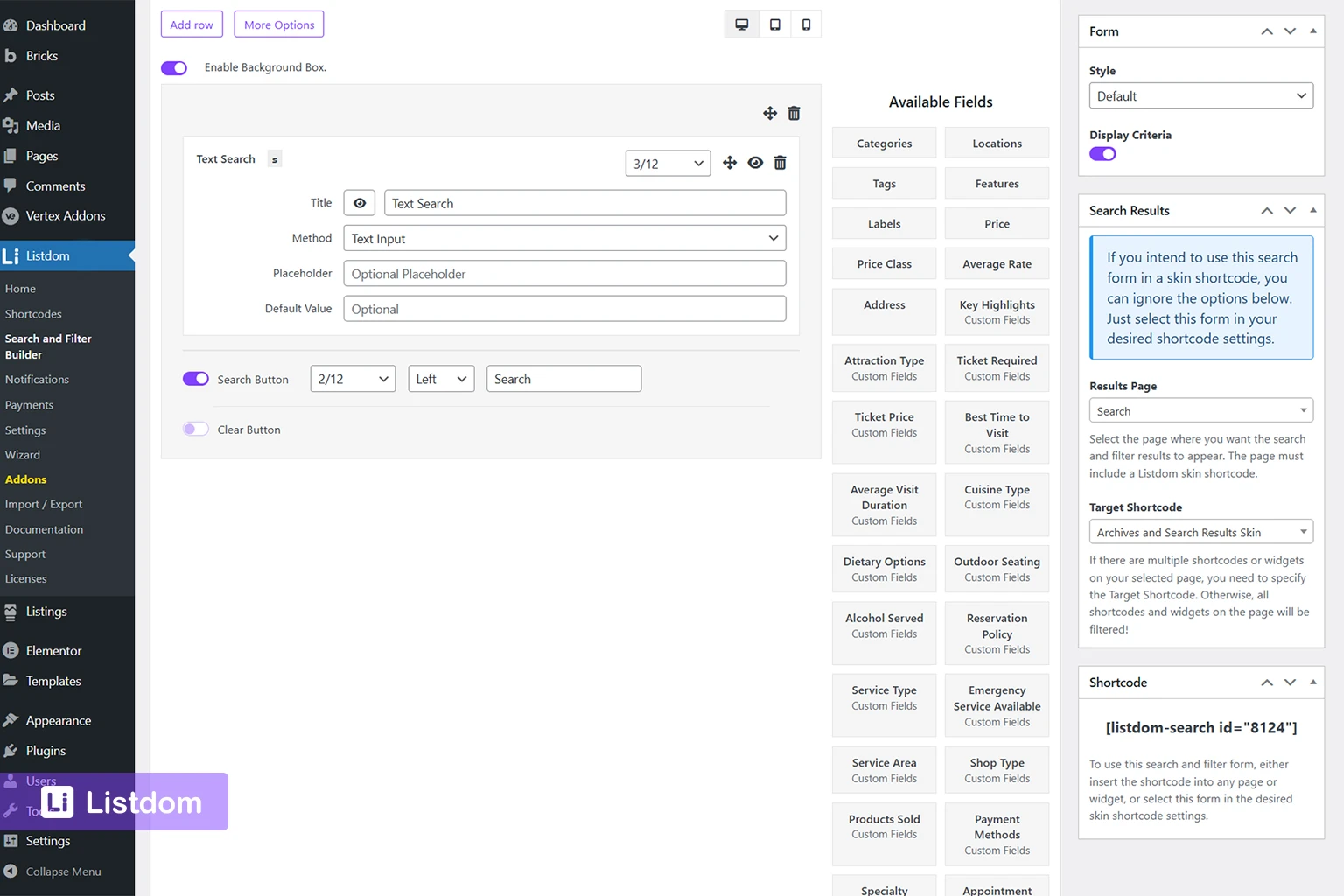
Search settings live in their own layer, too.
That is because search is not just a global option. It is a specific front-end behavior made from:
- selected fields
- search layout choices
- results behavior
- same-page or separate-page logic
- connected shortcode behavior
So if your question is:
- Which fields should appear in the search form?
- Should results open on another page?
- Should the search connect to this listings block?
- Which filters should stay visible and which should go under More Options?
Then the right place is usually the Search and Filter Builder, not the general settings menu.
A lot of beginners look for search settings inside the main Settings tabs because the word “settings” sounds broad. But search has its own working context in Listdom, and it makes more sense that way.
6. Single listing and other function-specific settings
Some settings layers are more specialized.
For example, the Single Listing settings area is important when your question is specifically about the single-listing page experience.
That can include things like:
- single listing style behavior
- layout-related decisions for individual listing pages
- template-related behavior depending on the site setup
Likewise, Advanced settings are usually the place for deeper behavior, optimization, or special-case controls that most beginners do not need to tune first.
This is another reason the main lesson of this article matters:
Not all settings belong in one place, because not all behaviors belong to the same layer of the product.
7. Add-on and toolkit settings

When you enable extra features, you may also get extra settings.
That is normal.
Add-ons extend Listdom with specific capabilities, and those capabilities usually bring their own settings or related configuration areas.
In demo-based setups, some of those add-ons may be loaded through a toolkit.
The important thing to understand is this:
A toolkit does not create a separate kind of settings logic. It simply bundles the add-ons needed for a certain demo or vertical.
Those add-ons still work like normal Listdom add-ons.
Their settings may appear in places such as:
- Listdom → Settings → Addons
- related feature sections
- settings tabs connected to the specific feature they affect
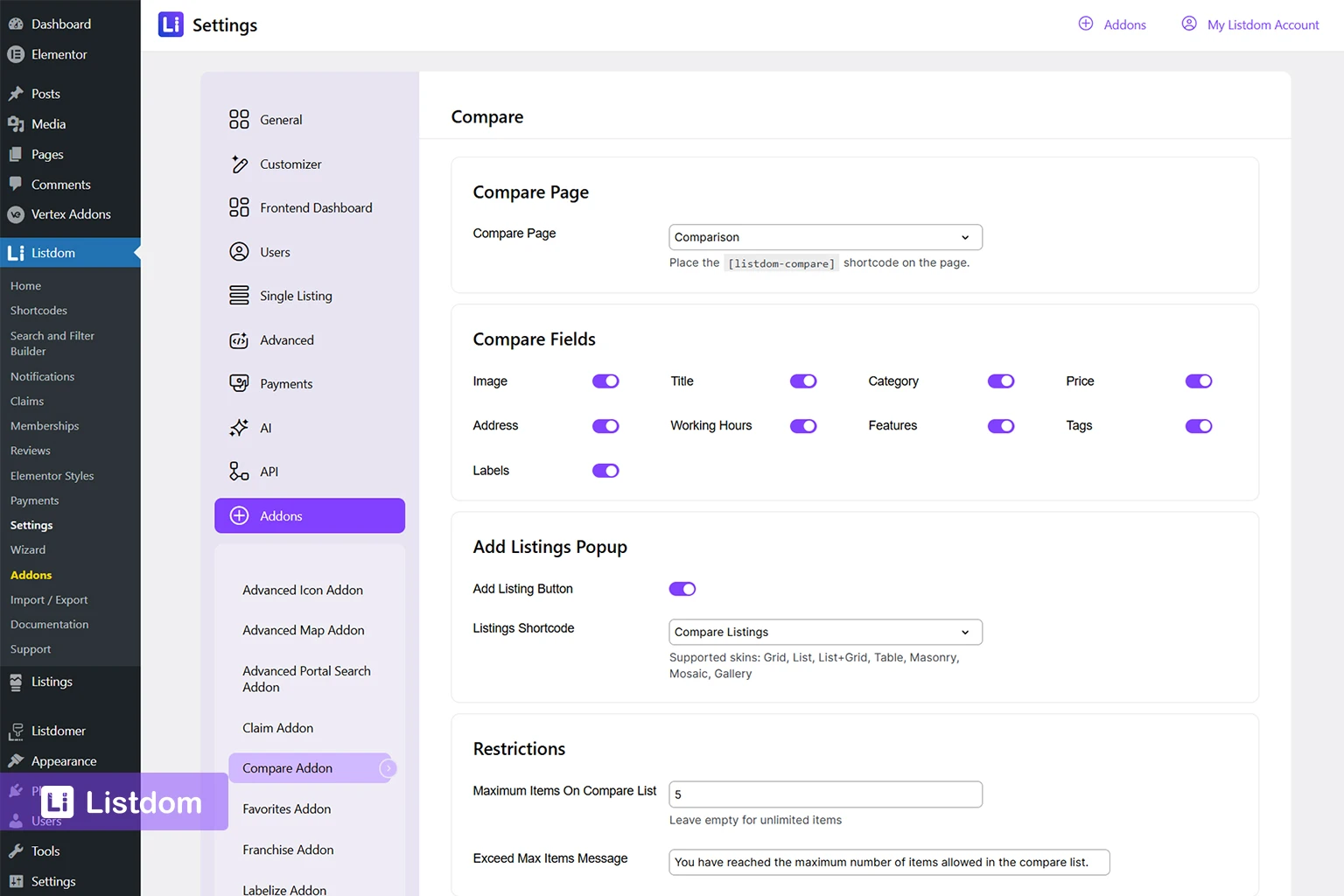
So when new settings appear after activating a toolkit or add-on, that is not a sign of inconsistency. It just means the plugin now has more active capabilities.
8. Theme settings vs plugin settings
If you are using the Listdomer theme, there is one more layer to understand.
Some settings belong to the theme, not the plugin.
That usually includes things like:
- demo import
- broader theme options
- header and footer behavior
- general visual site presentation
- theme-specific templates or styling behavior
Meanwhile, Listdom itself is still the layer that usually controls:
- listings
- taxonomies
- shortcodes
- search forms
- frontend dashboard behavior
- plugin-level functionality
This distinction matters because a beginner may try to fix a theme problem inside plugin settings, or try to fix a plugin behavior from the theme side.
A good rule is this:
- if the issue is about directory functionality, it is probably on the plugin side
- if the issue is about broader site presentation, it may belong to the theme side
How to know which settings area to use
This is the most practical decision framework in the article.
When you want to change something, ask which layer the problem belongs to.
Use global settings when the issue is site-wide behavior
Examples:
- maps
- global submission rules
- URL/slugs
- integrations
- privacy or spam protection
- broader plugin defaults
Use shortcode settings when the issue is page-level listing display
Examples:
- layout style
- which listings appear on one page
- output behavior for a specific listings section
- display-related filters attached to that shortcode
Use search form settings when the issue is search behavior
Examples:
- search fields
- results page behavior
- same-page vs separate-page logic
- connected search behavior
Use the Frontend Dashboard section in Listdom settings when the issue is user-side submission workflow
Examples:
- dashboard page assignment
- add listing page assignment
- guest submissions
- dashboard actions and menus
Use add-on or toolkit settings when the issue only appears after enabling a feature
Examples:
- feature-specific behavior introduced by reviews, claims, memberships, comparisons, or another extension
- extra demo-related features loaded through a toolkit
Use theme settings when the issue is site presentation rather than plugin function
Examples:
- theme layout
- header/footer behavior
- demo-imported theme sections
- broader presentation settings in Listdomer
What to configure first
A beginner-friendly order makes this much easier.
Here is a good sequence:
1. Review map basics
Especially if your directory depends on location.
2. Review slugs if you already know your URL structure
Make major URL decisions early when possible.
3. Set spam protection and privacy basics
reCAPTCHA and GDPR-related form behavior are good early checks.
4. Build the listing structure
Create the real content model first.
5. Configure shortcode display
Once the content exists, decide how it should appear.
6. Build search forms
Search makes more sense after the structure and display are clearer.
7. Configure the Frontend Dashboard if needed
Only if user submissions are part of your project.
8. Tune add-ons, toolkits, and advanced options later
Once the core workflow is understandable.
This order reduces confusion because it follows the natural build process of a directory site.
Common beginner mistakes
Looking for everything inside Listdom → Settings
This is the biggest one.
Changing shortcode behavior from the wrong place
If the issue affects only one set of listings output, it is probably not a global settings problem.
Trying to fix the search from the general settings menu
Search usually has its own builder and behavior layer.
Skipping map setup early
If maps matter to your site, delaying this often creates unnecessary cleanup later.
Changing slugs late without checking WordPress permalinks
This can create confusion around URLs and routing.
Activating add-ons before understanding where their settings live
This can make the settings structure harder to follow than it really is.
Confusing theme presentation with plugin behavior
This is especially common in Listdomer-based sites.
What to learn next
Once you understand where settings live, the next best step is to keep building in the right order.
The most useful follow-up topics are:
- How to Display Listings in Listdom with Shortcodes
- How to Create Search Forms in Listdom
- How to Import and Understand Listdom Demos
- How to Navigate the Listdom Admin Menu
These topics help turn the settings mental model into practical setup decisions.
Final thoughts
Listdom settings are not random. They are layered.
At first, that can require a little more orientation than a single giant settings panel.
But once you understand the layers, the plugin becomes much easier to work with.
You stop searching everywhere. You start asking the better question:
What kind of behavior am I trying to change?
Once you answer that, the right settings area becomes much easier to find.
FAQ
Where is the main Listdom settings area?
The main global settings area is under Listdom → Settings.
Which global settings matter first?
For most beginners, the most important early checks are maps, slugs, spam protection, privacy basics, and any must-have integrations.
Why are shortcode settings separate from plugin settings?
Shortcode settings control how a specific set of listings output appears on a page, while plugin settings control broader site-wide behavior.
Where do search settings live in Listdom?
Search settings usually live in the Search and Filter Builder, not inside the general settings menu.
Where do Frontend Dashboard settings live?
They live in the dedicated Frontend Dashboard settings area inside the broader Listdom settings structure.
Are add-on settings different from normal settings?
They are feature-specific settings for active extensions. They follow the same logic as the rest of Listdom: the settings live near the behavior they control.
Does Listdomer have its own settings, too?
Yes. If the active theme is Listdomer, some settings belong to the theme layer, such as demo import and broader presentation-related behavior.
When should I touch advanced settings?
Usually, after the core structure, display, and search setup already make sense. Most beginners do not need to start there.