Why demos matter in the onboarding phase
When you are new to Listdom, the biggest challenge is often not installation. It is understanding how the pieces connect.
You need to understand:
- How listings, taxonomies, and pages relate to each other
- How search forms connect to results layouts
- How menus, widgets, and shortcodes are used across the site
- How the front-end dashboard fits into the user journey
- How much of the site comes from Listdom and how much comes from the theme or page builder
A good demo answers those questions faster than a theoretical explanation.
Understand the two types of demo content first
Before importing anything, it helps to understand that users may interact with demo content in two different ways.
1. Listdom dummy data inside the plugin workflow
You may import Listdom dummy data while starting the plugin setup journey. In that case, your site gets existing listings and taxonomies so you can understand what is already there and where to start. If certain add-ons are active, the imported demo content can also reflect their extra templates and fields.
This type of sample content is useful when you want to learn the plugin structure itself without committing to a full theme demo.
2. Listdomer theme demos
The Listdomer theme also provides full demo imports through its own demo importer. These demos are broader than simple sample listings. They can include pages, posts, media, theme options, Listdom settings, widgets, menus, and a more fully designed directory experience.
This option is better when you want a ready-made site structure that shows not only Listdom’s functionality, but also how a complete directory website can look and behave.
When to use dummy data and when to use a full demo
This decision matters more than many beginners realize.
Use dummy data when:
- You want to learn Listdom’s core structure first
- You are testing taxonomies, listings, and search basics
- You already have your own theme and design direction
- You do not want a large amount of imported theme content
Use a full Listdomer demo when:
- You want a complete starting point with pages and styling
- You are evaluating how a real directory site can be structured
- You want to study a vertical-specific setup, such as business, real estate, travel, health, or services
- You want a faster path to a video-friendly sandbox site
If you are unsure, the safer approach is usually this: learn the plugin structure first, then import a full theme demo on a staging site if you want to study a more complete implementation.
Which Listdomer demos are available
Listdomer currently includes seven ready-to-import demos:
- General Directory Demo
- Real Estate Directory Demo
- Business Directory Demo
- Traveldomer Demo
- Healthdomer Demo
- Servidomer Demo
- City Portal Demo
These demos are designed around different directory scenarios, and the importer can also install the required Toolkit plugin when a demo depends on bundled add-ons. That means a demo is not only a visual skin. It can also reflect the feature stack required for that vertical.
A toolkit is essentially a bundle of Listdom add-ons that are required for a specific demo or vertical. For example, you may see different toolkit types such as a Business Directory Toolkit or a Real Estate Toolkit, depending on the demo you import.
If you want to review or control those bundled add-ons later, go to Listdom → Settings → Toolkits. There, you can enable or disable the add-ons included in the toolkit. The add-ons themselves behave the same way they do when installed separately, so their settings are not locked inside the toolkit screen. You will still manage their options through Listdom → Settings → Addons or in the other Listdom sections where those features apply.
A useful beginner rule is to choose a demo based on the structure you need, not only the design you like. A business-focused demo may teach you better category and listing patterns for a local directory, while a travel or service demo may be more useful if your site depends on location-heavy layouts or service-focused landing pages.
A quick look at each demo
General Directory Demo
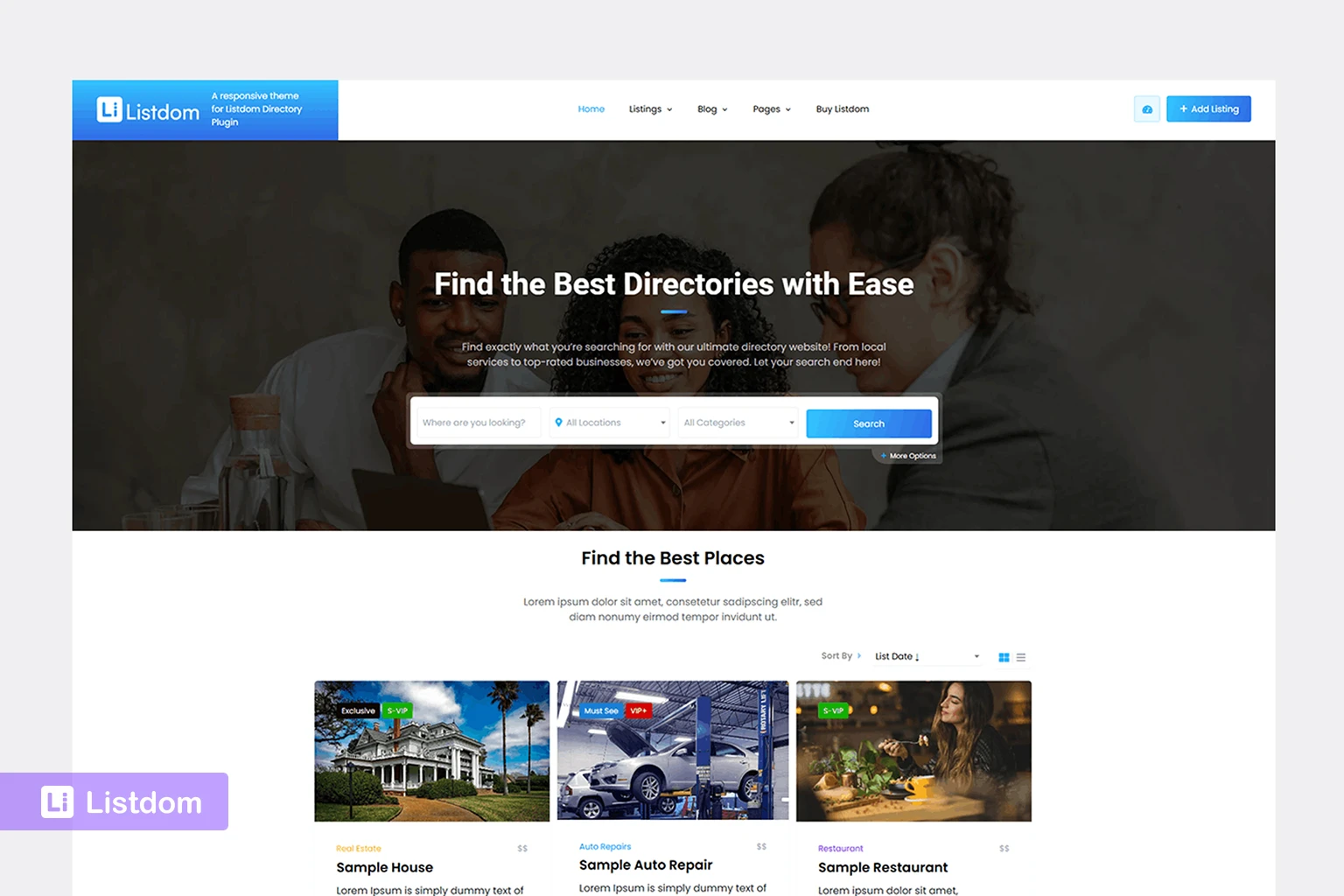
A flexible starting point for broad directory websites. This is a good choice when you want to learn the overall Listdom structure without committing to a very specific niche first.
Real Estate Directory Demo
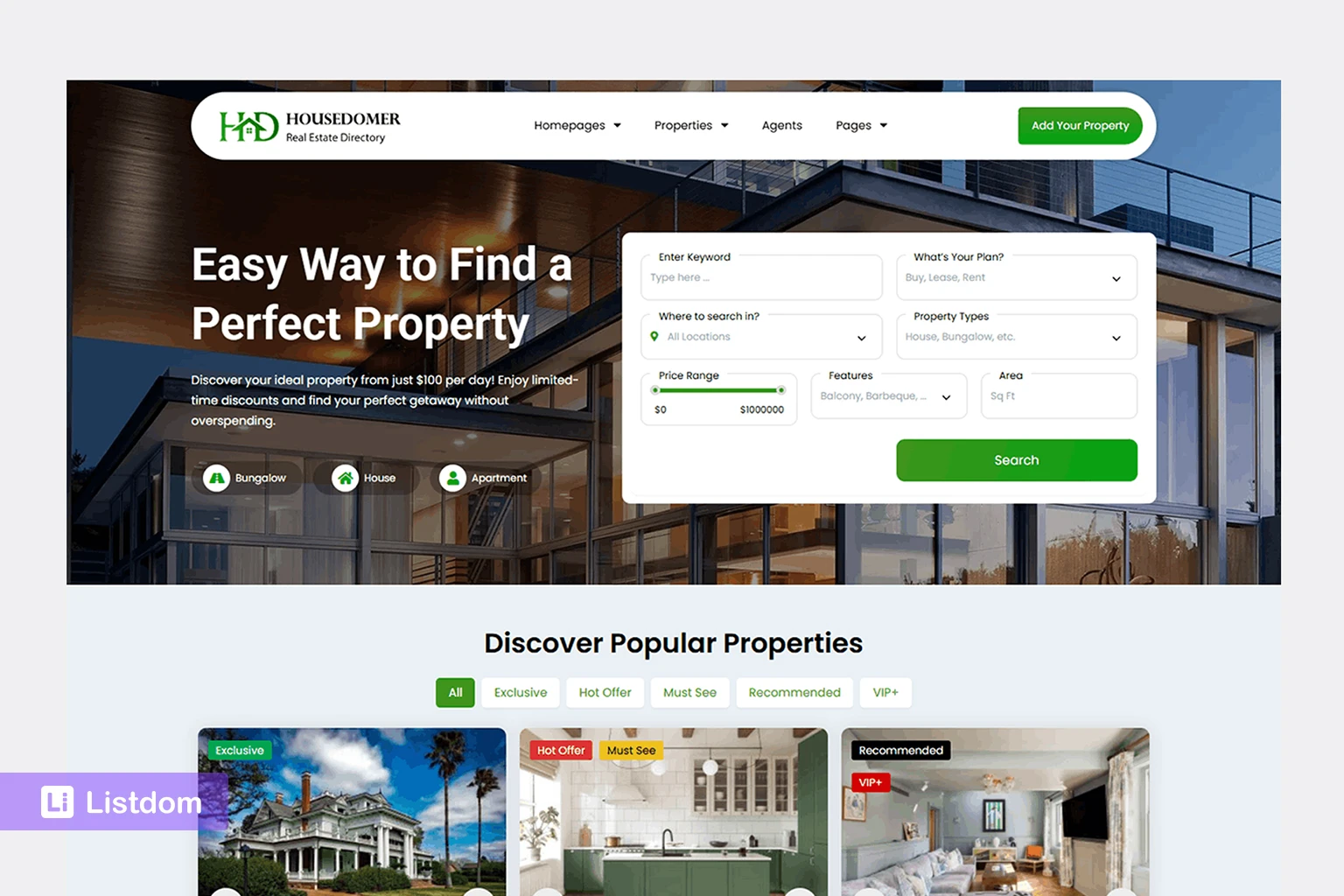
Best for property-focused sites where categories, listing details, and browsing patterns are shaped around real estate use cases. It is useful if you want to study how a more specialized listing structure works.
Business Directory Demo
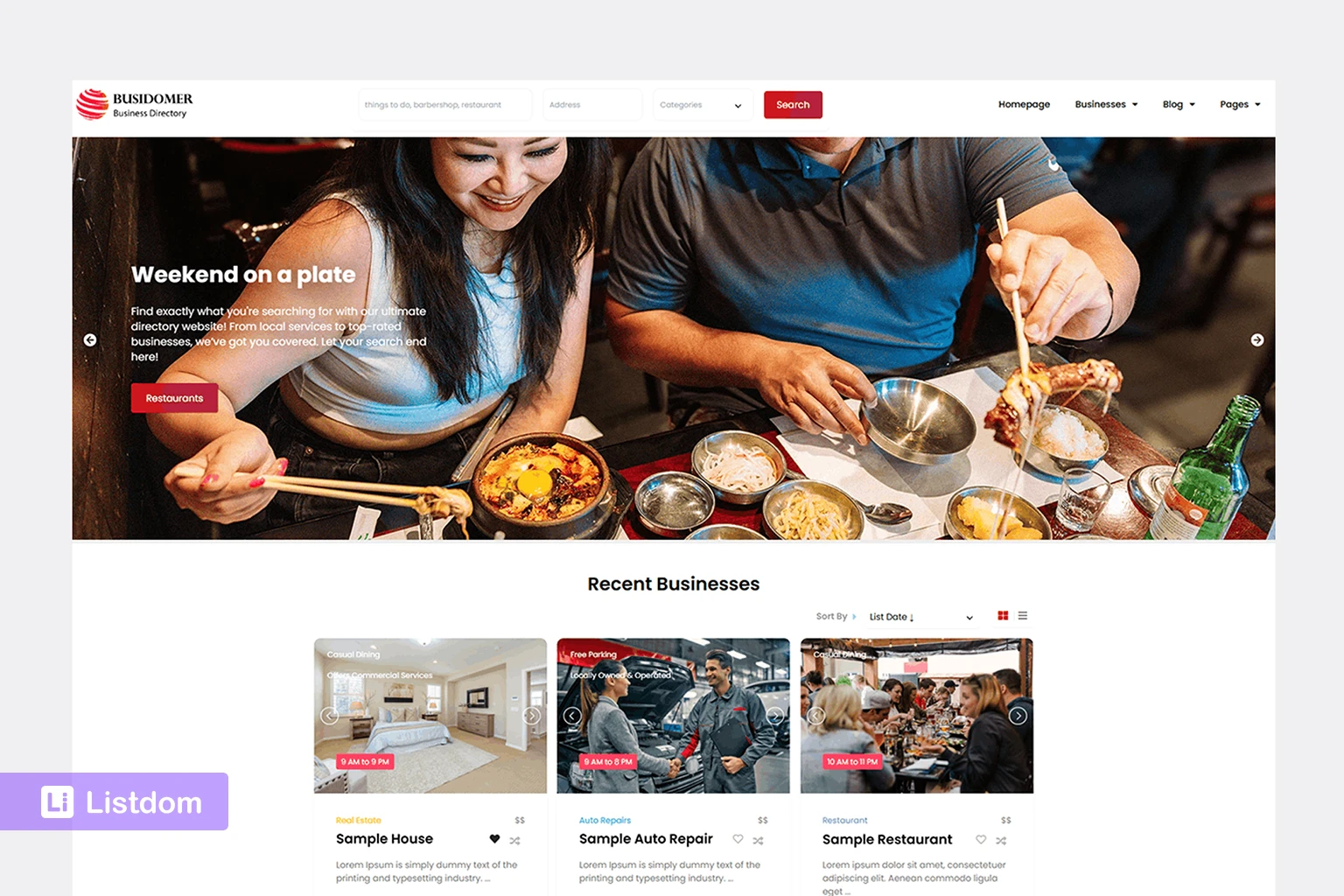
A strong option for local business directories, service-based listings, and city-oriented projects. This demo is especially helpful when you want to understand categories, contact details, and practical business listing patterns.
Traveldomer Demo
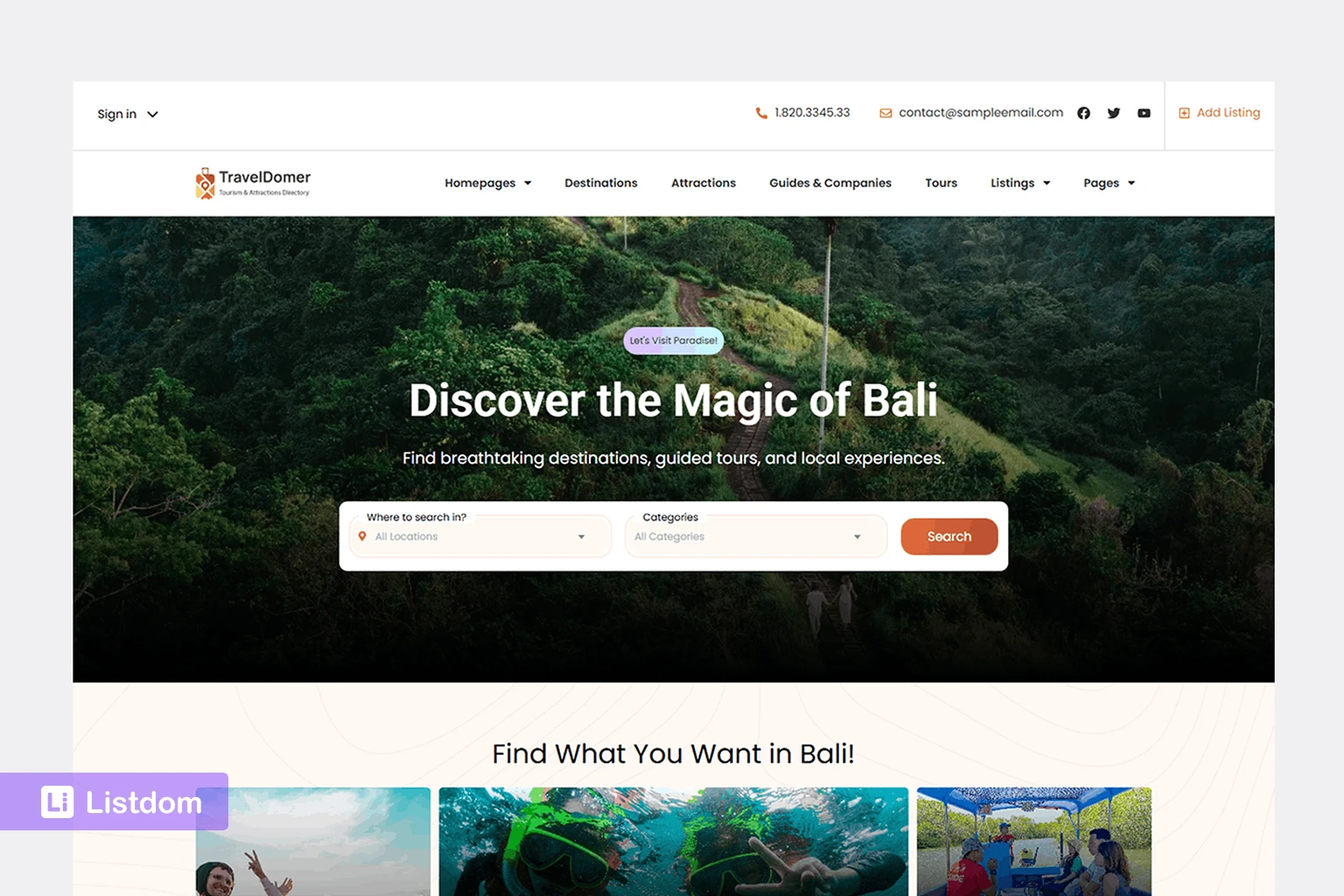
Designed for travel and destination-style directories. This can be useful if your project depends more on places, attractions, experiences, and location-rich browsing.
Healthdomer Demo
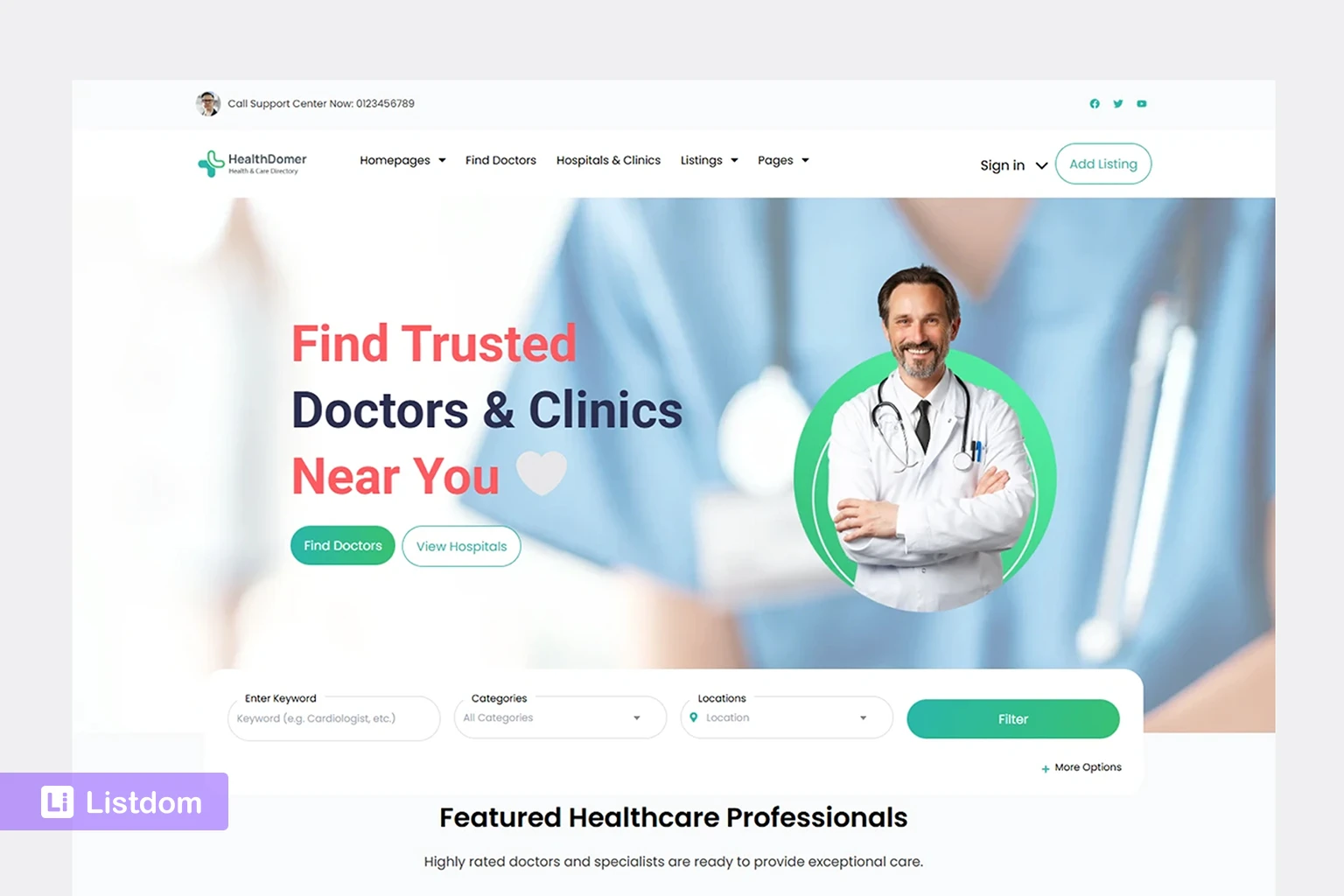
Built for health and wellness related directories. It is a good reference if you want to see how a more trust-focused and service-oriented niche can be organized.
Servidomer Demo
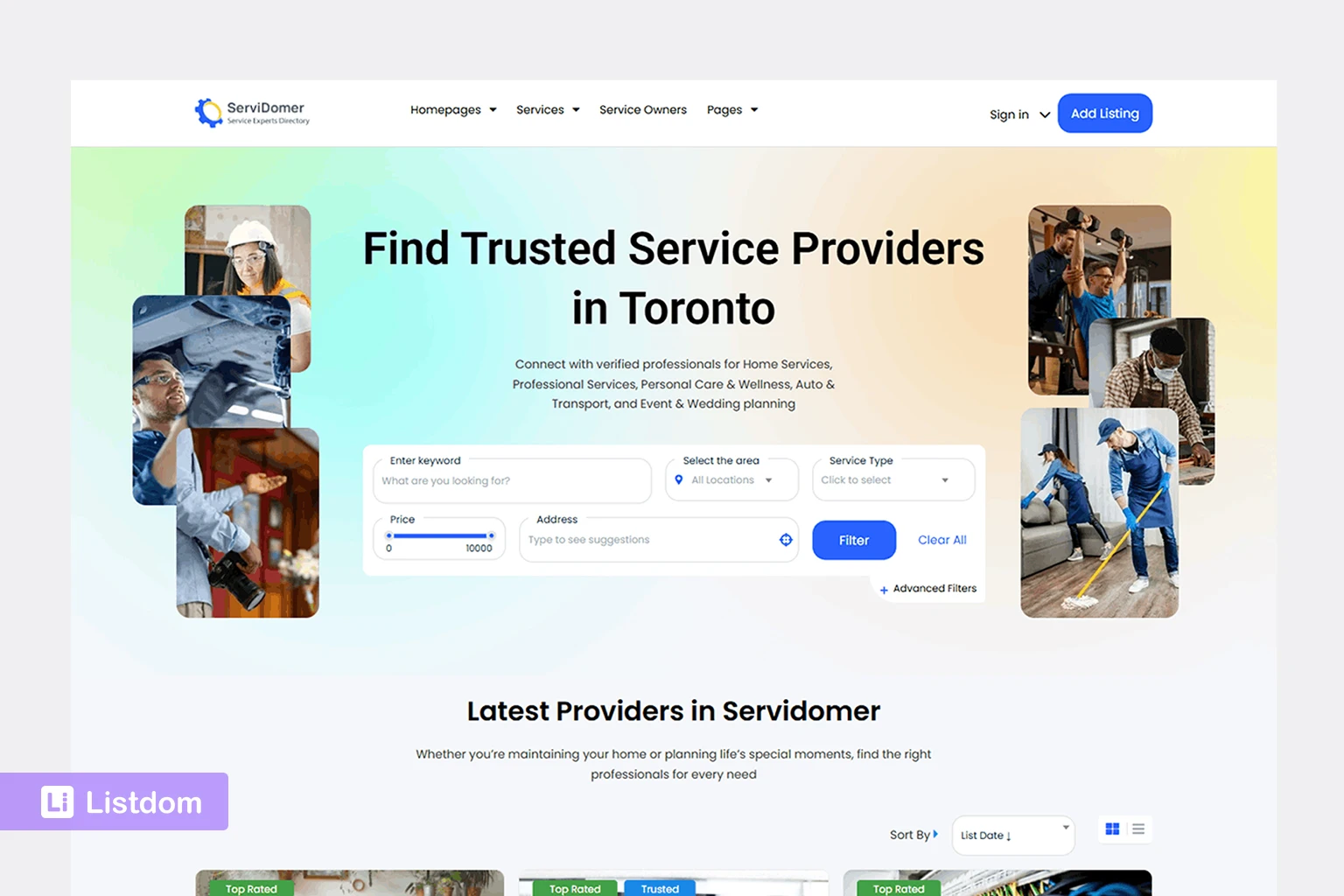
A useful demo for service provider directories. If your site is more about businesses offering services than physical places to visit, this demo can be a better structural fit.
City Portal Demo
A broader city-focused setup that can combine attractions, services, local businesses, and city information in one experience. This is useful when your project is meant to feel more like a city guide or local portal than a simple listing site.
That makes it easier to compare structures, layouts, and use cases before choosing which demo to import first.
How to import a Listdomer demo
If you want the full demo route, the import path is straightforward.
Go to:
Listdomer → Demo Import
Then:
- Choose the demo that best matches your use case
- Click import and confirm
- Approve any plugin installation prompts during the process
- Wait until the importer finishes and shows success
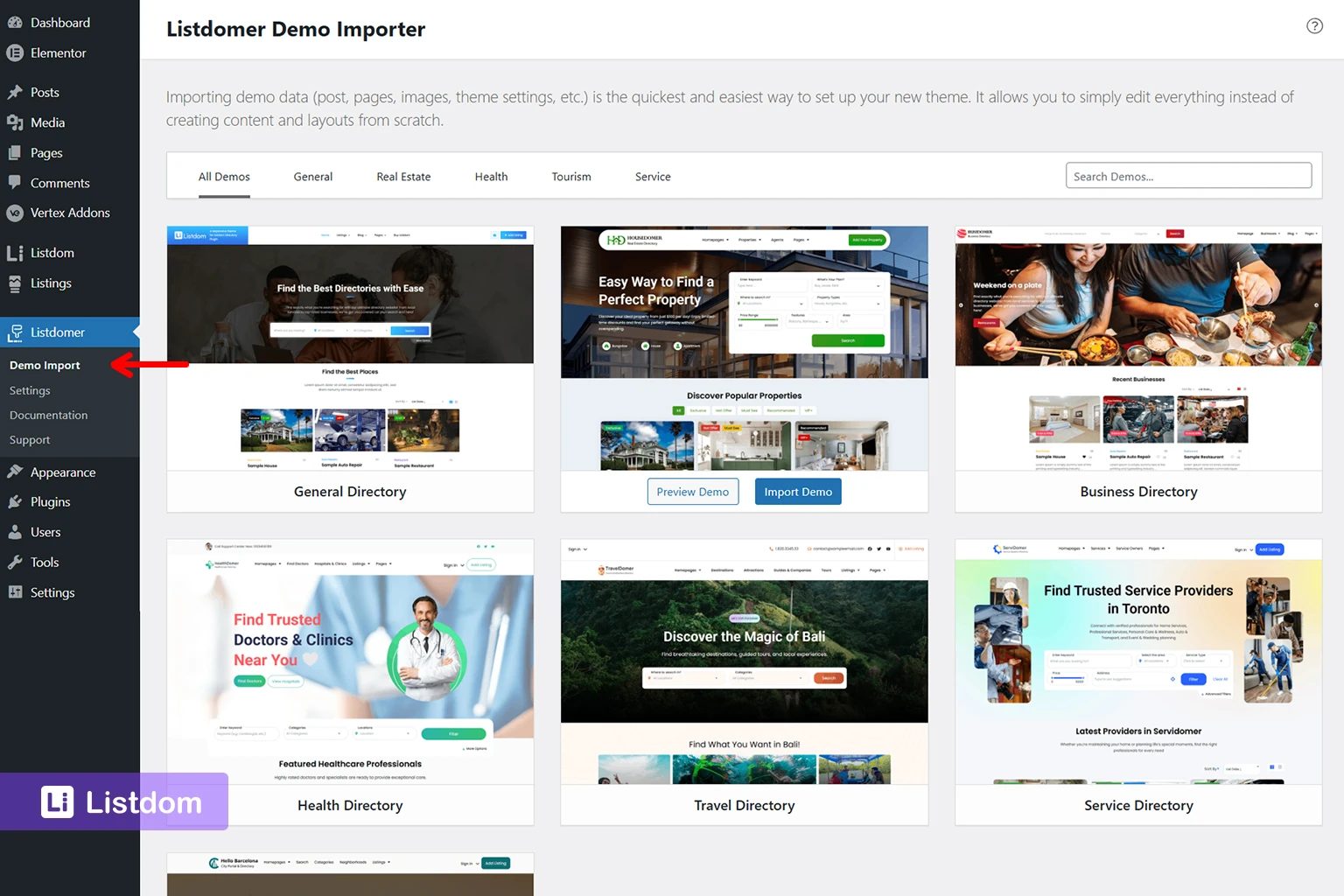
A demo import can bring in:
- pages and posts
- dummy listings
- media files
- theme options
- Listdom settings
- widgets and menus
This is one reason demos are so useful for onboarding. After import, you are not looking at isolated screens. You are looking at a connected system.
What to inspect immediately after import
This is the part many users skip.
They import a demo, see that the homepage looks good, and jump straight into editing text and colors. That often leads to confusion later.
Before customizing anything, inspect the imported structure.
Check the homepage and key pages
Visit the homepage, listings page, search page, dashboard page, contact page, and any category landing pages. Try to understand which pages are simple content pages and which ones are powered by Listdom shortcodes, widgets, or builder modules.
Check toolkit-based add-ons

Some demos rely on a toolkit that bundles the add-ons required for that specific demo. If you imported a business-focused demo, for example, you may see a Business Directory Toolkit. Other demos can use their own toolkit bundles, such as a real-estate-focused toolkit.
After import, it is worth opening Listdom → Settings → Toolkits to see which bundled add-ons are enabled for the demo. This helps you understand why a demo may include extra features such as claims, reviews, maps, memberships, comparisons, or other advanced behavior.
One important detail is that toolkit add-ons are not a separate kind of feature with separate rules. They work the same way as normal Listdom add-ons. The toolkit simply bundles and loads the add-ons needed for the demo. Their actual settings still live in the usual Listdom settings areas, such as Listdom → Settings → Addons or in the sections where those features affect the site.
Check taxonomies and listings
Go through Categories, Locations, Labels, Features, and sample Listings. Look for patterns.
Ask yourself:
- How are listings grouped?
- Which taxonomies are used for filtering?
- Which fields appear repeatedly?
- What is likely demo-only, and what is structurally important?
Check search forms and results pages
If the demo includes search, inspect how the search form is placed and where the results appear. A good demo often teaches you more about search flow than a blank settings screen.
This is also a good time to notice whether the demo relies on extra add-on behavior, especially in more advanced search experiences. If a demo feels richer than a plain Listdom setup, that usually means it is showing a fuller stack, not just nicer design.
Check menu assignments
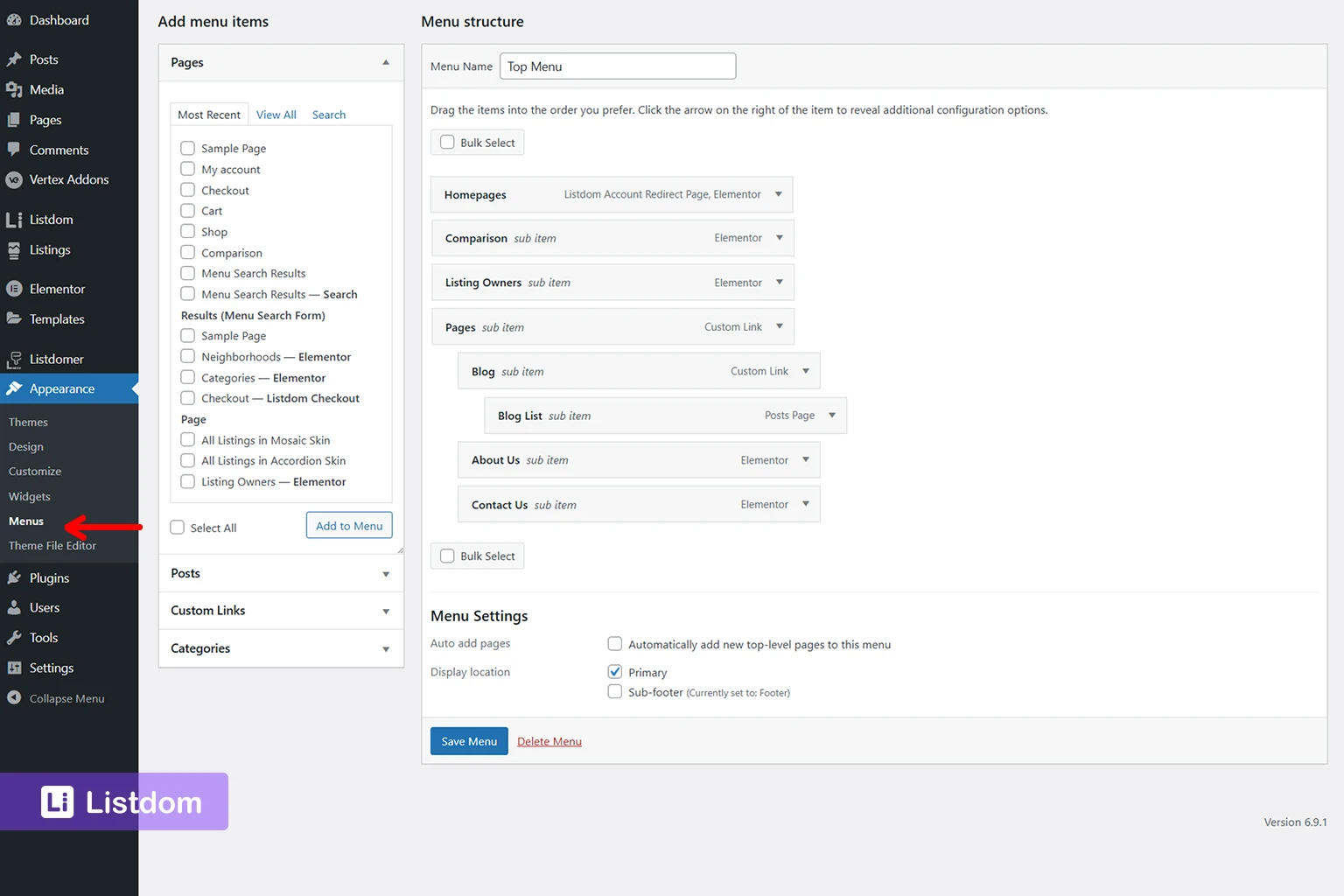
It is important to review menu assignments after import. This matters because a site can look broken even when the content is imported correctly if the wrong menus are assigned to the theme locations.
Check reading settings and permalinks
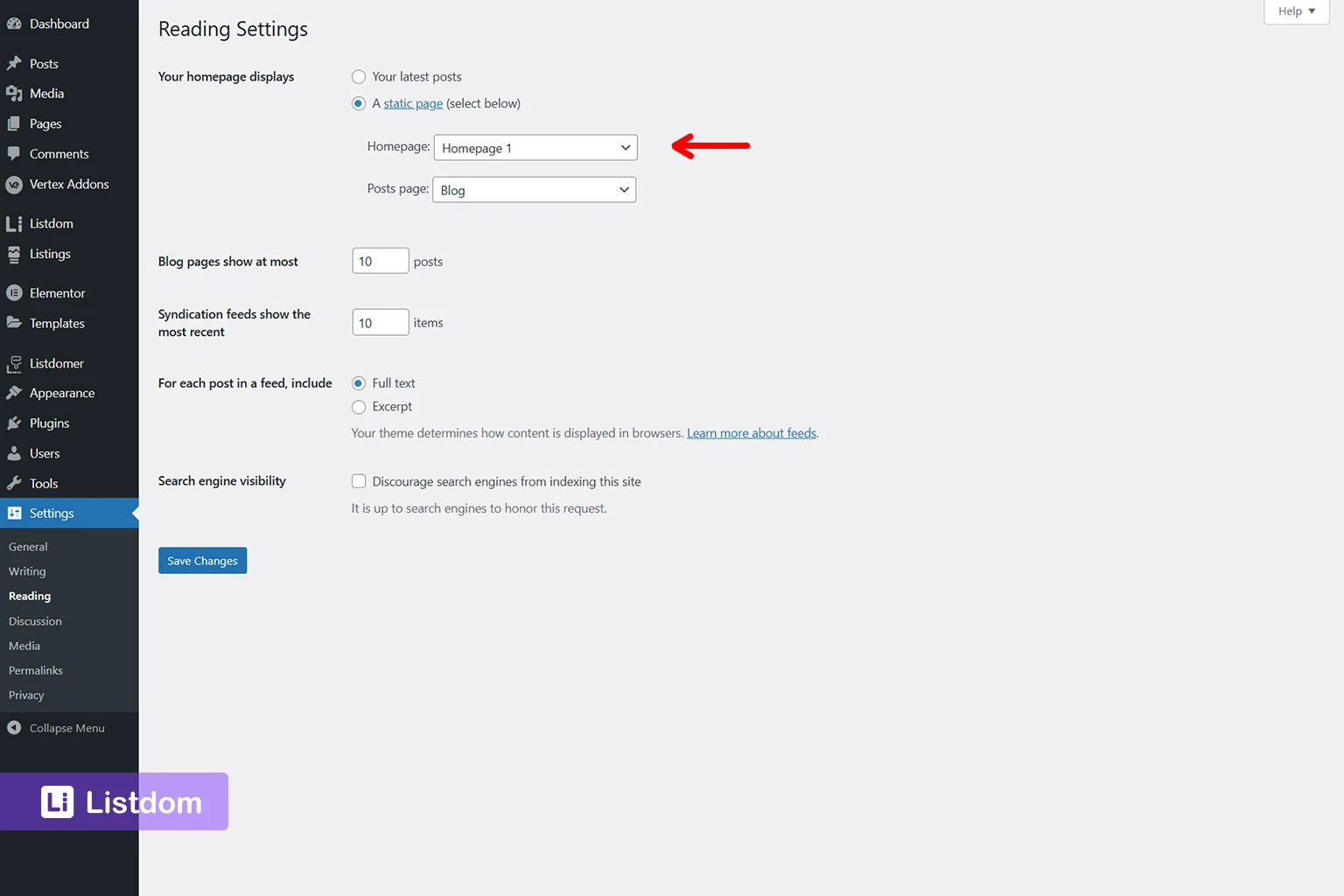
Also check Settings → Reading for homepage and blog page assignment, and refresh Settings → Permalinks to flush rewrite rules after import. These are easy wins that prevent unnecessary confusion.
If anything looks incomplete after import, also confirm that the required plugins were installed successfully during the demo process. Some demos may prompt you to install additional plugins so the imported setup works as intended.
What to customize first after the demo import
A smart onboarding path is to customize in layers.
First layer: fix global setup
Start with:
- homepage assignment
- menu locations
- permalinks
- logo
- contact details
- API keys and integrations if needed
This gives you a stable base.
Second layer: replace demo content
Then replace:
- homepage copy
- hero sections
- placeholder images
- sample listings you do not need
- footer content and social links
This is where the imported site starts becoming yours.
Third layer: review Listdom structure
Only after that should you make bigger changes to:
- listing taxonomies
- custom fields
- search forms
- listing layouts
- submission flow
- monetization settings
That order reduces the chance of breaking a working demo before you understand what powers it.
Plugin logic versus theme logic
This distinction is important in every onboarding article.
A new user can easily assume that everything visible in a demo comes from Listdom itself. That is not always true.
As a practical rule:
- Listdom plugin logic usually covers listings, taxonomies, search, maps, shortcodes, dashboard workflows, directory functionality, and any enabled add-ons, whether they were installed separately or loaded through a toolkit
- theme or builder logic often controls page styling, header/footer design, homepage sections, spacing, typography, and some layout presentation
If you change something visual and it does not appear in a Listdom settings area, it may belong to the theme, Elementor, or another layer of the site.
Understanding that difference will save a lot of time.
Common mistakes when using demos
1. Importing on a live site too early
Importing demo content on a live site is usually not a good idea because it adds many demo posts, pages, and categories. A staging site is safer.
2. Treating the demo like final production content
A demo is a learning and acceleration tool, not the finished website.
3. Editing pages before understanding what powers them
If you do not know whether a section is controlled by a shortcode, widget, builder template, or theme setting, changes can become messy very quickly.
4. Leaving demo taxonomies and sample listings untouched for too long
That creates confusion later when you start building real filters, categories, and search forms.
5. Forgetting technical cleanup after import
Menu assignments, homepage settings, permalinks, and API keys are all small tasks that make a big difference.
A practical onboarding workflow for demos
If you want the shortest reliable path, use this sequence:
- Decide whether you need plugin sample data or a full Listdomer demo
- Import the content on a staging site
- Review key pages and menu assignments
- Refresh permalinks and confirm homepage settings
- Inspect listings, taxonomies, and search behavior
- Replace logo, contact details, and placeholder content
- Remove demo content you do not need
- Start adapting the structure to your real niche
This way, the demo teaches you the system before you begin serious customization.
What to learn next after the demo import
Once your demo import is stable, the smartest next step is not to redesign everything at once. It is to learn the product in a practical order.
A good sequence is:
- Understand the Listdom dashboard and key menus
- Review how listings, categories, and locations are structured
- Study how search forms connect to results pages
- Then begin changing layouts, fields, and submission settings
That path keeps the onboarding journey manageable and helps you understand why the demo works before you start replacing the moving parts.
When demos are especially useful
Demos are especially valuable when:
- You are still choosing your directory niche
- You want to learn Listdom faster through real examples
- You need a clean visual environment for onboarding videos
- You want to test a vertical-specific layout before building from scratch
- You want to understand how search, listings, and pages work together
In those situations, a demo is not a shortcut in a negative sense. It is a teaching tool.
Final thoughts
If you are onboarding with Listdom, demos can save time and reduce confusion, but only if you use them correctly.
The goal is not just to import content. The goal is to understand how the imported site is assembled.
Start by deciding whether you need plugin-level sample data or a full Listdomer demo. Import on staging. Review the imported structure carefully. Fix the basic settings first. Then begin replacing content and adapting the site to your own niche.
If you want the smoothest onboarding path, use the demo as a learning environment first and a customization starting point second. That mindset will help you make cleaner decisions when you move into dashboards, taxonomies, search forms, and layout changes.
That approach helps you learn Listdom faster and gives you a more stable foundation for future customization, tutorials, and videos.
FAQ
Should I use Listdom dummy data or a full Listdomer demo?
Use dummy data if you want to learn the core plugin structure with less imported content. Use a full Listdomer demo if you want a more complete site with pages, menus, widgets, and styling already connected.
Where do I import a full Listdomer demo?
Go to Listdomer → Demo Import in your WordPress dashboard and choose the demo you want to import.
Is it safe to import a demo on a live website?
It is better to use a staging site first because importing demo content into production can add many posts, pages, and categories.
What should I check first after importing a demo?
Start with homepage settings, menu assignments, permalinks, API keys, and then review how listings, taxonomies, and search are structured.
Do demos include only design or also functionality?
A full Listdomer demo can include pages, posts, media, theme options, Listdom settings, widgets, menus, and dummy listings. So it is more than just design.
Why does the imported site look correct but still feel broken?
Often the issue is not the import itself. It can be missing menu assignments, homepage settings, permalinks, or required plugins and integrations.
Can I use a demo just for learning and later rebuild from scratch?
Yes. That is often one of the smartest uses of a demo during onboarding.
What is the biggest mistake with demos?
The biggest mistake is editing everything immediately without first understanding which parts come from Listdom, which come from the theme, and which are only placeholder demo content.